
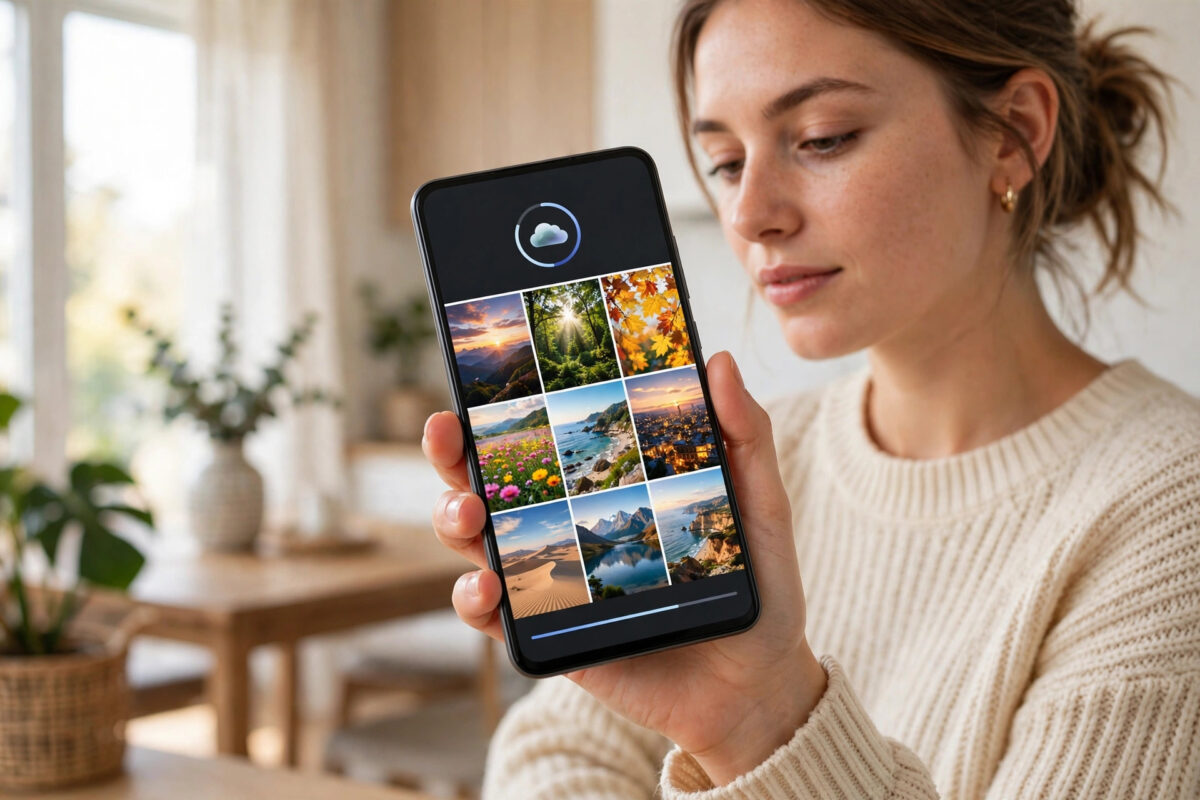
Your photo looks sharp in your Android gallery, but the moment you post it on Instagram it turns soft, pixelated, or blurry. This is one of the most common complaints from Android users, and it is rarely the fault of your camera. The problem usually comes from a mix of Instagram compression, wrong upload settings, and a slow or unstable connection.
The good news is that you can fix most of it in a few minutes. You do not need a new phone or a paid app. You just need to change how the photo is prepared, how the app is set up, and how the upload happens.
Quick Answer
To fix blurry uploads on Instagram from Android, turn on high-quality uploads in Instagram settings, export your photo at 1080 pixels wide with a 4:5 ratio, and upload on a strong Wi-Fi connection. Go to your profile, tap the menu, open Settings and privacy, then Data usage and media quality, and enable Upload at highest quality. Avoid screenshots, filters applied twice, and posting while your phone is in data saver or battery saver mode.
Why Instagram Photos Look Blurry on Android
Instagram compresses every photo and video you upload. That compression keeps the app fast and saves storage on its servers, but it also removes detail. If your original file is already small, edited many times, or sent over a weak connection, the compression becomes much more visible.
Android adds another layer to the problem. There are hundreds of Android phone models with different screen sizes, camera software, and image processing. Instagram cannot optimize for every single one the same way it does for a small number of iPhone models. That is why the same photo can look sharper when uploaded from one phone and softer from another.
Compression and Resizing
Instagram resizes large images down to a maximum width of 1080 pixels for the feed. If you upload a very large photo, the app shrinks it quickly and not always cleanly. If you upload a photo that is smaller than 1080 pixels wide, Instagram stretches it, and that stretching causes blur.
Connection Quality During Upload
When your connection drops or slows down during an upload, Instagram may reduce the quality further to finish the post. This happens a lot on mobile data, public Wi-Fi, and when you move between rooms while uploading. The app chooses speed over quality in those moments.
App Settings That Lower Quality
Many Android phones and Instagram itself have data-saving features turned on by default. Data saver modes are designed to use less data, and they do that by uploading a smaller, more compressed version of your photo. Battery saver can also limit how the app works in the background.
Step-by-Step Fix for Blurry Instagram Uploads on Android
Follow these steps in order. Most users see a clear improvement after the first three steps alone.
- Open Instagram and go to your profile page.
- Tap the three lines in the top right corner to open the menu.
- Tap Settings and privacy, then scroll down to Data usage and media quality.
- Turn on the option called Upload at highest quality.
- Turn off Data saver if it is enabled in the same section.
- Close Instagram completely and reopen it so the new settings take effect.
- Before posting, connect to a stable Wi-Fi network instead of mobile data.
- Select your photo, make your edits once, and post without re-saving the same image multiple times.
These steps match the guidance in the Instagram Help Center guide to photo and video quality settings, which explains how data settings affect what other people see.
Prepare Your Photo Correctly Before Uploading
How you prepare the photo matters as much as the app settings. A well-prepared file survives compression much better than a random gallery export.
Use the Right Size and Ratio
For feed posts, aim for 1080 pixels wide. The best ratio for most feed photos is 4:5, which is 1080 by 1350 pixels. This size uses the most screen space and avoids extra cropping. Square posts should be 1080 by 1080 pixels. Landscape photos should be 1080 by 566 pixels, although 1080 by 1350 usually looks better in the feed.
If your photo is much smaller than these sizes, do not try to enlarge it with an editor. Enlarging cannot add real detail. Instead, use the original photo from your camera app rather than a version sent through a messaging app.
Export in the Right Format
Export as JPG with high quality, ideally 90 to 100 percent in your editor settings. Avoid saving the same photo over and over as a JPG, because each save removes a little more detail. If you edit in Lightroom, Snapseed, or another editor, export once at the final size and upload that file directly.
Sharpen Slightly Before Export
A small amount of sharpening helps a photo survive compression. In most editors, a sharpening value between 20 and 40 is enough. Do not overdo it. Too much sharpening creates harsh edges and noise, and Instagram compression makes those problems worse.
If your problem is mainly with vertical content, our guide on fixing Instagram Stories cropping for vertical videos explains the safe zones and sizes that prevent unwanted cuts.
Fix Blurry Instagram Stories and Reels on Android
Stories and Reels are compressed even more heavily than feed posts. For Stories, use 1080 by 1920 pixels, which is a 9:16 ratio. For Reels, use the same 1080 by 1920 size, keep important text away from the top and bottom edges, and export video at 30 frames per second if you are editing outside Instagram.
Avoid adding stickers, music, and text in another app and then adding more inside Instagram. Each extra save and re-upload adds compression. Where possible, record inside the Instagram app for Stories, or upload a clean edited file and add Instagram text and stickers only once, inside the app.
Also check that your camera app is not set to a low resolution. Open your phone camera settings and make sure photo size is set to the highest option and that any storage saver or high efficiency format that your editor cannot handle properly is understood before you shoot.
Check Your Android Phone Settings
Turn Off System Data Saver
- Open your phone Settings and tap Network and internet or Connections.
- Find Data Saver and turn it off, or allow Instagram unrestricted data use.
- In the Instagram app info page, allow background data usage.
Clear a Corrupted App Cache
A damaged cache can cause repeated failed or low-quality uploads. Go to Settings, then Apps, then Instagram, then Storage, and tap Clear cache. Do not tap Clear data unless you know your login details, because clearing data signs you out. Clearing the cache does not delete your photos or posts.
Update the App and Your Phone Software
Open the Google Play Store and update Instagram to the latest version. Old versions often have bugs that were fixed later. Also install any pending Android system updates, because camera and media handling improvements are often included in those updates.
Common Mistakes to Avoid
- Uploading screenshots: Screenshots are low resolution by nature. Always upload the original photo file.
- Downloading and re-uploading: Saving a photo from WhatsApp, Facebook, or Instagram itself and then posting it again adds heavy compression every time.
- Editing the same photo many times: Applying filters in two or three different apps before posting degrades the file.
- Posting on weak mobile data: A dropping connection is one of the fastest ways to get a blurry result.
- Using in-app camera for important posts: The Instagram camera often captures at lower quality than your main camera app on Android.
- Zooming in before posting: Pinching to crop inside Instagram discards pixels. Crop in your editor at full quality instead.
Conclusion
Blurry Instagram uploads on Android are almost always fixable. Turn on upload at highest quality, turn off data saver options, prepare your photo at 1080 pixels wide in a 4:5 ratio, and upload on stable Wi-Fi. Use your main camera app, edit once, sharpen lightly, and avoid screenshots and re-downloaded copies. Follow this routine for a week of posts and compare the results. In most cases, the difference is obvious, and your feed will finally show the quality your camera actually captured.
Frequently Asked Questions
Why do my Instagram photos look good on iPhone but blurry on Android?
Instagram optimizes for a smaller range of iPhone models, while Android covers hundreds of devices. Different processing and compression paths can make Android uploads look softer, especially if high-quality upload is not enabled.
Does uploading at highest quality use more data?
Yes, it uses more data because the file is larger and less compressed. That is why it is best to use this setting on Wi-Fi. The trade-off is worth it if image quality matters to you.
What is the best photo size for Instagram on Android?
Use 1080 by 1350 pixels for portrait feed posts, 1080 by 1080 for square posts, and 1080 by 1920 for Stories and Reels. These sizes match what Instagram displays and reduce extra resizing.
Can a VPN or slow Wi-Fi cause blurry uploads?
Yes. Any connection problem during upload can trigger extra compression. If uploads look worse at certain times of day, try a different Wi-Fi network and turn off the VPN while posting.
Will reinstalling Instagram fix blurry uploads?
Sometimes. If the cache is corrupted or settings are stuck, uninstalling and reinstalling gives you a clean start. Log back in, re-enable high-quality uploads, and test with one photo before posting many.



Leave a Reply