
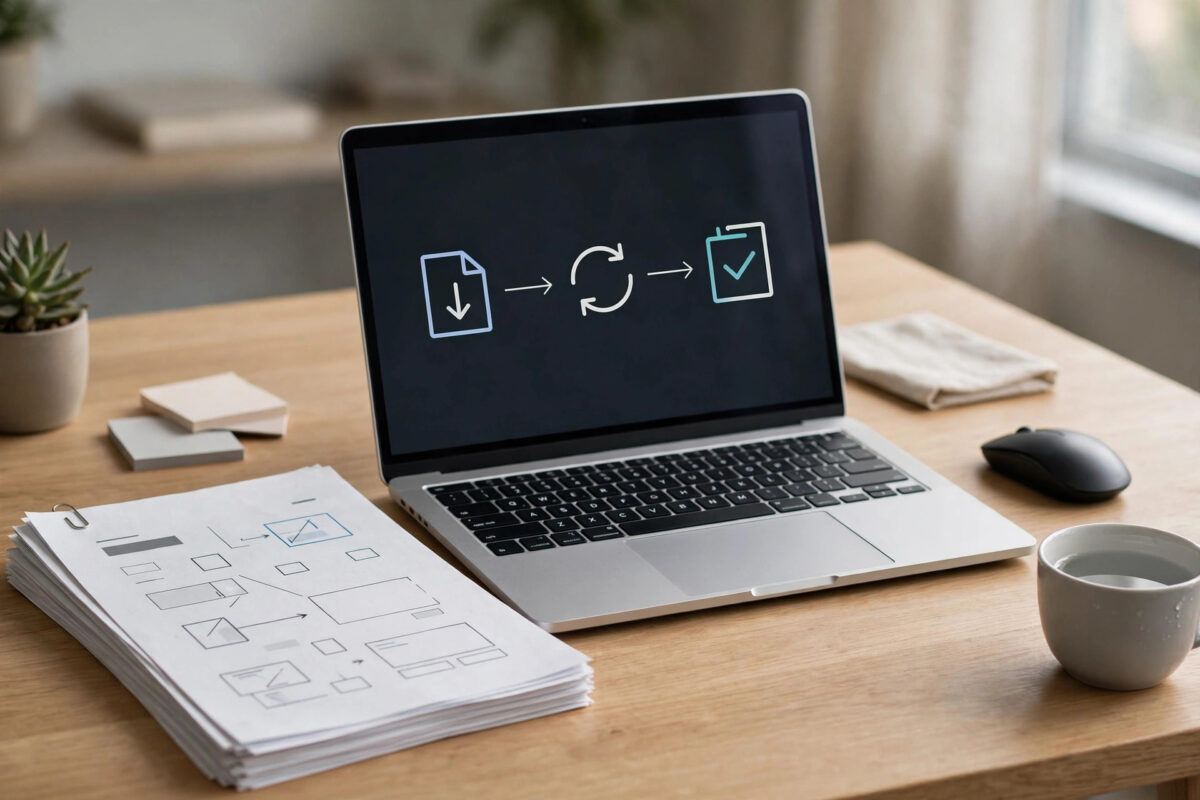
Converting a PDF to Word sounds simple until the result opens with broken tables and shifted images. Fonts change, headings disappear, and paragraphs split into odd text boxes.
This guide shows you how to get a clean, editable Word file for free. You will learn which tools work best, and what to check after conversion.
Quick Answer
Upload your PDF to a reputable free converter such as Adobe Online, Smallpdf, or iLovePDF, and choose DOCX output. Enable OCR if the file is scanned. Download the result and spend five minutes checking tables, fonts, and headings.
Why PDF to Word Conversion Breaks Formatting
A PDF is built to look identical on every device. It stores where text and images sit on the page.
Word works differently. Text in Word flows and reflows as you edit it.
Because of that difference, a converter has to guess the original structure. It must decide where paragraphs end and whether lines form a real table.
Digital PDFs created from Word or Google Docs usually convert well. They contain real, selectable text and embedded font information.
Scanned PDFs are much harder. They are simply photos of pages, so they need OCR to turn pictures of letters into editable text.
What to Look for in a Free Converter
Not all free converters produce the same quality. A few features make a clear difference to your final document.
Formatting and OCR Accuracy
Choose a tool that preserves headings, lists, and tables as editable content. For scanned files, check that OCR supports your document language.
File Size and Page Limits
Most free tiers limit file size, page count, or conversions per day. That is normal, and it is enough for most everyday documents.
Privacy and Automatic Deletion
Look for encrypted uploads and automatic file deletion after a short time. Never upload passports or bank statements to an unknown service.
Best Free Tools to Try First
Adobe’s online converter is a strong starting point. Adobe created the PDF format, so its font and layout handling is reliable.
Smallpdf and iLovePDF are also popular. Both are simple to use and handle tables reasonably well on their free tiers.
Word for the web is another good option if you have a Microsoft account. It produces native Word formatting without extra software.
You can start with Adobe’s official PDF to Word converter online and compare its result with one other tool. The better result is often obvious within minutes.
For more tested workflows, browse our online tools and technology guides on NetworkUstad. We explain common document tasks in plain, practical language.
Step-by-Step: Convert a PDF to Word Online
Follow these steps in order for the cleanest result. Do not skip the preparation or the final check.
- Check your PDF first. Try selecting a sentence with your mouse. If you can select it, the file has real text and will convert easily.
- Remove any password you own. Most free converters cannot open locked files, so unlock the copy you plan to upload.
- Open the converter and upload. Drag your file into the browser window and wait until the upload finishes completely.
- Choose DOCX as the output. DOCX preserves modern styles and tables far better than the older DOC format.
- Enable OCR for scanned files. Turn OCR on and select the correct language before you start the conversion.
- Convert and download promptly. Free services delete files quickly for privacy, so save your Word file straight away.
- Compare against the original. Open both files side by side and check headings, tables, images, and page breaks.
How to Preserve Tables, Images, and Layout
Tables are the most fragile part of any conversion. Drawn lines in a PDF do not always become real rows and columns in Word.
If a table arrives as separate text boxes, try a different converter before rebuilding it by hand. Tools vary widely on table detection.
Check images for sharpness and position after conversion. Captions sometimes merge into body text and need to be separated again.
Fonts also affect spacing. If Word substitutes a missing font, pagination can shift across the whole document.
Install the original font if you can. Otherwise choose a close alternative with a similar width, then check page breaks again.
Multi-column newsletters are the hardest files of all. A light manual tidy is often faster than repeated re-conversion.
Digital PDFs vs Scanned PDFs: Why It Matters
A digital PDF contains a hidden text layer. You can search it, copy from it, and highlight words easily.
A scanned PDF has no text layer at all. Searching finds nothing, even though the words look clear on screen.
This single difference decides your whole approach. Digital files need a converter, while scanned files need a converter plus OCR.
OCR quality depends on scan quality. A straight, high-resolution scan in good light converts far better than a skewed photo.
If your scan is poor, re-scan it flat at a higher resolution if possible. Five minutes here can save thirty minutes of corrections later.
Handwriting is a special case. Most free OCR tools handle printed text well but struggle badly with handwritten notes and signatures.
After Conversion: A Quick Quality Checklist
Do not trust the download preview alone. Open the actual Word file and work through it page by page.
Start with the structure. Confirm that titles use real heading styles, not just larger bold text faked by the converter.
Next, check every table cell by cell. Numbers, totals, and dates are where silent conversion errors cause the most harm.
Then review images, headers, and footers. Page numbers sometimes duplicate, disappear, or move into the main body text.
Finally, run a spell check in Word. It quickly flags many OCR errors that your eyes will skim past on a first read.
If you plan to share the file, export a test PDF from Word. Compare its pagination with the original before sending anything.
When Free Converters Are Not the Right Choice
Free tools are excellent for occasional, low-risk documents. They are not ideal for every job or every type of file.
Avoid uploads for legal, medical, or financial records with personal data. Desktop software keeps those files on your own computer.
Very long books and manuals can also be awkward. Free page limits may force you to split and recombine many sections.
In those cases, a desktop editor or a paid plan may save real time. The free route is best when the document is short and non-sensitive.
Common Mistakes and Practical Tips
The biggest mistake is converting a scanned PDF without OCR. The result looks like a Word file but contains only page images.
Another mistake is uploading sensitive documents to unfamiliar sites. Stick to well-known providers with a clear deletion policy.
Many failures are simply free-tier limits. If a file is too large, compress it first or split it into smaller sections.
Do not start rewriting before you proofread. OCR can confuse similar characters, such as the number 0 and the letter O.
Keep the original PDF open in a second tab while you clean up. Compare section by section instead of relying on memory.
Save a backup of the first conversion before heavy editing. Then you can always return to a clean starting point.
Conclusion
You can convert a PDF to Word online for free without losing most formatting. The key is matching the tool to your document type.
Use OCR for scans, choose DOCX, and check tables and fonts afterwards. For everyday reports, CVs, and contracts, the best free tools need only light tidying.
Frequently Asked Questions
Can I convert a PDF to Word for free without losing formatting completely?
Yes, for most digitally created PDFs. Headings, images, and simple tables usually survive well, but scanned files and complex layouts still need a manual check.
Why does my converted Word file look like an image?
Your PDF was probably scanned and contains no real text. Re-run the conversion with OCR enabled and the correct language selected.
Is it safe to upload documents to free online converters?
Established tools encrypt uploads and delete files automatically. Even so, avoid uploading passports, financial records, or confidential files to any free service.
What should I do if my file exceeds the free limit?
Compress the PDF or split it into smaller parts. Convert each part separately, then combine the Word sections into one document.
Which is better after conversion, DOC or DOCX?
DOCX is better for almost all modern use. It preserves styles more reliably and works in Word, Google Docs, and LibreOffice.


Leave a Reply