
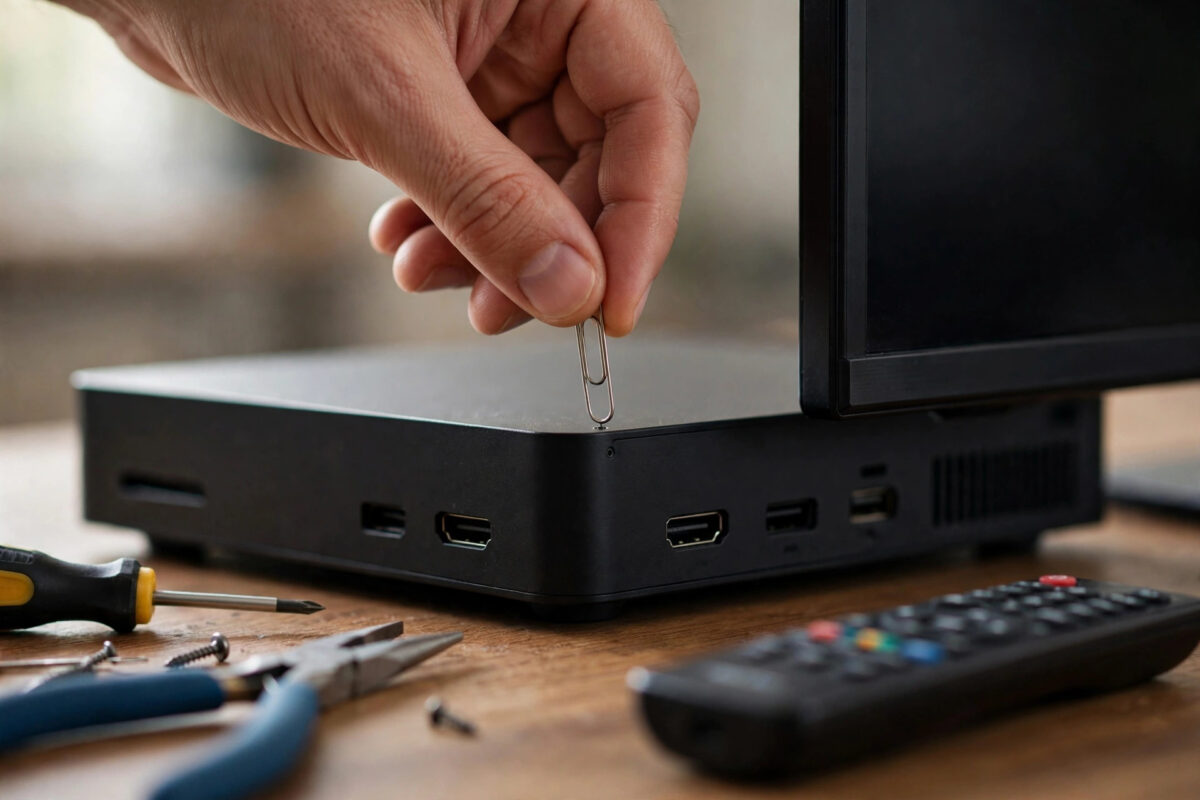
Sometimes a Roku freezes on the logo screen, refuses to connect, or you are about to sell it and want your accounts wiped. That is when the physical reset button earns its place: a factory reset using it erases everything and returns the Roku to its out-of-box state.
This guide shows you where the button is on each type of Roku, the exact press-and-hold method, and how to set the Roku up again afterwards.
Quick Answer
To factory reset a Roku with the physical button, leave the Roku plugged in and powered on, find the small RESET button or pinhole on the back or bottom of the device, and press and hold it for about 10 to 20 seconds until the device restarts or its light blinks rapidly. Release the button and the Roku will erase itself and restart to the first-time setup screen, where you can set it up again or leave it clean for a new owner.
Factory Reset vs Restart: Know the Difference
A restart turns the Roku off and on again. Your channels, accounts, Wi-Fi password, and settings all stay as they were. It is the right fix for most everyday glitches.
A factory reset erases everything: channels are removed, accounts are signed out, Wi-Fi details are forgotten, and settings return to defaults. The Roku must be set up from the beginning. There is no undo.
Before You Press It: A Short Checklist
- Make sure a reset is really needed: Try a restart first, and check whether the problem is actually your internet or one faulty app. Our guide to fixing a Roku that keeps freezing or restarting covers the gentler fixes worth trying before you wipe anything.
- Know your logins: After the reset you will need your Wi-Fi password, your Roku account email and password, and the sign-ins for every streaming service you use. Finding these before you reset saves a painful hour afterwards.
- Note your subscriptions: A factory reset does not cancel subscriptions. Anything billed through your Roku account keeps billing until you cancel it in the account itself, and anything billed directly by a service is untouched either way.
- Keep the power connected: The Roku must stay powered during the reset. A device that loses power mid-reset can end up in a worse state, so plug it into its wall adapter rather than a loose USB port.
Where Is the Physical Reset Button?
- Roku streaming sticks: Look on the back or side of the stick for a small raised button or a pinhole.
- Roku boxes such as Express, Premiere, and Ultra: Check the back panel near the ports, or the underside. Some models have a visible button; smaller ones use a pinhole.
- Roku TVs: Look on the back or side panel near the inputs — it is often a pinhole.
For a pinhole button you will need a straightened paperclip or SIM ejector tool. Have it ready before you start.
How to Factory Reset Using the Physical Button: Step by Step
- Make sure the Roku is plugged into power and switched on. For a TV, the TV itself should be on. The reset button only triggers the factory reset while the device has power; pressing it on an unplugged device does nothing.
- Locate the RESET button or pinhole using the guide above.
- Press and hold the button. For a raised button, use your fingertip. For a pinhole, insert the paperclip gently until you feel a soft click, then hold it there. Do not jab or force it.
- Keep holding for about 10 to 20 seconds. Watch the device: on models with a status light, the light will blink rapidly or change pattern. On a Roku TV, the screen may go blank and then show the Roku logo as it restarts. Timing varies a little by model, so watch for the restart rather than counting rigidly — but do not release after just two or three seconds, because a very short press on some models only restarts the device instead of resetting it.
- Release the button once the device clearly restarts or the light blinks rapidly.
- Wait while the Roku erases itself and reboots. This can take a few minutes. When it finishes, you will see the first-time setup screen asking you to choose a language — proof the factory reset worked.
Roku’s own instructions describe this same method, and you can compare the details for your exact model in the Roku support guide to factory resetting your Roku device. If your device has no physical button at all — a small number of models rely on the settings menu only — use Settings, then System, then Advanced System Settings, then Factory Reset, and enter the code shown on screen.
Setting Up Your Roku Again After the Reset
- Pair the remote if prompted by holding the pairing button in its battery compartment near the Roku.
- Choose your language and connect to your Wi-Fi network by entering the password.
- Let the Roku download and install any software updates. This can take several minutes on a freshly reset device.
- Sign in to your Roku account, or create one if needed. Using the same account as before restores your channel list in many cases, because channels are linked to the account.
- Re-add your channels from the Streaming Store and sign in to each streaming service. This is the slow part, and it is why having your passwords ready matters.
- Re-apply your personal settings: display type, screensaver, captions, and any parental controls or PIN you used before.
If you reset the Roku to sell or give it away, stop at the setup screen and also unlink the device from your Roku account online.
When Should You Use the Physical Reset Button?
- The Roku is frozen or stuck on the logo screen and you cannot reach the settings menu.
- The remote is lost or will not pair, leaving you no way to navigate menus.
- You are selling, donating, or returning the Roku and need every account and trace of your data removed.
- Serious, persistent faults such as constant crashing or failed updates that a restart, software update, and network reset have not cured.
If the Reset Does Not Seem to Work
If nothing happens, confirm the device has power, and hold the button for a full 20 seconds. With a pinhole, you may have missed the button inside — adjust the paperclip angle until you feel the soft click.
If the problem returns immediately after a fresh setup, the fault is likely hardware or your network. Test the Roku on a different TV and network, and contact Roku support if it still fails.
Common Mistakes to Avoid
- Pressing the button briefly and expecting a reset: A short press may only restart the device on some models. Hold for 10 to 20 seconds until you see the restart or rapid blinking.
- Resetting to fix a simple glitch: A frozen app or one bad evening of buffering does not need a full wipe. Restart first; reset last.
- Forgetting subscriptions keep billing: The reset signs you out; it does not cancel anything. Cancel unwanted subscriptions in your Roku account or with the service directly.
- Resetting without your passwords ready: You will need Wi-Fi, Roku account, and every app login. Gather them first or setup becomes a long, frustrating job.
- Unplugging during the reset: Keep power connected from the moment you press the button until the setup screen appears.
- Selling the Roku without unlinking it online: Reset the device itself and remove it from your Roku account’s device list, so nothing of yours remains attached to it.
Conclusion
The physical reset button is your Roku’s emergency clean start. With the device powered on, press and hold the RESET button or pinhole for about 10 to 20 seconds until it restarts, then let it erase itself back to the out-of-box setup screen. Use it when menus are unreachable, when faults survive every gentler fix, or when the device is going to a new owner. Prepare your passwords first, remember that subscriptions are not cancelled by a reset, and your Roku will be back to a clean, working state — ready to set up fresh or hand over with confidence.
Frequently Asked Questions
How long should I hold the Roku reset button?
Hold it for about 10 to 20 seconds while the device is powered on. Release when the status light blinks rapidly or the screen restarts and shows the Roku logo. A press of only a second or two is not enough and may do nothing or only restart the device on some models.
Will a factory reset delete my Roku account?
No. It unlinks the device from your account and erases everything stored on the device, but your Roku account itself still exists online with its subscription and purchase records. You can sign back in on the same device or a new one.
Does the factory reset cancel my subscriptions?
No. Subscriptions billed through Roku continue until you cancel them in your Roku account, and subscriptions billed directly by a service continue with that service. The reset only removes the channels and sign-ins from this device.
My Roku has no reset button. What can I do?
A few models rely on the menu method only. Go to Settings, then System, then Advanced System Settings, then Factory Reset, and follow the on-screen code entry. If the device is frozen and has no button, unplug it for a full minute to force a restart, then use the menu method once it responds.
Will a factory reset fix a Roku stuck on the logo screen?
Often, yes — that is one of its main uses, because it works even when you cannot open any menus. If the Roku gets stuck on the logo again immediately after a successful reset and fresh setup, the problem is more likely a hardware fault, and you should contact Roku support.



Leave a Reply