
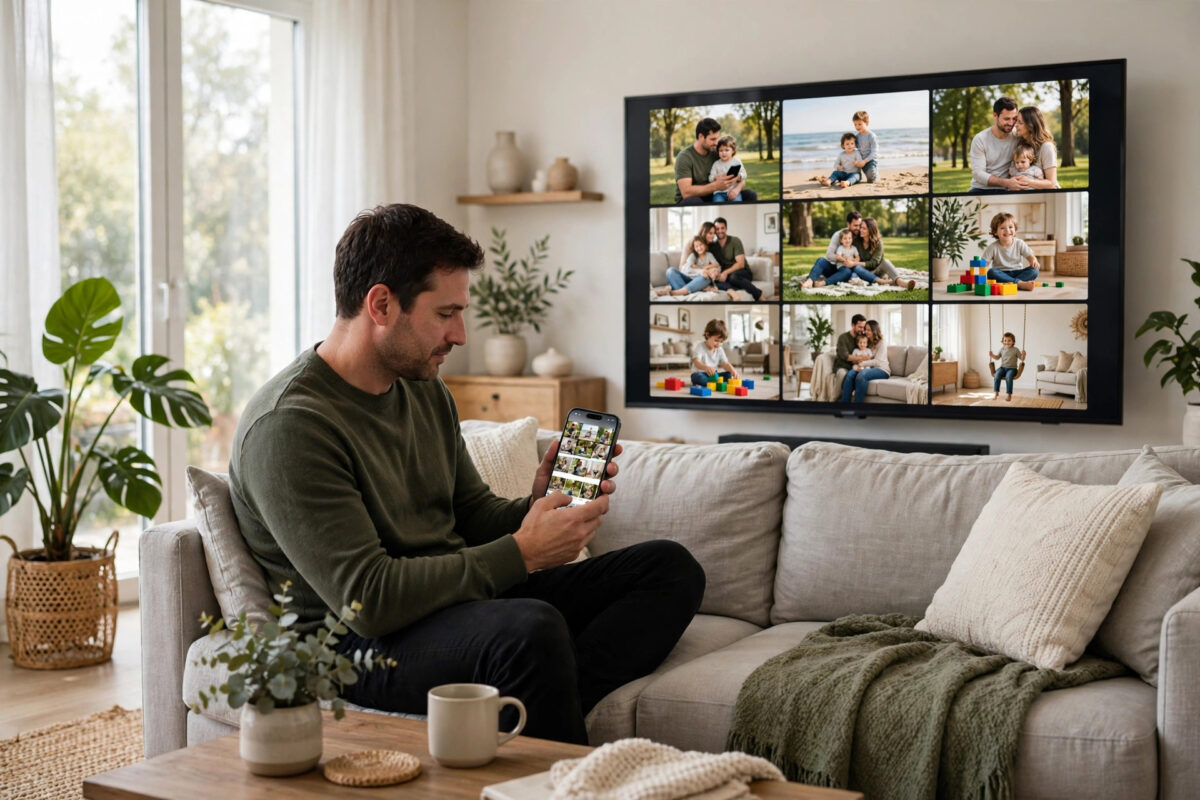
You have a photo, video, or presentation on your iPhone and you want it on the big screen. With a modern Roku, you need no cables or extra boxes — your iPhone can mirror its screen straight to your Roku over Wi-Fi.
Roku supports Apple’s AirPlay on most recent devices, so mirroring works much like it does with an Apple TV. This guide explains what you need, how to mirror step by step, and what to do when it fails.
Quick Answer
To screen mirror an iPhone to a Roku, connect both devices to the same Wi-Fi network, then make sure AirPlay is turned on in the Roku’s Settings under Apple AirPlay and HomeKit. On your iPhone, open Control Centre, tap Screen Mirroring, and choose your Roku from the list. Enter the code shown on the TV if asked, and your iPhone screen will appear on the Roku. Tap Stop Mirroring in Control Centre when you are finished.
What You Need Before You Start
Most mirroring problems come from one of these requirements being missed:
- A compatible Roku: Most Roku TVs and recent streaming players support AirPlay 2. Generally, devices running Roku OS 9.4 or later include it, though a few of the oldest and cheapest models do not. If your Roku is several years old, check its model against Roku’s compatibility information.
- A compatible iPhone: Any iPhone that runs a recent version of iOS can use Screen Mirroring from Control Centre. Keeping iOS up to date avoids most connection bugs.
- The same Wi-Fi network: Your iPhone and your Roku must be on the same network — and, importantly, on the same band if your router splits 2.4GHz and 5GHz into separate network names. An iPhone on the 5GHz network often cannot see a Roku sitting on the 2.4GHz one.
- AirPlay enabled on the Roku: It is usually on by default, but it can be switched off, and a code requirement can be set. You will check this in the next section.
Update both devices before you begin — Roku via Settings, System, Software Update, and iPhone via Settings, General, Software Update. Apple explains the general process in the Apple support guide to mirroring an iPhone to a TV with AirPlay.
Step 1: Turn On AirPlay on Your Roku
- Press Home on your Roku remote and open Settings.
- Select Apple AirPlay and HomeKit. On some models you will open this settings page and see the AirPlay options directly.
- Make sure AirPlay is set to On.
- Look at the Require Code setting. Options usually include requiring a code on first use only, or every time. For home use, first use only is a good balance of convenience and safety.
- Optionally, set subtitles and other AirPlay preferences here later — you do not need them to start mirroring.
Step 2: Mirror Your iPhone Screen to the Roku
- Unlock your iPhone and confirm it is connected to the same Wi-Fi network as the Roku.
- Open Control Centre. On iPhones with Face ID, swipe down from the top right of the screen. On iPhones with a Home button, swipe up from the bottom edge.
- Tap the Screen Mirroring button, which looks like two overlapping rectangles.
- Your Roku should appear in the list of available devices, usually by its name such as Living Room Roku or the name of the Roku TV. Tap it.
- If a four-digit code appears on your TV, enter it on the iPhone when prompted. This confirms you are connecting to your own TV and not a neighbour’s.
- Wait a few seconds. Your iPhone screen will appear on the TV, following whatever you do on the phone, including rotating when you turn the phone sideways.
Everything on your iPhone screen is shown on the TV, including notifications. Turn on Do Not Disturb or Focus mode first if you are showing photos to guests.
Mirroring vs Casting: An Important Difference
Mirroring shows an exact copy of your phone screen. Casting is different: the app sends just the video to the TV and your phone becomes a remote. In apps like YouTube, casting gives better quality and less battery drain, and you can keep using your phone.
Use casting when the app offers it, and mirroring when it does not — for photos, websites, or apps with no TV support. Some streaming services block mirrored playback: if you see a black screen where the video should be, use the service’s own Roku channel instead.
Making Mirroring Look and Sound Its Best
- Rotate the phone: Videos and photos look best when you hold the iPhone sideways so the image fills the TV screen instead of sitting in a narrow strip in the middle.
- Keep the Wi-Fi strong: Mirroring sends a live video feed, so a weak signal causes lag, blur, and dropped connections. Sit in the same room as the router where possible, and if your connection struggles generally, our guide to fixing slow Wi-Fi at home covers the most common causes.
- Plug the phone in for long sessions: Mirroring uses a lot of battery because the screen and Wi-Fi stay busy the whole time.
How to Stop Mirroring
When finished, open Control Centre, tap Screen Mirroring, and tap Stop Mirroring. The TV will return to the Roku home screen.
Troubleshooting: When the Roku Does Not Appear or Mirroring Fails
The Roku Is Not in the Mirroring List
Check the same-network rule first — this is the cause most of the time. Confirm both devices show the identical network name in their settings, including the same band. Then restart both the iPhone and the Roku, and make sure AirPlay is still switched on in the Roku settings. Guest Wi-Fi networks and router settings called AP isolation or client isolation also hide devices from each other, so connect to your main home network, not the guest one.
The Connection Drops or Freezes
Move closer to the router, reduce other heavy network use, and restart the router if drops continue. Mirroring cannot buffer ahead like normal streaming, so it shows up weak Wi-Fi faster.
There Is a Delay Between the Phone and the TV
A small delay of a second or so is normal for AirPlay mirroring. It does not matter for photos, videos, or presentations, but it makes fast-paced games frustrating. For games, use the game’s own TV mode if it has one, or accept that mirroring suits slower content best.
The Picture Has Black Bars or Looks Blurry
The TV shows your phone’s screen shape, so a phone held upright produces black bars on the sides — rotate it. Blurriness usually means the Wi-Fi feed has dropped in quality to stay connected. Improving the signal, or lowering network load, sharpens it. Also check the TV’s picture size setting is not zooming the image.
Your Roku Does Not Support AirPlay
Older Roku models without AirPlay cannot receive iPhone mirroring. Your options are using the service’s Roku channel directly, connecting the iPhone with an official HDMI adapter and cable, or upgrading to a current Roku.
Common Mistakes to Avoid
- Being on different networks or bands: The number one failure. Same network name, same band, no guest network.
- Leaving notifications on during a presentation: Mirroring shows everything. Turn on Focus or Do Not Disturb before you connect.
- Expecting blocked apps to mirror: Some film and sports apps deliberately show a black screen when mirrored. Use their Roku channel instead — that is a policy, not a fault.
- Forgetting the code prompt: If your Roku is set to require a code every time, you must enter it on each connection. Setting it to first use only removes repeat prompts at home.
- Walking away with the phone: Mirroring ends or degrades when the phone leaves Wi-Fi range or locks and disconnects. Keep the phone nearby and awake for the session.
Conclusion
Mirroring an iPhone to a Roku is built in and free once AirPlay is switched on. Put both devices on the same Wi-Fi network, enable AirPlay in the Roku’s Apple AirPlay and HomeKit settings, then choose your Roku from the Screen Mirroring button in your iPhone’s Control Centre. Rotate the phone for full-screen viewing, keep the Wi-Fi strong, and stop mirroring from Control Centre when you are done. If the Roku never appears, work through the network, update, and restart checks — in almost every home, one of those is the answer.
Frequently Asked Questions
Do all Roku devices support iPhone screen mirroring?
No. Most Roku TVs and streaming players from the last several years support AirPlay 2, which is what iPhone mirroring uses, but some older models do not. Check for the Apple AirPlay and HomeKit menu in Settings; if it is missing after a software update, your model is not supported.
Why does my video show a black screen while mirroring?
Some streaming apps block mirrored playback of films and shows to protect their content licences. The menus mirror fine but the video itself stays black. The fix is to install that service’s channel on the Roku and watch through it directly.
Does screen mirroring use mobile data?
Mirroring itself travels over your home Wi-Fi between the phone and the Roku, not over mobile data. However, whatever the phone is displaying may have been loaded using mobile data if Wi-Fi is off, so keep the iPhone on the same Wi-Fi network for both reasons.
Can I mirror to a Roku without Wi-Fi?
Standard AirPlay mirroring to a Roku needs both devices on the same Wi-Fi network. Unlike some Apple-to-Apple connections, Roku mirroring does not work as a direct peer-to-peer link without a network, so a working home Wi-Fi setup is required.
How do I stop other people mirroring to my Roku?
Set the AirPlay Require Code option to every time, or turn AirPlay off entirely in Settings under Apple AirPlay and HomeKit when you are not using it. The code setting means nobody can mirror without reading the code from your TV screen first.



Leave a Reply