
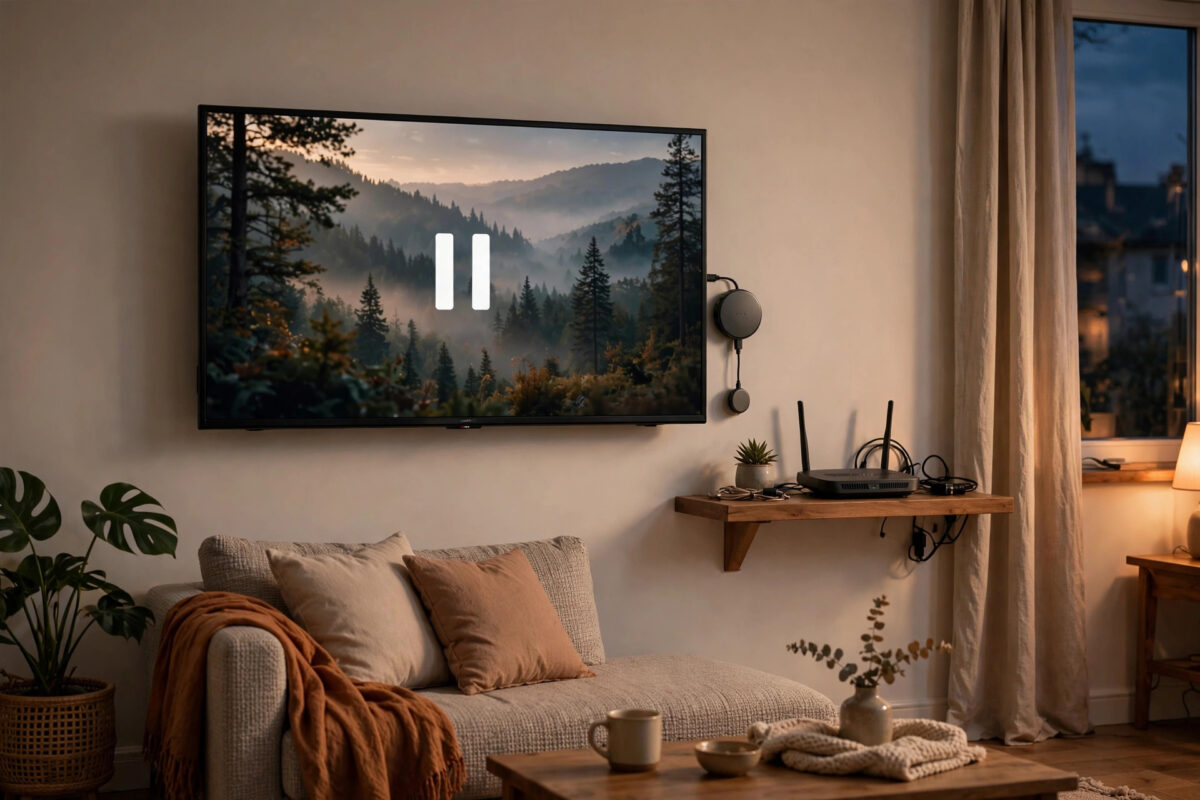
Few things are more frustrating than settling down to watch a film, only for your Chromecast to drop off Wi-Fi in the middle of a scene. The video freezes, the cast icon disappears, and you have to start all over again. The good news is that most disconnection problems have simple causes, and you can fix them at home without special tools.
Quick Answer
To fix a Chromecast that keeps disconnecting from Wi-Fi, move it closer to your router, switch it to the 2.4 GHz band if your signal is weak, and restart both the Chromecast and the router. Check that the Chromecast is getting enough power from its original adapter, remove sources of interference, and update its firmware through the Google Home app. If drops continue, factory reset the device and set it up again on a clean connection.
Why Chromecast Keeps Losing the Connection
Chromecast is a small streaming stick that depends entirely on a stable Wi-Fi signal. Unlike a laptop, it has a tiny antenna and sits behind your TV, where metal, glass, and the TV panel itself can block the signal. A connection that looks fine on your phone can be much weaker where the Chromecast sits.
Other common causes include an overloaded router, interference from nearby networks, a weak power supply, and outdated software. Understanding which one affects you helps you apply the right fix instead of trying random steps for an hour.
Weak Signal Behind the TV
Televisions are full of metal shielding. When a Chromecast dongle is tucked directly behind the screen, the TV can act like a wall between the dongle and the router. Using the short HDMI extender cable that comes in the box moves the device a few inches out from behind the TV and often improves reception noticeably.
Router Distance and Walls
Wi-Fi weakens with every wall and floor it passes through. Brick, concrete, and foil-backed insulation are especially hard on the signal. If your router is in another room or on another floor, your Chromecast may be holding on to a signal that is too weak to stay connected during busy moments.
Step-by-Step Fixes That Work
Work through these steps in order. Stop when the problem goes away, so you know what actually fixed it.
1. Restart Everything Properly
- Unplug the Chromecast from power and wait a full 30 seconds.
- Unplug your router and modem, wait 30 seconds, then plug the modem back in first.
- Wait until the modem is fully online, then plug in the router.
- When your Wi-Fi name appears again on your phone, plug the Chromecast back in.
- Test with a long video for at least 20 minutes.
A proper restart clears temporary faults and forces a fresh connection. Always pull the power lead to restart it.
2. Check the Power Supply
Many people power a Chromecast from a USB port on the TV. That seems tidy, but TV USB ports often supply less power than the device needs, and they switch off when the TV sleeps. The result is random reboots and dropped connections that look like Wi-Fi faults.
Use the power adapter and cable supplied with the Chromecast and plug them directly into a wall socket. This single change fixes a surprising number of cases. For guidance on the correct setup, see Google’s official advice in the Chromecast troubleshooting guide for connection problems.
3. Improve the Wi-Fi Signal
- Move the router higher and more central if you can, away from the floor and corners.
- Use the HDMI extender to bring the Chromecast out from behind the TV.
- Keep the router away from microwaves, baby monitors, and cordless phone bases.
- If the router is far away, consider a Wi-Fi extender or mesh node in the TV room.
If you are improving your whole home setup, our guide on how to fix slow Wi-Fi at home and boost your signal walks through router placement and channel choices in more detail.
4. Choose the Right Wi-Fi Band
Most modern routers offer two bands. The 5 GHz band is faster but has a shorter range. The 2.4 GHz band is slower but travels further and passes through walls more easily.
If your Chromecast is far from the router, connect it to the 2.4 GHz network. Open the Google Home app, tap your Chromecast, open its settings, and check which network it uses. To change it, you may need to forget the current network and set the device up again, choosing the 2.4 GHz name during setup.
If the Chromecast is in the same room as the router, 5 GHz is usually the better choice because it is less crowded and handles high-quality video more smoothly.
5. Reduce Network Congestion
A router can only handle so much at once. If several people are gaming, downloading large files, and joining video calls while you stream in 4K, the Chromecast may lose out. Try pausing large downloads during a film and see if the drops stop.
On some routers you can turn on Quality of Service, often called QoS, and give the Chromecast or the TV room priority. It is also worth rebooting the router weekly if it is an older model that slows down over time.
6. Update Firmware and Apps
Chromecast updates itself automatically when it is idle and connected, but a device that keeps disconnecting may never stay online long enough to finish an update. Leave it powered on overnight with a good signal. You can check the firmware version in the Google Home app under device settings.
Also keep the Google Home app and the app you cast from, such as YouTube or Netflix, up to date on your phone. An old app version can cause casting to fail in ways that look like a Wi-Fi problem.
7. Check Router Settings
A few router settings can push a Chromecast off the network:
- AP or client isolation: This must be off, otherwise devices cannot see each other.
- Very short DHCP lease times: If your router hands out addresses that expire every hour, try a longer lease such as 24 hours.
- Band steering problems: Some routers aggressively move devices between bands. If drops happen often, give the 2.4 GHz and 5 GHz bands separate names and connect the Chromecast to one fixed band.
- Old security modes: Use WPA2 or WPA3. Very old WEP security can cause compatibility issues.
8. Factory Reset as a Last Resort
If nothing else works, a factory reset clears a corrupted setup. Hold the small button on the Chromecast while it is powered on until the light changes and the device restarts, or use the reset option in the Google Home app. Then set it up again from scratch, close to the router if possible, and test it before moving the TV back into place.
How to Tell If It Is the Chromecast or the Network
A quick test saves a lot of guesswork. Try casting from a different phone or a computer. If every device loses the Chromecast at the same time, the problem is the Chromecast or the network. If only one phone has trouble, the problem is that phone.
You can also test the Chromecast on a phone hotspot. If it stays connected there, your home network is the issue. If it still drops and feels very hot, it needs better airflow.
Common Mistakes to Avoid
- Powering from the TV USB port: It is convenient but unreliable. Use the wall adapter.
- Hiding the router in a cupboard: Doors and walls weaken the signal reaching the TV.
- Resetting the Chromecast first: A reset should be the last step, not the first, because you lose your setup.
- Ignoring the extender cable: That small cable in the box exists for a reason. Use it.
- Testing for only two minutes: Some drops happen after 15 or 20 minutes when the device warms up. Test with a longer stream.
- Having two routers with the same name: Duplicate network names from an old router or extender can confuse the device. Make sure only one network uses each name.
Conclusion
When a Chromecast keeps disconnecting from Wi-Fi, the cause is usually a weak signal behind the TV, poor power from a TV USB port, the wrong Wi-Fi band, or an overloaded router. Restart both devices properly, use the original power adapter, improve signal with the HDMI extender, and pick the band that suits your distance from the router. Work through the steps in order and test with a long video after each change. In most homes, one of these fixes restores a stable connection that lasts through the whole film.
Frequently Asked Questions
Why does my Chromecast disconnect at the same time every night?
A regular pattern often points to interference or congestion. Neighbours coming home and using their networks, scheduled router restarts, or automatic updates can all cause a drop at a similar time. Check your router settings for scheduled reboots and try a different Wi-Fi channel.
Does a Chromecast work better on 2.4 GHz or 5 GHz?
It depends on distance. Use 5 GHz when the Chromecast is near the router for the fastest, cleanest stream. Use 2.4 GHz when it is in another room, because that band reaches further and handles walls better.
Can a faulty HDMI port cause disconnections?
The HDMI port carries picture and sound, not Wi-Fi, so it does not cause network drops directly. However, a loose connection can make the Chromecast lose power if it is also drawing power nearby. Try a different HDMI port and the wall adapter to rule this out.
How do I check my Chromecast signal strength?
Open the Google Home app, select your Chromecast, and look at the device information and connection details in settings. If the signal is described as weak, move the router closer, use the extender cable, or switch to the 2.4 GHz band.
When should I replace my Chromecast?
Consider replacing it if it overheats, reboots even on a strong test network such as a phone hotspot, or fails after a factory reset. At that point the hardware is likely worn out, and a new device will save you more time than further troubleshooting.



Leave a Reply