
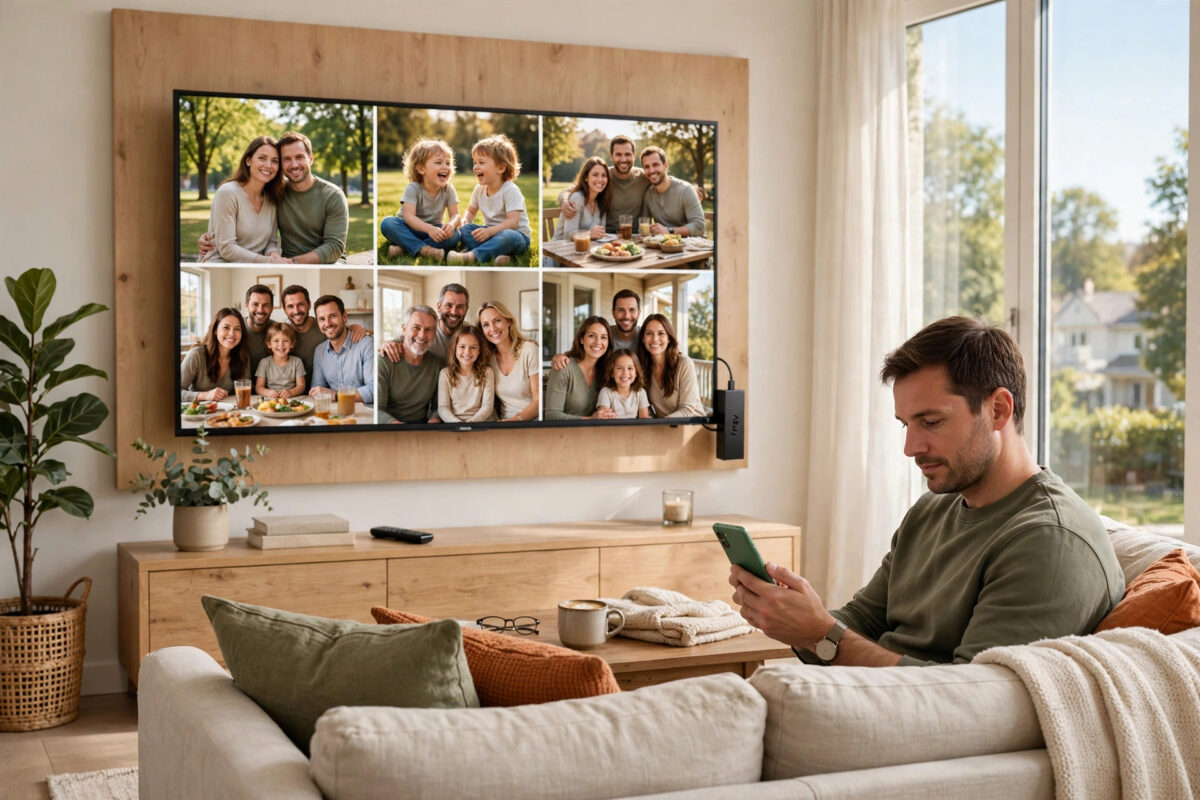
There are moments when the small phone screen is simply not enough. Holiday photos deserve a television, a video call is better when the whole family can see it, and showing a friend a clip is far easier on the big screen than passing your phone around. If you own an Android phone and a Firestick, you already have everything you need, because Fire TV supports screen mirroring without any extra cables.
Quick Answer
To mirror an Android phone to a Firestick, hold the Home button on the Firestick remote and select Mirroring so the device becomes discoverable. On your phone, open the quick settings panel and tap Cast, Smart View, or Screen Cast, then choose your Fire TV from the list. Both devices must be on the same Wi-Fi network, and your phone screen will appear on the TV within a few seconds.
What Screen Mirroring Actually Does
Mirroring copies everything on your phone screen onto the television in real time. Whatever you see, the TV shows: photos, apps, games, web pages, presentations, even your home screen as you swipe between them. It is different from casting, where an app sends a video stream directly to the TV and your phone becomes just a remote control. Mirroring is more flexible because it works with any app, including ones with no TV version, but it also means notifications, messages, and anything else that appears on your phone will be visible to everyone watching.
Fire TV devices use a mirroring technology based on the Miracast standard. Most Android phones from the last several years support it under names that vary by manufacturer. Samsung calls it Smart View, Google Pixel phones simply offer Cast, and other brands use labels like Screen Cast, Wireless Display, or Cast Screen. The technology is the same underneath, and the Firestick appears as a target once you put it into mirroring mode.
Two conditions matter. First, both devices must be connected to the same Wi-Fi network. Second, the connection is a live stream, so a reasonably strong signal keeps it smooth. Mirroring a phone that is struggling at the far end of the house will stutter no matter how new the devices are.
Step One: Put the Firestick Into Mirroring Mode
- Turn on the television and switch to the Firestick’s HDMI input.
- Press and hold the Home button on the Fire TV remote for a few seconds.
- A small menu of shortcuts appears on screen.
- Select Mirroring from that menu.
- The television now shows a waiting screen with the device name. Leave this screen open. The Firestick is now discoverable and ready to receive.
You can also reach the same mode through Settings, Display and Sounds, on models that list it there. The long-press Home shortcut is faster and works across most current devices.
Step Two: Start Mirroring From Your Android Phone
The exact name and location of the control depends on your phone’s brand, but the pattern is the same everywhere.
- Unlock your phone and make sure it is connected to the same Wi-Fi network as the Firestick.
- Swipe down from the top of the screen to open the quick settings panel. On many phones you need to swipe down twice to see the full panel.
- Look for a tile named Cast, Smart View, Screen Cast, or similar, and tap it.
- Wait a few seconds while the phone searches. Your Fire TV should appear in the list by name.
- Tap the Fire TV name. Accept any confirmation prompt that appears.
- Within a few seconds the television shows your phone screen. Rotate the phone sideways for videos and photos so they fill the TV properly.
On Samsung phones, Smart View may ask whether you want the TV to show the phone’s aspect ratio or fill the screen. Filling the screen looks better for video, while matching the phone ratio avoids any cropping of apps. On Pixel phones, the Cast option lives in quick settings and also appears inside Settings under connected devices. Amazon covers the Fire TV side of this setup on the Amazon Fire TV help pages for display and mirroring features, including which models support it.
How to Stop Mirroring When You Finish
Ending the session cleanly matters, because a phone left mirroring will keep broadcasting everything you do. The simplest way is to open the same Cast or Smart View control on your phone and tap Disconnect. You can also press any button on the Fire TV remote, such as Home or Back, which ends the mirroring session and returns the Firestick to normal use. Before an important call or private task, double-check that the mirroring icon is gone from your phone’s status bar.
Getting the Best Picture and Sound
- Hold the phone sideways for video. A vertical phone produces a narrow picture with large black bars. Landscape fills the television and looks far better.
- Turn off notifications. Use Do Not Disturb mode before mirroring in company, so private messages do not appear on the big screen.
- Raise the brightness. Photos look washed out if the phone screen is dim, because the TV copies what the phone displays.
- Stay reasonably close to the router. Mirroring is a live stream between phone, router, and Firestick. Weak signal on either device causes pauses and blocky pictures.
- Expect a small delay. A slight lag between your touch and the TV response is normal for mirroring. It does not matter for photos and video, but fast action games will feel sluggish, and those are better played another way.
- Use casting instead for long films. For a two-hour movie, casting from inside a video app is more efficient, uses less phone battery, and lets you use the phone for other things. Our guide on casting YouTube and other video apps to a Firestick explains when casting beats mirroring and how to switch between them.
Troubleshooting: When the Phone Cannot Find the Firestick
Check Both Devices Are on the Same Network
This is the number one cause of failure. Homes often have both a 2.4 GHz and a 5 GHz network, and a phone on one band with the Firestick on another usually still works through the same router, but guest networks and range extenders with separate names can isolate devices completely. Connect both to the main home network, by the same name, and try again.
Restart Both Devices
Restart the Firestick from Settings, My Fire TV, Restart, and restart the phone as well. Mirroring discovery relies on small background services on both sides, and a restart clears the stuck states that build up over weeks of use. Then put the Firestick into mirroring mode first, and only then search from the phone. Order matters, because the Firestick only advertises itself while its mirroring screen is open.
Turn Off VPNs and Check Phone Settings
An active VPN on the phone can hide local devices and block discovery. Disconnect it while mirroring. On the phone side, also confirm that Wi-Fi is genuinely on and not overridden by a data-saving mode, and check that your phone model supports wireless display at all. A small number of budget models removed the feature, and in that case an HDMI cable adapter or a casting app is the fallback.
Reduce Interference
If the picture freezes, move closer to the router, pause big downloads elsewhere in the house, and keep both devices away from thick walls where possible.
Common Mistakes to Avoid
- Searching from the phone before opening mirroring mode on the Firestick. The Fire TV only appears in the list while its mirroring waiting screen is open.
- Mirroring with notifications switched on. Private messages and banking alerts can appear in front of an audience. Use Do Not Disturb every time.
- Expecting perfect gaming performance. The small delay is built into the technology. Mirroring suits photos, browsing, presentations, and casual video, not competitive games.
- Forgetting to disconnect. Always end the session deliberately and confirm the icon is gone before using the phone privately.
- Blaming the devices for a weak network. Most stuttering is signal, not hardware. Test close to the router before assuming anything is broken.
- Buying random mirroring apps first. The built-in feature costs nothing and works well. Try it properly before installing third-party apps that show adverts.
Conclusion
Mirroring an Android phone to a Firestick takes under a minute once you know the two halves of the routine: open mirroring mode on the Fire TV with a long press of Home, then tap Cast or Smart View on the phone and pick the device name. Keep both on the same network, silence notifications, and turn the phone sideways for anything visual. It is one of the most useful tricks the Firestick offers, turning the biggest screen in the house into a window on everything your phone can show.
Frequently Asked Questions
Do I need an app to mirror my Android phone to a Firestick?
Usually not. Most Android phones include a built-in Cast or Smart View feature, and the Firestick has mirroring mode built in. Third-party apps are only needed for unusual phones that lack wireless display support.
Why is there a delay between my phone and the TV?
Mirroring sends a live video of your screen over Wi-Fi, which introduces a small delay. It is normal and barely noticeable for photos, browsing, and video playback, but it can make fast games feel unresponsive.
Can I mirror if my phone and Firestick are on different Wi-Fi networks?
No. Both devices must be on the same local network for discovery and streaming to work. Connect the phone to the same network name the Firestick uses, and avoid guest networks, which often isolate devices from each other.
Will other people see my notifications while mirroring?
Yes. Mirroring shows everything that appears on your phone screen, including notification banners. Turn on Do Not Disturb before you start, especially when showing photos or videos to a group.
Does mirroring work with iPhones as well?
Not with this built-in method. Fire TV mirroring uses a standard that iPhones do not support directly, so iPhone owners need an AirPlay receiver app on the Firestick or a different approach. The steps in this guide are for Android phones.



Leave a Reply