
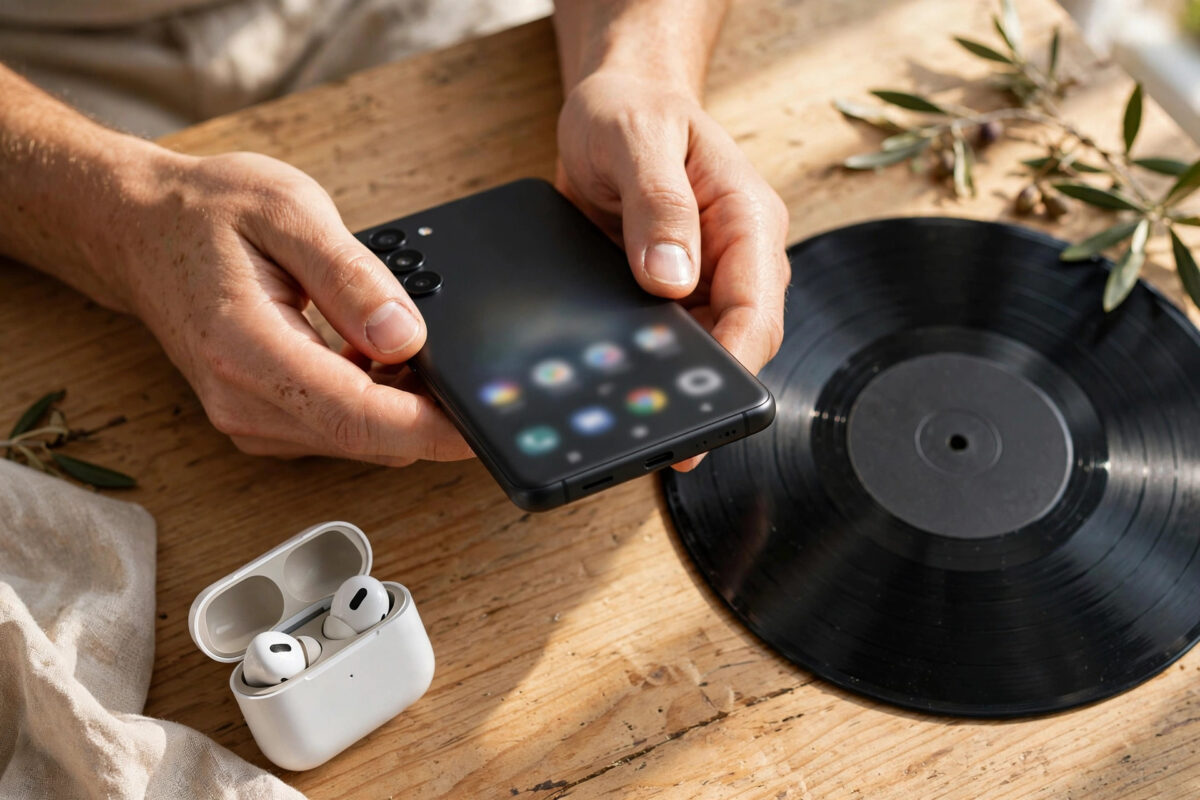
Your phone rings in a café and three people check their pockets because everyone uses the same default tone. Setting your own ringtone fixes that instantly.
Android makes it easy to use almost any song, recording, or sound effect. This guide covers the built-in settings, per-contact tones, and brand differences for Samsung, Pixel, and Xiaomi phones.
Quick Answer
Go to Settings > Sound and vibration > Phone ringtone, tap the plus or “My Sounds,” and pick your audio file.
Save songs in the Ringtones folder first so Android can find them easily.
What You Need Before You Start
You need an audio file on your phone. MP3, M4A, WAV, and OGG files all work well.
Keep the clip short. A ringtone usually plays for 20–30 seconds before voicemail answers.
Download or transfer the file legally from your own music library. Avoid ringtone apps that demand intrusive permissions.
Method 1: Set a Custom Ringtone in Settings
This is the standard method on most modern Android phones:
- Open Settings.
- Tap Sound and vibration.
- Tap Phone ringtone.
- Tap the + icon, Add, or My Sounds.
- Select your audio file from Downloads, Music, or Ringtones.
- Tap Save or Done.
- Ask someone to call you and test it.
On a Pixel, the path is Settings > Sound and vibration > Phone ringtone > My Sounds > +.
On Samsung One UI, go to Settings > Sounds and vibration > Ringtone. Then tap the + at the top right to add a file.
On Xiaomi MIUI or HyperOS, go to Settings > Sound and vibration > Ringtone. Choose All ringtones > Choose local ringtone.
Where to Put the File So Android Finds It
Android scans specific folders for tones. Putting your file in the right place saves a lot of searching.
- Open the Files or My Files app.
- Find your song in Downloads.
- Long-press it and choose Move or Copy.
- Open Internal storage > Ringtones.
- Paste the file there.
- Return to the ringtone picker and select it.
Use the Notifications folder for message sounds instead. Use Alarms for alarm tones.
If the folder does not exist, create it with exactly that name. Capitalisation does not matter on most phones.
Method 2: Set a Ringtone From the Files or Music App
Many file managers and music players can set a tone directly. This is handy when you are already listening to the track.
- Open Files by Google or Samsung My Files.
- Go to Audio or browse to your file.
- Tap the three-dot menu beside the file.
- Choose Set as ringtone if it appears.
Not every music app offers this option. Samsung Music and some third-party players do, while streaming apps generally do not.
Spotify, YouTube Music, and Apple Music streams cannot be set directly. Their files are protected and are not stored as normal audio.
How to Trim a Song Into a Ringtone
A full song often starts too quietly. Trim it to the chorus or a strong section so you hear it immediately.
- Download a reputable audio editor from the Play Store.
- Import your MP3 file.
- Select a clear 20–30 second section.
- Add a short fade-in if the start is abrupt.
- Export as MP3 and save it to Ringtones.
- Pick it using the steps in Method 1.
Check the volume before you rely on it. A clip that sounds loud on headphones can be too quiet through the phone speaker.
Google’s help pages explain sound settings and where the ringtone options live. See the guide to changing your Android sound and vibration settings for the official paths.
Set a Different Ringtone for One Contact
A separate tone for family or your boss tells you who is calling without looking. The setting lives inside Contacts, not Sounds.
- Open Contacts.
- Tap the person’s name.
- Tap the three-dot menu at the top right.
- Choose Set ringtone.
- Pick a built-in tone or your custom file.
- Tap Save.
On Samsung Contacts, the ringtone option appears under Edit and then View more.
This only works for contacts saved on the phone or in your Google account. It may not appear for SIM-only contacts.
Set Custom Notification and Alarm Sounds
The same idea works for other sounds. Change the general notification tone in Settings > Sound and vibration > Default notification sound.
For one app, go to Settings > Apps > [app] > Notifications. Tap a notification category, then Sound.
For alarms, open Clock, edit the alarm, and tap Alarm sound. Pick a file from the Alarms folder or your music.
Keep notification sounds short and distinct. Long songs for every message become annoying very quickly.
Two SIMs? Set a Tone for Each Line
Dual-SIM phones can usually use a different tone per SIM. That helps you separate work and personal calls.
On Samsung, the ringtone screen shows SIM 1 and SIM 2 tabs. Set each one separately.
On Pixel and Xiaomi phones, look for a SIM selector on the ringtone page. If there is none, your model uses one tone for both lines.
If Your File Does Not Appear in the Picker
First, check the format. Convert unusual files to MP3, which Android handles reliably.
Second, move the file into the Ringtones folder and restart the phone. The media scanner sometimes needs that restart to notice new files.
Third, check the file actually plays in your music app. A corrupted download will not work as a tone either.
Finally, avoid files stored only on a removable SD card that gets unmounted. Copy the tone to internal storage for reliability.
For more everyday fixes in this style, see our Android tips and guides at Network Ustad.
Common Mistakes and Ringtone Tips
- Using a streaming song: streams from Spotify or YouTube Music cannot be set directly. Use a file you own.
- Choosing the quiet intro: start the clip at a loud, clear moment or you will miss calls.
- Forgetting silent mode: a custom tone will not play if the phone is on Silent or Do Not Disturb.
- Storing the file in Downloads: tones in Downloads are easier to delete by accident. Use the Ringtones folder.
- Installing shady ringtone apps: many are packed with ads and demand contacts access they do not need.
A good tip is to pick tones that sound different from your notification sounds. Your brain learns the difference within a few days.
Also test at the volume you normally use. Set it once, properly, and you should not need to touch it again.
Conclusion
Setting a custom ringtone on Android takes under two minutes once your audio file is in the right place.
Use Settings > Sound and vibration for the main tone, the Ringtones folder for your files, and the Contacts app for per-person tones.
Trim the clip to a strong 20–30 second section, test it with a real call, and you will always know when it is your phone ringing.
Frequently Asked Questions
Why can’t I use a Spotify song as my ringtone?
Spotify tracks are streamed and protected, not stored as normal audio files. Android’s ringtone picker cannot use them. Use an MP3 you own, or a recording saved on your phone.
What is the best file format for an Android ringtone?
MP3 is the safest choice because every Android phone supports it. M4A, WAV, and OGG also work, but WAV files are much larger for no real gain in a ringtone.
How long should a custom ringtone be?
Aim for 20–30 seconds. Most calls go to voicemail after roughly that time, and shorter files are easier for the phone to load quickly.
Why does my custom ringtone keep resetting?
This usually happens when the file sits on an SD card that unmounts, or in a folder cleared by a cleaner app. Move the file to Internal storage > Ringtones and set it again.
Can I set a different ringtone for WhatsApp calls?
Yes. Open WhatsApp > Settings > Notifications and choose a ringtone under Calls. You can also set a tone for a single contact inside that contact’s WhatsApp profile.



Leave a Reply