
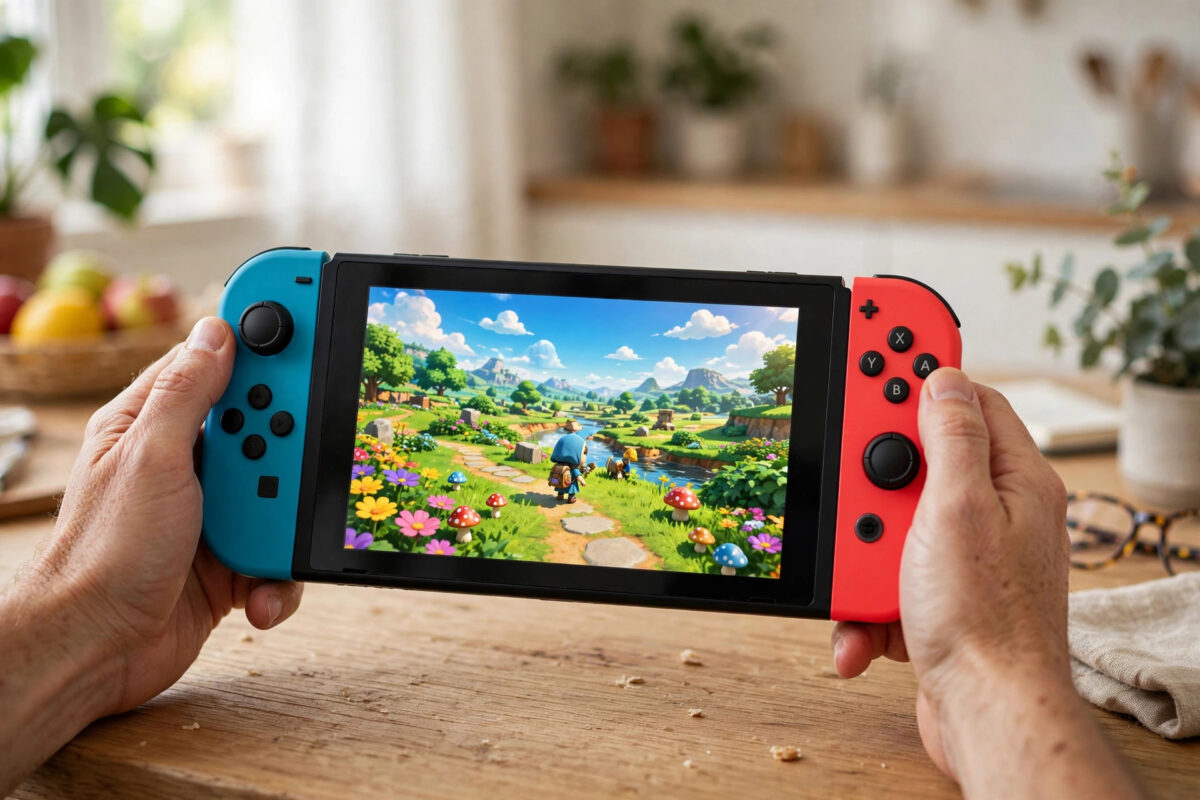
Calibration is the built-in tool Nintendo gives you to fix sticks that feel off-centre, buttons that seem slow, and motion controls that pull to one side. Many players never open this menu, yet it solves a surprising number of control problems in about five minutes, with no tools and no cost.
This guide walks through calibrating the control sticks, testing every button, and calibrating motion controls on the Nintendo Switch. It also explains what calibration can and cannot fix, so you know when a controller actually needs cleaning or repair instead.
Quick Answer
To calibrate Nintendo Switch Joy-Con sticks, open Settings, go to Controllers and Sensors, choose Calibrate Control Sticks, select a stick, and follow the on-screen steps. In the same menu you can test all buttons with Test Input Devices and calibrate motion controls by placing the controller flat when prompted. Calibration fixes off-centre and range errors, but not physical stick wear.
Before You Start: Simple Checks That Save Time
Calibration works best on a controller that is updated, charged, and properly connected. Spend one minute on these checks first so the results are trustworthy.
- Attach both Joy-Con to the console so they charge and connect directly.
- Open Settings, Controllers and Sensors, and choose Update Controllers.
- Check the console itself is up to date under Settings, System, System Update.
- Remove any thick case or grip that stops you moving the sticks through their full range.
- Sit somewhere you can hold the controller steady and, for motion calibration, rest it on a flat table.
If a stick is physically dirty or drifting badly, calibration alone may only help a little. In that case, clean it first using the methods in our guide on how to fix Nintendo Switch Joy-Con drift at home, then come back and calibrate for a proper result.
How to Calibrate the Control Sticks
The stick calibration screen is also the best test screen on the console. It shows a cross that should sit perfectly still in the centre when you are not touching the stick, and move smoothly to the edge of a circle when you push it.
Step-by-Step Stick Calibration
- From the home screen, open Settings.
- Scroll down and select Controllers and Sensors.
- Select Calibrate Control Sticks.
- Tilt the stick of the Joy-Con you want to calibrate. The console will detect which controller you are using.
- First, just watch the screen without touching anything. Note whether the cross stays in the centre or wanders.
- Press the button shown on screen to start calibration, usually the X button.
- Follow the prompts exactly: push the stick to each marked point and hold it there, then release it so it returns to centre when asked.
- Rotate the stick in a full slow circle when prompted, so the console records its full range.
- Finish the process and return to the test screen. The cross should now stay centred and reach the edge evenly in all directions.
- Repeat the whole process for the second Joy-Con.
Take your time during the circle step. Fast, jerky movements teach the console a messy range. Slow and smooth gives the cleanest result, and you will feel the difference in games that need gentle aiming or slow walking.
Reading the Test Screen
- Cross stays centred, moves smoothly: The stick is healthy and calibration is complete.
- Cross sits slightly off centre: Recalibrate once more, making sure you do not touch the stick at the start.
- Cross moves on its own: That is drift. Cleaning or repair is needed, not just calibration.
- Cross cannot reach the edge in one direction: Dirt may be blocking movement, or the stick is worn. Clean and retest.
- Cross jumps or flickers: Check for wireless interference and test with the Joy-Con attached to the console.
How to Test Buttons and Other Inputs
The same settings area includes a full input test, which is the fastest way to prove whether a button fault is real or just a game setting. The official menus are also listed at Nintendo Support for controllers and accessories if you want to compare steps for your exact Switch model, including Switch Lite.
- Open Settings, then Controllers and Sensors.
- Select Test Input Devices.
- Choose Test Controller Buttons.
- Press every button, trigger, and stick click on the Joy-Con one at a time. Each press should appear clearly on the screen diagram.
- Press the sticks in all directions as well, and test the capture and home buttons using the on-screen instructions.
- Make a note of any button that does not register, registers twice, or only works when pressed very hard.
Buttons themselves are not calibrated in the way sticks are. There is no setting that changes how a button responds. The test exists to diagnose problems. A button that fails the test in every game has a hardware issue, often dirt around the button edge or a worn contact, while a button that passes the test but misbehaves in one game points to that game settings or a control scheme you can change.
How to Calibrate Motion Controls
Motion controls are used for aiming in shooters, steering in racing games, and many party games. When they drift or feel tilted, the gyroscope needs its level reference reset.
- Open Settings, then Controllers and Sensors.
- Select Calibrate Motion Controls.
- Choose whether you are calibrating the console itself or a controller, and select the Joy-Con when asked.
- Detach the Joy-Con if prompted and place it on a flat, stable surface with the stick facing up, exactly as shown in the picture.
- Keep it completely still and press the button shown to confirm. Do not touch the table during this step.
- Wait for the success message, then pick the controller up and test it in a game.
If you play with the Joy-Con attached or in a grip, calibrate in that same setup where possible. Calibrating flat on a table and then playing at an angle can make the controls feel slightly off again.
Calibrating a Pro Controller and Switch Lite
The same menus work for the Nintendo Switch Pro Controller. Pair it, open Calibrate Control Sticks, and move one of its sticks to select it. The process and test screen are identical, and Pro Controller sticks benefit from calibration after heavy use just like Joy-Con sticks.
On Switch Lite, the built-in sticks are calibrated through the same Controllers and Sensors menu. Because the controls are part of the console body, take extra care with the reading of the test screen. Drift on a Lite is more serious, since you cannot simply swap the controller, so persistent drift on a Lite is a strong reason to contact Nintendo about repair.
When Calibration Is Not Enough
Calibration adjusts how the console reads the stick. It cannot repair the stick itself. Be realistic about these limits:
- It can fix a stick that reads slightly off centre or does not quite reach full range.
- It can hide very mild drift for a while by recentring the reading.
- It cannot fix a stick that moves on its own all the time, feels loose or gritty, or has a broken spring.
- It cannot fix buttons that fail the input test after the controller has been cleaned around the edges.
If calibration, cleaning, and updating all fail, the honest options are an official Nintendo repair, a replacement stick fitted with a repair kit, or a new controller. Ask Nintendo first, because drift repairs are often covered even outside warranty in many regions. You can start that process through Nintendo Support and repair booking information.
Common Mistakes to Avoid
- Touching the stick during setup: The console records whatever position the stick is in. Hands off until prompted.
- Rushing the circle movement: Slow, full circles record a clean range. Fast flicks record a poor one.
- Calibrating on your lap for motion controls: Motion calibration needs a flat, still surface. Your lap is neither.
- Skipping the controller update: Old controller software can ignore or undo good calibration.
- Calibrating the wrong controller: With several Joy-Con in the house, check the colour shown on screen matches the one in your hand.
- Expecting calibration to cure heavy drift: Recalibrating a worn stick every week is a sign it needs repair, not more calibration.
Conclusion
Calibrating Joy-Con sticks takes a few minutes in Settings under Controllers and Sensors, and the same visit lets you test every button and reset the motion controls. Do it after any cleaning, after controller updates, and whenever aiming or movement feels slightly wrong. Read the test screen honestly: a centred, smooth cross means you are done, while a wandering cross is drift asking for cleaning or repair. Used this way, calibration keeps good controllers accurate and tells you the truth about bad ones.
Frequently Asked Questions
How often should I calibrate my Joy-Con sticks?
Only when something feels wrong, or after cleaning and updating the controllers. There is no benefit to calibrating on a schedule. If you find yourself recalibrating the same stick every few weeks, that stick is wearing out.
Can calibration fix Joy-Con drift completely?
It can fix movement caused by a poor centre reading, and it can hide very mild drift. True drift from a worn sensor returns after calibration. Clean the stick first, then calibrate, and if the cross still moves on its own, the stick needs repair.
Where is the button test on Nintendo Switch?
Open Settings, choose Controllers and Sensors, then Test Input Devices, then Test Controller Buttons. Every press is shown on a diagram of the controller, so you can prove exactly which buttons work and which do not.
Why do my motion controls feel tilted after calibration?
The surface used during calibration was probably not flat, or the controller was moved during the process. Place the Joy-Con on a table, keep it completely still, and run Calibrate Motion Controls again. Also test in the grip or setup you normally play with.
Does calibration delete any saves or settings?
No. Calibration only stores new centre and range values for the controller. Your games, saves, accounts, and console settings are not changed or deleted by calibrating sticks, testing buttons, or calibrating motion controls.



Leave a Reply