
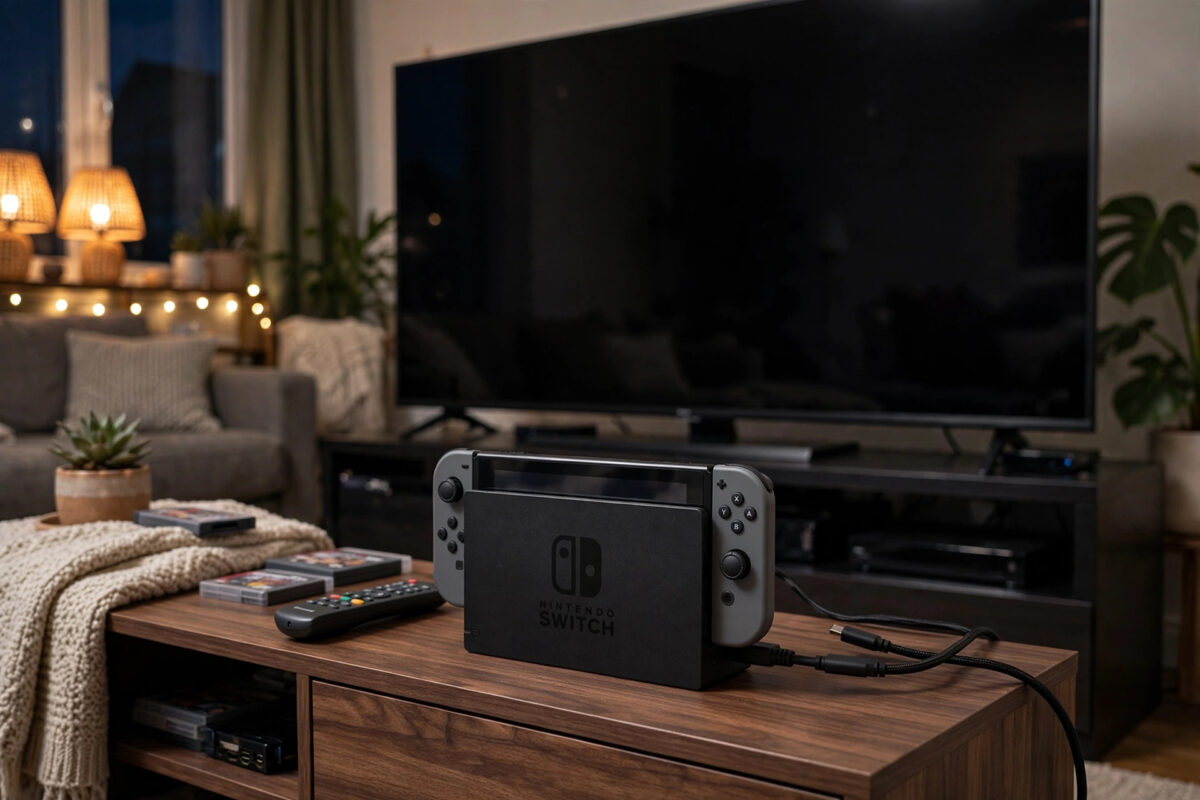
Placing your Nintendo Switch in the dock and seeing a black TV screen is frustrating, especially when the console works perfectly in handheld mode. The problem is usually a simple one, such as the wrong TV input, a loose HDMI cable, the dock not getting power, or the order in which things were switched on.
This guide takes you through the checks in the right order, from the TV settings to the dock itself. Most people fix the picture within ten minutes without buying anything new.
Quick Answer
Make sure the dock is powered with the official AC adapter, connect a good HDMI cable from the dock to the TV, and select that exact HDMI input on your TV. Then wake the Switch, place it firmly in the dock with the screen facing the same way as the dock logo, and wait a few seconds. If there is still no picture, restart the TV and console, try a different HDMI port and cable, and lower the TV Resolution setting on the Switch to 720p to test.
How the Dock and TV Connection Works
The Switch itself does not have an HDMI port. When you slide it into the dock, the USB-C connection at the bottom carries power and the picture signal to the dock, and the dock sends that picture to the TV through HDMI. That means four things must all work at once: the console, the dock connection, the HDMI cable, and the TV input.
Because there are several links in the chain, changing one thing at a time is the smartest approach. If you swap cables, inputs, and settings all at once, you will not know which change actually fixed it.
Step 1: Check the Power and the Way the Console Sits
The dock cannot send a picture to the TV if it has no power. This is the most common cause of a black screen, and it is easy to miss because the console screen may still be on when you first dock it.
- Open the back cover of the dock.
- Confirm the official AC adapter is plugged into the top port inside the dock, and into a working wall socket at the other end.
- Confirm the HDMI cable is plugged into the middle port inside the dock.
- Close the cover with the cables sitting neatly in the opening so nothing is pulled tight.
- Take the console out, wake it with the Power button, and slide it back in slowly until it sits fully down. The screen should face the front of the dock, the side with the Nintendo Switch logo.
- Watch for the small green light on the front of the dock. It should come on, and the console screen should go off as the TV takes over.
If the green light never comes on, the dock is not detecting the console or is not getting power. Reseat the console, check the adapter again, and try a different wall socket.
Step 2: Select the Correct TV Input
Modern TVs have several HDMI ports, and picking the wrong one gives you a black screen even when everything else is perfect. The port number is usually printed next to the socket on the back or side of the TV.
- Note which HDMI port the cable is plugged into, for example HDMI 2.
- Use the TV remote and press the Input, Source, or AV button.
- Select the matching HDMI number from the list.
- Wait at least 10 seconds on that input. Some TVs are slow to show the picture.
- If your TV has a game mode or a port labelled for consoles, you can try that port later as a second test.
Also make sure the TV itself is not waiting on a different device. Soundbars and AV receivers can sit between the dock and the TV and add another input to choose. For testing, connect the dock directly to the TV and remove the receiver from the chain.
Step 3: Restart Everything in the Right Order
TVs and docks sometimes fail to recognise each other, which is often called a handshake problem. A clean restart in a set order clears it in many homes.
- Remove the Switch from the dock.
- Turn the TV off and unplug it from the wall for 60 seconds.
- Unplug the dock AC adapter and the HDMI cable from both ends.
- Plug the TV back in and turn it on.
- Reconnect the dock power, then the HDMI cable to the TV and dock.
- Select the correct HDMI input, then dock the awake Switch and wait.
Nintendo describes this kind of power and connection reset in its official Nintendo Support help for TV display problems, and it is worth following before you assume any hardware is broken.
Step 4: Test the HDMI Cable and Port
HDMI cables can fail, and TV ports can stop working, without any visible damage. Swapping parts one by one tells you which piece is at fault.
- Try another HDMI port on the TV: Move the cable to a different port and remember to change the input selection to match.
- Try another HDMI cable: Use a cable you know works, for example from a Blu-ray player or another console.
- Test the cable with another device: If that device also shows no picture, the cable is the problem.
- Remove extra boxes: Take out HDMI splitters, capture devices, and switches for the test. Add them back one at a time after the picture works.
- Check the plugs sit fully in: A cable that is almost in can carry no picture at all.
If the dock works on another TV in your home, your main TV, its port, or its settings are likely the issue. If it fails on every TV with two good cables, the dock itself becomes the main suspect.
Step 5: Change the Switch TV Settings
If your TV is older, or struggles with some resolutions, lowering the output can restore the picture. You do this in handheld mode, where you can still see the menus.
- Take the Switch out of the dock and open System Settings.
- Scroll down to TV Output.
- Set TV Resolution to 720p instead of Automatic or 1080p.
- Set RGB Range to Limited if your picture looked washed out or wrong, or leave it on Automatic for a black screen test.
- Turn off the Match TV Power State setting for now, so the TV and console power behaviour does not confuse the test.
- Dock the console again and check the TV.
If 720p works, you can try 1080p again later. Some TVs and cables handle one resolution well and the other badly. While you are sorting storage and settings, you might also find our guide on expanding Nintendo Switch storage with a microSD card useful if your game library is outgrowing the console.
Step 6: Check for Damage and Clean Connections
Look at the USB-C connector inside the dock. It should be straight and springy. If it is bent or the console wobbles a lot in the dock, the connection may not line up properly. Also check the USB-C port on the bottom of the console for fluff or damage, since a poor fit there affects both charging and TV output.
Clean dust gently with dry air only. Do not use metal tools inside either connector. If the dock connector is visibly damaged, or the console only works when held at an angle, stop using it and arrange a repair. Forcing it can damage the console port as well.
Common Mistakes to Avoid
- Docking a sleeping console and giving up too fast: Wake the Switch first, dock it, and give the TV up to 10 seconds.
- Using a phone charger for the dock: The dock needs the official adapter to power TV mode reliably.
- Forgetting the input number changed: Every time you move the HDMI cable, you must select the new input on the TV.
- Testing through a soundbar or splitter: Always test with a direct dock-to-TV connection first.
- Buying a new dock straight away: Cables, ports, and TV settings cause most black screens and cost nothing to test.
- Pushing the console in backwards: The screen must face the front of the dock, or it will not connect.
Conclusion
A Switch that will not display through the dock is usually held back by power, input selection, or a cable, not a broken console. Confirm the dock has official power, choose the exact HDMI input, restart the TV and dock in order, and swap the cable and port to isolate the fault. Lowering the resolution to 720p is a useful final test. If the dock fails on another TV with a known good cable and adapter, it is time to contact support for a dock repair or replacement.
Frequently Asked Questions
Why does the green light come on but there is still no picture?
The dock has detected the console, so the problem is usually the HDMI cable, the TV port, or the selected input. Change the input to match the port, then test another cable and another port.
Can I connect my Switch to a TV without the dock?
Not with a normal HDMI cable, because the console has no HDMI port. The standard Switch and Switch OLED need their dock for TV mode. The Switch Lite cannot output to a TV at all.
Why does the picture work on one TV but not another?
The second TV may have a faulty HDMI port, may not handle the selected resolution well, or may need its input or picture settings changed. Try another port and set the Switch TV Resolution to 720p for that TV.
Does the Switch need to be awake before docking?
It helps. Waking the console first and then docking it gives the TV a clear moment to detect the signal, and it makes testing the green dock light much easier.
Can a third-party dock cause a black screen?
Yes. Some third-party docks provide poor power or a weak connection, and quality varies a lot. Test with the official dock and adapter if you can before blaming the console or TV.



Leave a Reply