
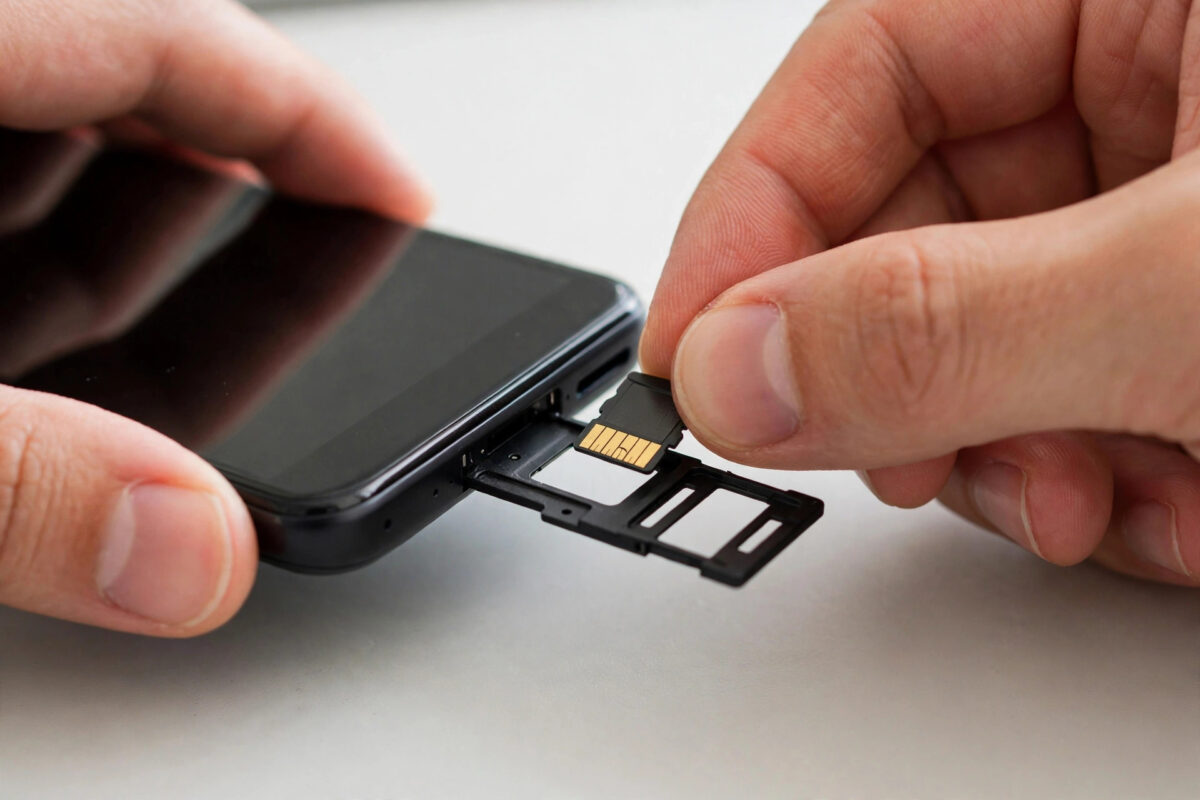
When internal storage runs low, a microSD card looks like the cheap, obvious rescue — and for photos, videos, and music it absolutely is. Apps are trickier. Android used to let you move almost anything to the card; today, whether an app can move depends on your phone brand, your Android version, and the app’s own developer.
This guide explains honestly what still works: how to move the apps that allow it, how adoptable storage merges a card into internal memory on phones that support it, why the ‘Move to SD’ button is missing on many modern phones, and the smarter alternatives when apps refuse to budge.
Why Moving Apps to SD Is Not as Simple as It Used to Be
Manufacturers removed the feature. Samsung, Google, and others dropped or restricted app-to-SD support because slow cards made phones feel broken — apps loaded slowly, widgets vanished, and users blamed the phone. Pixel phones have had no SD slot for years, and recent Galaxy flagships removed it too, though many Galaxy A-series and budget phones keep it.
Developers can forbid moving their app. Apps that use widgets, accounts, background services, or encryption often declare themselves internal-only. Banking and streaming apps commonly refuse, because card storage is slower and, historically, less secure.
Cards are much slower than internal storage. Even a good microSD card reads and writes far more slowly than modern internal UFS storage. An app moved to a cheap card can take seconds longer to open and stutter in use, which is exactly the experience manufacturers wanted to avoid.
Adoptable storage changed the deal. Some phones let you format a card as internal storage, merging it with the built-in memory so the system places data where it fits. It works well with a fast card, but the card becomes married to that phone — unreadable elsewhere — and if it fails, you can lose apps and data together.
Step-by-Step: Move Apps to the SD Card
Work through these steps in order and test the result after each one, so you know exactly which change made the difference.
Step 1: Insert a suitable card and check the phone sees it
Use a reputable Class 10 / UHS-I card, ideally A1 or A2 rated for app performance, from a known brand — counterfeit cards are a leading cause of ‘moved app’ corruption. After inserting, confirm the card appears in Storage with roughly its advertised capacity; a 128GB card showing 30GB is fake or faulty.
Where to find it: Settings > Storage, or Settings > Battery and device care > Storage. Read any short on-screen note before confirming a change, then check that the toggle, status text or behaviour has actually changed — that is your confirmation the step worked before you move on.
Step 2: Try moving an app the standard way
If the app supports it, you will see a ‘Change’ button under Storage used, letting you select the SD card. The move takes a few seconds to a minute. Repeat for your largest movable apps — games are often the biggest win. If there is no Change button, that app cannot be moved on your phone, and no safe trick changes that.
Where to find it: Settings > Apps > See all apps > (app) > Storage > Change. Read any short on-screen note before confirming a change, then check that the toggle, status text or behaviour has actually changed — that is your confirmation the step worked before you move on.
Step 3: Check Samsung’s and other brands’ variations
On Samsung phones with slots, the same Change option appears for movable apps. Some brands place a ‘Move to SD card’ button directly on the app’s information page. Xiaomi’s newer HyperOS versions restrict the feature heavily, so if the option simply is not there, your software has removed it rather than hidden it.
Where to find it: Settings > Apps > (app) > Storage. Read any short on-screen note before confirming a change, then check that the toggle, status text or behaviour has actually changed — that is your confirmation the step worked before you move on.
Step 4: Consider adoptable storage if your phone offers it
Motorola and some other brands still offer this. Formatting erases the card, then merges it into internal storage so Android manages placement automatically. Use only a fast, high-quality card, back up first, and understand the card will no longer work in other devices or card readers without reformatting.
Where to find it: Settings > Storage > SD card > menu > Storage settings > Format as internal. Read any short on-screen note before confirming a change, then check that the toggle, status text or behaviour has actually changed — that is your confirmation the step worked before you move on.
Step 5: Move media instead — the bigger, safer win
For most people, moving photos, videos, downloads, and music frees far more space than apps ever will, with zero performance penalty. Then open the Camera app’s settings and set storage location to SD card so new photos go straight there, and set Spotify/Netflix download locations to the card inside those apps.
Where to find it: Files app > Internal storage > DCIM / Movies / Music > Move to SD card. Read any short on-screen note before confirming a change, then check that the toggle, status text or behaviour has actually changed — that is your confirmation the step worked before you move on.
Step 6: Enable ‘Force allow apps on external’ only if you accept the risk
This developer toggle lets some otherwise immovable apps move, but forced apps can break after updates, lose widgets, or corrupt data on a slow card. It exists for testing, not daily use. If you experiment, move only non-essential apps and keep backups of anything that matters.
Where to find it: Settings > Developer options > Force allow apps on external. Read any short on-screen note before confirming a change, then check that the toggle, status text or behaviour has actually changed — that is your confirmation the step worked before you move on.
What to Do When Your Phone Has No SD Option at All
If your phone lacks a slot — every Pixel, most recent flagships — the card route is closed, and space must come from elsewhere: cloud photo backup, streaming instead of downloads, uninstalling unused apps, and clearing the caches and messaging media that actually fill phones. Google’s Android storage guidance covers these built-in tools, and on a modern phone they typically recover more space than an SD card full of small apps ever would.
If you are choosing your next phone partly for storage, know that a model with a card slot plus modest internal storage is still a very workable, economical combination for media-heavy users — just budget for a genuinely fast card, because the card’s speed will define your experience with anything stored on it.
Common Mistakes to Avoid
- Buying the cheapest unbranded card and then blaming moved apps for crashing.
- Moving an app, removing the card, and wondering why the app vanished.
- Formatting a card as internal storage before backing up what was on it.
- Expecting banking and streaming apps to move when their developers block it.
- Assuming a missing ‘Move’ button means your phone is faulty rather than restricted.
Practical Tips From Experience
Use the card for what it does brilliantly — media and downloads — and be selective with apps: big games that allow moving are the sweet spot. Keep at least a few gigabytes of internal storage free at all times, because Android needs internal headroom regardless of how empty the card is. And eject the card properly in Storage settings before physically removing it.
Conclusion
Moving apps to an SD card still works where the phone, the Android version, and the app developer all allow it — and where they do not, moving media and using cloud backup achieves the same breathing room more reliably. Check for the Change button, consider adoptable storage carefully, and keep critical apps internal.
Whichever route your phone supports, the goal is the same: internal storage with room to spare. Find more storage and performance walkthroughs in the Android guides on NetworkUstad.
Frequently Asked Questions
Why is there no ‘Move to SD card’ button on my phone?
Either the app’s developer has marked it internal-only, or your phone’s software no longer supports moving apps. Many modern phones restrict the feature entirely. The button only appears for apps that are allowed to move, so its absence is information, not a fault.
Is adoptable storage a good idea?
It can be, on phones that offer it, with a fast high-quality card. It seamlessly expands internal storage. The downsides are real though: the card cannot be used in other devices, a card failure takes your apps with it, and overall speed is limited by the card.
Which apps should I never move to an SD card?
Avoid moving apps you rely on for widgets, alarms, messaging, banking, or anything with data you cannot replace. Cards can be removed, corrupted, or simply slow, and critical apps deserve the reliability and speed of internal storage.
What class of SD card should I buy for apps?
Choose a reputable brand’s A2-rated (or at least A1) UHS-I card. The A rating specifically measures app performance — random read and write speeds — which matters far more for apps than the headline sequential speed printed large on the packet.
Can I move apps to an SD card on a Samsung Galaxy?
On Galaxy models with a card slot, yes for apps that permit it, via Settings > Apps > the app > Storage > Change. Many Galaxy A-series phones support this. Recent Galaxy S flagships have no slot at all, so media and cloud strategies are the answer there.



Leave a Reply