
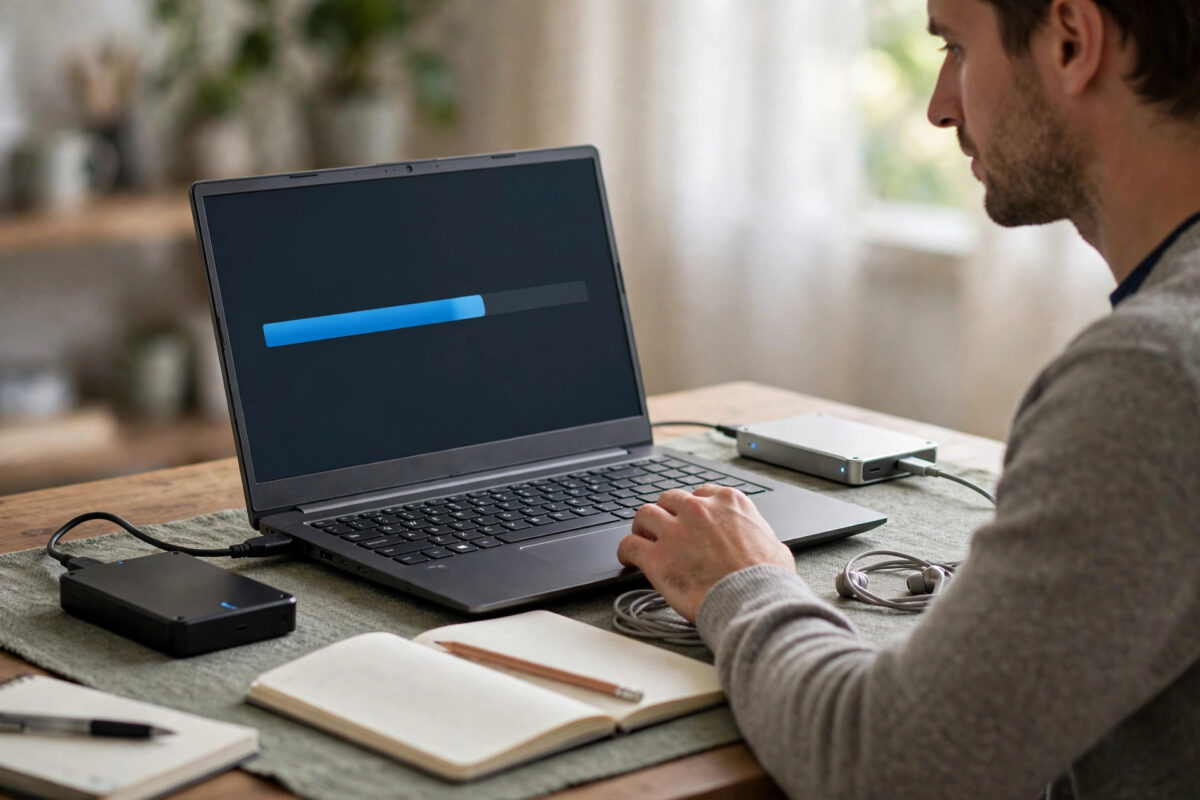
Copying 200GB of photos, videos, or work files and then watching the copy fail at 70% or 90% is frustrating. Windows Explorer often forces you to start again, and a normal copy does not remember what was already finished.
The good news is that Windows has a built-in tool made for exactly this problem. Robocopy can compare the source and destination, skip files that are already complete, and restart a large file from where it stopped instead of copying it from zero.
Quick Answer
Open Command Prompt and run Robocopy with the same source and destination you used before, adding the /Z restartable mode switch. Robocopy will skip files that already match in size and date, and for a file that was cut in half it will resume copying from the last good point instead of starting that file again. Add /R:2 /W:5 to limit retries and make the job finish cleanly.
Why a Normal Copy Fails and Robocopy Does Not
File Explorer copies with almost no memory of the job. If the laptop sleeps, the cable moves, or the network drops, the current file is lost and the queue can stop. Robocopy works differently: before copying, it checks the destination. A file with the same name, size, and time stamp is skipped. A missing file is copied. A partly copied file can be continued.
So a 200GB folder does not need 200GB of work the second time. It only needs the missing part.
What Restartable Mode Actually Does
The /Z switch enables restartable mode. Robocopy records how far it got inside a large file, so the next run can pick up inside that file. Without /Z it still skips finished files, but must restart any file that was in progress. /Z is a little slower on a fast local drive, but worth it on USB or network drives that keep dropping.
Before You Start: Safety Checks
- Check which drive is source and which is destination. The source holds the original files. The destination is where the copy is going. Never swap them.
- Never recover or copy onto the same drive you are copying from. If the source drive is failing, keep it as read-only as possible and copy everything to a different healthy drive.
- Stop using a failing drive for other work. If you hear clicking, repeated disconnects, or very slow reads, stop normal use and copy the most important folders first.
- Make sure the destination has enough free space. For a 200GB job, you need at least 200GB free, plus a little extra for temporary files.
- Plug in power. On a laptop, connect the charger and change sleep settings so the machine does not sleep in the middle of the job.
If the source drive shows serious errors, read our guide on how to clone a failing drive with ddrescue safely before you try a normal file copy. Cloning protects the data at disk level when individual file copies keep failing.
Step-by-Step: Resume the Copy With Robocopy
Follow these steps in order. Use the exact same folder paths as your first copy attempt, otherwise Robocopy will treat the job as a new copy.
- Connect both drives and confirm they have the same drive letters as before. Open File Explorer and note the letters, for example source is D: and destination is E:.
- Open the Start menu, type cmd, right-click Command Prompt, and choose Run as administrator if your files need admin rights. For normal user files, a regular window also works.
- Type the Robocopy command below, replacing the example paths with your real paths. Keep the quotes around any path that contains spaces.
- Press Enter and let Robocopy work. You will see each file listed as New File, Same, or a percentage as a large file resumes.
- Wait for the summary table at the end. It shows how many files were copied, skipped, and failed.
- If a few files failed, run the exact same command again. The second run will be much faster because almost everything will be skipped.
The Exact Command to Use
Here is a safe, proven command for resuming a large folder copy:
robocopy "D:\MyData" "E:\MyData" /E /Z /R:2 /W:5 /MT:8 /TEE /LOG:"E:\robocopy-resume.log"
Let us break down each part so you know what you are running:
- robocopy — starts the tool. The first path after it is the source, the second path is the destination.
- /E — copy all subfolders, including empty folders. This keeps the folder structure identical.
- /Z — restartable mode. A large file interrupted in the middle can resume instead of restarting.
- /R:2 — retry a failed file only 2 times. Without this, Robocopy retries one million times by default and can appear stuck for days.
- /W:5 — wait 5 seconds between retries. This gives a busy drive or network a short break.
- /MT:8 — use 8 threads to copy multiple small files at once. This helps with folders full of photos and documents.
- /TEE — show progress on screen and also write it to the log file.
- /LOG: — save a full log so you can check which files failed and why.
You can check every switch in the official Microsoft Learn Robocopy documentation, which lists all options and exit codes in detail.
Copying One Single Large File
If your job was one single large file, target just that file: robocopy "D:\Videos" "E:\Videos" "project.iso" /Z /R:2 /W:5. The resume behaviour is the same, though it may restart a little earlier than the exact failure point to stay safe.
How to Read the Robocopy Summary
At the end, Robocopy shows a table with rows for Dirs, Files, and Bytes, and columns for Total, Copied, Skipped, Mismatch, FAILED, and Extras.
- Copied means files that were newly copied or resumed in this run.
- Skipped is good. It means files were already complete and did not need work.
- FAILED should be zero in a perfect run. If it is not zero, check the log for those file names.
- Extras means files exist on the destination but not on the source. Robocopy does not delete them unless you use the mirror switch, which this guide does not use for safety.
Robocopy also returns an exit code. Codes 0 to 7 are generally success states, with higher numbers in that range meaning more files were copied or extra files were found. A code of 8 or higher means at least one file failed. Do not panic if you see code 1 — it simply means files were copied successfully.
Verify the Resumed Copy Is Complete
A finished progress bar is not proof. For an important 200GB copy, verify the result.
- Run the same Robocopy command with /L added at the end. The /L switch lists only and copies nothing. If it reports zero files to copy, source and destination match by name, size, and date.
- Compare folder properties. Right-click both the source and destination folders, choose Properties, and compare file count and total size. They should match closely.
- For critical files, compare checksums. A matching checksum proves the file content is identical, byte for byte.
- Open a sample of files from the destination, especially the largest videos, archives, and documents, and confirm they play or open without errors.
For critical data, verify key files with checksums. Size and date alone cannot prove a file is undamaged inside.
What If Robocopy Still Fails on the Same Files?
If the same files fail every run, look for these causes: a file locked by an open program, bad sectors on the source, an unstable USB cable or hub, network drops (use wired and lower /MT to 1 or 2), or Access Denied errors (run as administrator for your own files). Do not add /MIR to fix failures — it deletes destination files that are not on the source.
Common Mistakes to Avoid
- Forgetting /R and /W: The default retry count is huge. Without limits, one locked file can stall the whole job overnight.
- Using /MIR without understanding it: Mirror mode can delete destination files. It is dangerous when the source is incomplete or the paths are wrong.
- Swapping source and destination: Always read the command left to right before pressing Enter. Source first, destination second.
- Copying to the same failing drive: You risk overwriting the only good copy and making recovery harder.
- Changing paths on the resume run: A slightly different destination folder starts a fresh copy instead of a resume.
Conclusion
Run Robocopy with the same paths and the /Z switch, limit retries with /R:2 /W:5, and let it skip completed files and resume the interrupted one. Read the summary, re-run if a few files failed, and verify with a list-only run. Copying to a different healthy drive, this saves hours and gives you a log as proof.
Frequently Asked Questions
Will Robocopy resume the exact byte where a file stopped?
With /Z it resumes from the last recorded restart point inside the file, very close to where it stopped. It may redo a small block to stay safe, but it will not restart the whole file in most cases.
Do I need to delete the partial file on the destination first?
No. Leave the partial file in place. Deleting it removes the data Robocopy needs to resume. Robocopy will detect the partial file and continue it when you use restartable mode with the same paths.
Is /Z slower than a normal Robocopy run?
Yes, a little, especially on a fast SSD, because restartable mode does extra bookkeeping. For a USB or network copy that already failed once, the small cost is worth the ability to resume.
What does exit code 1 mean in Robocopy?
Exit code 1 means files were copied successfully. It is not an error. Codes from 0 to 7 describe different success combinations, while 8 and above mean one or more files failed to copy and need attention.
Can I pause Robocopy and continue tomorrow?
There is no pause button, but you can stop with Ctrl + C and run the same command tomorrow. Completed files will be skipped and the in-progress file can resume with /Z.



Leave a Reply