
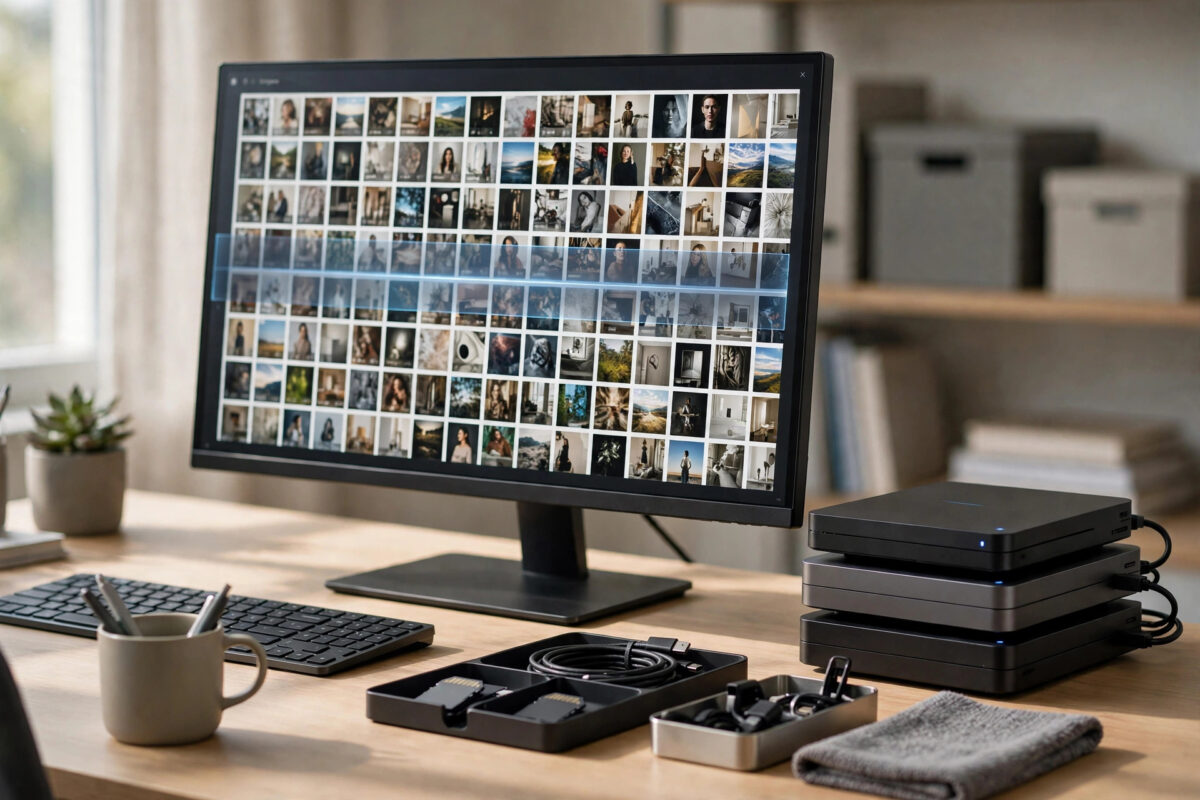
Recovery gave you back 8,000 files. Some are perfect, some are quietly broken — photos that open halfway, videos that freeze at minute two, documents with scrambled pages. Archiving them unsorted means archiving the damage too, and discovering it years later when the originals are long gone.
You cannot open 8,000 files by hand, but you do not have to. Automated validation can test every file — quickly by checking its structure, thoroughly by actually decoding it — and hand you a report of what is sound and what is suspect. Here is how to build that check on Windows with free tools.
Quick Answer
Two passes work best. Pass one checks file signatures and headers (a photo’s first bytes must match its format) to catch impostors and empty files. Pass two fully decodes each file — ImageMagick’s identify for images, FFmpeg in error-reporting mode for videos and audio — because only a full decode exposes damage hiding in the middle of a file. Script both with PowerShell or a small batch file, log the failures to a list, then archive the clean set and handle the flagged files individually.
Why Two Levels of Checking
A header check is fast but shallow: it confirms the file starts correctly and claims a plausible format. Plenty of truncated files pass it — the header is fine, the ending is missing. A full decode test is the opposite: the tool reads and renders every byte, so any corruption anywhere in the file produces an error or a warning. The decode pass is slower (a large video library can take hours), but for an archive meant to last decades, it is the only check that means anything. Run pass one to triage, pass two to certify.
Pass 1: Signature and Sanity Checks
- Install ImageMagick from the official ImageMagick site. Its
identifycommand reads image headers and reports format, dimensions and obvious problems. - Scan the image folders: a loop like
magick identify -format "%f %m %wx%hlists every file it can parse. Files that error out, report 0x0 dimensions, or claim a format that contradicts their extension go on the suspect list.
" *.jpg - Flag empty and tiny files. A recovered “photo” of 2KB is a thumbnail at best. Sort the folder by size and eyeball the bottom of the list — size outliers are corruption’s low-hanging fruit.
- Group the suspects into a separate folder for individual attention later. Do not delete them; suspect is not the same as worthless.
Pass 2: Full Decode Tests
- Images: run
magick identify -verbose file.jpgor convert each file to a null output (magick file.jpg null:). A clean run means every scan line decoded. Log any file that warns or errors. - Videos and audio: use FFmpeg’s decode-to-nothing test:
ffmpeg -v error -i "file.mp4" -f null -. Silence means a clean decode; errors are printed with timestamps, which also tells you how far in the damage sits. - Documents: PDFs can be validated with qpdf’s
--check; ZIP-based documents (docx, xlsx) can be tested like archives with 7-Zip’s test command, which verifies their internal structure and checksums. - Automate the loop. A short PowerShell script that walks the folder tree, runs the right test per extension, and appends failures to a CSV turns an impossible manual job into an overnight run. Keep the machine plugged in and let it work.
- Review the report in the morning: counts per category, the failure list, and error types. Many failures cluster — one bad recovery session often explains a whole folder of damage.
What to Do With the Results
Sort files into three buckets. Clean: archive them, ideally with the checksum manifest described in our guide to verifying a large copy with SHA-256 checksums, so future corruption announces itself. Partially damaged: photos that decode with warnings may display fine or with a flawed section — spot-check a sample visually and decide per file. Broken: keep them anyway in a clearly named “damaged” folder; recovery and repair tools improve, and a broken file today may be repairable tomorrow, while a deleted file is gone forever.
Common Mistakes to Avoid
- Trusting the header check alone. It certifies beginnings. Archives fail from the middle out — only a full decode sees the whole file.
- Deleting everything that flags an error. A decode warning can mean a stray metadata byte in an otherwise perfect photo. Sample visually before condemning files in bulk.
- Checking files on the failing source drive. Copy the recovered set to healthy storage first; validation reads every byte and stresses weak media.
- Skipping videos because they take long. Schedule the FFmpeg pass overnight. An unvalidated video archive is a rumour, not an archive.
- Archiving without a manifest. Validation tells you files are good today. A checksum list lets you prove they are still good in ten years.
Make Validation a Habit, Not an Event
A recovered library validated once is good; an archive re-validated on a schedule is trustworthy. Storage media degrade silently — the bit rot problem — so the decode report you generate today becomes stale evidence. Pair it with a checksum manifest of the clean set, and future checks become cheap comparisons instead of full decodes: re-hash the archive yearly, compare against the manifest, and investigate any file whose fingerprint changed. A changed checksum on a file nobody edited is your earliest possible warning that a drive is failing, arriving while the second copy is still intact to repair from.
Keep the validation report itself in the archive, next to the manifest. Years from now, when you (or whoever inherits the family archive) wonder whether these files were ever checked, the dated report answers with specifics: which tool, which settings, which files failed and what was done about them. That kind of provenance is what separates an archive from a pile of files. And set expectations while you work: a realistic recovered library from a genuinely failed card might validate at 70–90% clean. That is not your failure — it is the honest condition of the source, finally measured instead of guessed.
Keep the scripts you used, too — save the PowerShell loop and tool commands as a text file in the archive next to the report. Validation you can re-run identically in five years is worth far more than a one-off pass, and the next batch of recovered files (there is always a next batch) becomes an hour’s routine instead of a fresh research project.
Conclusion
Automated checking turns recovery from a leap of faith into an audited process: signature scan for triage, full decode for certainty, a written report, and three honest buckets — clean, damaged, broken. Archive the clean set with checksums, keep the damaged files quarantined but safe, and never let an unexamined recovery become your only copy.
Frequently Asked Questions
How long does a full decode check take?
Images decode in fractions of a second each; thousands take minutes. Videos decode at several times playback speed on a modern PC, so a large library is an overnight job rather than a weekend one.
What tools do I need, in total?
ImageMagick for images, FFmpeg for video and audio, qpdf for PDFs, and 7-Zip for archives and Office files. All are free, and PowerShell (built into Windows) ties them together.
A file passes decode but still looks wrong. How?
Decoding success means the data is structurally valid; a file reassembled from the wrong fragments can be structurally valid yet show the wrong content. That is why a visual sample check of the “clean” set remains worthwhile.
Should I validate files I copied normally, not recovered ones?
For irreplaceable data, yes — the same decode checks catch silent copy corruption. For everyday files it is overkill; a checksum comparison between source and destination is the lighter, sufficient test.
Can these checks repair the files too?
No — they diagnose, they do not repair. Diagnosis tells you which files deserve repair effort (header grafts, preview extraction, re-recovery) and which are already sound.



[…] question from “was the source good?”, which is what the decode checks in our guide to checking recovered files for corruption automatically […]