
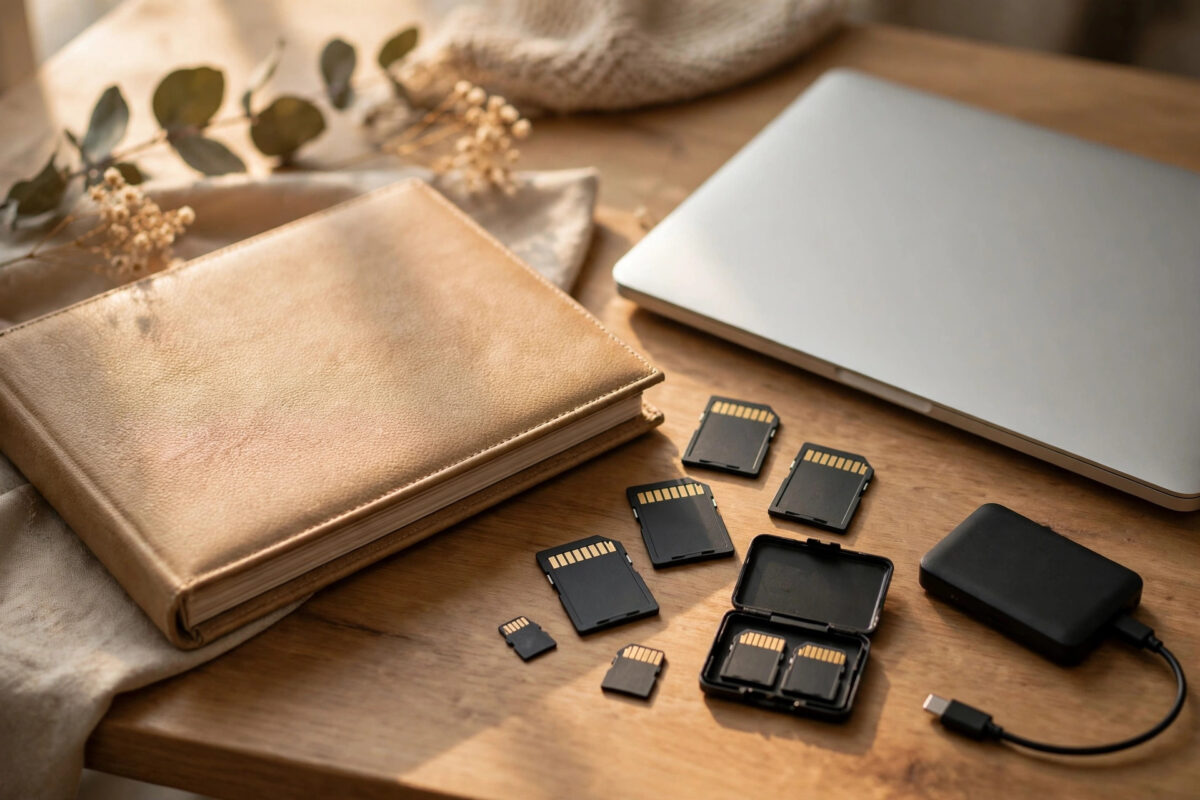
The wedding photos are copied to your PC and an external drive, and now comes the scary housekeeping: deleting the originals from the memory cards and the photographer’s folder so the space can be reused. Once originals are gone, the copies are the photos — and “the copy looked fine when I dragged it” is not the standard of proof wedding photos deserve.
Checksums give you that proof. You generate a fingerprint list of the original folder, verify the backup folder against it until every file matches, and only then delete. Twenty minutes of process in exchange for certainty about the most irreplaceable files most families own.
Quick Answer
Open PowerShell in the original photos folder and generate a SHA-256 list: Get-ChildItem -Recurse -File | ForEach-Object { (Get-FileHash $_.FullName -Algorithm SHA256).Hash + " " + $_.Name }, saving the output to a file called checksums.txt. Copy that file into the backup folder, then re-run the same command there and compare the outputs — or run a verification loop that checks each backup file against the list. When every file reports a match, the backup is proven identical and the originals can be deleted safely.
The Workflow, in Order
- Finish the copies first. Both the PC copy and the external-drive copy should be complete before you checksum anything — you are certifying a finished state, not a work in progress.
- Generate the checksum list from the ORIGINALS. The original folder is the reference truth. In PowerShell, navigate to the folder (or Shift+right-click inside it and open a terminal there) and run the Get-FileHash loop, saving to a text file: add
| Out-File -Encoding utf8 checksums.txtat the end. Include subfolders with -Recurse if the photos are organised in them. - Verify the PC copy. Run the same command in the PC copy’s folder and save as checksums-pc.txt. Compare the two files — in PowerShell,
Compare-Object (Get-Content checksums.txt) (Get-Content checksums-pc.txt)should return nothing at all. Silence means identical. - Verify the external drive copy the same way. Two verified copies on two devices is the point where deletion of originals becomes reasonable.
- Store checksums.txt in both backup locations (and ideally a third place, like an email to yourself). The file is tiny and becomes the long-term integrity record for the archive.
- Now delete the originals — from the cards and the working folder — knowing the backups are proven, byte for byte.
The commands rest on PowerShell’s Get-FileHash, documented in Microsoft’s Get-FileHash reference on Microsoft Learn. For a single file — say, the one hero shot — the built-in CertUtil command certutil -hashfile photo.jpg SHA256 prints its fingerprint immediately.
If Command Lines Are Not Your Thing
Several friendly tools do the same job with buttons. QuickHash (free) hashes whole folders and compares two folders directly, showing matches and mismatches in plain language. HashCheck adds a checksum tab to Windows file properties and can create and verify checksum files with a double-click — verifying later becomes as easy as opening the .sha256 file you saved. TeraCopy can verify during the copy itself if you are starting the copies from scratch. Whichever you choose, the principle is identical: fingerprint the originals, prove the copies match, then delete.
After Deletion: The Archive Habits That Matter
Keep the two verified copies on physically separate devices — a PC and an external drive, or a drive and a cloud album. Once a year, re-run the checksum verification on the external drive; storage quietly degrades (“bit rot”), and the checksum list is what turns that silent decay into an early warning while the other copy is still intact to repair from. This is the same manifest discipline described for terabyte-scale archives in our guide to verifying a 1TB copy with SHA-256 checksums, scaled down to one precious folder. When the day comes to reorganise the photos, remember that metadata such as the EXIF date taken can sort a folder far more meaningfully than filenames ever will.
Common Mistakes to Avoid
- Generating checksums from the copy instead of the originals. The original is the truth you are preserving. Fingerprint it, then prove the copies equal it.
- Comparing by eye in two File Explorer windows. Counts and sizes match even when a file’s contents are damaged. Only hash comparison reads the bytes.
- Deleting the checksum file with the originals. The list is small and belongs with the backups forever — it is the archive’s proof of integrity.
- Verifying one copy and assuming the other. Each destination gets its own verification run. Drives fail individually; so should checks.
- Deleting originals the same minute the copy finishes. Verify counts, verify checksums, open a handful of full-size photos — then delete.
Sharing the Verified Archive With Family
Wedding photos get shared — to parents, to the couple’s other households, to whoever keeps the family archive. Each share is another copy that can silently differ, so share like an archivist: send the folder together with its checksums.txt, and tell the recipient (in the same message, so it survives forwarding) that the little text file proves the photos arrived intact and how to check. When a relative later says “some of our copies look odd,” the checksum comparison settles whether their drive is corrupting files — a real and common discovery — or whether the oddness was in the originals all along.
Consider also making one copy deliberately boring: a plain folder on a plain external drive, labelled with the wedding date and the words “verified archive — do not edit,” stored somewhere other than your house. Cloud copies are convenient and worth having, but a labelled drive in a drawer at a parent’s home has survived every account closure, password loss and subscription lapse that digital archives die of. The checksum file rides along on that drive too, so whoever opens it in twenty years can prove the photos are exactly the ones you verified today — and the originals can finally, safely, be gone.
Finally, tell one other person where the verified archive lives and what the checksum file is for — a spouse, a parent, the couple themselves. Archives fail socially more often than they fail technically: the drive survives, but nobody knows what it is or why the little text file matters. One sentence of explanation, shared today, protects the photos for decades.
Conclusion
Deleting originals is irreversible, so make the copies earn it: a SHA-256 list from the original folder, a matching list from each backup, and silence from the comparison command. Twenty minutes of verification is a small premium to insure the only copy of a day that cannot be re-shot.
Frequently Asked Questions
How long does checksumming a photo folder take?
A typical wedding folder of 30–80GB hashes in a few minutes on an SSD and perhaps fifteen on a spinning drive. The verification run on each copy takes about the same again — still under an hour total for complete certainty.
What does a mismatch mean, exactly?
The backup file’s contents differ from the original’s — a copy glitch, a failing drive sector, or an edit made after copying. Re-copy that file from the original and verify again; investigate if mismatches keep appearing.
Should I use SHA-256 or is MD5 enough?
For detecting accidental copy errors, either works, but SHA-256 is barely slower on modern hardware and is the standard that will remain meaningful for the decades you keep these photos. Use SHA-256.
Can I verify the photos again in a few years?
Yes — that is the deeper point of keeping checksums.txt with the backup. Re-running the comparison years later detects silent data decay while your second copy is still good, turning a potential loss into a simple re-copy.
Do I still need two copies if the checksums match?
Absolutely. Checksums prove a copy is correct today; they do not protect against the drive dying tomorrow. Two verified copies on separate devices is the minimum for irreplaceable photos.



Leave a Reply