
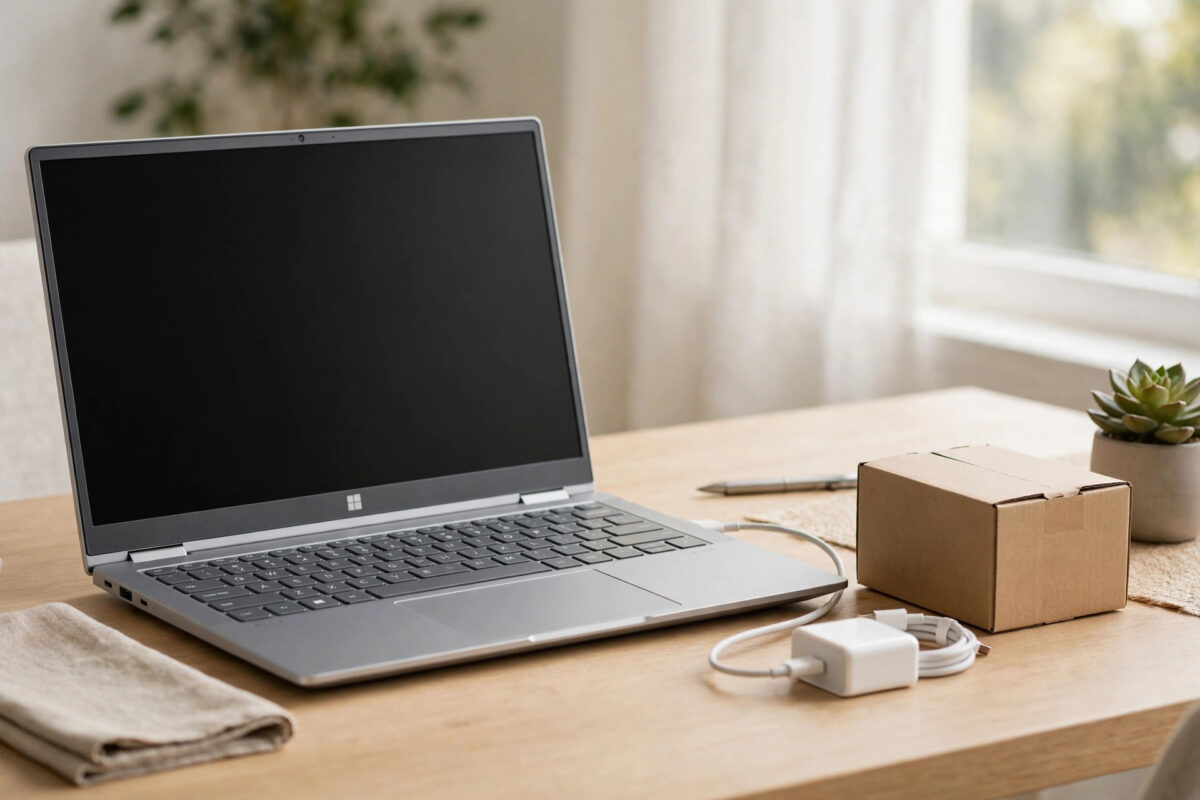
Selling or giving away a laptop without wiping it properly is like selling a house with your letters, photos, and spare keys still inside. Your browser remembers your passwords, your documents are all there, and your Microsoft account may still be signed in. A proper factory reset, done the right way, removes your personal data and returns Windows to a clean, ready-for-the-next-owner state — and it takes less than an hour of your time, most of it waiting.
This guide covers the exact reset steps for Windows 11 and Windows 10, the crucial options to choose when selling (they differ from a normal reset), and the preparation steps people forget — backups, linked accounts, and software licences — so nothing important is lost and nothing private is left behind.
Before You Reset: Preparation That Saves Regret
Back up everything you might ever want
A selling reset is permanent. Go through Documents, Desktop, Downloads, Pictures, and Videos, plus the folders people always forget: browser bookmarks, saved game files, authenticator apps, and anything stored inside apps like WhatsApp Desktop or email programs. Copy files to an external drive or cloud storage, then open a few from the backup to confirm they copied properly. Check OneDrive too — if files show as online-only, make sure the ones you need are fully uploaded and visible in OneDrive on the web before you wipe the machine.
Sign out, unlink, and deauthorise
- Sign out of your Microsoft account’s apps, and note the account email and password — you will need them again on your next PC, not this one.
- Deauthorise this laptop in apps with device limits, such as iTunes, Adobe Creative Cloud, and some streaming and office software, so the slot is freed for your replacement machine.
- Unpair Bluetooth devices and remove the laptop from your accounts where it is listed as a trusted device, including your Microsoft account devices page and your Google account if you used Chrome.
- Turn off Find My Device in Settings > Privacy & security > Find my device on Windows 11, or Settings > Update & Security > Find my device on Windows 10, so the new owner is never blocked by your account.
Save licence keys and passwords
Paid software tied to this machine — antivirus, Office bought as a one-time licence, specialist tools — may need its key when you reinstall elsewhere. Export your browser passwords to your password manager rather than a file on the laptop you are about to erase, and make sure you know your Wi-Fi password and Microsoft account password from memory or your manager, since this laptop will not be filling them in for you anymore.
The Reset Steps on Windows 11
Plug the laptop into its charger first. A reset interrupted by a flat battery can corrupt Windows, and the process can take anywhere from 20 minutes to over an hour depending on the options you choose.
- Open Settings > System > Recovery.
- Under Recovery options, find Reset PC and click Reset PC.
- Choose Remove everything. Never choose Keep my files when selling — that option preserves your user folders by design.
- Choose how to reinstall Windows: Cloud download fetches a fresh copy from Microsoft (about 4 GB, needs decent internet) and is the cleanest option; Local reinstall uses the files already on the laptop and is faster if your connection is slow.
- On the Additional settings screen, click Change settings. This is the step that matters most for selling.
- Turn on Clean data drive (shown as “Clean data?” set to Yes). Also confirm it removes files from all drives if the laptop has a second internal drive with your data on it.
- Confirm the summary, click Next, then Reset. The laptop will restart several times. Leave it plugged in and untouched until it reaches the “Let’s start with region” welcome screen — that screen is where you stop. Do not set it up again; the buyer should see that first-run experience.
Microsoft documents the same flow in its official guide to resetting your PC, including what each option removes, which is worth a quick read before you commit.
The Reset Steps on Windows 10
The path differs slightly. Go to Settings > Update & Security > Recovery, and under Reset this PC click Get started. Choose Remove everything, then choose Cloud download or Local reinstall. When you reach the Additional settings screen, click Change settings and turn on the option to clean data / remove files from all drives, then confirm and reset. As with Windows 11, stop at the first welcome screen and leave the laptop plugged in until it gets there.
If the laptop will not boot into Windows at all, you can still reset it: turn it on and interrupt startup twice by holding the power button as Windows begins loading, and the third start will open the recovery environment. From there choose Troubleshoot > Reset this PC > Remove everything and follow the same options. More recovery help of this kind is available in our NetworkUstad Windows recovery and reset guides.
Why “Clean Data” Matters When Selling
A standard Remove everything reset deletes your files and marks the space as free — but on its own, deleted data can sometimes be recovered with widely available tools until it is overwritten. The Clean data option goes further by overwriting the drive as part of the reset, which makes recovery of your documents, photos, and saved logins impractical. It takes longer, sometimes considerably, but for a machine leaving your possession it is the whole point of the exercise.
On modern laptops with SSDs, this cleaning combined with the drive’s built-in TRIM behaviour gives strong protection. If the laptop is very old, contains extremely sensitive work data, or your employer’s policy requires it, a manufacturer’s secure-erase tool or professional destruction of the drive is the step beyond — but for an ordinary home laptop sale, Remove everything with Clean data turned on is the recognised, sensible standard.
After the Reset: Final Checks Before It Leaves
- Confirm the laptop stops at the Windows welcome / region setup screen — proof the reset completed and your account is gone.
- Remove the laptop from your Microsoft account’s device list at account.microsoft.com/devices, so it no longer shows as yours.
- Remove any microSD cards, USB dongles, and discs from the machine, and check the sides and trays one last time.
- Include the charger, and be honest with the buyer about battery health and any faults — it protects you from disputes later.
- Keep a note of the laptop’s serial number and the sale details for your own records.
Common Mistakes and Helpful Tips
- Choosing Keep my files: That option is for fixing your own PC, not for selling it. Always Remove everything for a sale or hand-down.
- Skipping Clean data: The quick reset alone leaves recoverable traces. The extra waiting time is the price of privacy.
- Forgetting the second drive: Many laptops have a data drive as well as the Windows drive. In Change settings, make sure all drives are included, not just the Windows one.
- Setting Windows up again “to check it works”: If you complete the first-run setup with a temporary account, you undo the clean state. The welcome screen itself is proof the reset worked.
- Resetting on battery: Always reset while plugged in. A power cut mid-reset is one of the few ways this process can go genuinely wrong.
- Leaving accounts signed in elsewhere: Change your most important passwords if you ever stayed signed in on the laptop under accounts you forgot to sign out of — belt and braces costs five minutes.
Conclusion
Factory resetting a laptop before selling it comes down to three things: back up and unlink everything first, choose Remove everything with the Clean data option turned on in Settings > System > Recovery > Reset PC, and stop at the welcome screen when it finishes. Do that, and you can hand the laptop over knowing your files, accounts, and passwords went with you — not with the machine.
Frequently Asked Questions
Does a factory reset remove Windows itself?
No. Reset PC reinstalls a fresh copy of the same Windows edition and removes your files, apps, and settings. The new owner gets a working laptop at the first-time setup screen, and the Windows licence stays with the machine.
How long does a reset with Clean data take?
Typically 30 minutes to two hours, depending on drive size and speed and whether you chose cloud download. SSD laptops are usually at the faster end. Leave it plugged in and do not interrupt it.
Should I choose cloud download or local reinstall when selling?
Either is fine for privacy as long as you pick Remove everything and Clean data. Cloud download gives the freshest Windows copy and suits a fast connection; local reinstall is quicker on slow internet and just as clean with the right options.
Can the buyer recover my files after a reset?
With Remove everything and Clean data turned on, recovery is impractical for ordinary tools and buyers because the drive is overwritten during the process. Without Clean data, some deleted files can potentially be recovered, which is why that option matters.
What if I forget to sign out of my Microsoft account before resetting?
The reset removes the account from the laptop itself. For extra safety, remove the device from your account at account.microsoft.com/devices and change your Microsoft password — then nothing about the sold laptop connects back to you.



Leave a Reply