
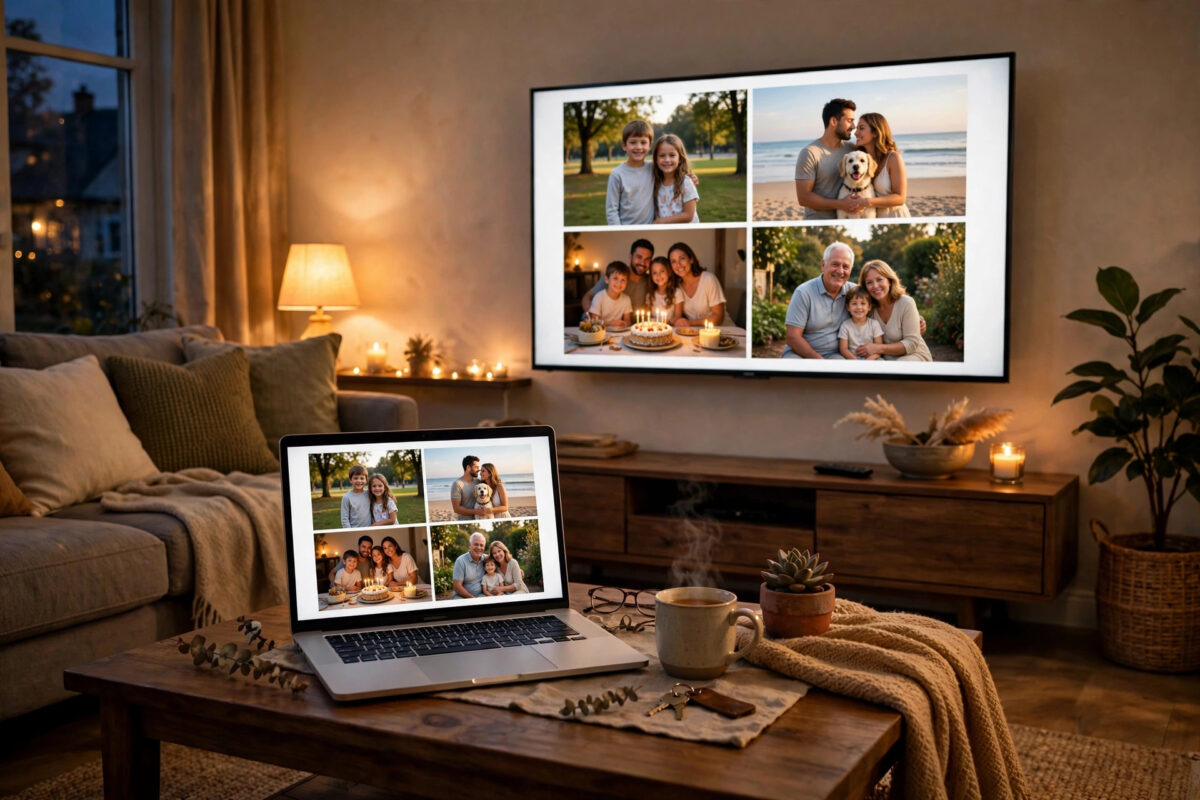
Whether it is family photos, a film, or a presentation, everything looks better on the big screen — and you no longer need an HDMI cable trailing across the room. Most modern Windows laptops and smart TVs can mirror wirelessly using technology already built in, and it takes under a minute to connect.
This guide covers the main methods: Miracast, which is built into Windows and most smart TVs; casting from the Chrome and Edge browsers; and the options for TVs that do not support mirroring natively. It also works through the fixes for the frustrating moments when your TV simply refuses to appear in the list.
What Wireless Mirroring Actually Does
Mirroring means your TV shows an exact copy of your laptop screen, in real time — whatever you do on the laptop appears on the TV, including the mouse pointer. That is different from casting a single video, where the TV plays one file or stream while your laptop stays free for other things. Mirroring is best for presentations, photos, websites, documents, games played casually, and apps that have no cast button of their own.
The main technology behind it on Windows is Miracast, a Wi-Fi standard that creates a direct wireless link between your laptop and the TV or a streaming stick. Microsoft’s own guide to wireless display and projecting in Windows describes the feature, which has been part of Windows since version 8.1. Almost all Windows 10 and 11 laptops support it, and most Samsung, LG, Sony, TCL, Hisense, and Philips smart TVs from the last several years support it too — though each brand gives it a different name, such as Smart View, Screen Share, or Screen Mirroring.
Before You Start: A Quick Checklist
- Connect the laptop and the TV to the same home Wi-Fi network. This matters most for browser casting, and it helps the devices find each other for Miracast too.
- Update the TV’s software in its settings menu if it has been a while — old TV firmware is a common cause of failed connections.
- On the laptop, turn Wi-Fi on even if you normally use a cable. Miracast needs the Wi-Fi radio active.
- Wake the TV and leave it on its home screen or any input. Most TVs accept a mirroring request automatically or show an on-screen prompt to allow it.
Method 1: Mirror with Miracast Using Windows + K
This is the fastest method and the one to try first.
- On your laptop, press Windows key + K. The Cast panel opens, listing wireless displays your PC can see.
- Select your TV from the list. If the TV asks whether to allow the connection, confirm with the TV remote.
- After a few seconds, your desktop appears on the TV. You are now mirroring.
- To choose what the second screen does, press Windows key + P and pick a mode: Duplicate shows the same thing on both screens, Extend turns the TV into extra desktop space, and Second screen only turns the laptop display off.
- To disconnect, press Windows key + K again and choose Disconnect, or press Windows key + P and select PC screen only.
Extend mode deserves a special mention. For films it is often better than mirroring: drag the video onto the TV side of the desktop, make it full screen, and keep your notes and messages privately on the laptop screen. For presenting, Duplicate is safer because what you see is exactly what your audience sees.
You can adjust quality and behaviour in Settings > System > Display when connected, and manage saved devices in Settings > Bluetooth & devices > Devices. If wireless display has never been used on the PC, Windows may need the free Wireless Display optional feature: go to Settings > Apps > Optional features > Add an optional feature, search for Wireless Display, and install it.
Method 2: Cast from Chrome or Microsoft Edge
If you only want one video, tab, or file on the TV — not your whole desktop — browser casting is smoother and uses less battery.
In Google Chrome, click the three-dot menu and choose Cast, save and share > Cast (older versions show it directly as Cast). Pick your TV or Chromecast device, then use the Sources option if you want to cast your entire desktop instead of just the tab. In Microsoft Edge, click the three-dot menu, then More tools > Cast media to device, and select your TV.
Browser casting works with Chromecast and Chromecast built-in TVs, and many modern TVs appear in the list as well. It is ideal for YouTube, streaming sites, and photo galleries, because the video plays at full quality while your laptop stays usable. For more ideas on getting the most from a home setup like this, our NetworkUstad home tech and Windows guides walk through similar connections step by step.
Method 3: When Your TV Is Not Smart Enough
An older TV with an HDMI port just needs a receiver. A Chromecast plugs into the HDMI port and accepts casts from Chrome, Edge, and Android, and many inexpensive Miracast dongles do the same job. Amazon Fire TV sticks also accept Miracast on most models: hold the Home button on the Fire remote and choose Mirroring, then connect with Windows key + K. Apple TV is the exception — it uses AirPlay, which Windows does not support natively, so you would need third-party software.
Fixing the Usual Problems
The TV does not appear in the list
Restart both the TV (fully off at the wall for 30 seconds, not just standby) and the laptop. Confirm Wi-Fi is on and both devices are on the same network, then check whether the TV’s mirroring or screen-sharing feature needs switching on in its own settings or input menu. On Samsung TVs, look for the Screen Mirroring source; on LG, open the Screen Share app.
It connects, then drops or stutters
Wireless mirroring is sensitive to distance and interference. Move the laptop closer to the router or TV, switch the laptop to your router’s 5 GHz network if available, and close bandwidth-heavy downloads. Microwaves, thick walls, and crowded apartment Wi-Fi all degrade the picture.
The picture looks blurry or delayed
Some lag is normal with Miracast — a fraction of a second — which is fine for video and presentations but noticeable in fast games. For sharper text, set the TV’s picture mode to Game or PC if it offers one, and in Settings > System > Display make sure the TV’s resolution is set to its native 1080p or 4K rather than a scaled value.
Sound comes from the laptop instead of the TV
Click the speaker icon in the taskbar, open the output selector, and choose the TV or wireless display as the sound device. Windows normally switches automatically, but it sometimes sticks with the laptop speakers after reconnecting.
The background of the standard itself is covered in the Wikipedia overview of Miracast, which lists compatible devices and how the Wi-Fi Direct connection works if you want the technical detail.
Common Mistakes and Helpful Tips
- Using Extend when you meant Duplicate: If the TV shows only your wallpaper and no icons, you are in Extend mode. Press Windows key + P and choose Duplicate.
- Forgetting notifications appear on the TV: When mirroring, everything is public, including message pop-ups. Turn on Do Not Disturb in Settings > System > Notifications before presenting.
- Leaving the laptop to sleep: Adjust Settings > System > Power & battery so the screen and sleep timers do not cut your film in half.
- Expecting perfect gaming performance: Wireless adds delay. For serious gaming, a cable or a dedicated streaming setup still wins.
- Skipping the allow prompt: Many TVs silently display an “allow this device?” prompt for the first connection. If the laptop says it failed, look at the TV screen before retrying.
Conclusion
For most people, wireless mirroring is as simple as pressing Windows key + K, choosing the TV, and picking Duplicate or Extend with Windows key + P. Browser casting handles single videos more elegantly, and a cheap streaming stick brings even an old TV up to date. Get both devices on the same network, keep the TV’s software updated, and the living-room big screen is only a few clicks away.
Frequently Asked Questions
How do I mirror my laptop to a TV without Wi-Fi?
Miracast uses Wi-Fi Direct, so it can work even without a router once both devices support it — but they still need their Wi-Fi radios switched on. Browser casting to Chromecast does need both devices on the same network. With no wireless at all, an HDMI cable is the fallback.
Why is there a delay between my laptop and the TV?
Your laptop compresses the picture, sends it wirelessly, and the TV decodes it, which adds a small delay. It is normal for Miracast and fine for video, photos, and slides, but fast-paced games feel unresponsive. Reducing distance and using 5 GHz Wi-Fi helps.
Can I mirror a Windows laptop to a Samsung or LG TV?
Yes. Most Samsung and LG smart TVs support Miracast. Press Windows key + K on the laptop and select the TV, and approve the connection on the TV if prompted. Samsung calls it Smart View or Screen Mirroring; LG calls it Screen Share.
What is the difference between Duplicate and Extend?
Duplicate shows exactly the same image on the laptop and TV. Extend treats the TV as extra desktop space, so you can drag windows onto it and keep other work private on the laptop screen. Switch modes any time with Windows key + P.
Do I need to install anything to use Miracast?
Usually not — it is built into Windows 10 and 11. If your TV never appears, install the Wireless Display optional feature from Settings > Apps > Optional features, and make sure your Wi-Fi and graphics drivers are up to date.

Leave a Reply