
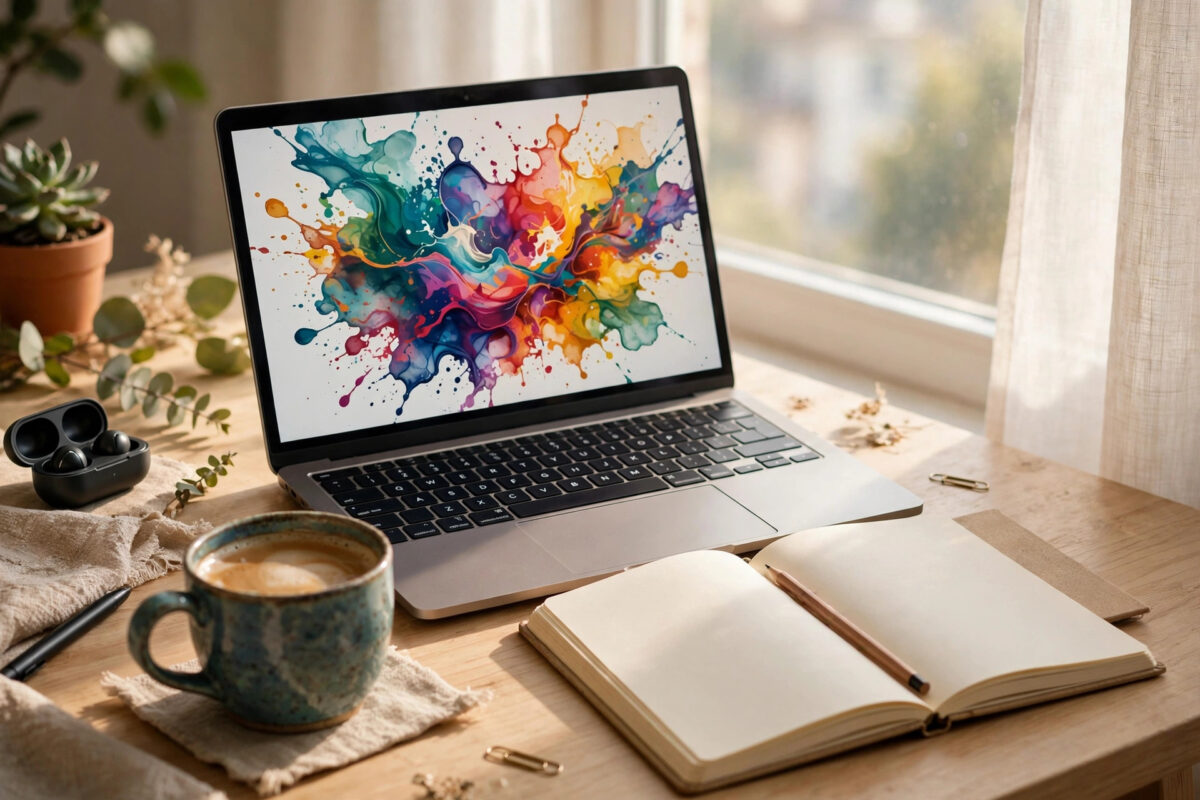
Stock photos used to be the default choice for bloggers, and readers learned to spot them instantly. The same smiling team in the same glass office appears on hundreds of websites, which does nothing for trust or for keeping someone on your page. Midjourney changed that equation. With a short text prompt, you can create an original image that matches the exact topic, mood, and colour palette of your article — no camera, no designer, and no licence hunt through a stock library.
That said, typing a few words and hoping for the best rarely produces professional results. The difference comes down to prompt structure, settings, consistency, and editing discipline. This guide walks you through the whole process, from account setup to exporting images that load fast on desktop and mobile.
What Midjourney Is and How It Works
Midjourney is an AI image generator that turns text descriptions, called prompts, into images. You describe what you want — the subject, setting, lighting, style, and mood — and the model returns four variations to choose from. You can then upscale a favourite, remix it, or generate fresh variations until the image fits your article properly.
Historically, Midjourney ran entirely through Discord, which put some bloggers off. Today you can also create images through its web interface, which is far friendlier for organising folders, browsing past work, and downloading files. Whichever route you use, the creative process is the same: prompt, review, refine, upscale, and export.
What You Need Before You Start
You need a Midjourney account on a paid plan, because free trials are only offered occasionally and are very limited when they appear. Paid tiers generally differ by how many fast generation hours you receive each month and whether you can work in relaxed mode. For a typical blogger publishing two to four posts a week, an entry-level paid tier is usually enough, especially if you reuse strong images across social posts as well. You will also want a simple folder system on your computer for raw downloads, edited versions, and final web-ready files.
Step-by-Step: Creating Your First Blog Image
Step 1: Start With the Job the Image Must Do
Before opening Midjourney, write down what the image needs to communicate. A featured image has a different job from an in-article illustration. The featured image sells the click and sets the tone, so it needs a clear focal point and space that still reads well when cropped into a thumbnail. An in-article image should explain or break up a specific section, so it can be more detailed and specific. Deciding this first prevents the common problem of generating a beautiful image that does not actually fit anywhere.
Step 2: Write a Structured Prompt
A reliable prompt follows a simple order: subject, action or setting, environment, lighting, style, and mood. For example, instead of typing “writer at desk,” try “freelance writer working at a wooden desk by a bright window, laptop and notebook, soft morning light, editorial photography style, calm and focused mood.” Each added detail removes guesswork for the model. Avoid stuffing in contradictory instructions, such as asking for both a dark moody scene and bright cheerful daylight, because the model will average them into something flat.
Step 3: Add Parameters for Shape and Control
Parameters are short instructions added at the end of a prompt. The most useful one for bloggers is the aspect ratio. A wide ratio suits featured images and social sharing cards, while a squarer ratio works better inside narrow article layouts. Other parameters let you control how stylised or raw the result looks and how much variation you get between the four options. Change one parameter at a time while you learn, so you can see what each one actually does instead of guessing.
Step 4: Choose, Upscale, and Vary
From the first four results, pick the composition that is closest to your goal, not necessarily the prettiest one. Upscale it to get a larger, cleaner file, then use the variation tools if the idea is right but the details are off. If hands, text, or faces look distorted — still a weakness of AI generators — regenerate rather than trying to publish around the flaw. Readers notice odd fingers and garbled letters immediately, and one bad detail can undermine an otherwise credible article.
Step 5: Edit and Optimise Before Uploading
Download the final image and give it a quick pass in any basic editor. Crop it to your blog’s featured image dimensions, check that the focal point survives a mobile crop, and compress the file so it does not slow your page down. Rename the file descriptively before uploading, using words that reflect the article topic, and write proper alt text that describes the image for screen readers and search engines. A huge uncompressed file will hurt load times no matter how good it looks.
Keeping a Consistent Visual Style Across Your Blog
Consistency is what separates a professional blog from a random collection of posts. If every article uses a different illustration style, colour palette, and lighting, the site feels stitched together. Midjourney helps here in two practical ways. First, you can save a short style phrase — your preferred medium, palette, and lighting — and paste it into every prompt. Second, you can use a previous image as a style reference, so new images inherit its look without copying its content.
Build a small style guide for yourself: two or three core colours, one preferred style such as editorial photography or flat illustration, and one lighting preference. Keep it in a note alongside your prompt templates. If you run a technology blog, for example, our wider guides on practical technology tools and tutorials for everyday users show how a consistent presentation helps readers recognise and trust a site over time.
Creating a Reusable Prompt Template
Save three templates: one for featured images, one for step-by-step or explainer images, and one for social sharing versions. Each template should include your style phrase, your preferred aspect ratio, and a placeholder for the subject. Templates save time, but review each prompt before generating — a template should be a starting point, not a copy-and-paste habit that produces identical images for different topics.
Copyright, Licensing, and Honest Use
On paid plans, Midjourney generally grants you broad rights to use the images you create, including commercially on your own blog, but the exact terms depend on your plan and company size, so read the current terms on the official Midjourney website before using images in products you sell. Remember that AI images are also publicly visible by default on many plans, so do not prompt with private or sensitive material.
Two cautions matter for bloggers. First, never prompt for a real living person, a celebrity, or a trademarked character and present the result as real — that misleads readers and can create legal trouble. Second, consider disclosing AI-generated imagery where it matters, particularly for news-style or testimonial content. For decorative blog illustrations, most readers simply care that the image is relevant and clearly not pretending to be a genuine photograph of a real event.
Common Mistakes Bloggers Make With Midjourney
Writing Vague One-Line Prompts
A prompt like “business success” gives the model nothing to work with, so you get generic glowing graphs and handshakes. Always name a concrete subject, a place, and a moment. Specific prompts produce specific, usable images.
Ignoring Aspect Ratio and Cropping
Generating a tall portrait image for a wide featured-image slot guarantees an awkward crop that cuts off your subject. Decide the placement first, set the ratio to match, and check the mobile preview before publishing.
Publishing the First Result
The first grid is a draft, not a finished product. Professional results usually come after one round of variations and one upscale. Budget a few minutes per image and your blog will look noticeably better than sites that publish the first thing the model returns.
Forgetting Speed and Accessibility
Large files slow pages and frustrate mobile readers, and missing alt text shuts out visually impaired visitors. Compress every image, keep file names descriptive, and write alt text as a habit, not an afterthought.
Conclusion
Midjourney can give your blog a distinctive, professional visual identity without a photography budget, but only if you treat it as a craft rather than a slot machine. Start with the job each image must do, write structured prompts, control the aspect ratio, refine before you upscale, and keep a consistent style with a simple template. Edit, compress, and label every file properly before it goes live. Do those things consistently and your images will stop looking like generic AI output and start looking like a deliberate part of your brand — which is exactly what keeps readers reading, sharing, and coming back.
Frequently Asked Questions
Do I need Discord to use Midjourney for blog images?
No. Midjourney began in Discord, and many long-time users still work there, but the web interface now covers the full creation workflow and is easier for organising and downloading images for a blog.
Can I legally use Midjourney images on a monetised blog?
Generally yes on a paid plan, which typically includes commercial use rights for your own content. Terms can vary by plan, so check the current licensing terms before using images in paid products or client work.
How many images should I create per blog post?
One strong featured image plus one or two in-article images is enough for most posts. More than that rarely adds value and can slow the page. Quality and relevance matter far more than quantity.
Why do faces and hands sometimes look wrong?
AI models still struggle with fine anatomical detail, especially in busy scenes. Keep people small in the frame, use simpler compositions, or choose object and workspace scenes for blog topics where a person is not essential.
Should I tell readers an image was AI-generated?
For decorative illustrations it is a judgement call, but transparency is wise whenever an image could be mistaken for a real photograph of a real person or event. A short note in your site policy is a sensible middle ground.



Leave a Reply