
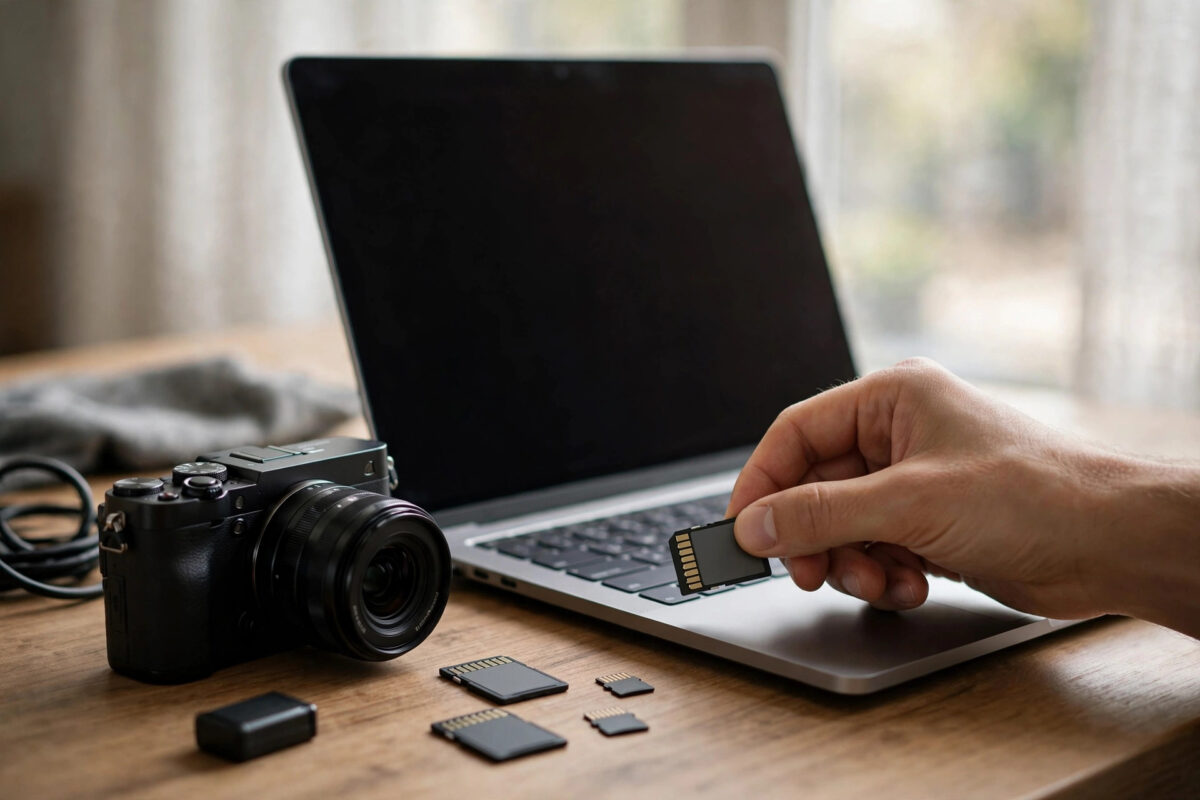
You copied a folder of photos to the SD card, watched the progress bar finish, ejected safely like you always do — and when you put the card back in, the files were gone. Not corrupted. Gone, as if the copy never happened.
This is one of the most confusing storage problems because you did everything right. There are several possible causes, ranging from a dying card to a counterfeit one, and the order in which you test them matters — especially if the missing files are precious and not yet backed up anywhere else.
Quick Answer
The most common causes are a counterfeit card whose real capacity is far smaller than it claims, a failing card that cannot retain writes, or a copy that never truly finished because of write caching. First, stop writing anything new to the card. Then test its true capacity with H2testw, check whether the files are merely hidden, and try reading the card in a different device. If the missing files were important and exist nowhere else, image the card before running any repair tools.
First: Protect Whatever Might Still Be There
If the disappeared files matter and this card holds the only copy, do not format it, do not run chkdsk yet, and do not copy anything new onto it. Data on flash media can sometimes still be present but unlisted, and every new write risks overwriting it. The safest first move with valuable data is a sector-by-sector image of the card, taken with a tool such as ddrescue, so you can experiment on the image instead of the original. If the files exist elsewhere too, you can troubleshoot the card directly.
Cause 1: The Card Is Fake
A counterfeit card reports, say, 512GB while physically holding 32GB. Copies appear to succeed because the controller confirms writes it cannot store; once real capacity is exceeded, data wraps around and overwrites itself, or evaporates on the next mount when the controller’s story falls apart. The signature pattern: files below a certain total volume survive, everything beyond a threshold — often 8GB, 16GB or 32GB — disappears or corrupts. Test the card exactly as described in our guide to testing a new microSD card’s true capacity; H2testw’s verified figure tells you the truth in one number.
Cause 2: The Card Is Wearing Out
Flash memory has a finite number of write cycles. A card near the end of its life can accept writes, report success, and then fail to retain the data — the cells simply no longer hold their charge reliably. This often starts with files that vanish or corrupt after a power cycle, exactly like a battery that shows full and dies in minutes. There is no repair for worn-out flash. Rescue anything readable and retire the card.
Cause 3: The Copy Never Actually Finished
Windows and macOS use write caching: the progress bar can complete while the last data still sits in memory waiting to be written. “Safely eject” is designed to flush that cache, but the protection fails if the card reader lost power, the cable was disturbed, the PC slept mid-flush, or the eject happened while a background process (antivirus scans love doing this) still held files open. Clues: the missing files are always the last ones copied, and smaller test copies work fine. Copy in smaller batches and watch the reader’s activity light stop before ejecting.
Cause 4: The Files Are Hidden, Not Gone
Sometimes the files are present but invisible. A file system error can strip a file’s directory entry from view, and a well-known family of USB malware sets files’ attributes to hidden and system. In File Explorer, enable Hidden items under View, and also untick “Hide protected operating system files” temporarily to check. If files appear greyed out, they were hidden, not deleted — copy them off, then clean the card thoroughly before reusing it.
How to Diagnose, in Order
- Try the card in another device — a camera, a phone, a different reader. If the files appear there, the problem is your reader or PC, not the card.
- Check for hidden files with the Explorer settings above.
- Note how much data survives. Copy a measured set of test files — 5GB, then 20GB — and see where survival stops. A consistent cliff points to fake capacity.
- Run H2testw (after rescuing anything you need) for a definitive capacity and health verdict, using the tool from the H2testw page on heise online.
- Reformat with the SD Card Formatter only after diagnosis, and re-test. A card that still loses files after a proper format and a clean test result elsewhere is finished — replace it.
Common Mistakes to Avoid
- Re-copying the same files again and again. If the card is fake or dying, repeated writes make recovery of the earlier data less likely, not more.
- Running chkdsk /f as the first step. chkdsk “fixes” file system problems by discarding inconsistent data. On a card holding your only copy, that can permanently delete what recovery software might have saved.
- Assuming safe eject guarantees the write. It guarantees the operating system’s side of the bargain. A failing card or flaky reader can still lose the data afterwards.
- Continuing to use a card that failed the capacity test. Even below its “real” capacity, counterfeit flash is the lowest-grade memory that exists. Retire it.
If the Missing Files Were Photos: Work From an Image
When the vanished files are photos or videos that exist nowhere else, change tactics from fixing the card to rescuing the data. Put the card in a reader, and before any tests, make a sector-by-sector image of it onto your PC using ddrescue or your recovery software’s imaging feature. An image freezes the card’s current state — including data whose directory entries are lost but whose bytes still sit on the flash. Run PhotoRec or a similar recovery tool against the image, not the card, and sort what it finds by date and type.
Expect imperfect results and imperfect names; that is normal for carved files, and the recovered set can be organised afterwards by the dates hidden in the photos themselves. What you must not do is keep testing the original card with writes, formats and repair tools while it holds unrescued data — every write is a small lottery ticket against the files you are trying to save. If the image-based recovery finds nothing and the files are truly irreplaceable, that is the point where a professional recovery service earns its fee; if they were backed up elsewhere, cut your losses, bin the card, and let the backup do its job.
Conclusion
Files that vanish after a textbook-safe eject are the card telling you something: it is fake, it is dying, or the write never truly landed. Stop writing to it, check for hidden files, test in another device, and let H2testw deliver the verdict. If the card fails, no formatting ritual will save it — replace it, and test the replacement before trusting it.
Frequently Asked Questions
Can recovery software bring back the disappeared files?
Sometimes — if the files were written to real flash and only their directory entries were lost, recovery tools can find them by scanning the card. If the card is fake and the data was never physically stored, there is nothing to recover.
Why do only the most recent files disappear?
Two reasons: write caching affects the tail end of a copy, and fake-capacity wrap-around overwrites in a rolling pattern. Either way, the newest-or-oldest pattern is a useful diagnostic clue.
Is “quick removal” mode in Windows the problem?
Quick removal mode actually reduces caching risk by writing data immediately. The setting rarely causes this issue; failing or counterfeit media is a far more common explanation.
Should I format the card in the camera or the PC?
After diagnosis, format in the device that will use the card — cameras prefer their own formatting. For a factory-standard reset, the SD Association’s formatter is the reference tool.
The card works in my phone but loses files from my PC. Why?
Suspect the card reader or its cable before the card. Cheap readers are notorious for marginal connections and overheating mid-copy. Test the same card in a different reader.



Leave a Reply