
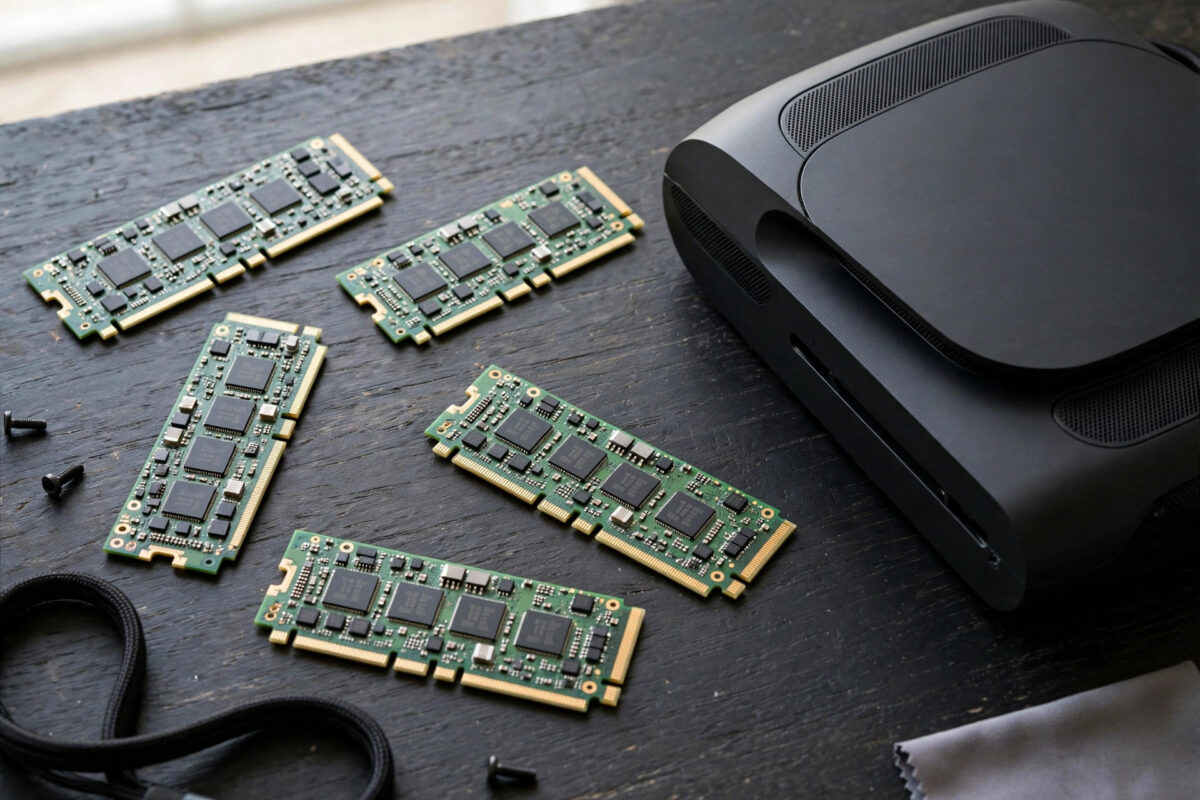
The PS5 expansion slot accepts M.2 SSDs, but only drives that meet a specific list of requirements. Buy the wrong one and the console will refuse it, or worse, accept it and then throttle during games. This guide explains exactly how to check any SSD for PS5 compatibility, in plain language, before you spend money.
Quick Answer
A PS5-compatible SSD must be an M.2 NVMe drive using PCIe Gen 4 x4, in 2230, 2242, 2260, 2280, or 22110 size, with capacity between 250GB and 8TB, a recommended sequential read speed of 5,500MB/s or faster, and a heatsink thin enough to fit the slot (total thickness up to about 11.25mm). To check a drive, look at its product page for those exact points: Gen 4, NVMe, speed, size code, and whether a heatsink is fitted or available.
The Six Requirements, Explained Simply
1. Interface: PCIe Gen 4 x4 NVMe
This is the non-negotiable one. The PS5 slot only accepts drives that talk over PCIe Generation 4 with four lanes, using the NVMe protocol. A Gen 3 drive fits physically but will be rejected. A SATA M.2 drive (an older, slower standard) also fits some slots but is completely incompatible. Product listings state the interface clearly, so search the page for “PCIe 4.0” or “Gen 4” and “NVMe”.
2. Read Speed: 5,500MB/s or Faster Recommended
Sony recommends a sequential read speed of at least 5,500MB/s. Most Gen 4 drives aimed at gamers list 7,000MB/s or more. A drive slightly below the recommendation might be accepted but can cause stutters in demanding games, so treat 5,500MB/s as your minimum shopping target and prefer faster.
3. Physical Size: The Four-Digit Code
M.2 drives are named by width and length in millimetres. 2280 means 22mm wide and 80mm long, and it is by far the most common size. The PS5 supports 2230, 2242, 2260, 2280, and 22110. If a listing does not state the code, the drive’s length measurement will tell you.
4. Capacity: 250GB to 8TB
Anything smaller than 250GB is rejected, and nothing larger than 8TB is supported. For most players, 1TB or 2TB is the practical choice, balancing price against the size of modern games.
5. A Heatsink Is Required
Sony requires effective heat dissipation, in practice a heatsink. Many drives ship in two versions: bare, and with a slim heatsink. Choose the heatsink version, or buy a separate low-profile PS5 heatsink. The combined thickness must stay under roughly 11.25mm, with most of that below the drive, so tall desktop-style heatsinks with fins will not fit under the slot cover.
6. Single-Sided or Double-Sided Both Work
Chips may sit on one or both sides of the drive. Both are fine as long as the total dimensions, including the heatsink, fit the limits above.
How to Check a Specific Drive in Two Minutes
- Open the drive’s product page or specification sheet.
- Find the interface line and confirm it says PCIe Gen 4 x4 (or PCIe 4.0) and NVMe. If it says Gen 3 or SATA, stop there.
- Find the sequential read speed. Confirm it is 5,500MB/s or above.
- Find the form factor code and match it against 2230, 2242, 2260, 2280, or 22110.
- Check capacity is between 250GB and 8TB.
- Check the heatsink situation: fitted slim heatsink included, or a stated PS5-compatible heatsink option.
- Cross-check against Sony’s published requirements on the official PS5 M.2 SSD requirements page if any figure is unclear.
Popular Drive Families That Meet the Spec
Several well-known ranges are built to this specification and are commonly sold in PS5-ready versions, including Samsung’s 980 Pro and 990 Pro with heatsink, Western Digital’s WD Black SN850X, Seagate’s FireCuda 530, Kingston’s Fury Renegade, and Crucial’s P5 Plus and T500. Treat these as examples of the right class of drive rather than a shopping list: always verify the exact model variant, because the same family often includes Gen 3, bare, or slower versions that do not qualify. Prices move constantly, so the cheapest drive that genuinely ticks every box is usually the smart buy.
What Happens With an Incompatible Drive
If the interface is wrong, the PS5 displays a message that the drive cannot be used and asks you to remove it. If the drive is merely slow, the console may accept it after its speed test but warn that games might not perform properly. Either way the console protects itself, so you cannot damage the PS5 by testing a drive; you simply waste time and a returns window. When you are ready to fit a drive you have verified, follow our step-by-step PS5 SSD installation guide.
Mistakes Buyers Keep Making
- Confusing M.2 with one standard. M.2 is only the shape and connector. SATA and Gen 3 NVMe drives share the shape but fail the requirements.
- Buying the bare version to save money. You then need a separate slim heatsink anyway, which often erases the saving.
- Trusting the headline speed of the family. Advertised speeds often describe the largest capacity model. Check the speed of the exact size you are buying.
- Ignoring total thickness. A chunky heatsink prevents the slot cover closing, and the cover is required for airflow.
- Buying tiny 250GB drives. They pass the minimum but hold only a handful of big games. The price per terabyte is far better at 1TB and 2TB.
Reading a Product Listing Like an Expert
Retail listings bury the important numbers under marketing, so learn to skim for the five facts that matter and ignore the rest. “Up to” speeds describe the best model in the family at the largest size, so always find the specification table for the exact capacity you are buying. Endurance figures (TBW) matter for PC workstations but are a non-issue for game storage. Fancy controller names and DRAM callouts make little difference to PS5 loading, because the console’s own hardware does much of the work. The one marketing phrase worth trusting is an explicit “PS5 compatible” or “meets Sony’s requirements” claim from a major brand, since those brands test against the published spec — and even then, a thirty-second check of the numbers confirms it.
Used and Refurbished Drives: Worth It?
A used Gen 4 drive can be a bargain because SSDs used for game storage age slowly, but buy carefully. Ask for the drive’s health report if the seller can provide one, avoid drives that lived in laptops running hot for years, and buy from a marketplace with buyer protection so you can test the drive in your PS5 within the return window. The console’s format-and-speed-test on first installation doubles as your acceptance test: if it formats, reports a healthy speed, and runs a big game smoothly for an evening, it is a good drive. If anything feels off, return it rather than nursing doubts.
Conclusion
Checking PS5 SSD compatibility is a two-minute job if you work through the list: Gen 4 NVMe, 5,500MB/s reads or better, a supported size code, 250GB to 8TB capacity, and a slim heatsink. Verify those five things on the exact model you plan to buy and the drive will drop in and work at full speed. Guess instead, and you will likely be arranging a return.
Frequently Asked Questions
Can I use a PCIe Gen 5 SSD in a PS5?
Gen 5 drives are backwards compatible with Gen 4 slots in principle, but they tend to run hot and cost far more, and Sony’s supported specification is Gen 4. A good Gen 4 drive is the sensible choice for a PS5.
Does the PS5 format a new SSD automatically?
Yes. When you first power on with a new drive installed, the console prompts you to format it and runs a speed measurement. Formatting erases the drive completely.
Is a heatsink really necessary for light use?
Yes. Even short game installs move huge amounts of data and generate heat. Sony lists cooling as a requirement, and drives without it throttle quickly in the enclosed bay.
Can I use the expansion SSD and an external USB drive together?
Yes. Many players keep PS5 games on the internal expansion SSD and store PS4 games or parked PS5 titles on USB storage, moving them as needed.
Will any 2280 drive fit physically?
The length will fit, but compatibility is more than size. Interface, speed, and total thickness with the heatsink all have to meet the requirements as well.



Leave a Reply