
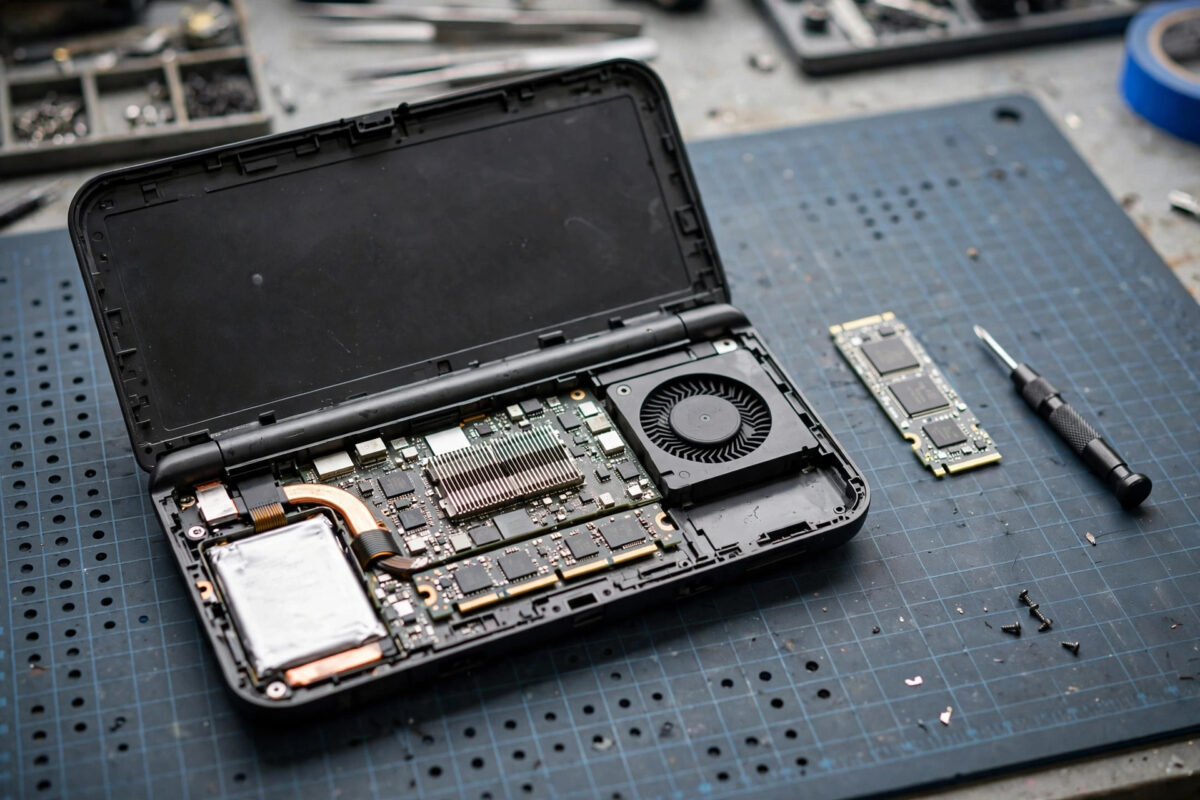
The PS5’s built-in storage fills up fast, but Sony built in an expansion slot for a second internal SSD. Installing one takes about ten minutes with a single screwdriver, and it gives you fast storage that plays PS5 games directly, just like the internal drive. This guide covers choosing the right moment, the exact installation steps, and the setup afterwards.
Quick Answer
To install an extra internal SSD in a PS5, turn the console fully off and unplug it, lay it down, slide off the cover, and unscrew the expansion slot lid. Insert a compatible M.2 NVMe SSD (with a heatsink) at an angle into the slot, secure it with the spacer and screw at the correct size marking, replace the lid and cover, then power on and format the drive when prompted. The SSD must be PCIe Gen 4, 250GB to 8TB, with read speeds of 5,500MB/s or faster recommended.
Before You Open the Console: Compatibility
Not every M.2 SSD works in a PS5. The drive must be a PCIe Gen 4 x4 NVMe SSD in one of the supported lengths (2230, 2242, 2260, 2280, or 22110), fitted with a heatsink so it stays cool inside the slot. A bare drive without cooling can overheat and throttle. Many drives are sold in PS5-ready versions with a slim heatsink already fitted, which is the easiest route. Our companion guide explains which SSDs are compatible with the PS5 and how to check before you buy, and Sony’s own official M.2 SSD installation page lists the full mechanical and speed requirements.
What You Need
- A compatible M.2 SSD with heatsink fitted
- A Phillips #1 screwdriver
- A soft, clean, flat surface to work on
- Good lighting, because the slot screws are small
- Ten to fifteen minutes with the console fully powered down
Step-by-Step: Installing the SSD
- Turn the PS5 completely off (not Rest Mode), wait for the light to go out, and unplug every cable.
- If the console stands vertically, detach the base. Lay the console on its side with the disc slot facing you (or the smooth side on a Digital Edition).
- Remove the cover: grip the top corner near the light strip, lift gently and slide the cover towards the bottom of the console. It flexes slightly and releases with moderate pressure.
- Find the rectangular metal expansion slot cover and remove its single screw. Keep the screw safe.
- Inside, you will see the slot connector at one end and screw holes marked 30, 42, 60, 80, and 110 along the bay. A spacer ring sits at the 80 position by default. Move the spacer to the hole that matches your SSD’s length.
- Hold the SSD by its edges and insert it into the connector at a shallow diagonal angle until it seats firmly.
- Press the far end down onto the spacer and fasten the screw snugly. Do not overtighten.
- Replace the slot cover and its screw. An air gap is needed for cooling, so this metal lid must go back on.
- Slide the console cover back until it clicks, reconnect the cables, and power on.
Formatting and First Setup
When the PS5 detects a new drive, it shows a message saying the M.2 SSD needs formatting. Accept, and the console formats it and runs a quick speed test, displaying the measured read speed. Formatting erases anything on the drive, so only use a new drive or one whose contents you have backed up. Afterwards, go to Settings, Storage, and Installation Location to choose whether new PS5 and PS4 games install to the internal storage or the new SSD by default. You can move existing games across at any time from the same Storage menu.
Cooling and Safety Tips
The heatsink requirement is not optional decoration. The expansion bay has limited airflow, and a hot SSD slows down and can cause game stutter. If you bought a bare drive, fit a low-profile heatsink designed for PS5 use before installing. Never operate the console with the slot cover removed, since the cover is part of the airflow path. Finally, ground yourself by touching a metal object before handling the drive, and hold the SSD by its edges to protect the connector and chips from static and oils.
Troubleshooting After Installation
- The console does not detect the SSD. Power down, open up, and reseat the drive in the connector. Check the spacer is at the right length mark so the drive sits flat.
- A message says the drive is too slow. The SSD does not meet the recommended speed, or it is overheating. Confirm the model is Gen 4 and that a heatsink is properly attached.
- The console asks to format every boot. The drive may not be fully seated, or it is faulty. Reseat it, and if the message persists, test the drive in a PC or return it.
- Games stutter from the new drive. Heat is the usual cause. Check the heatsink contact and make sure the slot cover was replaced.
Common Mistakes to Avoid
- Buying a Gen 3 SSD because it is cheaper. It will physically fit but the PS5 will refuse it. Gen 4 is mandatory.
- Skipping the heatsink. The console may let you format the drive, but sustained game loads will throttle it.
- Forgetting to power fully off. Opening the console while it is in Rest Mode risks corrupting data and is unsafe. Shut down completely and unplug.
- Losing the tiny screw or spacer. Work over a tray or cloth so small parts cannot roll away.
Original PS5 vs PS5 Slim: Any Differences?
The installation process is essentially the same on the original PS5 and the slimmer model, with two small differences. The cover removal differs slightly — the slim model uses smaller separate panels that pop off with a firm pull rather than one sliding cover — and the expansion bay sits in a slightly different position once the panel is off. The SSD requirements, the spacer system, and the screw sizes are identical, and the same drives fit both. On either model, consult the console’s own quick start guide for the cover technique, because forcing a panel the wrong way is the only realistic way to damage anything during this job. Take the cover slowly, and the rest is pure screwdriver work.
What to Do With the Old Configuration
After installing the drive, spend two minutes making it work for you. Set the M.2 SSD as the default install location for PS5 games if it is larger than the internal drive, and move your most-played titles across so load times and updates land on the roomier drive. Keep captures and media on the internal storage to leave games maximum room. There is no need to move everything at once; the two drives behave as one library, and the console does not care which physical drive a game sits on when you launch it from the home screen.
Conclusion
Adding an internal SSD is the single best upgrade you can give a PS5. Pick a compatible Gen 4 drive with a heatsink, take your time with the cover and screws, format when prompted, and you gain fast storage that behaves exactly like the built-in drive. With modern game sizes, it quickly stops being a luxury and starts feeling essential.
Frequently Asked Questions
Does installing an SSD void my PS5 warranty?
No. The expansion slot is designed for owners to use, and installing a drive according to Sony’s instructions does not void the warranty. Damage caused by incorrect installation, however, may not be covered.
Can PS5 games play directly from the expansion SSD?
Yes. Unlike USB external drives, the internal expansion SSD runs PS5 games natively at full speed. External USB storage can only store PS5 games, not play them.
What size SSD should I buy?
1TB is the sweet spot for most players, doubling usable space at a fair price. Heavy players who keep many large games installed should consider 2TB.
Do I need to back up before installing?
Your existing games and saves on the internal drive are untouched by the installation. The new SSD itself gets formatted, so only back up if that drive already holds data you need.
Why does my SSD show less space than advertised?
Drive makers measure capacity differently from the console, and the PS5 reserves a small portion for system use. A 1TB drive showing around 900GB of usable space is normal.



Leave a Reply