
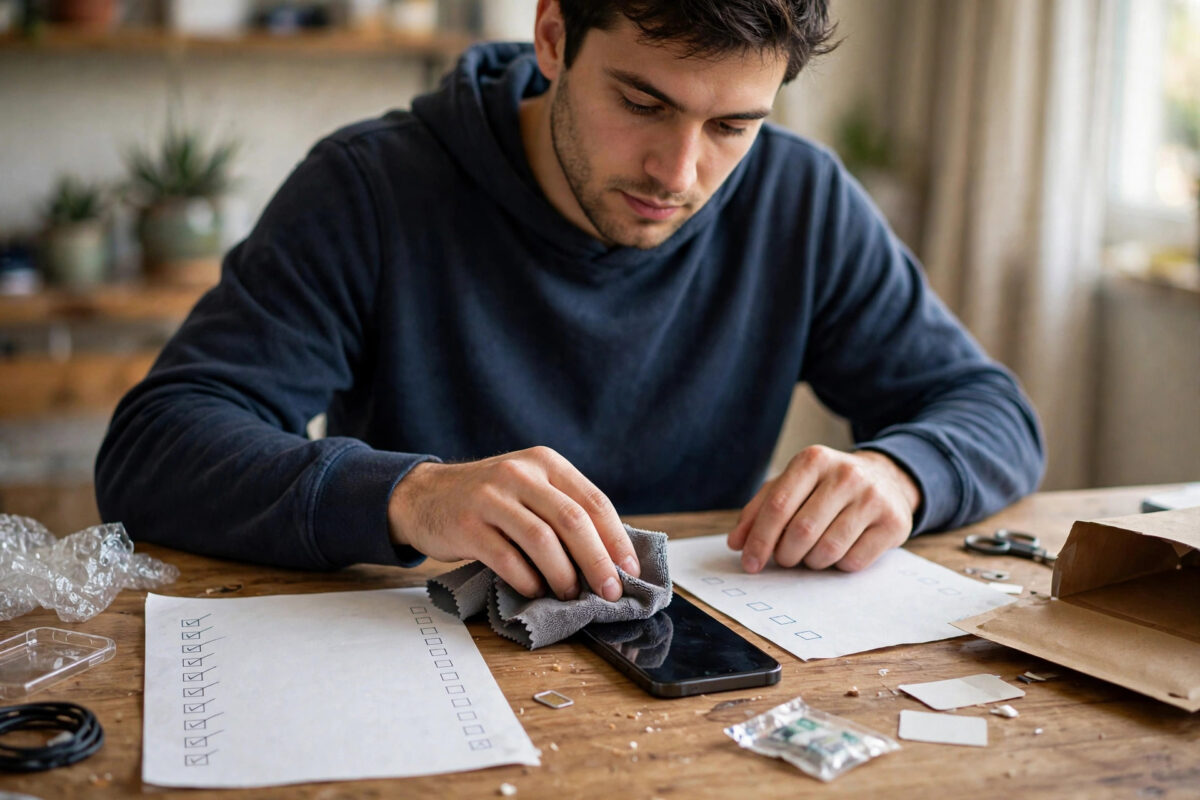
Before your old iPhone changes hands, a handful of switches and sign-outs decide whether the sale goes smoothly or turns into weeks of messages from a frustrated buyer. Some settings protect your privacy, others protect your accounts, and one of them decides whether the buyer can use the phone at all. Run through this checklist before you erase anything, and you will not miss the important ones.
Quick Answer
Before selling, turn off Find My iPhone, sign out of iCloud and iTunes/App Store, unpair your Apple Watch, turn off iMessage if you are leaving Apple, remove your SIM or eSIM, and disable any work or school management profiles. Then erase the phone with Erase All Content and Settings and confirm it reaches the Hello screen.
1. Find My iPhone and Activation Lock
This is the single most important item on the list. Find My powers Activation Lock, which keeps the phone tied to your Apple ID after an erase. Leave it on and the buyer gets a brick that asks for your password forever. When you erase through Settings > General > Transfer or Reset iPhone > Erase All Content and Settings and enter your Apple ID password, Find My and Activation Lock are switched off as part of the process. Our full walkthrough of the erase itself is in the guide on factory resetting an iPhone before selling it.
2. Sign Out of iCloud and the App Store
On older iOS versions, or if you want to be thorough before erasing, sign out manually: Settings > your name > Sign Out. This detaches your photos, files, keychain and account from the device. While you are there, also open Settings > your name > Media & Purchases and sign out, so nobody can buy apps or media on your account from the sold phone.
3. Unpair Your Apple Watch
If you own an Apple Watch paired to this phone, unpair it from the Watch app before erasing. Unpairing creates a fresh backup of the watch, removes its own Activation Lock, and lets you pair it cleanly with your new phone later, restoring your watch faces, health data and settings. If you erase the phone first without unpairing, you will have to erase the watch separately and lose the tidy backup.
4. iMessage: Only If You Are Leaving Apple
Staying with iPhone? Your number moves with you and there is nothing to do. Switching to Android? You must turn off iMessage (Settings > Messages) and FaceTime on the old phone, or your friends’ iPhones will keep sending messages into the Apple system that your new phone cannot receive. Apple even offers a web page to deregister your number if you forgot and no longer have the phone.
5. SIM Card and eSIM
Remove the physical SIM tray and take your SIM out; it holds your number, not the buyer’s. For an eSIM, delete the plan from the phone during the erase if you are not transferring it to your new device, and confirm with your carrier how your number moves. Never sell a phone with your active SIM or eSIM still on board; you are handing over your phone number and possibly access to account recovery codes.
6. Work, School and Management Profiles
If the phone was ever enrolled with an employer or school, check Settings > General > VPN & Device Management. A management profile can restrict the phone and report to that organisation, which no buyer wants and you may not be allowed to pass on. Remove the profile if you are permitted, or return the device to the organisation if it belongs to them.
7. Payment and Access Extras
The erase removes Apple Pay cards automatically, but it is still worth glancing at Settings > Wallet & Apple Pay to confirm your cards are listed for removal. Also revoke any app-specific access you remember granting, such as your home’s smart lock or car app, and change control of smart home devices to your new phone first so you are not locked out of your own house after the sale.
Apple publishes its own pre-sale checklist on its official iPhone support pages, and comparing your list against it takes two minutes and catches anything model-specific.
Mistakes to Avoid
The commonest mistake is doing these steps in the wrong order: erasing first and then trying to unpair a watch or turn off iMessage from a wiped phone. Prepare everything while the phone is still fully yours, then erase last. Another is forgetting a paired set of AirPods or a car Bluetooth connection; these are minor, but removing the phone from your car’s system and resetting the AirPods makes for a cleaner break. Finally, do not sell the phone while it is still listed as a trusted device for your Apple ID two-factor codes after the handover.
A Quick Word About Your Data After the Sale
Following this checklist protects the phone itself, but your wider accounts deserve one last thought. Because your Apple ID stays with you, anything synced rather than stored, your iCloud photos, notes, contacts and keychain passwords, remains safely in your account and appears on your new phone when you sign in; none of it needs to travel with the sold device. If you used the old phone for two-factor codes, make sure your new phone is set up as a trusted device before the old one leaves your hands, so you are never locked out of your own accounts mid-move.
It is also worth changing nothing in a panic. Some sellers rush to change every password they own, which is unnecessary if the erase was done properly: the wiped phone holds nothing to steal. The sensible middle ground is to confirm the device no longer appears in your Apple ID device list, confirm Find My shows it removed, and get on with enjoying the new phone.
Conclusion
Turn off Find My, sign out of your accounts, unpair the watch, sort the SIM and iMessage, remove any management profiles, and only then erase. Ten minutes with this checklist protects your privacy, your number and your accounts, and gives the buyer a phone that simply works.
The Two-Minute Final Sweep
Just before the erase, do one last sweep with fresh eyes. Open Settings and look at the very top: your name and picture mean you are still signed in, which the erase will handle, but it is your reminder that everything on this list flows from that one account. Peek at the Watch app to confirm the watch shows as unpaired or planned. Look in the battery compartment of your routine: is there a spare set of AirPods paired, a car waiting to auto-connect? None of these block the sale, but catching them now, while the phone is still fully yours, is effortless compared with untangling them afterwards.
Frequently Asked Questions
Do I need to turn these things off if I am giving the phone to family?
Yes, mostly. Even for a family member, the phone must be removed from your Apple ID and Activation Lock turned off, or they will be locked out eventually. The difference is you can help them set it up under their own account straight afterwards.
What happens if I sell the phone with Find My still on?
The buyer cannot activate the phone without your Apple ID password, and the sale usually collapses. You can rescue it remotely by removing the device from your account in Find My on iCloud’s website.
Should I turn off two-factor authentication before selling?
No. Never weaken your account security. Instead, after the sale, remove the sold phone from your list of trusted devices in your Apple ID settings, which stops it receiving your verification codes.
Does erasing the phone turn off everything on this list automatically?
Modern iOS erase flow handles Find My, iCloud sign-out and Apple Pay as part of the process. It does not unpair your watch cleanly with a backup, deregister iMessage for an Android move, or remove your physical SIM, so those still need your attention first.
I already sold the phone without turning off iMessage. Can I fix it?
Yes. Apple provides a self-service web page to deregister your phone number from iMessage. After deregistering, ask a friend with an iPhone to delete your old message thread and start a new one so texts come through as SMS.



Leave a Reply