
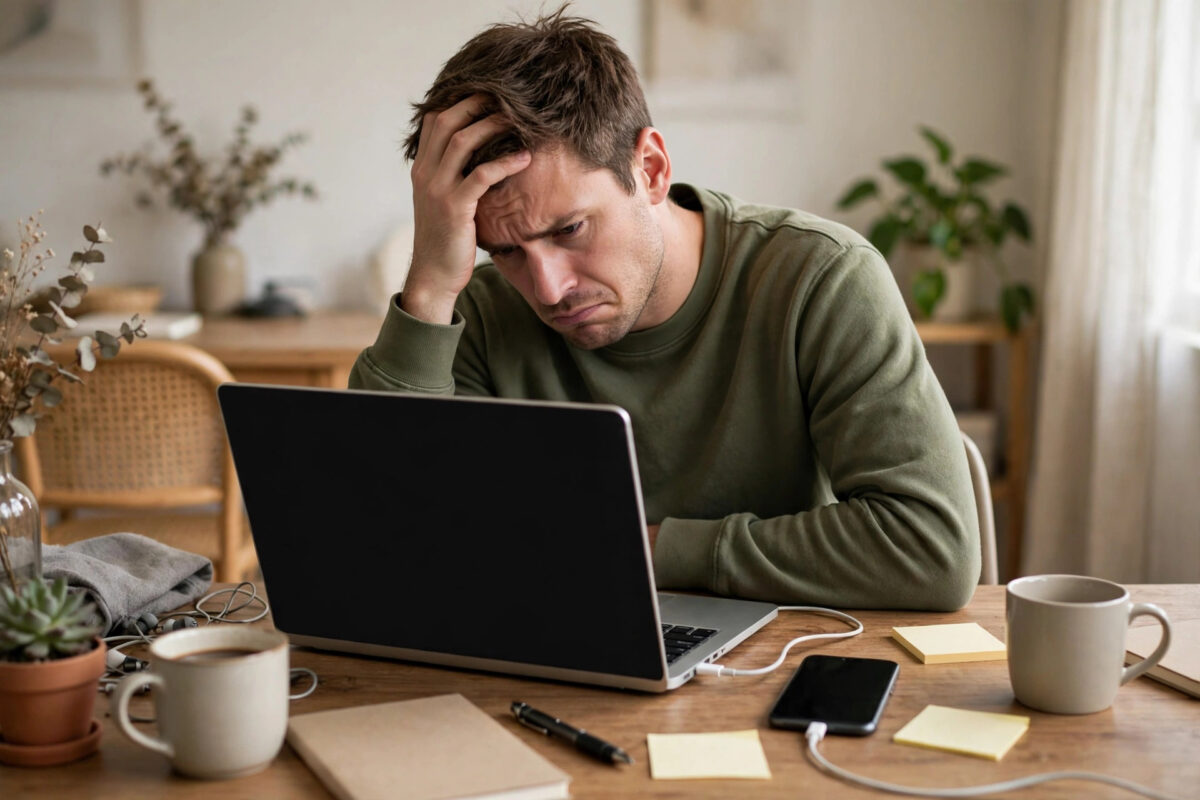
You connect your laptop to your iPhone hotspot, start working, and ten minutes later the connection is gone. You reconnect, it works again, and then it drops in the middle of a call or a download. Few phone problems are more annoying, because the hotspot works just well enough to keep you hoping.
In iOS 27, most disconnects come from sleep behaviour, weak signal, data limits, overheating, or a laptop power setting, not from a broken iPhone. Work through the causes in order and you will usually find yours quickly.
Quick Answer
Your iPhone hotspot keeps disconnecting most often because the iPhone goes to sleep with no active data use, the mobile signal is weak or switching bands, or the laptop is turning off its Wi-Fi to save power. Keep the iPhone awake and plugged in, move it for a stronger signal, and turn off Wi-Fi power saving on the laptop. If drops continue, update iOS, reset network settings, and test with a USB cable to rule out wireless problems.
How iPhone Hotspot Is Designed to Behave
Personal Hotspot is not meant to stay on forever like a home router. To save battery and data, iOS can stop broadcasting or end an idle hotspot when no device is actively using it. That design is sensible for a phone, but it surprises laptop users who expect a router-style connection.
A hotspot that disconnects after a long idle period, with the phone locked and the laptop asleep, may be behaving normally. A hotspot that drops during an active video call, download, or steady browsing is not normal, and the sections below are for that kind of drop. Apple describes the expected behaviour in its official Apple Personal Hotspot support guide, which is worth checking if your hotspot option itself is missing.
Cause 1: The iPhone Sleeps or Locks
When the iPhone screen stays off for a long time and the laptop is also idle, iOS may treat the hotspot as unused. The next time you wake the laptop, the network has vanished.
What to do
- Keep the iPhone plugged into power during hotspot sessions.
- During important work, wake the iPhone occasionally, or open the Personal Hotspot screen before a long task.
- Start the download or call soon after connecting, rather than leaving both devices idle.
- Turn off Allow Others to Join, wait ten seconds, and turn it back on to refresh the broadcast if the network has disappeared.
Plugging in and keeping the session active solves most idle drops.
Cause 2: Weak or Unstable Mobile Signal
A hotspot can only be as stable as the mobile signal underneath it. If your iPhone is switching between 5G and 4G, struggling with one bar indoors, or moving in a car or train, the laptop connection will stumble or drop.
What to do
- Move the iPhone near a window or higher up, and keep it still. A phone in a bag under a desk gets a far worse signal.
- Watch the signal bars while the problem happens. If they fall at the same time as the drops, signal is your cause.
- Try switching between 5G and 4G in Settings, Mobile Service or Cellular, Mobile Data Options, then Voice & Data. In some places a steady 4G signal holds a hotspot better than weak, switching 5G.
- Turn Airplane Mode on for ten seconds, then off, to force a fresh network connection.
Cause 3: The Laptop Is Turning Off Its Own Wi-Fi
Laptops save power by reducing or disabling the Wi-Fi adapter on battery. The iPhone gets blamed, but the laptop ended the connection.
On a Windows laptop
- Open Settings, then Network & Internet, then Wi-Fi, and check Wi-Fi stays on.
- In Device Manager, find your wireless adapter, open its properties, and in the Power Management tab, clear the option that lets the computer turn off the device to save power.
- Forget the hotspot network, then join it again fresh with the password.
On a Mac
- Forget the iPhone network in Wi-Fi settings, then reconnect.
- Check that the Mac is not switching automatically to a remembered network with a weak signal. Remove networks you are not using.
- Keep the iPhone nearby and awake for the first connection if you use Instant Hotspot.
Our step-by-step setup in the guide to using your iPhone hotspot with a laptop covers the clean first-time connection worth repeating after any forget-and-rejoin fix.
Cause 4: Data Limits, Carrier Rules, and Low Data Mode
Some carriers slow or restrict hotspot data after a set amount, even when normal phone data continues. Others deprioritise hotspot traffic when the network is busy, which can look like random disconnects at peak times.
Check your carrier app for a separate hotspot allowance. On the iPhone, go to Settings, Mobile Service or Cellular, and check the data figures. Also look in Mobile Data Options for Low Data Mode. It saves data, but it can pause background activity in ways that make a laptop connection feel broken. Turn it off for a test session and compare.
If drops happen only after large downloads or at the same time each evening, carrier limits are strong suspects, so check this before you reset anything.
Cause 5: Overheating and Battery Saving
Hotspot use makes the iPhone work hard: the mobile radio, Wi-Fi radio, and processor all run at once. In a hot room, in direct sun, or inside a thick case, the phone protects itself by reducing performance, and the hotspot can suffer.
The same applies when the battery is very low. Low Power Mode cuts background activity, and a hotspot session on a nearly empty battery is fragile by design.
- Remove the case during long sessions if the phone feels warm.
- Keep the phone out of direct sunlight and off soft surfaces that trap heat.
- Charge the phone, and turn off Low Power Mode in Settings, Battery, while you test.
- Close heavy apps on the phone itself so it can focus on the hotspot.
Cause 6: Software Bugs and Network Settings
When signal is strong, power is plugged in, and laptop settings are clean, software becomes the likely cause. Work through these in order, testing after each step.
- Restart both devices. Restart the iPhone and the laptop, then connect again. This fixes a large share of sudden problems.
- Update iOS and carrier settings. Go to Settings, General, Software Update for iOS 27 updates. Carrier settings also update when you open Settings, General, About, and wait a few seconds.
- Turn on Maximise Compatibility. In Settings, Personal Hotspot, turn this on if an older laptop keeps dropping. It uses a more widely supported Wi-Fi mode.
- Reset Network Settings. Go to Settings, General, Transfer or Reset iPhone, Reset, then Reset Network Settings. This clears saved Wi-Fi networks and Bluetooth pairings, so you will need to rejoin networks afterwards, but it fixes deep network faults.
The Apple guide to fixing devices that cannot join Personal Hotspot lists the carrier and update checks Apple recommends when a hotspot will not stay available.
Use USB to Prove Whether the Problem Is Wireless
This is the best test in the guide. Connect the iPhone to the laptop with a cable, trust the computer if asked, and work over USB for half an hour. If USB is solid while Wi-Fi keeps dropping, your mobile data and plan are fine, and the fault is in the wireless link or laptop Wi-Fi settings. If USB also drops, focus on signal, carrier limits, heat, and iOS itself. One test cuts your problem in half.
Common Mistakes and Useful Tips
- Resetting network settings first. It wipes all your saved networks. Try restarts, signal, and laptop power settings before you reach for it.
- Testing while walking around. Movement changes signal constantly. Test in one place with the phone still, so results mean something.
- Ignoring the carrier. If hotspot data is capped separately, no phone setting will restore it. Check the plan early.
- Running the hotspot from a hot car. A window helps signal but heat hurts stability. Find shade near the window instead.
- Tip: For an important call, plug in both devices, use USB if you can, and keep other devices off the hotspot.
- Tip: Note when drops happen. Time, place, and activity patterns point straight to the real cause.
Conclusion
A disconnecting iPhone hotspot is rarely a mystery once you test in order: power and sleep behaviour, mobile signal, laptop Wi-Fi power saving, carrier limits, heat, and only then resets. The USB test is your shortcut to knowing which half of the system is at fault. Fix the cause you actually have, and your hotspot will become dependable for real laptop work.
Frequently Asked Questions
Why does my hotspot disconnect when my iPhone screen turns off?
If nothing is actively using data, iOS may end or hide an idle hotspot to save battery and data. Keep the phone plugged in and the session active, and reconnect from the Personal Hotspot screen if it has gone idle after a long pause.
Why does my hotspot drop during video calls but not browsing?
Video calls need a steady connection, so brief signal changes that browsing hides will freeze or drop a call. Improve the signal position, try steady 4G in weak 5G areas, and use USB for important calls.
Does Maximise Compatibility slow my hotspot down?
It can reduce top speed on newer devices because it uses an older, more widely supported Wi-Fi mode. Use it when an older laptop cannot connect or keeps dropping, and turn it off again if all your devices are modern.
Will resetting network settings delete my photos or apps?
No. It only removes network settings such as saved Wi-Fi networks, passwords, and Bluetooth pairings. Your photos, apps, and messages stay in place, but you will need to rejoin Wi-Fi networks.
When is a disconnecting hotspot a carrier problem?
When drops follow heavy use, happen after you reach a hotspot limit, or occur only at busy times while phone data still works. Check your hotspot allowance in your carrier app, because no iPhone setting can override a plan restriction.


Leave a Reply