
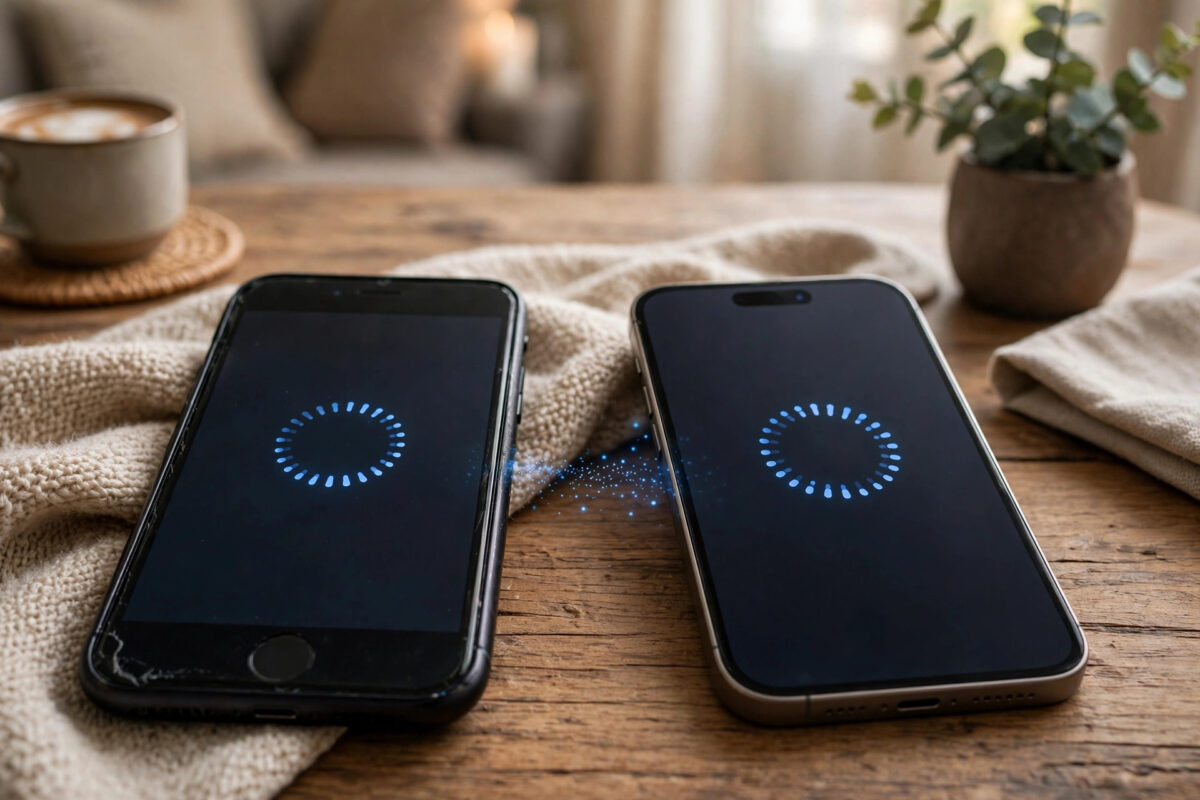
Getting a new iPhone is exciting right up until you look at your old one and wonder how years of photos, messages, apps and settings are supposed to jump across. Apple has made this genuinely easy: there are now three good ways to move everything, and the best of them needs nothing but the two phones sitting side by side. Here is how each method works and which one suits you.
Quick Answer
The simplest way to transfer everything is Quick Start: place your new iPhone next to your old one during setup, scan the animation with the old phone’s camera, and choose to transfer directly from iPhone. Everything, including apps, messages, photos and settings, moves across in one go. You can also restore from an iCloud backup or a computer backup instead.
Method 1: Quick Start (Device-to-Device Transfer)
This is the method most people should use. Both phones need to be on a recent iOS, plugged in, and near each other with Bluetooth and Wi-Fi on.
- Turn on the new iPhone and place it beside the old one. A Quick Start screen appears on the old phone.
- Confirm it is your Apple ID, then hold the old phone over the new one so the swirling animation sits inside the camera circle.
- Enter your old phone’s passcode on the new phone when asked.
- Set up Face ID on the new phone.
- When offered transfer options, choose Download from iCloud or, for a complete direct copy, Transfer from iPhone.
- Keep both phones near each other and plugged in until the transfer completes.
Direct transfer copies everything locally, including photos stored on the device, and typically takes 30 minutes to a couple of hours depending on how full the old phone is. Your old phone stays fully intact, which is a comforting safety net until you are sure the new one is complete.
Method 2: Restore from iCloud Backup
If your old phone is damaged, lost, or already sold, an iCloud backup is your route. During setup of the new phone, choose Restore from iCloud Backup, sign in, and pick the latest backup. The phone rebuilds itself from the cloud, with apps and photos downloading in the background over the following hours. This method depends on your backup being recent, so check the backup date on the old phone first if you still have it. The steps are covered in detail in our guide on restoring an iPhone from an iCloud backup.
Method 3: Computer Backup and Restore
If your internet is slow or your iCloud storage is too small for a full backup, use a computer. Make an encrypted backup of the old phone with Finder on a Mac or the Apple Devices app on Windows, then connect the new phone and restore that backup onto it. Encrypted backups carry your passwords and Health data too, so the new phone needs very little re-signing-in afterwards.
What Transfers, and What Needs Attention Afterwards
Almost everything moves: apps and their data, messages, photos, settings, home screen layout, and even your wallpaper. A few things always need a quick check on the new phone:
- Apple Pay: cards must be re-added for security, though the Wallet app makes it quick.
- eSIM: most carriers let you transfer the eSIM during or after setup; follow the prompts or your carrier’s instructions.
- Banking and authenticator apps: expect to sign in and verify again; this is deliberate security behaviour.
- WhatsApp: chats move with a device transfer or its own iCloud chat backup.
Apple’s official walkthrough of Quick Start and the other methods is on its iPhone support pages if you want the steps for your exact models.
Mistakes to Avoid
Do not erase or sell the old phone the moment the new one shows a home screen. Give it a day, confirm your photos, messages and two-factor apps all work, and only then wipe the old device. Do not start a transfer on a nearly dead battery or shaky café Wi-Fi; direct transfers use a local connection, but setup still needs the internet for activation and downloads. And avoid skipping the iOS update prompt on the new phone: if the old phone runs a newer iOS than the new one ships with, the transfer will stall until the new phone updates.
Preparing the Old Phone Before You Begin
Ten minutes of preparation makes any of these methods faster and safer. Update the old phone to the latest iOS it supports, because version mismatches are the most common cause of stalled transfers. Make a fresh backup, iCloud or computer, even if you plan a direct transfer; it is your parachute if anything interrupts the process. Charge both phones or plug them in, since a transfer that dies at 80% helps nobody. Finally, gather what you will need: your Apple ID password, your carrier details if you use an eSIM, and the authenticator or banking apps you will have to re-verify afterwards.
It also pays to decide the old phone’s fate before you start. If it is being traded in, check the deadline; some trade-in windows are short, and the transfer plus a day of verification should fit inside it comfortably. If a family member is receiving it, plan to erase it only after your new phone checks out, and consider setting theirs up on the same day so the old phone is never left in limbo, signed into your accounts but out of your hands.
Conclusion
For most people, Quick Start’s direct iPhone-to-iPhone transfer is the winner: complete, cable-free, and forgiving because the old phone stays untouched. Use iCloud when the old phone is unavailable, and a computer when your internet or cloud storage is the bottleneck. Whichever route you choose, verify everything on the new phone before the old one is wiped.
If the Transfer Stalls or Fails
Transfers occasionally stall at a percentage or an ominous time estimate. Give an apparently frozen transfer at least 30 minutes before intervening, because the estimate is calculated pessimistically and large photo libraries move in uneven bursts. If it truly has failed, cancel, restart both phones, confirm both are updated and charged, and start again closer to the router with nothing else competing for your attention. Your data on the old phone is untouched by a failed transfer, so a retry costs only time. If direct transfer fails repeatedly, switch methods without regret: make a fresh computer or iCloud backup of the old phone and restore that instead.
One Final Tip
Keep the old phone, un-erased, for at least a few days after the move, even if a trade-in is waiting. The things people discover missing are small but specific: a two-factor app that did not carry over, a downloaded ticket in a wallet, an offline playlist. A short overlap costs nothing and turns every one of those discoveries from a crisis into a shrug.
Frequently Asked Questions
How long does a direct iPhone-to-iPhone transfer take?
Anywhere from about 30 minutes for a lightly filled phone to a few hours for hundreds of gigabytes. The on-screen estimate is usually pessimistic at the start and improves as the transfer settles.
Can I transfer if my old iPhone has a broken screen?
If you can still unlock it and approve prompts, Quick Start may work. If the screen is unusable, an existing iCloud or computer backup is your realistic route, because setup needs you to confirm actions on the old phone.
Will my photos transfer if I use iCloud Photos?
Yes. With iCloud Photos, your library is tied to your Apple ID and downloads to the new phone after sign-in, starting with the newest photos. A direct device transfer also carries the on-device library across.
Do I need the same Apple ID on both phones?
For a full transfer of purchases, iCloud data and backups, yes. The process assumes you are moving your own data to your own new phone under the same account.
What should I do with the old iPhone afterwards?
Once you have confirmed everything works on the new phone, back it up, then erase the old one properly with Erase All Content and Settings before selling, trading in or giving it away.



Leave a Reply