
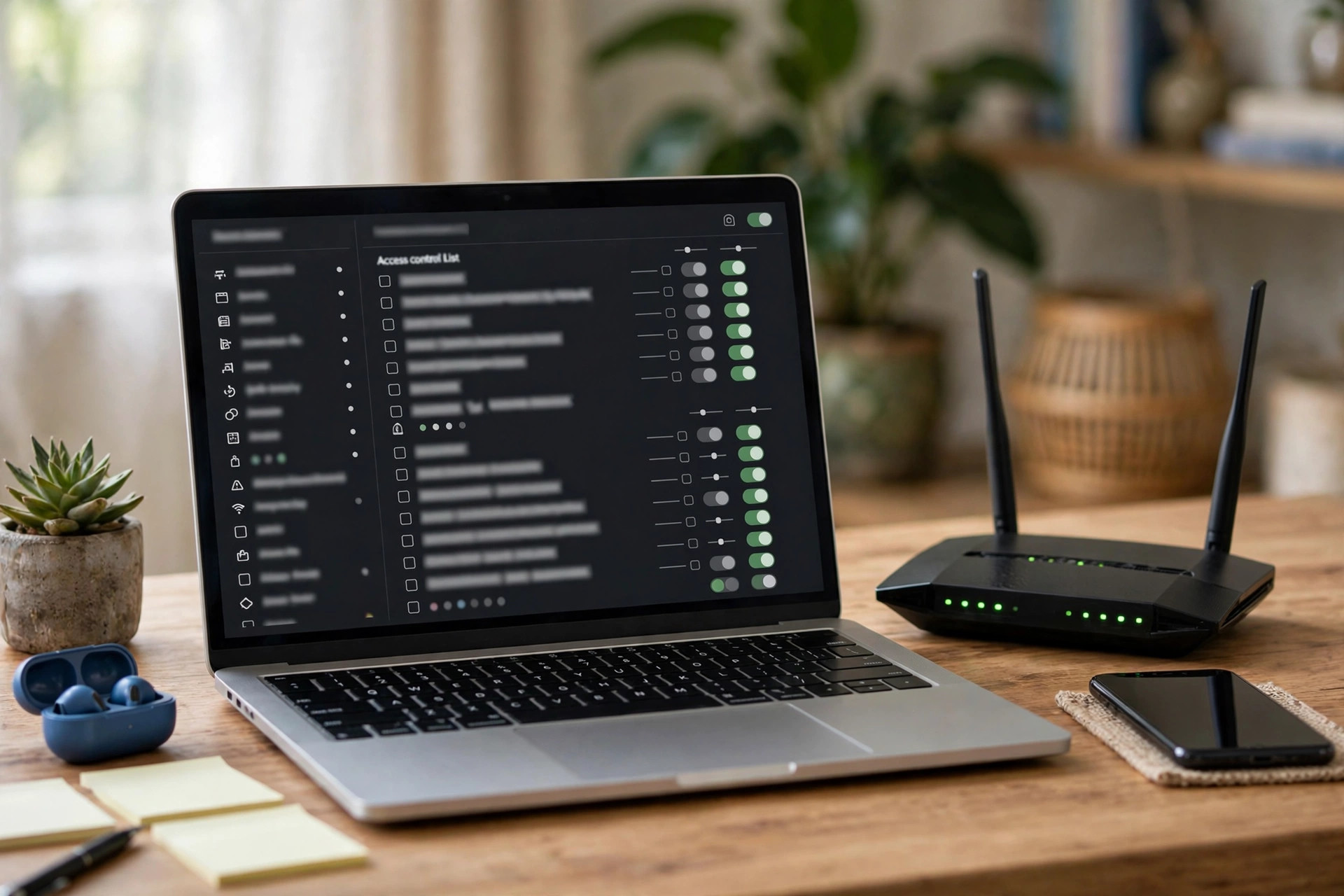
Dig into your router’s security settings and you will find an option called MAC address filtering. It sounds impressively protective: a list of approved devices, everything else locked out. Many guides from a decade ago recommended it as an essential layer of Wi-Fi security. But the networking world has largely moved on, and whether you should enable it depends on understanding what a MAC address really is — and how laughably easy it is to copy one.
This guide explains MAC filtering in plain terms, how to switch it on if you choose to, its genuine uses around the house, and why security experts no longer count it as real protection for your network.
What Is a MAC Address?
Every network interface — your phone’s Wi-Fi chip, your laptop’s Ethernet port, your smart TV — has a Media Access Control (MAC) address burned in at the factory: a unique identifier written as six pairs of characters such as 3C:7A:9F:12:4B:E8. Your router sees the MAC address of everything that connects, which is how its device list can show you exactly which gadgets are online. MAC filtering uses that list as a guest list for your network: the router compares each connecting device’s MAC address against your rules and lets it in — or not.
How MAC Filtering Works: Allow Lists and Block Lists
Whitelist (Allow) Mode
Only devices whose MAC addresses appear on your list may connect; everything else is refused, even with the correct Wi-Fi password. This is the strict version, and the one people mean when they talk about filtering as security.
Blacklist (Block) Mode
Specific devices are banned while everyone else connects normally. This mode is popular with parents blocking a games console at homework time, or for kicking one misbehaving gadget off the network without changing the password for the whole house.
How to Enable It
Log in to your router (192.168.0.1 or 192.168.1.1), find the device list to note the MAC addresses of your gadgets, then look for “MAC Filtering,” “Access Control,” or “Wireless MAC Filter” under Wireless or Security settings. Choose the mode, add the addresses, and apply. The exact menu names vary by brand; the technical overview of MAC filtering and its limitations on Wikipedia gives a fair, vendor-neutral summary of the mechanism.
Why MAC Filtering Is Not Real Security
Here is the uncomfortable fact: MAC addresses are not secret. Every device broadcasts its MAC address in plain view whenever it uses Wi-Fi — anyone nearby with free software can watch the traffic, note the address of a device that your network trusts, and change their own device’s MAC address to match it in under a minute. This is called MAC spoofing, and every operating system makes it trivially easy. A determined intruder treats your filter as a speed bump, not a wall.
Modern phones complicate things further: iPhones and Android devices now use randomised, rotating MAC addresses on Wi-Fi networks for privacy. That feature breaks whitelist filtering in daily life — your own phone presents a new “identity” and gets locked out of your own network. You can disable randomisation per-network on your devices, but each guest and gadget becomes another exception to manage.
When MAC Filtering Is Still Useful
None of this makes the feature pointless — it just reframes it. As an organisational tool it is genuinely handy: blacklisting a child’s console during exam week, blocking a cheap smart camera you no longer trust from reaching the internet, or keeping a specific device off a congested band. It also adds a thin extra obstacle that stops casual, opportunistic piggybacking by non-technical neighbours — the person who once got your password from a visiting friend, for instance. Think of MAC filtering as a “keep honest people honest” measure and a handy device-management switch, not as a lock.
What Actually Secures Your Wi-Fi
Real protection comes from encryption and passwords. Use WPA3 if your devices support it, or WPA2-AES at minimum; set a long, unique Wi-Fi password that is not used anywhere else; change the router’s admin password from the default; keep firmware updated; and disable WPS, whose PIN system has known weaknesses. A guest network for visitors and IoT gadgets isolates your main devices far more effectively than a MAC list ever will. Our full walkthrough of these essentials lives at Network Ustad’s home Wi-Fi security guides.
MAC Filtering vs. Modern Alternatives
If your reason for considering MAC filtering is control over who joins, modern routers offer sturdier tools that deserve a look first. Many now include an “approve new devices” mode that works like filtering but pairs it with an app notification, so adding a gadget is a tap rather than a trip into a MAC-address list. Guest networks isolate visitors entirely, which filtering never does — a filtered-in guest can still see your whole network, while a guest-network visitor cannot. And for identifying what is what, router apps now fingerprint devices automatically, sparing you the spreadsheet of hex addresses that filtering demands. None of this deletes MAC filtering from the toolbox — the block-list is still the fastest way to exile one specific device — but if you are setting up fresh, build on encryption, strong passwords, and a guest network, and keep filtering for the odd surgical job.
A Short Word on Finding MAC Addresses for TVs and Consoles
The devices people most often want to filter are the ones whose addresses are hardest to find. On smart TVs, look in Settings under Network or About — the Wi-Fi MAC and the (different) Ethernet MAC are usually both listed; make sure you copy the one matching how the device connects. Game consoles show theirs in system information or network status screens. Note that many devices have separate MAC addresses for Wi-Fi and wired connections, and phones have one per network when randomisation is on — three traps that explain most “I added the address and it still connects” mysteries.
Common Mistakes and Tips
Mistake one: enabling whitelist mode and immediately locking yourself out because your own laptop’s address was not added first — always add the device you are configuring from before applying. Mistake two: relying on filtering instead of changing a shared-around Wi-Fi password; if the password is the problem, change the password. Mistake three: fighting with randomised MAC addresses on family phones — either disable randomisation for your home network on each phone, or skip whitelist mode entirely. Tip: if you use block mode for parental control, remember savvy kids can change a device’s MAC address too; router parental controls tied to accounts or schedules are harder to dodge.
Conclusion
MAC address filtering is a device guest-list: useful for managing who connects and for light-touch parental control, but not genuine security, because MAC addresses are visible to anyone nearby and trivial to copy. Enable it if the management convenience suits your household — just build your real defences where they count: WPA3 or WPA2 encryption, a strong unique password, updated firmware, and a guest network for everything else.
Frequently Asked Questions
Can MAC filtering stop hackers from using my Wi-Fi?
Not a competent one. Attackers can see the MAC addresses of your connected devices from the air and copy an allowed address in minutes. It deters only casual, non-technical freeloaders.
Why did my phone get blocked by my own MAC filter?
Modern phones use randomised MAC addresses for privacy, so your phone presents a different address than the one on your list. Disable “Private Wi-Fi Address” for your home network in the phone’s Wi-Fi settings, or stop using whitelist mode.
Is a blacklist or whitelist better?
A whitelist is stricter but high-maintenance with randomised addresses and guests. A blacklist is easier and suits targeted jobs like blocking one console at set times. Neither replaces strong encryption.
How do I find a device’s MAC address?
On your router’s connected-devices page, or on the device itself: Wi-Fi settings usually show it under network details (Android/iPhone), “ipconfig /all” on Windows, or the About section on TVs and consoles.
Does MAC filtering slow down my network?
No. The router checks addresses only at connection time, which takes a negligible moment. There is no ongoing performance cost during normal use.



Leave a Reply