
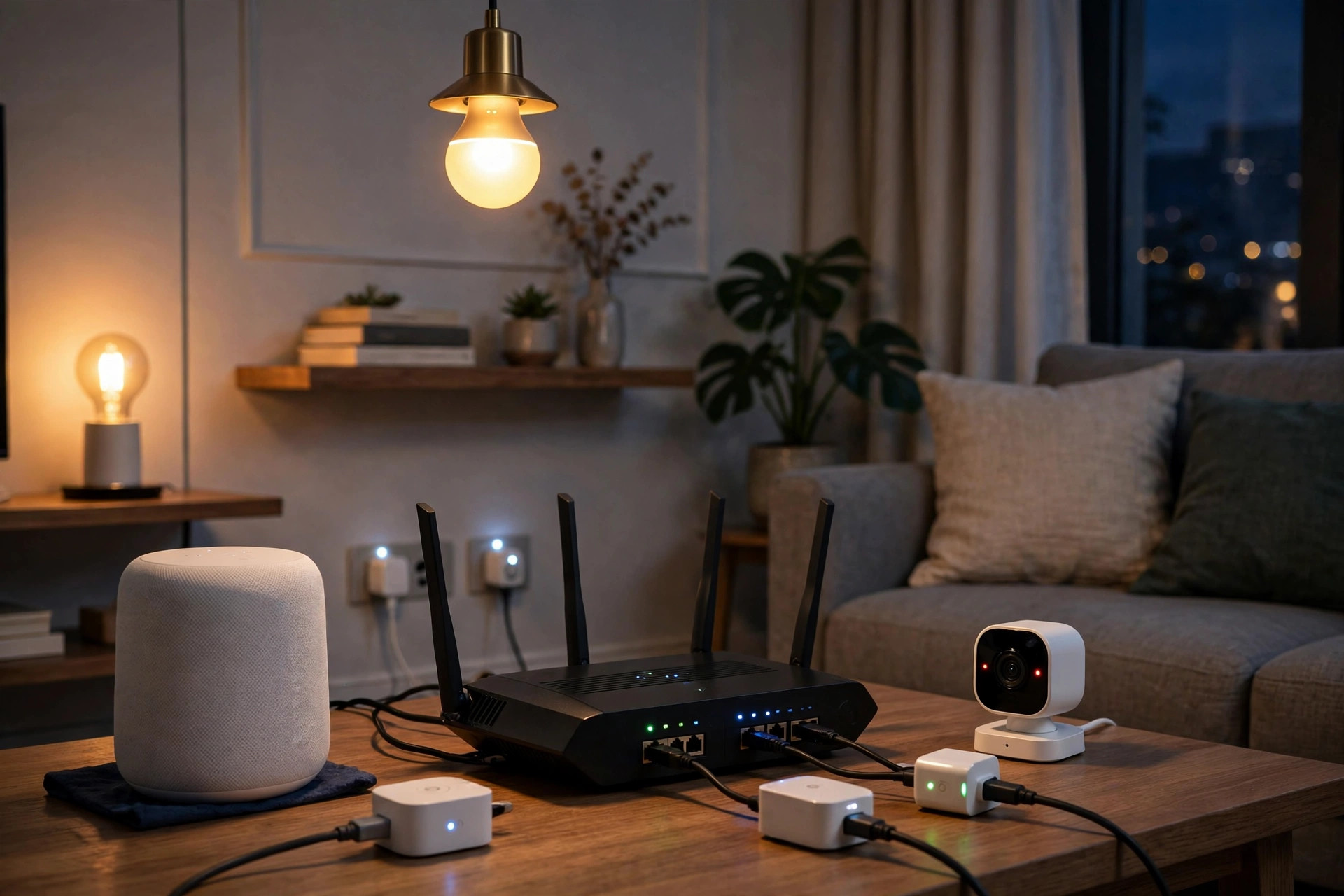
A modern home quietly accumulates dozens of smart devices: bulbs, plugs, cameras, doorbells, thermostats, speakers. They are cheap, chatty, and — let us be honest — not always built with great security. Meanwhile your laptop holds your banking, work files, and life. Having all of them share one flat network means the weakest smart bulb sits one hop away from your most important data. Separating your smart home devices onto their own band or network is the simple fix, and a dual-band router gives you the tools.
In this guide you will learn three levels of separation — splitting the 2.4GHz and 5GHz bands, using the guest network, and full IoT isolation — with step-by-step setup for each, so you can pick the level that matches your router and your patience.
Why Separate Smart Devices at All?
Two reasons: security and performance. Security first: many IoT gadgets receive rare firmware updates and have shipped with laughable default passwords. If one is compromised, an attacker on the same network can probe your computers and NAS. Isolating gadgets on their own network segment contains that risk — a hacked bulb can talk to the internet, not to your laptop. Performance second: smart devices live on the 2.4GHz band and generate constant small chatter. Keeping them corralled leaves the fast 5GHz band clean for laptops, phones, and TVs, and makes troubleshooting easier — when the “smart” network misbehaves, you know exactly where to look.
Level 1: Split the Bands (Simplest)
Step 1: Turn Off Smart Connect
Log in to your router at 192.168.0.1 or 192.168.1.1 and find the Wireless settings. Disable “Smart Connect” or “Band Steering,” the feature that merges both bands under one name. The 2.4GHz and 5GHz settings will now appear separately.
Step 2: Name the Bands Clearly
Keep your main network name for 5GHz (for example “HomeWiFi”) and give 2.4GHz a clear name like “HomeWiFi-2G” — or, thinking ahead to Level 2, name it as your device network. Set a strong password on both; they can share the same one for convenience while you set things up.
Step 3: Move the Gadgets
Reconnect every smart bulb, plug, camera, and speaker to the 2.4GHz network, and keep phones, laptops, consoles, and TVs on 5GHz. Most smart devices only support 2.4GHz anyway, so they were never going to use the fast band — you are simply formalising reality. Voice assistants are the exception to think about: your phone and the speaker need to see each other for some casting features, so test after moving them, and keep assistants on the main network if features break.
Level 2: Use the Guest Network for IoT (Better Isolation)
Most routers include a guest network feature designed for visitors — and it doubles as an excellent smart-device ghetto. Enable it, give it a name like “HomeWiFi-IoT,” and connect all gadgets to it. Crucially, look for the setting called “AP isolation,” “client isolation,” or “allow guests to access local network” and make sure guests can NOT access your main network. With that in place, gadgets can reach the internet (for app control and updates) but cannot see your computers at all. The one trade-off: some local-control features (certain cast devices, HomeKit hubs, or printers shared with gadgets) may stop working across the divide; the Google Nest help page on guest networks and device visibility explains this isolation behaviour plainly, and the principle is identical on any brand.
Level 3: A Dedicated IoT Network or VLAN (Strongest)
If your router supports multiple SSIDs or VLANs (common on ASUS, UniFi, and prosumer gear), create a third network solely for IoT with its own subnet, block inter-network traffic in the firewall rules, and allow only the specific local connections you truly need — for example, your phone reaching a Home Assistant server. This is the setup security professionals use at home. It is more work, and honestly unnecessary for most households; Levels 1 and 2 already remove the bulk of the risk. If you enjoy this kind of hardening, the projects in Network Ustad’s smart home networking guides go further down this road.
After Separating: A Quick Reality Check
Move devices in small batches and test the apps that control them. Cloud-controlled gadgets (most bulbs and plugs) work from any network because both the gadget and your phone reach the manufacturer’s cloud. Locally controlled gear (some cameras, media servers, printers) may need exceptions. Also remember to still give the IoT network a strong password — isolation is a second wall, not a replacement for the first — and update gadget firmware whenever the apps offer it.
What to Do About Phones, Printers, and Game Consoles
A few device types deserve explicit placement decisions. Phones and laptops stay on the main network — they are the devices separation exists to protect, and they need to reach printers and each other. Printers also belong on the main network: every legitimate user needs them, and a printer isolated with the gadgets becomes undiscoverable from your laptop. Game consoles are a judgement call: they are essentially entertainment computers with good update practices, and most people keep them on the main network for party chat, local streaming, and low-latency wired or 5GHz connections; the risk-conscious can isolate them, accepting that local features like media servers may need exceptions. NAS drives and home servers always stay on the main, trusted side — they hold the data the whole scheme protects. Write these decisions into your network note, because “which network is the printer on?” is a question future-you will otherwise answer by trial and error.
Common Mistakes and Tips
Mistake one: splitting the bands, moving the gadgets, then discovering the smart TV remote app on your phone no longer finds the TV because they are on different bands that the router treats as one network — actually on most routers both bands remain one network, so this usually keeps working; true isolation only happens on guest/VLAN setups, which is where to check. Mistake two: enabling guest isolation and breaking every local feature at once — move gadgets gradually. Mistake three: forgetting the printer — it serves the whole house, so it belongs on the main network (or its own exception), not locked away with the bulbs. Tip: write down which devices live on which network in a note; six months from now you will thank yourself.
Conclusion
Separating smart home devices is one of the highest-value tweaks in home networking. At minimum, split your dual-band router’s bands and park all gadgets on 2.4GHz. Better, use the guest network with local access blocked for true isolation. Either way, a compromised bulb stays in its sandbox, your fast band stays clean, and your main devices stop sharing a neighbourhood with the cheapest electronics in the house.
Frequently Asked Questions
Can smart devices still work if they are on a different network from my phone?
Cloud-controlled devices work fine — the app and the gadget both talk to the manufacturer’s servers. Features that rely on direct local discovery (some casting and local hubs) may not cross network boundaries unless you add exceptions.
Do I need a new router to separate my smart devices?
Usually not. Any dual-band router can split the bands, and most routers from the last decade include a guest network. Only VLAN-level separation requires more advanced hardware.
Should my smart TV go on the IoT network?
Opinions vary. TVs are chattier and less private than laptops, so many people isolate them; but if you cast from your phone or use the TV with a local media server, keeping it on the main network is more convenient. Test what you use.
Is the guest network secure enough for cameras?
With local-network access disabled, yes for most homes: the camera can reach the internet for its app but cannot scan or attack your computers. Keep its firmware updated and use a unique camera account password.
Will separating devices slow anything down?
No — if anything it helps. Gadget chatter is confined to 2.4GHz and its own segment, leaving your 5GHz band and main network cleaner for demanding work.



Leave a Reply