
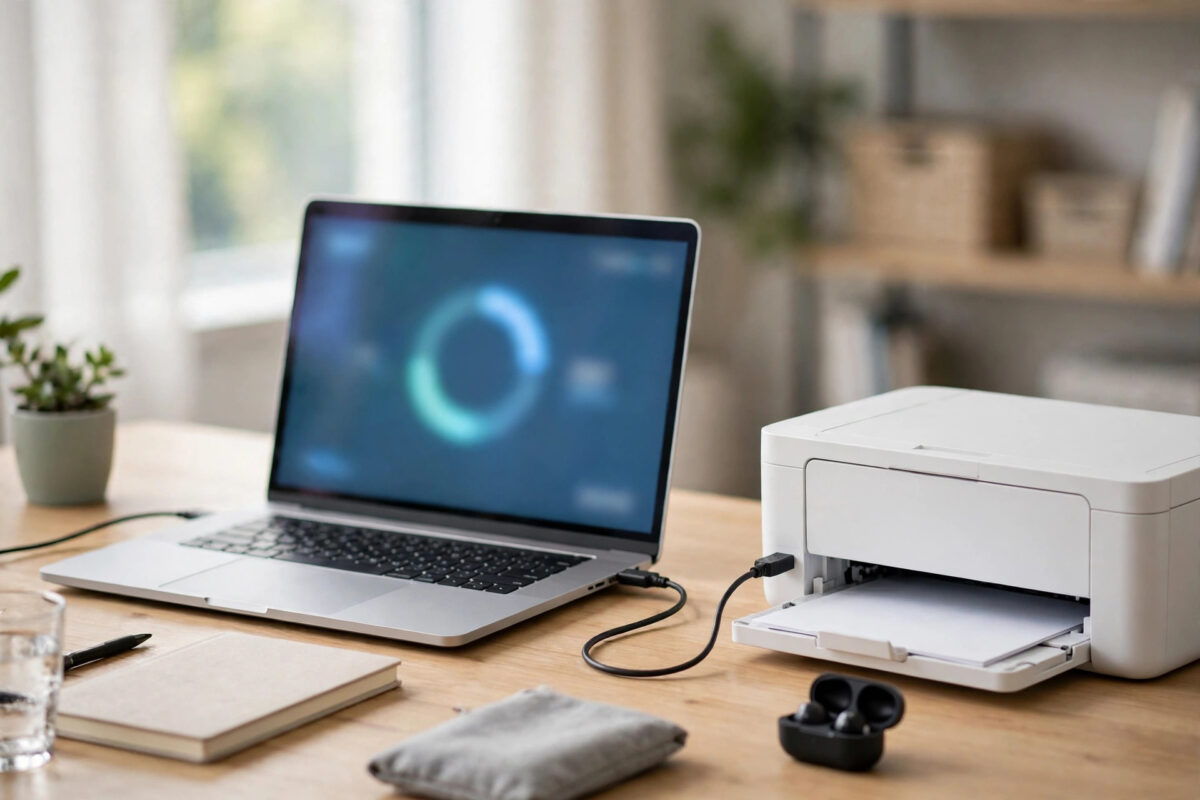
Firmware is the software inside your printer. It controls the printhead, Wi-Fi, and compatibility with new computers. Updates can fix bugs, improve stability, and close security gaps. The Epson Software Updater is the safest way to install them, because it finds the right file for your exact model.
A firmware update needs stable power, a reliable connection, and a few uninterrupted minutes. This guide shows how to prepare, run the update on Windows or Mac, confirm it worked, and fix common problems.
Quick Answer
To update Epson printer firmware using the Epson Software Updater, connect the printer by USB or a stable Wi-Fi connection, open the Epson Software Updater on your computer, select your printer model, tick the firmware update in the essential software list, and click Install. Keep the printer powered on and do not use it until the tool confirms the update is complete, then restart the printer and print a test page.
Before You Update: Preparation That Prevents Problems
A firmware update rewrites the printer’s internal software. Interrupting it, by switching the printer off, unplugging it, or letting a laptop sleep, can leave the printer unable to start. Ten minutes of preparation removes almost all of that risk.
- Note your model number: Find the exact model on the label on the front or back of the printer, such as EcoTank ET-2850. Similar model numbers use different firmware.
- Check your current firmware if you can: On printers with a screen, look in Settings, then Printer Information or Firmware Update. Note the version so you can confirm the change afterwards.
- Connect reliably: A USB cable is the most reliable connection for an update. If you update over Wi-Fi, place the printer in the same room as the router for the duration.
- Protect the power: Plug the printer directly into a wall socket. Do not update during a storm or when a power cut is likely. Keep a laptop plugged into mains power too.
- Clear pending work: Finish or cancel all print jobs, and tell others on the network not to print until you are done.
- Check ink and paper: Some models refuse to update with a low ink warning or an error showing. Clear any printer errors first.
If the printer works perfectly and the notes list nothing relevant, you can wait for a convenient time. If it fixes security or Wi-Fi problems, do it promptly.
What the Epson Software Updater Actually Does
Epson Software Updater is a small utility that checks Epson’s servers for new software for the Epson products connected to your computer. It can offer driver updates, the full software package, utilities, and firmware. Firmware appears in the section for essential product updates when one is available for your model. The tool downloads the correct file, verifies it, sends it to the printer, and waits while the printer installs it and restarts itself. Only use firmware from Epson’s own tool or the official Epson support and drivers site for your exact model.
Step-by-Step: Update Firmware on Windows
- Turn the printer on and connect it to the same computer by USB or to the same network.
- Open Epson Software Updater. Find it in the Start menu under Epson Software, or search for it by name.
- If you do not have it, download the current driver and software package for your model from Epson support and install it. The updater is included in that package.
- In the updater window, select your printer model from the drop-down list at the top. Wait while the tool checks for updates.
- Look at the list of essential product updates. Tick the box next to the firmware update if one is shown. Read any notes about what it changes.
- Click Install Items. Accept any licence or confirmation prompts.
- Do not turn the printer off, unplug any cable, or put the computer to sleep while the progress bar runs. The printer screen may show an updating message and the printer may restart on its own.
- Wait for the tool to confirm that the update completed successfully. This can take several minutes after the progress bar looks finished.
- Close the updater, restart the printer once more if it did not restart itself, and print a test page.
Step-by-Step: Update Firmware on a Mac
- Turn the printer on and confirm you can print a simple test page first. If the printer shows as offline, fix that connection before you attempt an update.
- Open Epson Software Updater from the Applications folder, inside the Epson Software folder, or search with Spotlight.
- Select your model from the list and let the tool check for new software. Enter your Mac administrator password if asked.
- Tick the firmware update in the essential updates list and click Install.
- Keep the Mac awake for the whole process. If needed, keep the lid open and the power adapter connected.
- Wait for the completion message, then test print from a simple app.
If your Mac cannot find the printer in the updater at all, our guide on how to fix an Epson printer showing offline on macOS Sonoma covers the queue and network fixes to complete first, because the updater needs the same working connection as printing does.
Many newer models can also update from Settings, then Firmware Update, on the printer screen. The computer method gives clearer notes and progress, so use one method at a time.
How to Confirm the Update Worked
- Print a nozzle check or a printer status report and look for the firmware version printed on it, or check the version on the printer screen under Printer Information.
- Compare it with the version you noted before the update. It should now match the version the updater offered.
- Print a normal document and a colour page to confirm everyday printing is unaffected.
- Open the Software Updater again and run a fresh check. It should report that no firmware update is available, which confirms the printer is current.
- Send one small test print from your phone or other computers too.
Troubleshooting Common Updater Problems
The Updater Says No Update Is Available
This usually means your printer is already current, or you selected the wrong model. Check the model and run the check again. Never install firmware for a different model.
The Updater Cannot Find My Printer
Switch to USB, turn off any VPN, and confirm both devices share the same network. Restart both, reopen the updater, and allow the Epson software if your firewall asks.
The Update Stopped or Failed Partway
Leave the printer powered for several minutes; some models recover on their own. If it restarts and prints, check the version and run the updater again. If it shows a service error and will not print, contact Epson with the error code. Do not keep retrying a failed update.
The Printer Behaves Differently After the Update
Updates can reset paper defaults or quiet mode. Re-check paper size and type afterwards. Note that some updates affect compatibility with certain third-party ink cartridges, so read the notes carefully if you use non-Epson ink.
Apple users who need the general Mac software steps can also follow Apple’s advice on keeping macOS and installed software up to date alongside the Epson update, so both sides of the connection stay current.
Common Mistakes to Avoid
- Turning the printer off during the update: This is the most serious mistake. Interrupting the write can corrupt the firmware. Wait for the completion message, however slow it feels.
- Updating over a weak Wi-Fi signal: A dropped connection mid-transfer causes failures. Use USB or move the printer near the router.
- Using firmware from a random download site: Wrong-region or modified files can brick a printer. Use only the Epson tool or Epson’s own site.
- Letting the computer sleep: A sleeping laptop stops the transfer just as surely as unplugging the printer. Keep it awake and plugged in.
Check every few months and note each update’s date and version.
Conclusion
Updating Epson firmware with the Epson Software Updater is straightforward when you prepare first: the right model, a reliable USB or Wi-Fi connection, stable power, and no interruptions. Let the tool find and verify the correct file, wait for its completion message, then confirm the new version and print a test page. Done this way, firmware updates are a safe, routine part of keeping your printer secure, compatible, and connecting reliably for years.
Frequently Asked Questions
Is it safe to update Epson printer firmware?
Yes, when you use the official Epson Software Updater or Epson’s own support site, keep the printer powered on throughout, and use a stable connection. Most failures come from interruptions or wrong-model files, not from the update itself. Prepare first and never switch the printer off mid-update.
How long does an Epson firmware update take?
Most updates take between five and fifteen minutes, including the download, the transfer, and the printer restarting itself. A slow connection or a large update can take longer. Judge completion by the tool’s success message and the printer returning to its normal home screen, not by the clock.
Will a firmware update delete my printer settings?
Most settings survive, but some defaults, such as paper size, copy settings, or network display names, can reset. Note any custom settings before you update, and check them afterwards. Your saved Wi-Fi password usually remains, but be ready to reconnect if the printer asks.
Can I go back to an older firmware version?
Usually not through the Software Updater, which only moves printers forward to the latest release. Downgrading, where it is possible at all, is a service procedure. That is why it is worth reading the update notes first, especially if you use third-party ink or older software.
Why does the updater offer driver updates as well as firmware?
Because they do different jobs. The driver is software on your computer that prepares print jobs, while firmware is software inside the printer itself. Keeping both current avoids mismatches. You can install them in the same session, then restart and test print once at the end.
Leave a Reply