
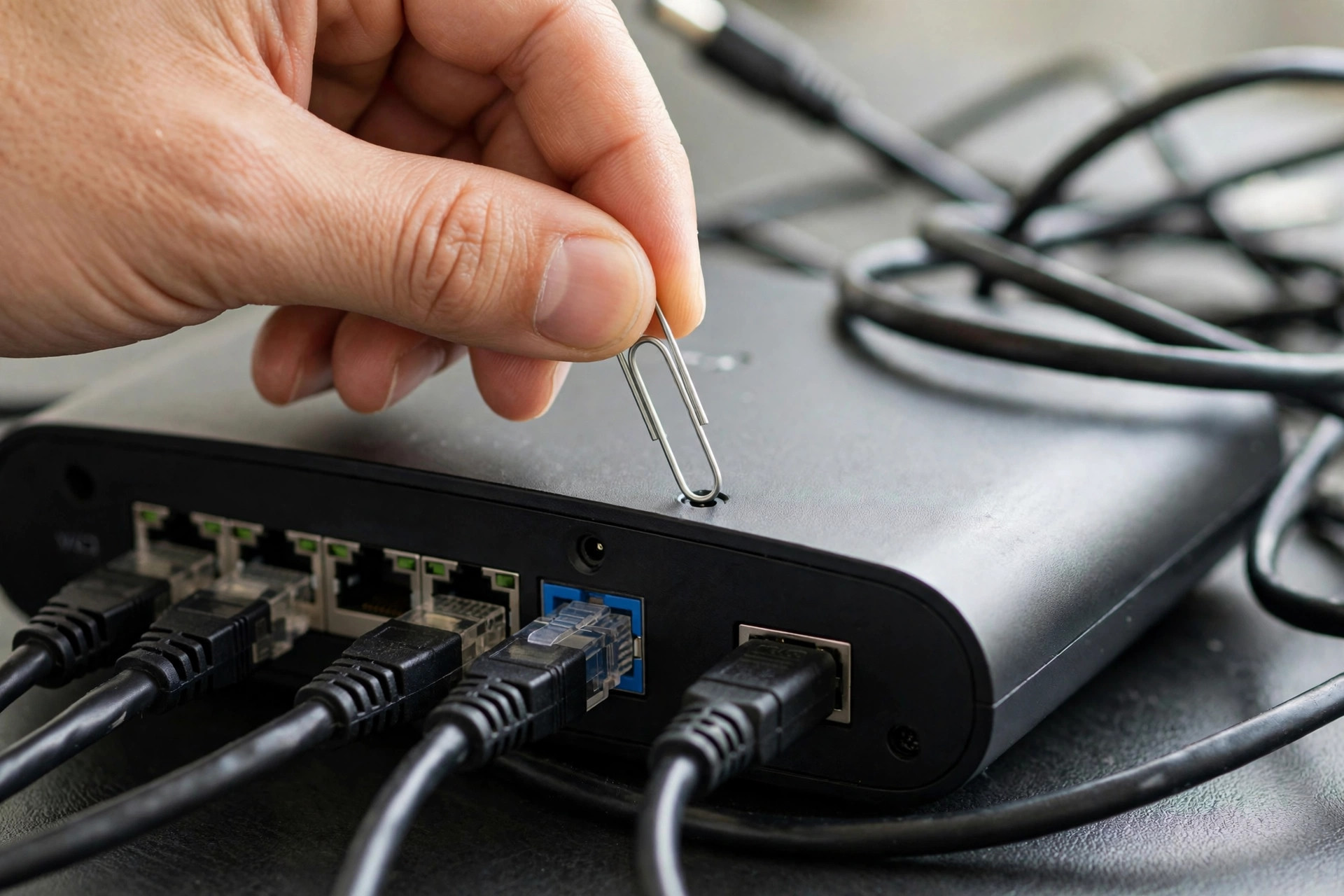
Every router has a big red button of last resort: the factory reset. It wipes every setting you have ever changed — Wi-Fi name, passwords, port forwarding, parental controls — and returns the router to the exact state it was in when it left the factory. It sounds drastic, and it is, but a reset fixes a remarkable share of stubborn problems: the forgotten admin password, the corrupted settings after a power cut, the second-hand router still carrying a stranger’s configuration.
This guide explains the two reset methods (the physical button and the admin page), what exactly gets erased, how to prepare so setup afterwards takes minutes, and the step-by-step for getting your network running again.
Before You Reset: Five Minutes of Preparation
A reset erases your internet connection settings too, and on some connection types — especially PPPoE DSL or fibre — the router needs a username and password from your ISP to reconnect. Before touching the button, gather these: your ISP account username and password (from your welcome letter, ISP app, or a quick call to support), your current Wi-Fi name and password (so you can restore the same ones and every device reconnects automatically), and screenshots or photos of any settings you customised — port forwards, static IPs, DNS changes, parental controls. If your router offers a “Backup settings” or “Save configuration” option in the admin page, download that file now; restoring it after a reset takes one click. Skipping this prep is the difference between a ten-minute reset and an evening offline.
Method 1: The Physical Reset Button
Step 1: Leave the Router Powered On
Unlike most electronics advice, a router factory reset is performed with the power ON. Make sure the router is plugged in and fully booted, with its lights in their normal state.
Step 2: Find and Hold the Reset Button
Look on the back or underside for a tiny recessed hole labelled Reset — it is deliberately hidden so it cannot be pressed accidentally. Straighten a paperclip, push it gently into the hole until you feel the button click, and hold it for about 10 seconds (some brands need up to 30 — if the lights do not react at 10, keep holding). The lights will flash, go out, or the router will reboot: that is the reset happening.
Step 3: Wait for a Full Boot
Release the paperclip and wait two to three minutes. The router restarts with factory defaults: the Wi-Fi name returns to the one printed on the underside label (something like TP-Link_XXXX or NETGEAR-5G), and the admin and Wi-Fi passwords revert to the label values too.
Method 2: Reset from the Admin Page
If you can still log in, the software route is gentler and lets you back up first. Log in at 192.168.0.1 or 192.168.1.1, then look under System Tools, Administration, Maintenance, or Advanced settings for “Factory Defaults,” “Restore,” or “Reset.” ASUS places it under Administration → Restore/Save/Upload Setting; TP-Link under Advanced → System → Backup & Restore. Click Restore/Reset and confirm. The router reboots into factory state exactly as with the button. Brand walkthroughs such as ASUS’s official guide to restoring a router to factory default settings show the menu path for their models if you get lost.
Setting Everything Back Up
Step 1: Connect to the Default Network
Join the default Wi-Fi name from the label (or connect by cable) and log in to the admin page with the default credentials from the same label.
Step 2: Run the Setup Wizard
Most routers launch a quick setup on first login. Choose your connection type — DHCP/Automatic for most cable and fibre homes, or PPPoE with the ISP username and password you prepared. The wizard confirms when the internet light turns solid.
Step 3: Restore Your Wi-Fi Name and Password
Set the Wi-Fi name and password to exactly what they were before the reset. This is the pro move: every phone, laptop, TV, and smart gadget in the house reconnects by itself because, as far as they can tell, nothing changed.
Step 4: Secure and Update
Change the admin password from the default to something strong and unique — a freshly reset router with “admin/admin” is an open door. Then check for a firmware update and install it, and re-apply any custom settings from your screenshots, or restore the backup file you saved. More post-reset hardening steps are covered in Network Ustad’s router security checklists.
Soft Reboot vs Factory Reset: Know the Difference
A reboot (turning the router off and on, or clicking Restart) changes nothing — all settings survive; it simply clears temporary glitches, and it is the right first step for most problems. A factory reset erases everything. Reach for the reset only when a reboot has failed, settings are corrupted, the admin password is lost, you are selling or returning the router, or you bought it second-hand and want a clean start.
Resetting ISP Routers and Mesh Systems: Small Differences
If your router came from your internet provider, the reset button works the same way, but two extra things can happen. First, some ISP routers automatically re-download your account settings from the provider after a reset, so the internet returns on its own within a few minutes — a pleasant surprise worth waiting for before re-entering anything manually. Second, a few providers lock certain settings; if the wizard will not accept your connection type, a quick call to support (or their app) gets the right values. Mesh systems reset differently again: each node has its own reset button, and the usual advice is to reset the satellite nodes first, then the main unit, and rebuild the mesh from the app as if it were new. Factory-resetting only one mesh node while the others keep the old configuration often leaves the system confused, so treat mesh as an all-or-nothing reset.
Common Mistakes and Tips
Mistake one: resetting without knowing your ISP login details, then discovering the wizard cannot reconnect — always gather them first. Mistake two: holding the reset button while the router is off, which does nothing on most models; the router must be powered on. Mistake three: creating a brand-new Wi-Fi name after the reset and then spending an hour rejoining every smart bulb — restore the old name and password instead. Tip: after re-setup, export a fresh settings backup and store it with your ISP details; the next reset becomes painless.
Conclusion
A factory reset is powerful medicine: one paperclip press wipes the router back to day one. Prepare by saving your ISP credentials and settings, hold the recessed button for about ten seconds with the power on, then rebuild the network using your old Wi-Fi name and password so every device reconnects itself. Done in that order, the nuclear option takes fifteen minutes — and fixes problems nothing else could.
Frequently Asked Questions
Does a factory reset delete my Wi-Fi name and password?
Yes. The Wi-Fi name and password revert to the defaults printed on the router’s label, and the admin login does too. Setting your old name and password again afterwards lets all your devices reconnect automatically.
How long should I hold the reset button?
About 10 seconds on most routers, with the router powered on, until the lights flash or the unit reboots. A few brands require up to 30 seconds — if nothing happens, keep holding a little longer.
Will a reset fix my slow internet?
It fixes slowness caused by corrupted settings or misconfiguration, but not a slow plan, a failing line, or weak Wi-Fi placement. Try a simple reboot first, and reset only if problems persist.
Can I undo a factory reset?
Only if you saved a settings backup beforehand — then you can restore it from the admin page. Without a backup, the old configuration is gone and must be recreated manually.
Should I reset my router before selling it?
Absolutely. A factory reset wipes your Wi-Fi password, ISP credentials, and any personal settings, protecting your information and giving the buyer a clean device.



Leave a Reply