
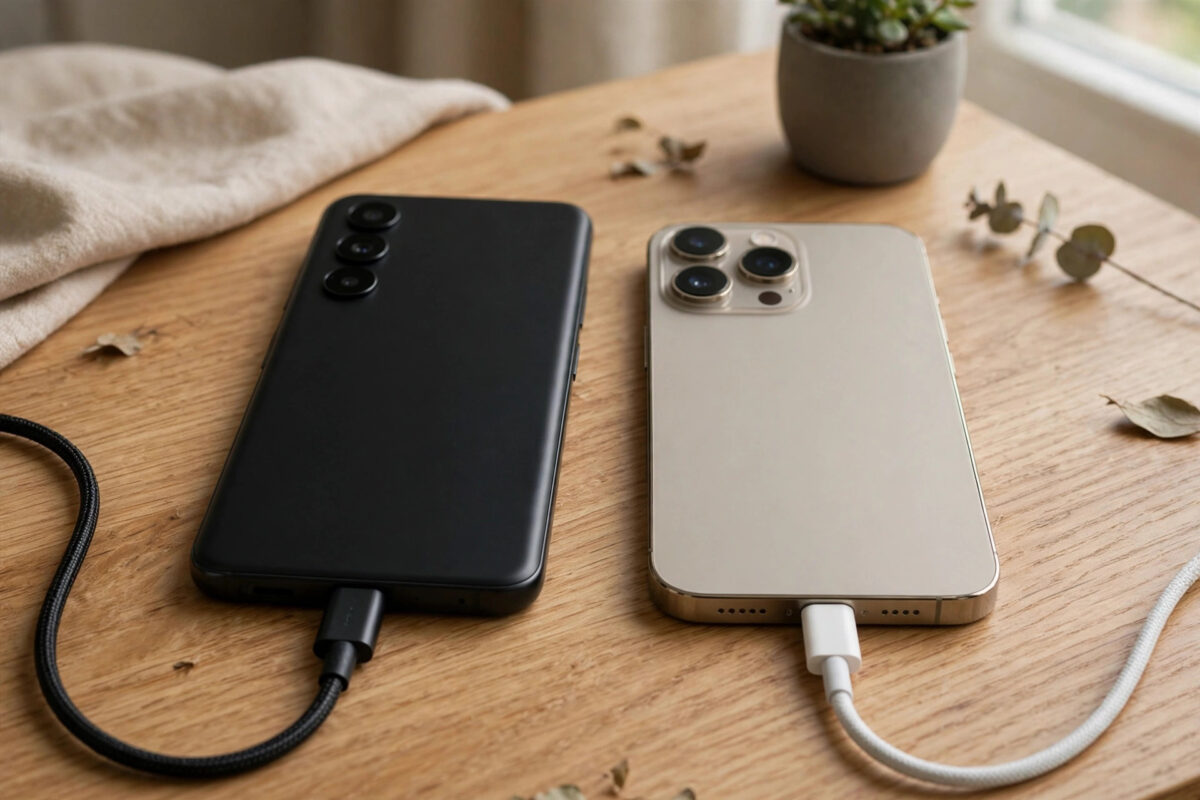
Switching from Android to iPhone is exciting right up until you open WhatsApp and see an empty chat list. Years of conversations, family photos, voice notes, and important documents suddenly appear to be gone. They are not gone — they are sitting safely in your Google Drive backup. The problem is that WhatsApp backups on Android and iPhone live in completely different worlds, and there is no button that simply moves one to the other.
Android WhatsApp backs up to Google Drive. iPhone WhatsApp backs up to iCloud. The two backup formats are not compatible, Apple and Google do not offer a direct conversion between them, and restoring a Google Drive backup onto an iPhone inside WhatsApp is not possible. That sounds like bad news, but there are two genuine, working routes around it, and millions of people use them every year when they change phones.
This guide explains both methods honestly: the official free transfer using Apple’s Move to iOS app during iPhone setup, and WhatsApp’s newer Transfer Chat feature, plus what to do if your iPhone is already set up and you cannot wipe it. You will also learn exactly what transfers, what does not, and how to avoid the mistakes that cause transfers to fail halfway through.
Quick Answer
You cannot restore a Google Drive WhatsApp backup directly to iCloud because the formats are incompatible. Instead, use Apple’s free Move to iOS app on your Android phone during iPhone setup and select WhatsApp to transfer your chats directly to the iPhone, or use WhatsApp’s built-in Transfer Chat feature. Once the chats are on the iPhone, WhatsApp will then back them up to iCloud normally.
Why You Cannot Move the Backup File Directly
Because the database structures, encryption, and storage systems differ, iCloud cannot read a Google Drive backup any more than a PlayStation can read an Xbox game disc. There is no official converter, and any website that claims it can convert your backup file online if you upload it should be avoided — you would be handing your private conversations to a stranger. The supported approach is not to move the backup file at all, but to transfer the live chats from phone to phone, then let the iPhone create a fresh iCloud backup of its own.
Before You Start: The Preparation Checklist
Most failed transfers are caused by skipping preparation, not by the tools themselves. Run through this list before you touch either method.
- Update WhatsApp on your Android phone to the latest version from the Google Play Store.
- Make sure you will use the same phone number on the iPhone. WhatsApp transfers are tied to the number, and changing numbers mid-move complicates everything.
- Charge both phones, or better, plug both into power for the whole transfer.
- Connect both phones to the same reliable Wi-Fi network, and keep them physically close together.
- Check free space on the iPhone. Your WhatsApp data needs at least as much free room as it takes up on Android, and ideally twice that, because the transfer keeps temporary copies.
- On the Android phone, open WhatsApp, go to Settings > Chats > Chat backup, and run a fresh backup to Google Drive. This is your safety net if anything goes wrong.
- Know your Apple ID password and your phone unlock codes — you will be asked for them during setup.
Method 1: Transfer With Move to iOS During iPhone Setup
This is the official route supported by both Apple and WhatsApp, detailed in WhatsApp’s official guide to moving chats from Android to iPhone. It is free, it does not involve any third-party company seeing your data, and it moves your chats, media, groups, and settings in one go.
Step-by-Step Instructions
- Turn on the new or freshly reset iPhone and follow the setup screens until you reach the Apps and Data screen.
- Select Move Data from Android.
- On your Android phone, install and open Apple’s Move to iOS app from the Google Play Store.
- Tap Continue on both devices. A code will appear on the iPhone — enter that code on the Android phone to pair the two devices.
- On the Transfer Data screen on Android, tick WhatsApp along with anything else you want to move, such as photos and messages, then tap Continue.
- WhatsApp on Android will prepare your data for export. When it finishes, tap Next to return to Move to iOS, then tap Continue and wait for the transfer to complete. Do not use either phone during this time.
- Finish the iPhone setup, then download WhatsApp from the App Store on the iPhone.
- Open WhatsApp on the iPhone and verify your account using the same phone number as on Android. WhatsApp will detect the transferred data and offer to restore it — tap Start and wait until the import finishes.
Once your chats appear on the iPhone, immediately create your first iCloud backup so the data now lives in its new home: open WhatsApp on the iPhone, go to Settings > Chats > Chat Backup, and tap Back Up Now. From that point on, your backups go to iCloud automatically, exactly as described in Apple’s guide to backing up your iPhone with iCloud. For more phone-switching walkthroughs like this one, NetworkUstad’s step-by-step mobile and app guides cover the follow-up settings worth checking.
Method 2: If Your iPhone Is Already Set Up
If you have been using your iPhone for weeks, Move to iOS cannot help without erasing the phone, because Apple only offers it during initial setup. You then have three realistic choices, and it is worth being honest about each.
Your second option is a reputable desktop transfer tool. Several paid programs can move WhatsApp data from Android to an already-configured iPhone over USB cables. They work, and for many people the cost is worth it, but research carefully: download only from the developer’s official site, read recent reviews, and never use a cracked version, which is a common vehicle for malware. Your chats pass through that software, so trust matters.
Your third option is to accept a partial move. Export the individual chats you care about most from Android — open a chat, tap the three-dot menu, then More > Export chat — and email them to yourself as text files with media attached. This does not restore them inside WhatsApp on the iPhone, but it preserves the content as a readable archive, and for many people a handful of important conversations is all they truly need.
What Transfers and What Does Not
With the official Move to iOS method, your personal and group chat history transfers, including photos, videos, documents, and voice notes, along with your WhatsApp settings and profile information. Your message history arrives in the correct order with the correct dates, which is more than the export workaround can offer.
Common Mistakes and Tips
The single biggest mistake is setting up the iPhone completely before thinking about WhatsApp. By the time most people realise chats are missing, the Move to iOS window has closed, and the free official method now requires a factory reset. If you are reading this before switching, transfer first, explore your new phone second.
Running out of iPhone storage is another silent killer. People buy a 128 GB iPhone, transfer 90 GB of WhatsApp videos without realising it, and the import stalls. Check your Android WhatsApp storage in Settings > Storage and data > Manage storage before you start, and delete the joke videos and giant forwarded files you never needed. It speeds everything up as a bonus.
Do not delete WhatsApp from the Android phone or cancel the number until you have opened several chats on the iPhone and confirmed the media plays. Keep the old phone untouched for a week after switching. If something turns out to be missing, that phone is your only complete source.
Conclusion
There is no direct way to restore a Google Drive WhatsApp backup onto an iPhone, and anyone who tells you otherwise is selling something. The real solution is a phone-to-phone transfer: use Move to iOS during iPhone setup for the free, official, complete move, then let WhatsApp create a brand-new backup in iCloud. Prepare carefully, keep both phones charged and close together, verify your chats on the iPhone before wiping anything, and your conversation history will survive the switch intact.
Frequently Asked Questions
Can I restore a Google Drive WhatsApp backup directly on iPhone?
No. WhatsApp on iPhone can only restore from iCloud, and the Android backup format is not compatible with iOS. The chats must be transferred phone-to-phone with Move to iOS or a transfer tool, after which the iPhone creates its own iCloud backup.
Do I have to factory reset my iPhone to use Move to iOS?
Yes, if the iPhone has already been set up. Move to iOS is only offered during the initial setup process. A brand-new iPhone needs no reset, but an iPhone already in use must be erased first, so back it up completely before considering this.
Will I lose my chats if I change my phone number too?
Transfer your chats first using the same number on both phones, then use WhatsApp’s Change Number feature on the iPhone afterwards. Changing numbers in the middle of a platform switch is a common cause of failed or partial transfers.
How long does the Android to iPhone WhatsApp transfer take?
It depends on the size of your WhatsApp data. Small accounts often finish in 10 to 20 minutes, while accounts with many gigabytes of video can take an hour or more. Keep both phones plugged in and connected throughout.
Is the Move to iOS WhatsApp transfer free?
Yes. Move to iOS is Apple’s own free app, and the WhatsApp transfer built into it costs nothing. Paid desktop tools only become relevant if your iPhone is already set up and you do not want to reset it.



Leave a Reply