
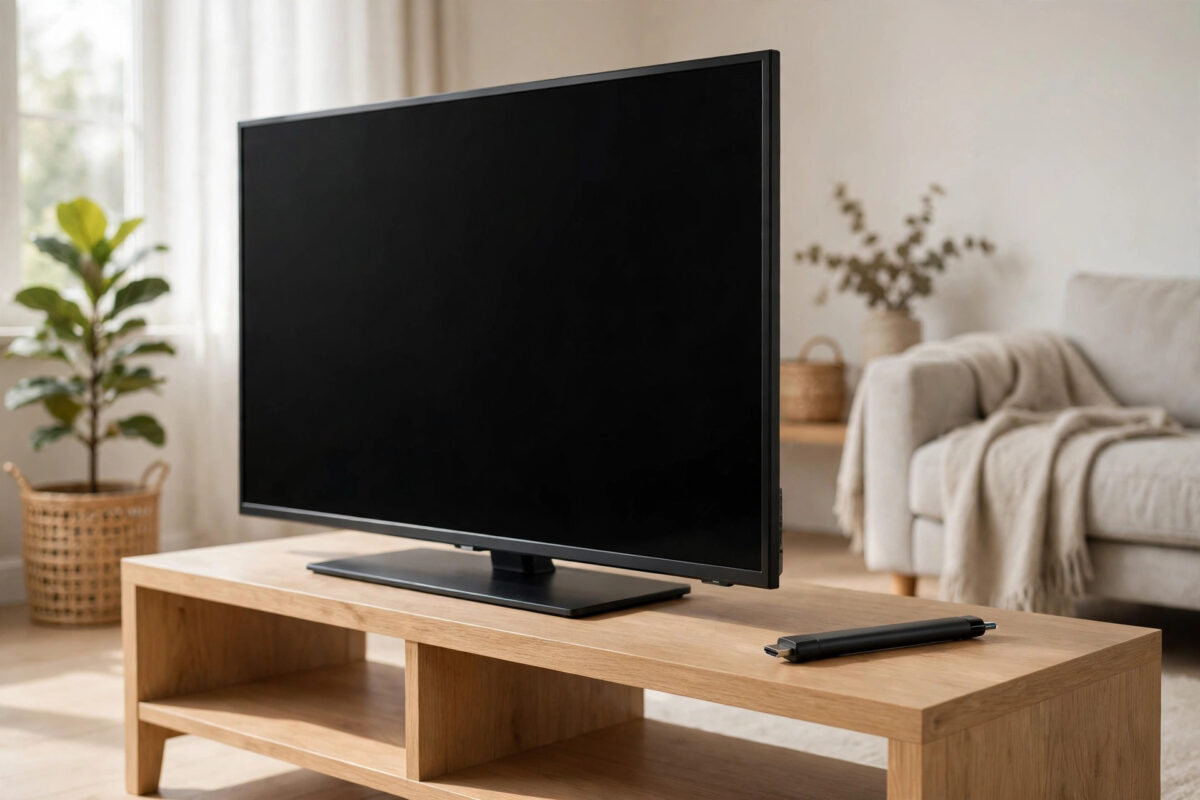
A Firestick is a small computer in a plastic stick, and it has no fan to cool it down. When it gets too hot, it protects itself by slowing down, freezing, or restarting without warning. You might be halfway through a film when the screen goes black and the Amazon logo appears again. If that keeps happening, heat is the first thing to check.
Overheating is common because many sticks live in the worst place for heat: tucked behind a warm television, inside a closed cabinet, and powered all day. The good news is that most cases are easy to fix without buying a new device. This guide explains why a Firestick overheats, how to cool it down right away, and how to set it up so the restarting stops for good.
Quick Answer
To stop a Firestick from overheating and restarting, unplug it and let it cool for 15 minutes, then plug it into a wall outlet with its original adapter, use the HDMI extender to move it away from the back of the TV, and give it open air. Keep it out of closed cabinets and direct sunlight, free up storage, and remove apps running in the background to reduce heat.
Signs Your Firestick Is Overheating
Heat problems build up slowly, so the warning signs often appear before the restarts start. The stick feels very warm or hot to touch, even after light use. Menus become slow and the remote seems to lag. Video starts to stutter or drop to lower quality after 20 or 30 minutes, even though it played fine at the start.
Some people also see a temperature warning on screen, though many models restart before showing any warning at all. If the restarts happen more often on warm days, during long films, or when the television has been on for hours, heat is a much more likely cause than a broken app.
Why Firesticks Overheat So Easily
Three things combine to cause the problem. First, the stick is small, so heat has very little space to escape. Second, the television itself produces heat, especially around the back panel where HDMI ports sit. Third, streaming high-quality video makes the processor work hard for long periods without a break.
Power matters too. When a stick is powered from a TV USB port, it often gets less stable power than it needs. It then works harder, reboots under load, and heats up faster. A blocked cabinet, a stack of other warm devices nearby, and dust on the vents of the TV all make the situation worse.
Immediate Steps to Cool It Down
Step 1: Let It Cool Completely
- Pause what you are watching and unplug the Firestick from both power and the HDMI port.
- Place it on a cool, flat surface in open air, away from the television.
- Wait at least 15 minutes. For a stick that has restarted several times, wait 30 minutes.
- Do not put it in a fridge or freezer. Sudden cold and moisture can damage electronics.
Step 2: Change How It Is Powered
- Use the original Amazon power adapter and cable that came with the stick.
- Plug it directly into a wall outlet, not into the TV USB port and not into a crowded multi-plug with heaters or other high-power devices.
- Check the cable for damage. A loose or frayed cable can cause both restarts and extra heat.
This single change fixes a large share of restarting cases. If your stick was powered by the TV, try the wall adapter for a full evening before you change anything else, so you can see the difference clearly.
Step 3: Move It Away From the TV Heat
Use the short HDMI extender that came in the box. It moves the stick a few inches away from the hot back panel and improves both airflow and Wi-Fi reception. If you no longer have the extender, a standard HDMI extension cable works the same way.
Let the stick hang or rest in open air where room air can move around it. Do not tape it flat against the back of the television, and do not wedge it between the TV and the wall. If the TV is inside a cabinet, open the cabinet door during viewing or move the stick to a lower, cooler shelf using a longer HDMI cable.
Long-Term Fixes That Prevent Restarts
Free Up Storage and Reduce Background Load
A nearly full stick works harder to manage files and updates, which adds heat. Go to Settings, My Fire TV, About, Storage and aim to keep at least 500 MB to 1 GB free. Uninstall games and apps you no longer use under Settings, Applications, Manage Installed Applications.
Close apps you are not using instead of leaving several video apps open in the background. Restart the stick once a week from Settings, My Fire TV, Restart to clear temporary files and stop background tasks that have built up.
Lower the Work the Stick Has to Do
- Set the display to match your TV honestly. Forcing the highest resolution on an older or smaller TV adds work with little visible benefit.
- Turn off features you do not use, such as automatic video and audio previews on the home screen, under Settings and Preferences.
- Keep the software updated under Settings, My Fire TV, About, Check for Updates. Updates often include stability improvements.
If your home network is slow, the stick may also work harder while buffering and retrying. Improving your connection helps both picture quality and temperature, and our guide on how to improve Wi-Fi signal for smooth streaming covers router placement and simple settings that make a real difference.
Improve Airflow Around Your Setup
Check the whole area, not just the stick. Move other hot devices such as game consoles and set-top boxes so they are not stacked together. Keep the cabinet vents clear and avoid placing the TV and stick where afternoon sun falls directly on them. In very warm rooms, a small USB fan pointed at the entertainment unit can help, but only after you have fixed placement and power. A fan should be a backup, not the main solution.
How to Tell If It Is Heat or a Different Fault
Timing gives you the clue. A heat fault gets worse the longer you watch and improves after a cool rest. A power fault restarts at random, even in the first few minutes. A single bad app crashes only inside that app, while the home screen stays stable.
Test in order. Cool the stick, use wall power, and watch a different app for an hour. If there are no restarts, heat or power was the cause. If it still restarts quickly when cool and on wall power, try a different HDMI port, remove any HDMI splitter, and test the stick on another television if you can. A stick that restarts on every TV when cool may be failing and need replacement.
Amazon provides general device care and troubleshooting information in its official Amazon Fire TV Help pages. Checking there is useful if you need model-specific power requirements for your exact Firestick version.
Common Mistakes to Avoid
- Powering from the TV USB port: It looks tidy, but many TV ports do not supply stable enough power for long streaming sessions.
- Hiding the stick in a closed cabinet: Closed doors trap hot air. Open air is the cheapest cooling you can give it.
- Cooling it in the fridge: Rapid cooling creates condensation inside the device and can cause more damage than the heat did.
- Ignoring storage warnings: A full stick runs hotter and updates poorly. Keep free space as part of normal care.
- Buying a new stick before testing power and placement: Many “broken” sticks work perfectly once they are on wall power and away from the TV panel.
- Leaving it on for weeks without a restart: A weekly restart clears background load and is a simple habit that prevents many slowdowns.
Conclusion
A Firestick that overheats and restarts is usually not broken. It is hot, underpowered, or trapped in warm air behind the television. Let it cool fully, power it from a wall outlet with its original adapter, use the HDMI extender to give it space and airflow, and keep storage free so it does not have to work harder than needed. Those four habits solve most cases and cost nothing. If the stick still restarts when it is cool, in open air, and on proper wall power, test it on another TV to confirm a hardware fault before you replace it.
Frequently Asked Questions
Is it normal for a Firestick to feel warm?
Warm is normal during streaming. Very hot to hold, too hot to keep your fingers on, or hot combined with slow menus and restarts is not normal and means you should improve airflow and power.
Can overheating permanently damage my Firestick?
Repeated overheating over a long time can shorten the life of the device and damage internal parts. The built-in restarts are a protection, but you should still fix the cause instead of letting it restart every day.
Should I turn my Firestick off when I am not using it?
You do not need to unplug it every night, but putting it to sleep and restarting it once a week helps. If your room is very hot, unplugging during long breaks also lets it cool completely.
Does a cooling fan or heat sink really help?
It can help in a warm cabinet, but it should come after wall power and better placement. Most homes do not need extra cooling parts once the stick has open air.
Why does my Firestick restart only during long movies?
Long playback keeps the processor working at a high level without a pause, so heat builds steadily. Short videos may finish before the temperature reaches the restart point, which is a classic sign of a heat problem.



Leave a Reply