
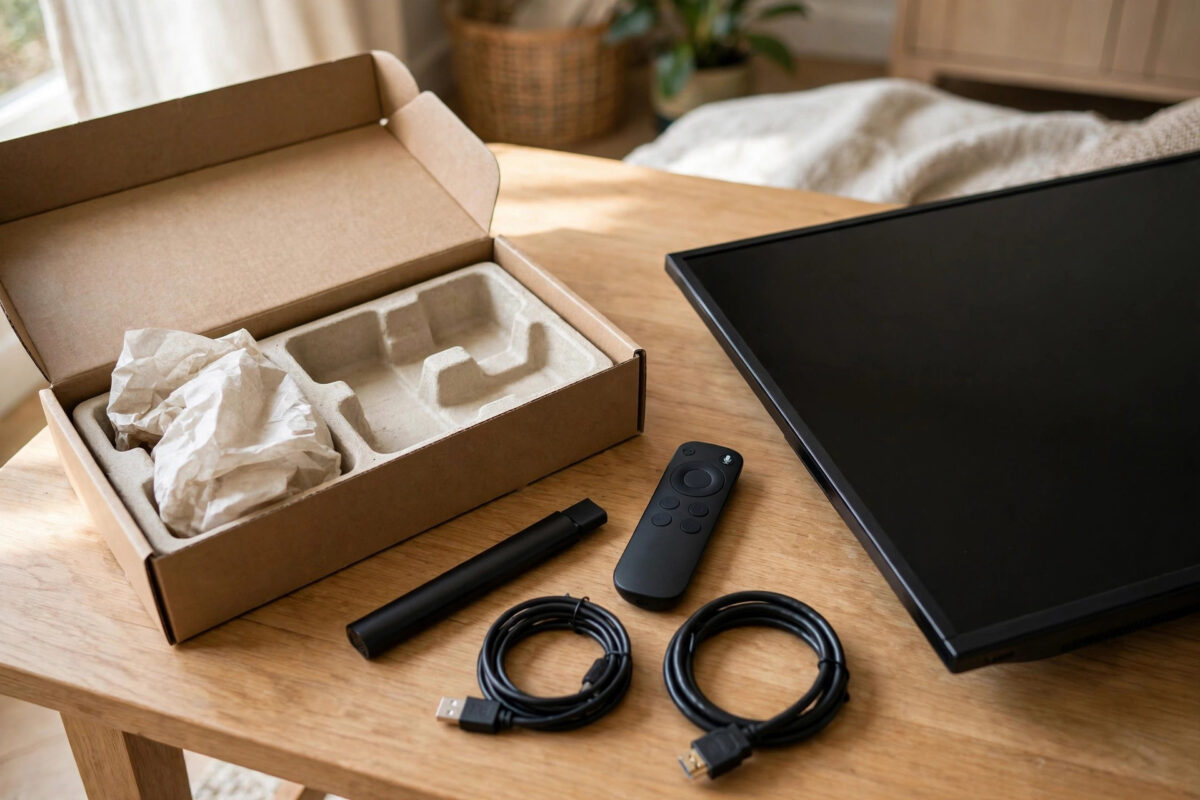
A Roku Streaming Stick is one of the simplest ways to turn a regular television into a smart TV. It plugs directly into an HDMI port, connects to your Wi-Fi, and gives you access to Netflix, Disney+, BBC iPlayer, YouTube, and thousands of other channels in one clean menu. You do not need technical skills to set it up, but doing each step in the right order saves time and avoids the common pairing and Wi-Fi problems new users run into.
This guide covers the full setup from opening the box to watching your first programme. It includes remote pairing, Wi-Fi connection, creating or signing in to a Roku account, adding channels, and the settings worth changing on day one for better picture, sound, and privacy.
Quick Answer
To set up a Roku Streaming Stick, plug it into an HDMI port and a wall power outlet, insert batteries in the remote and pair it, select your language and Wi-Fi network on screen, and let the stick update. Then activate it by following the on-screen link or code with your phone or computer, sign in to your Roku account, and add the channels you want to watch.
What Is in the Box and What You Need
Your box should contain the Streaming Stick itself, a voice remote, two batteries for the remote, a USB power cable, and a power adapter. Some models also include a USB cable with a built-in wireless receiver section that must not be bent sharply or replaced with a random cable.
- A TV with a free HDMI port
- A home Wi-Fi network and its password
- A phone, tablet, or computer for activation
- An email address for your Roku account
- A wall outlet near the TV for stable power
Check the HDMI space behind your TV before you start. If the ports are tight or face the wall, an HDMI extender cable can make installation much easier and also improves remote and Wi-Fi reception by moving the stick out into open air.
Step by Step Setup
Step 1: Plug In the Stick and Power
- Plug the Streaming Stick directly into an HDMI port on your TV and note the port number, such as HDMI 1 or HDMI 2.
- Connect the USB cable to the stick and plug the other end into the included power adapter.
- Plug the adapter into a wall outlet. Avoid powering from a TV USB port for setup, as some ports turn off with the TV and supply less power.
- Turn on the TV and select the HDMI input that matches the port you used.
You should see the Roku logo bouncing on screen within a minute. If you see no signal, confirm the input, reseat the stick firmly, and try a different HDMI port.
Step 2: Pair the Remote
- Open the battery cover on the back of the remote and insert the batteries in the direction shown inside.
- The remote should pair automatically. Point it at the TV and wait for the on-screen message to confirm pairing.
- If it does not pair, press and hold the pairing button inside the battery compartment or on the back of the remote for five seconds until the light flashes.
- Keep the remote close to the stick during pairing and wait for the confirmation screen.
Roku voice remotes connect by wireless signal, not by needing a perfect line to the TV like older infrared remotes. Still, pairing works best when you are near the TV with fresh batteries and no other Roku being set up in the same room at the same time.
Step 3: Choose Language and Connect to Wi-Fi
- Select your language and country when prompted.
- Choose Set up connection, then Wireless.
- Select your Wi-Fi network from the list. If it does not appear, select Scan again to see all networks.
- Enter your Wi-Fi password carefully using the on-screen keyboard and select Connect.
- Wait for the green ticks that confirm the connection and internet test have passed.
If the password is rejected, check for capital letters and similar characters such as the number zero and the letter O. If the signal is weak in that room, move the router closer if you can or reduce barriers for the test. You can improve placement later. For a steadier connection throughout the house, our guide on how to fix slow Wi-Fi at home for streaming devices has practical steps that help Roku and other sticks alike.
Step 4: Let the Stick Update
After connecting, the stick will check for a software update. This is normal even for a brand new device, because the software in the box may be several months old. Leave it plugged in and connected. The stick may restart once during the update. Do not unplug it at this stage, as interrupting an update can cause setup to start over.
Step 5: Activate With Your Roku Account
- The TV will show an activation instruction. Depending on your model, you will either enter your email address on screen or visit the web address shown and type a code.
- On your phone or computer, follow the official activation steps carefully. Only use the address shown on your TV screen.
- Sign in to an existing Roku account or create a new one with your email and a secure password.
- Choose a payment method if asked, or select the option to skip adding one if it is offered in your region. A Roku account itself is free.
- Wait for the TV to refresh. Your channels and settings will begin to appear.
Be careful with activation. Roku will never charge a fee to activate a device, and the official activation flow is through the address on your screen and the official Roku website. If a search result or a phone number asks for an activation fee, close it. Roku’s own guidance is available at the Roku Support home page, where you can confirm the correct setup process for your model.
Step 6: Add Channels and Sign In
From the Home screen, go to Streaming Channels or Add Channels to browse the Channel Store. Add the services you already use, then open each one and sign in with that service’s own account. It helps to have your passwords ready or use your phone to approve sign-ins where the service offers a code.
Arrange your home screen by highlighting a channel, pressing the Star button on the remote, and choosing Move channel. Put your most used services at the top so you are not scrolling every evening.
Best Settings to Change on Day One
- Display type: Go to Settings, Display type, and confirm the resolution matches your TV. Automatic detection is correct for most homes.
- Bandwidth saver: Under Settings and Network, Bandwidth Saver can pause streaming after hours of no interaction, which helps if your broadband has a data limit.
- Privacy: Under Settings and Privacy, review advertising and voice settings and turn off anything you do not want.
- Theme and screensaver: Under Settings and Theme, choose a simple theme and a screensaver start time that suits your room.
- Check for updates: Under Settings, System, Software update, run one manual check after setup so you start on the latest version.
Common Mistakes to Avoid
- Powering from the TV USB port long term: It can cause restarts and failed updates when the port does not supply enough power. Wall power is more reliable.
- Paying for activation: Activation is free. Any website or caller asking for an activation charge is not the official process.
- Typing the Wi-Fi password on the wrong network: Neighbouring networks can look similar. Confirm your exact network name before entering the password.
- Unplugging during the first update: The first update can take several minutes. Leave the stick alone until the Home screen appears.
- Throwing away the original USB cable: On some Streaming Stick models the cable contains the wireless receiver. Replacing it with a generic cable can break remote and Wi-Fi performance.
For model-specific diagrams and the latest menus, the official Roku support setup and activation guides are the best reference to keep open on your phone while you set up.
Conclusion
Setting up a Roku Streaming Stick is mostly a matter of order: plug it in with wall power, pair the remote, connect to the right Wi-Fi network, let the update finish, and activate only through the official on-screen instructions. Once your channels are added and arranged, a few day-one settings for display, privacy, and updates will give you a cleaner and more reliable experience. Keep the original cable and remote batteries in mind if problems appear later, because most Roku setup issues come back to power, pairing, or Wi-Fi rather than a faulty stick.
Frequently Asked Questions
Do I need a Roku account to use a Streaming Stick?
Yes. A free Roku account is required to activate the device and add channels from the Channel Store. The account also saves your channel list if you add another Roku later.
Does Roku charge a monthly fee?
No. Roku does not charge a monthly fee for using the device. You only pay for subscription services you choose to add, such as Netflix or Disney+, charged by those services themselves.
Can I use a Roku Streaming Stick without Wi-Fi?
You need Wi-Fi for setup, updates, and streaming channels. There is no Ethernet port on the stick, so a working wireless network is essential for normal use.
Why does my remote not pair during setup?
Check the batteries are fresh and inserted correctly, hold the pairing button for five seconds near the stick, and remove any objects blocking the area behind the TV. Then restart the stick by unplugging it for ten seconds and try again.
Can I take my Roku stick to another house or a hotel?
Yes, you can plug it into another TV and connect to a new Wi-Fi network under Settings and Network. Hotel networks that need a browser sign-in may require the additional on-screen steps Roku provides for hotel and dorm use.



Leave a Reply