
Your Roomba i7 drives home, parks on the dock, and looks like the job is done. Then hours later the battery is still flat, or the robot dies a few minutes into the next clean. This problem is common, and it is rarely a dead robot. In most cases the Roomba and the dock are simply not making good electrical contact, or the battery can no longer hold a proper charge.
The good news is that you can test almost everything yourself with a dry cloth, a little patience, and about fifteen minutes. Work through the steps in order, because the cheapest and most common fixes come first.
Quick Answer
Clean the charging contacts on both the Roomba and the dock, make sure the dock is plugged in and sitting flat, and push the robot firmly onto the contacts until the battery light comes on. If it still will not charge, remove and reseat the battery, restart the robot, and test it again. If the battery is more than two years old and drains very fast, it probably needs replacing.
How Charging Works on the Roomba i7
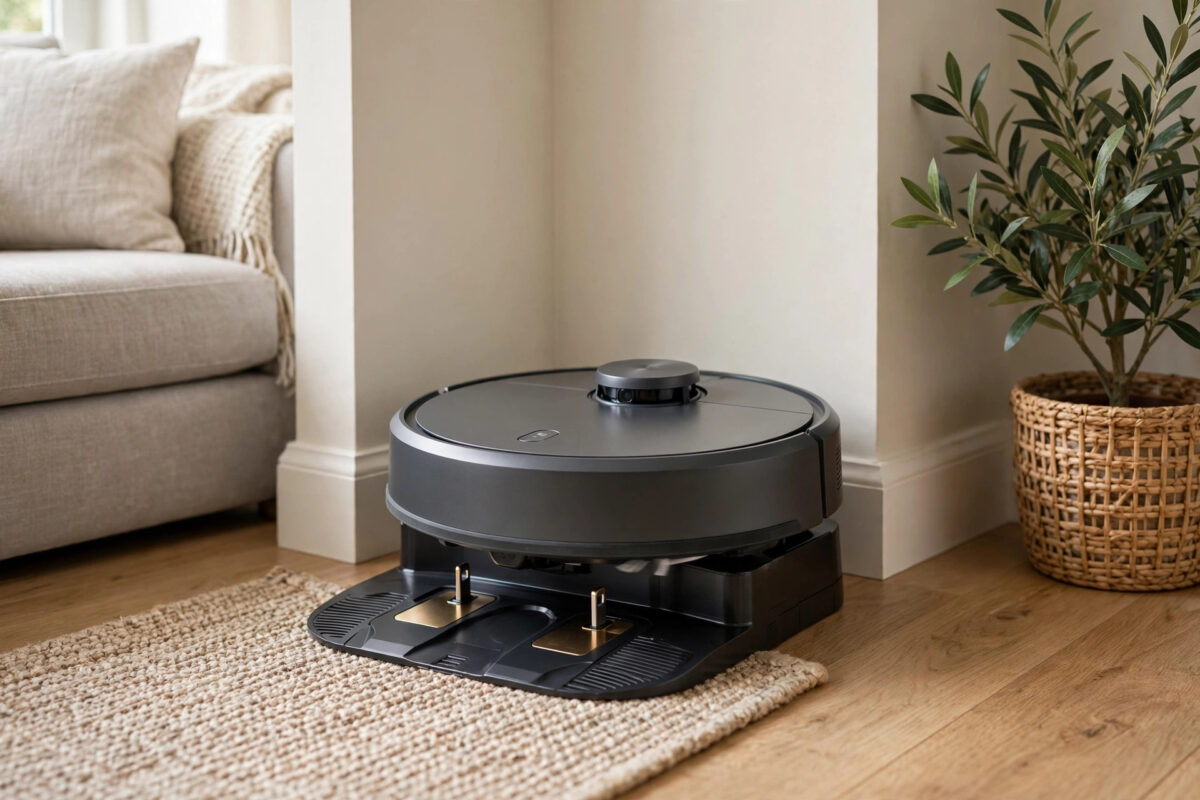
The i7 charges through two metal contacts under the front of the robot. These contacts must line up with the two metal contacts on the Clean Base or charging dock. A small spring in each contact helps them press together.
If dust, pet hair, or a thin film of dirt covers either contact, power cannot flow well. The robot can sit in the perfect position and still receive little or no charge. The same thing happens if the dock moves slightly on a rug, or if the robot stops a few millimetres short of its normal parking spot.
Your first job is to prove whether power is reaching the robot at all. Look for the light ring or battery icon on the robot after it docks. No light at all usually points to a contact, dock, or power problem. A light that shows but a battery that never fills usually points to a worn battery.
Step 1: Check the Dock, Power, and Placement
Start with the basics before you clean or open anything. Small setup problems cause many charging faults.
- Make sure the dock power cable is pushed fully into the back of the dock and into the wall socket.
- Test the wall socket with a phone charger or a lamp to confirm the socket works.
- Place the dock on a hard, flat floor against a wall. Avoid thick rugs under the dock.
- Keep about half a metre of clear space on each side of the dock and about one metre in front of it.
- Remove any toys, cables, or shoes near the dock that could nudge the robot off line.
- Pick up the robot, place it about two metres in front of the dock, and press the Home button. Watch it dock on its own.
Watch the final few seconds closely. The robot should roll in straight, make a soft click or settle sound, and then show a charging light within a minute. If it bumps the dock, turns away, and tries again over and over, the infrared window on the dock or the robot bumper may be dirty.
Step 2: Clean All the Charging Contacts
This is the single most effective fix. Contacts get a dark, dull film over time, especially in homes with pets or lots of dust.
- Unplug the dock from the wall for safety.
- Turn the Roomba over on a soft towel.
- Find the two silver charging contacts near the front caster wheel.
- Wipe them firmly with a clean, dry microfibre cloth. For stubborn marks, use a plain pencil eraser first, then wipe again.
- Clean the two matching contacts on the dock in the same way.
- Wipe the clear infrared window on the dock tower and the front bumper of the robot.
- Plug the dock back in and dock the robot again.
Do not use water, sprays, or metal scourers on the contacts. Liquid can damage the electronics, and rough scrubbing can scratch the metal and make the problem worse later. A dry cloth and an eraser are enough for normal dirt. If you share your home with shedding pets, add this job to your weekly routine along with our guide to the best robot vacuums for pet hair, because hair and dust build up on contacts faster in pet homes.
Step 3: Reseat the Robot and Check the Fit
Sometimes the robot looks docked but is sitting slightly high or slightly to one side. The front caster wheel can collect string or hair and lift the front of the robot just enough to weaken contact.
- Pull the caster wheel straight out and remove any hair wrapped around its axle.
- Push the wheel back in until it clicks.
- Check that both drive wheels move up and down freely when you press them.
- Place the robot on the dock by hand and gently rock it forward until you feel the contacts meet.
- Leave it completely still for ten minutes, then check whether the battery level has risen in the iRobot Home app.
If the level rises when you dock it by hand but not when it docks itself, the problem is alignment. Move the dock a little away from skirting boards or rug edges and test the self-docking again.
Step 4: Restart the Robot and Reseat the Battery
A software glitch can make a healthy battery look dead. A restart clears that. If a restart does not help, reseating the battery clears poor contact inside the robot too.
- Take the robot off the dock.
- Press and hold the Clean button for about twenty seconds until the light ring swirls, then release it. This reboots the i7.
- Wait for the robot to start up again, then dock it and leave it to charge for at least one hour.
- If there is still no charge, turn the robot over and remove the bottom cover screws to reach the battery, following the battery guide for your model.
- Lift the battery out, wait thirty seconds, check its contacts are clean and dry, and fit it back firmly.
- Replace the cover, dock the robot, and charge it again.
Only handle the battery if you feel confident doing so, and never use a battery that is swollen, cracked, or leaking. In that case, stop, keep the battery away from heat, and arrange a proper replacement and recycling.
Step 5: Test the Battery and Check for Updates
After a full overnight charge, run the robot on a normal clean and watch how long it lasts. A healthy i7 should clean for roughly sixty to seventy-five minutes, depending on floor type and suction level.
- If it runs well after your cleaning and restart, the problem was contact or software, and you are done.
- If it charges to full but dies in ten or fifteen minutes, the battery has lost capacity and needs replacing.
- If it never shows any charge at all, test with a different dock if a friend has one, or contact support, because the dock itself may have failed.
- Open the app while the robot is connected and install any waiting firmware updates, as charging bugs are sometimes fixed in updates.
For model-specific battery steps and error light meanings, check iRobot’s official Roomba support pages before you buy any parts, so you order the correct battery for the i7 and not a look-alike that will not fit.
Mistakes to Avoid
- Scrubbing contacts with water or kitchen spray. Liquid and electronics do not mix. Always clean dry.
- Leaving the dock on a thick rug. The robot rides up at an angle and the contacts miss.
- Buying a cheap unbranded battery first. Poor batteries can overheat, swell, or die in weeks. Rule out free fixes first.
- Ignoring the caster wheel. A hair-wrapped wheel is a hidden cause of poor docking that many owners miss.
- Testing for only two minutes. A weak battery can show a charging light and still fail. Always do a timed test run.
- Forcing the robot onto the dock roughly. Bent contacts will make every future charge worse.
Conclusion
A Roomba i7 that returns to the dock but will not charge is usually suffering from dirty contacts, poor alignment, or a tired battery. Clean both sets of contacts, give the dock a flat and clear home, reboot the robot, and reseat the battery if needed. Only replace the battery or dock after those free tests point clearly at a failed part. With clean contacts checked once a month, this fault rarely comes back.
Frequently Asked Questions
Why does my Roomba i7 sit on the dock with no charging light?
The contacts are not meeting or are too dirty to pass power. Clean the contacts on the robot and the dock, check the dock has power, and push the robot firmly into place until the light appears.
How long should an i7 battery last before it needs replacing?
Most owners get two to three years of regular use. If run time drops below about twenty minutes after a full charge, or the robot dies mid-clean often, the battery is worn out.
Can I leave my Roomba on the dock all the time?
Yes. The i7 is designed to live on its dock so it is always ready. The dock reduces power once the battery is full, so leaving it plugged in is normal and safe.
What does a red or flashing light on the dock mean?
It usually means a charging error or a battery problem. Remove the robot, clean the contacts, wait a minute, and dock it again. If the light returns every time, the battery or dock needs testing.
Should I buy a genuine iRobot battery or a cheaper one?
A genuine or high-quality certified battery is the safer choice. Cheap copies often have lower real capacity and weaker safety protection, and they can cause new charging errors.



Leave a Reply