
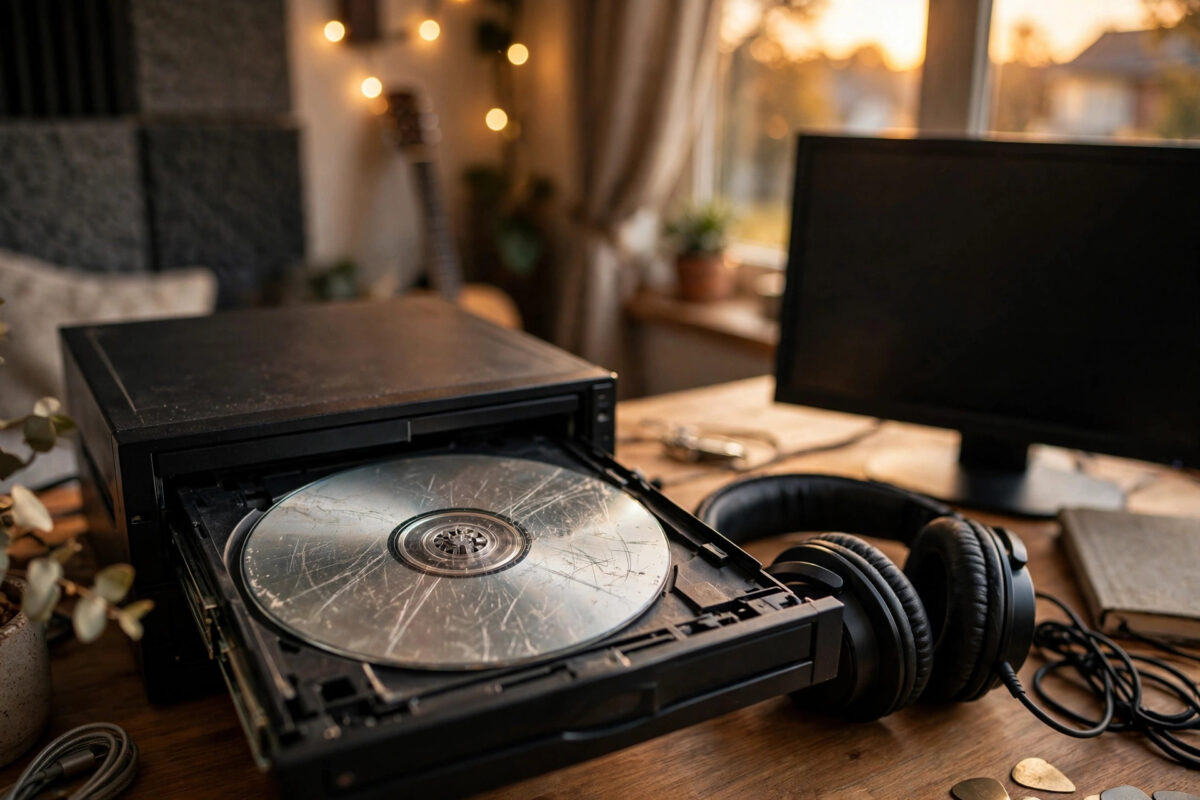
Ripping a scratched audio CD the normal way often gives you tracks full of clicks, skips, and silent gaps. The music is still on the disc in most cases. The problem is that normal ripping reads too fast and guesses when it hits a damaged spot.
Audio CDs were designed before computers ripped them. Unlike data discs, they have weaker error correction built in, because a tiny error in music playback was once considered acceptable. That is why one scratch can ruin a fast rip even though the CD still plays almost fine in a player.
Secure ripping fixes this. It reads every section several times, compares the results, and only accepts data that matches. This guide shows how to do it properly and save your music in the best quality.
Quick Answer
Clean the CD gently, then rip it with a secure ripping program such as Exact Audio Copy with error correction set to high, using secure mode rather than fast burst mode. Rip to a lossless format like FLAC, let the program re-read damaged sections as many times as needed, and check the final log for accuracy. Work from an image or cue sheet if the disc is very bad, and never leave a scratched disc grinding in the drive for hours.
Why Audio CDs Need Special Handling
A data CD or DVD carries strong extra error correction, because one wrong bit can corrupt a file. An audio CD carries much less, because the player can hide a tiny error by guessing the sound between two samples. Your ears barely notice in playback, but a careless rip saves those guesses as permanent clicks and pops.
Secure ripping software solves this with patience. It reads the same small section at least twice. If both reads agree, the data is almost certainly correct. If they disagree, it keeps re-reading, sometimes dozens of times, and takes the result that appears most often.
Many programs can also compare your rip against an online database of other people’s rips of the same album. If your checksum matches thousands of others, your copy is perfect, scratch or no scratch.
Step 1: Clean and Check the Disc
- Hold the disc by the edges and inspect the shiny side under a bright light.
- Wipe with a soft microfibre cloth from the centre straight out to the edge. Never wipe around in circles.
- Remove fingerprints and sticky marks with a tiny amount of water, then dry the disc fully.
- Look for deep scratches, cracks near the centre, or cloudy patches. Note badly damaged areas; they often match the tracks that will be slow to rip.
Handle old media gently. Many scratched CDs are decades old, and the printed side is delicate too. Damage to the label side can be worse than a scratch underneath, because the data layer sits just below the label.
Step 2: Set Up Exact Audio Copy for Secure Ripping
Exact Audio Copy, usually called EAC, is the best-known free secure ripper for Windows. Download it only from the official Exact Audio Copy website and run its setup wizard with your CD in the drive, so it can detect your drive’s features.
- Install EAC and place the audio CD in the drive before starting the configuration wizard.
- Choose the accurate, secure ripping option when the wizard asks about accuracy versus speed.
- Let EAC test your drive for accurate stream, sample offsets, and gap detection.
- In the drive options, select secure mode and set error recovery quality to high.
- Choose FLAC as the output format for a lossless copy, or WAV if you plan to convert later.
- Turn on the option to create a log file, so you can check afterwards which tracks ripped perfectly.
If you use a different secure ripper, the setting names change slightly, but the ideas stay the same: secure mode on, error correction at maximum, lossless output, and a log file you can read at the end.
Step 3: Rip the Disc and Read the Log
- Load the CD and check that the track names and album details look correct.
- Start the rip in test and copy mode if your program offers it. This reads each track twice and compares the two checksums.
- Be patient with damaged tracks. A bad section may take many minutes while the program re-reads it at lower speed.
- Let the rip finish even if one track reports errors. The rest of the album may still be perfect.
- Open the log file. Look for tracks reported as accurately ripped or matching the online database, and note any track with suspicious positions.
- Listen to the problem areas of any doubtful track, a few seconds before and after the reported position, to judge whether the flaw is audible.
If one track refuses to rip cleanly, try cleaning the disc again and ripping only that track. A second attempt with a different drive often succeeds, because drives vary in how well they read damaged areas.
Working from a Disc Image
For a very scratched disc, make an image first and work on the image. An audio-aware image with a cue sheet keeps track gaps and indexes correct. Once the image exists, put the disc away and do all further attempts from the image file, so the physical disc is not worn by endless retries.
This image-first habit is the same one used for failing drives. Our guide on how to clone a failing drive with ddrescue explains why imaging first, then working on the copy, protects the original media.
Remember one limit: a normal data image copies what the drive reports, including its guesses. For audio, a secure ripper reading the real disc usually gives better results, so use imaging as a safety net for the worst discs, not as the automatic first step for every album.
Choosing the Right Output Format
- FLAC: Lossless, roughly half the size of WAV, with full tag support. The best default choice for archiving music from scratched discs.
- WAV: Fully uncompressed and perfectly fine, but large and poor at storing track information.
- High-bitrate MP3 or AAC: Good for phones and car players, but make these from your FLAC copy later. Never rip a damaged disc straight to a lossy format, because you cannot upgrade the quality afterwards.
Common Mistakes to Avoid
- Ripping in fast or burst mode. Speed modes do no re-reading and save every error as a click or skip.
- Ignoring the log file. A finished rip is not a successful rip. The log tells you which tracks are proven accurate and which are doubtful.
- Leaving a scratched disc retrying for hours. Endless retries overheat and wear the drive and can worsen the disc. Rip track by track, take breaks, and work from an image when the damage is severe.
- Ripping straight to MP3. You may have to rip the disc again later, and a dying disc may not survive a second session. Rip once to FLAC.
- Wiping the disc in circles. Circular cleaning scratches follow the data spiral and create new read errors.
- Scratching the label side. The data layer is close to the label. Never write on a CD with a hard pen or peel at the label.
Conclusion
A scratched audio CD usually still holds good music; it just needs a careful reader. Clean the disc gently, use secure mode with error correction on high, rip to FLAC, and trust the log file rather than the progress bar. Work track by track, try a second drive for stubborn songs, and keep the final lossless files backed up. Done this way, most albums come back sounding exactly as they should.
Frequently Asked Questions
What does error correction actually do when ripping?
It makes the program read each section repeatedly and compare the results. Matching reads are accepted, mismatched sections are re-read until one result clearly wins, and the program slows down and retries damaged spots instead of guessing and moving on.
Why does the CD play fine but rip with clicks?
A CD player hides small errors by interpolating, which means guessing the sound between samples in real time. A fast ripper may simply save bad reads. Secure ripping with re-reads removes those bad reads instead of hiding them.
Is FLAC really the same quality as the CD?
Yes. FLAC is lossless, so decoding it gives back the exact audio data that was ripped, bit for bit. If the rip itself was accurate, the FLAC files are a perfect archive copy of the album.
One track still has errors after many tries. Can anything else help?
Try a different drive, clean the disc again, and rip just that track. Gentle professional polishing helps light scratches. If a short flaw remains at one spot, it may be physical damage; the rest of the album is still worth keeping.
How accurate is the online rip database?
Very accurate for popular albums. If your track checksum matches many independent rips, your copy is certainly correct. Rare or self-burned discs may not be in the database, in which case the test-and-copy checksum in your own log is your proof.



Leave a Reply