
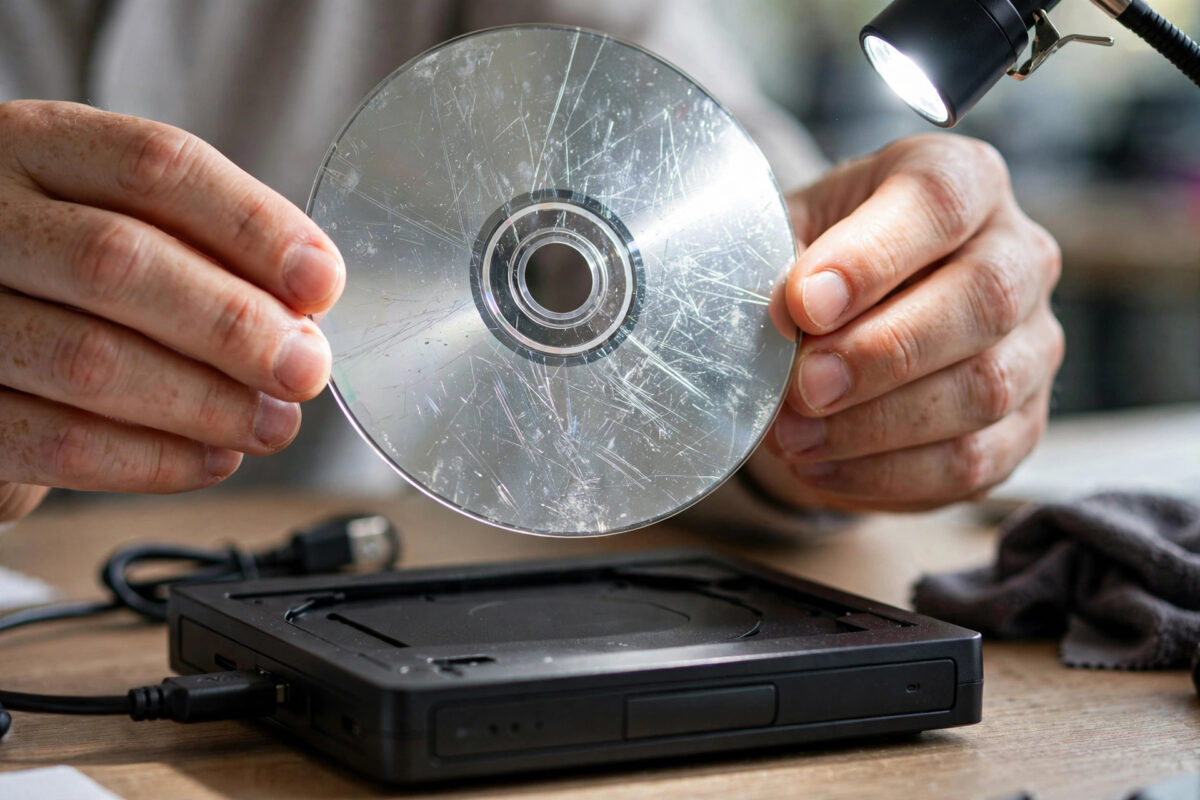
A scratched DVD that stops copying at 87 percent is a very common problem. Most of the disc still reads fine. One damaged area near the end is enough to make Windows give up and cancel the whole copy.
The good news is that the stuck point does not mean the data is gone. It usually means one section is hard to read. With the right order of steps, you can often save everything except a few seconds of a video or one small file.
The key rule is patience with a plan. Do not let the drive grind on the same scratched disc for hours. Make an image of the disc first, then work on the image as much as you need.
Quick Answer
Clean the disc gently, then use imaging software such as GNU ddrescue to make an image of the whole DVD, skipping the bad area on the first pass and retrying it later. Mount or open the finished image and copy your files from it, instead of copying from the disc itself. If the disc is a video DVD, copy the large VOB files from the image; a short damaged section may cause a brief glitch, but the rest of the film is usually saved.
Why Copying Stops at a Set Percentage
A normal file copy reads the disc from start to finish. When it reaches a scratch, the drive retries the same spot again and again. After enough failed retries, Windows reports an error and stops the whole job, even if 99 percent of the disc is perfect.
The percentage tells you roughly where the damage sits. A stop at 87 percent means the bad area is near the outer part of the disc, since DVDs read from the centre outwards. That information helps you judge how much data is at risk: usually only the file being copied at that moment.
Imaging tools behave differently. They note the unreadable area, skip it, and keep going to the end of the disc. Then they come back and try the hard spots again with fresh attempts. This is why an image-first approach saves so much more data.
Step 1: Clean and Inspect the Disc
- Hold the disc by its edges and look at the shiny side under a bright light. Note where the scratches are and whether any run in circles around the disc.
- Wipe gently with a soft microfibre cloth, moving from the centre straight out to the edge. Never wipe in circles, because circular scratches follow the data path and cause bigger problems.
- Use a tiny amount of water if there are sticky marks or fingerprints. Dry the disc fully before putting it in any drive.
- Check for cracks near the centre hole and for peeling or discoloured patches. A cracked disc should not be spun at full speed, as it can shatter inside the drive.
Handle old media gently at every stage. A disc that survived years in a drawer can still be ruined by one rough cleaning.
Step 2: Try a Different Drive First
Not all drives read damaged discs equally well. An older drive, a different brand, or a quality external USB drive may read a section that your main drive refuses. Before any heavy recovery work, try the disc in a second drive if you have one.
Sometimes simply copying the files one by one, instead of all at once, also helps. Copy the easy files first so they are safe. Then deal with the one problem file on its own, using the imaging method below.
Step 3: Make an Image of the Disc with ddrescue
GNU ddrescue is a free tool built for exactly this job. It copies a disc to an image file, keeps a map of which areas are read and unread, and can resume later if you stop it. The official GNU ddrescue manual documents every option in detail.
- Make sure you have free space on your hard drive at least equal to the disc size, about 4.7 GB for a standard DVD.
- Start ddrescue with the DVD drive as the source and an image file as the target, and let it create its map file.
- On the first pass, tell ddrescue not to retry errors and not to scrape. It will grab all the easy data quickly and skip the damaged area.
- Run ddrescue again with the same image and map file, this time allowing retries on the bad areas. It will work only on the missing parts.
- Repeat the retry pass a few times if the recovered amount keeps growing. Stop when extra passes add nothing new.
- Put the disc away once the image exists. From now on, all your work happens on the image file, not on the scratched disc.
The same careful imaging approach works for failing hard drives too. Our guide on how to clone a failing drive with ddrescue walks through the map file and retry settings in more depth.
Step 4: Get Your Files Out of the Image
- Data DVDs: Mount the image as a virtual drive, or open it with an archive tool, and copy the files as normal. Any file that sat in the damaged area may be incomplete; test it before trusting it.
- Video DVDs: Copy the VIDEO_TS folder from the image. The large VOB files hold the film. A damaged section usually shows as a short freeze or skip during playback, while the rest plays normally.
- Photo and document discs: Copy everything, then open each important file to check it. A photo may show a grey band where data is missing, but most of the picture often survives.
Save the recovered files in a new folder on your hard drive, and make a backup copy once you confirm they open. The whole point of this rescue is lost if the only copy stays on a single drive.
Extra Tricks That Sometimes Help
Slow the drive down
Some tools let you set the DVD drive to a lower reading speed. A slower spin can be steadier on damaged areas and sometimes reads sectors that fail at full speed. It takes longer, but for a retry pass on the image it can be worth it.
Polishing and repair kits
Scratch repair kits and professional polishing machines remove a tiny layer of the plastic and can fix light surface scratches. They cannot fix deep damage, cracks, or disc rot. Use them only after imaging attempts, and never on a rare disc as a first step, because polishing is a one-way change.
Know when the data is truly gone
If the reflective layer itself is flaking, or large patches have turned cloudy, part of the data no longer exists on the disc. No software can read what is physically missing. In that case, save what the image captured and accept the gap.
Common Mistakes to Avoid
- Retrying the disc in the drive for hours. Endless retries heat up the drive and the disc, wear the laser mechanism, and can make a borderline disc worse. Image first, then work on the image.
- Wiping the disc in circles. Always clean from the centre outward in straight lines.
- Using toothpaste or harsh home remedies as a first step. Abrasives are a last resort for light scratches only, and they often make things worse.
- Deleting the partial copy too soon. Files copied before the 87 percent stop are usually perfect. Keep them, and do not copy over them with a worse version later.
- Working without enough free space. An image needs the full disc size free on your hard drive. Running out of space mid-image wastes the whole attempt.
- Throwing the disc away after one success. Keep the original until you have opened and checked every recovered file.
Conclusion
A DVD that stops at 87 percent is usually mostly healthy, with one damaged patch blocking a normal copy. Clean the disc gently, try a second drive, then image the whole disc with ddrescue and pull your files from the image. Work on the image, not the disc, and you protect both the drive and the remaining data. In most cases you will lose little more than a few seconds of video or a single stubborn file.
Frequently Asked Questions
Why does my copy always stop at exactly 87 percent?
Because the scratch sits at a fixed place on the disc. The copy reaches that same damaged area every time, the drive fails to read it after many retries, and Windows cancels the job at the same point.
Is ddrescue free and safe to use?
Yes. GNU ddrescue is free, open source, and reads the source without writing to it, so it cannot damage the disc’s data. It runs mainly on Linux, and a Linux live USB lets you use it on almost any PC without installing anything.
Can I recover a DVD-R that was never finalised?
Sometimes. An unfinalised disc may not show its files in a normal drive. Imaging the disc first and then opening the image with recovery software often reveals the recorded session so you can extract the video or files.
Will polishing fix my scratched DVD?
Polishing can fix light surface scratches because the data layer sits below the plastic. It cannot repair deep scratches, cracks, or a damaged reflective layer. Always make an image before polishing, so you keep the best copy of what was readable.
How long should an imaging pass take?
A healthy DVD images in a few minutes. A damaged one may take much longer in the retry passes. Let the first skip pass finish quickly, then allow retries for a reasonable time, and stop when the recovered size no longer grows.



Leave a Reply