
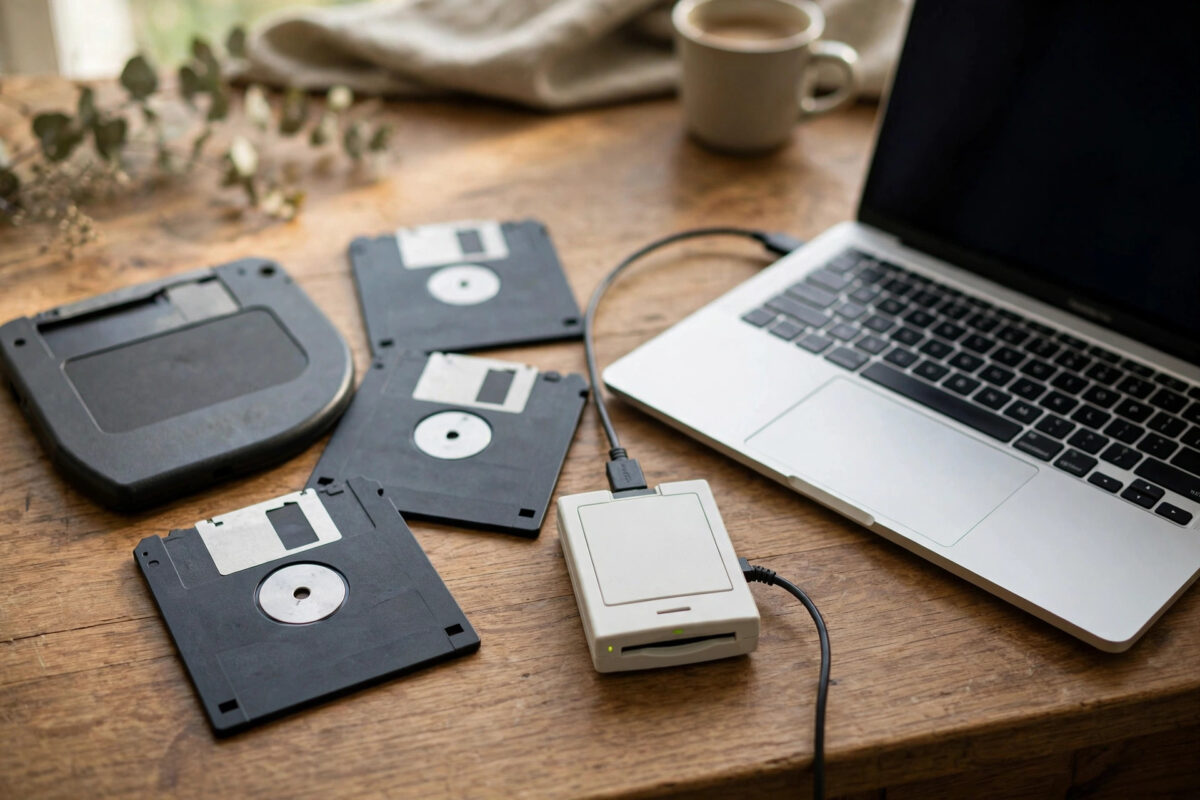
Many people still have old ZIP disks and floppy disks in a drawer, holding photos, school work, tax files, and family documents. The disks may still be fine. The problem is that modern computers no longer have the drives to read them.
In 2026 the solution is simple: a USB adapter or a USB version of the original drive. Plug it into any current Windows, Mac, or Linux computer, and the old disk appears like a normal external drive.
The job needs care more than skill. Old media is fragile, the disks are decades old, and you may only get a few good reads from them. Work in the right order, copy everything first, and open files afterwards.
Quick Answer
Buy the correct USB drive for your media: a USB ZIP drive for ZIP disks, or a USB floppy drive for 3.5-inch floppies. Connect it to your PC, insert one disk at a time, and copy the whole disk to a new folder on your hard drive before opening anything. Repeat disk by disk, then back up the copied folders. If a disk will not read, clean the drive heads, try another adapter, and image the disk with recovery software rather than forcing repeated reads.
Know Your Media Before You Buy Anything
ZIP disks
ZIP disks came in 100 MB, 250 MB, and 750 MB sizes, in thick cartridges that look like chunky floppies. Each drive reads its own size and the smaller older sizes below it. A 250 MB drive cannot read a 750 MB disk, so check the labels on your disks and buy a USB ZIP drive of the right capacity. USB ZIP drives are no longer made new, so most buyers use tested second-hand units from reputable sellers.
Floppy disks
Most late floppies are the hard plastic 3.5-inch type, holding 1.44 MB. USB floppy drives are still sold new and are cheap. They read standard PC and many Mac formatted 1.44 MB disks. They usually cannot read the older 720 KB double-density format or 5.25-inch disks; those need specialist hardware such as a flux-level reader board.
What a simple adapter can and cannot do
Some ZIP drives have parallel or SCSI connectors rather than USB. Adapters exist, but support on modern systems is patchy. In practice, a native USB drive is far less trouble than a chain of old adapters. For rare formats and failing disks, a flux imaging device reads the raw magnetic signal and is the tool professionals use to rescue difficult disks.
What You Will Need
- A USB ZIP drive of the right capacity, or a USB 3.5-inch floppy drive
- Your disks, handled by their cases and kept away from magnets, heat, and dust
- A computer with a free USB port and enough space for the copies
- A new folder structure ready, one folder per disk, named after the disk label
- Optional: disk imaging software for damaged disks, and a second backup drive
Step-by-Step: Copy the Files Safely
- Connect the USB drive and let your computer install it. It should appear as a new drive letter or volume, just like a memory stick.
- Insert the first disk gently. For a floppy, slide the metal shutter end in first and do not force it. For a ZIP disk, push until the drive takes it with a click.
- Wait for the disk to appear, then copy the entire contents to a new folder on your hard drive. Copy first, open later, so the disk spends as little time spinning as possible.
- Do not rename, sort, or delete anything on the old disk itself. Treat it as read-only evidence of your past.
- Eject the disk properly using the system’s eject option, then label the folder with the same words written on the disk.
- Repeat for every disk, one at a time, taking breaks so an old drive does not overheat during a long stack of disks.
- After copying, open the copied files on your hard drive to check they work, and note any folder where a file failed to copy.
- Back up the whole set of folders to a second place, such as an external drive or cloud storage, before putting the disks away.
If a disk is unreadable or the drive starts clicking repeatedly, stop and eject it. Repeated forced reads on a failing disk can strip the magnetic coating and destroy what is left. The image-first method described in our guide on how to clone a failing drive with ddrescue follows the same principle: capture what you can in one careful pass, then work on the copy.
Opening Very Old Files
Copying the files is only half the job. Some old files need old formats explained to modern software.
- Documents: Modern office suites open most old Word and WordPerfect files. Free suites such as LibreOffice handle an especially wide range of old formats.
- Photos: Old JPEG, BMP, and TIFF files open almost anywhere. Unusual scanner formats may need a converter.
- Compressed files: Old ZIP archives open with built-in tools. Very old formats like ARJ or LZH need a multi-format archiver.
- Programs: Old programs from floppy and ZIP disks often will not run on modern systems, and recovered executables should never be opened directly on your main PC. Keep them as history, or test them inside a virtual machine.
Where originals can be re-downloaded, prefer a fresh official copy over a decades-old program file, especially for anything that once connected to the internet.
When a Disk Will Not Read
Clean and retry once
Blow dust out of the drive slot with care, check the floppy’s shutter moves freely, and look for visible mould or dirt on the disk surface through the window. Mouldy disks should not go into a good drive, because the mould spreads to the heads and then to every other disk.
Try different hardware
Drives differ. A disk that fails in one USB floppy drive may read in another brand. ZIP drives are also known for a failure called the click of death, where the drive itself damages disks; if you hear regular loud clicking, stop at once and do not insert your other disks into that drive.
Image the disk
Disk imaging software copies sector by sector and can skip and retry bad areas in a controlled way, instead of the operating system hammering the disk with retries. For truly stubborn or valuable disks, a flux-level imaging tool captures the raw signal and gives the best chance of rebuilding files. The GNU ddrescue manual explains the skip-then-retry logic that good imaging tools follow.
Common Mistakes to Avoid
- Opening files straight from the old disk. Every extra minute of spinning wears fragile media. Copy everything off first, then open the copies.
- Inserting a suspect disk into your only drive again and again. A damaged disk can dirty or damage the drive heads, and a faulty ZIP drive can ruin good disks.
- Formatting when the computer suggests it. If a system says the disk needs formatting, say no. Formatting erases the very data you came to save. Try another computer or imaging software instead.
- Storing disks near magnets or in a hot loft. Magnetic media fades with heat and time. Copy it now and store the originals in a cool, dry box.
- Keeping only one copy after rescue. Make at least two copies of the rescued folders on different devices.
- Forcing a stuck disk out. Use the eject button or the software eject. Pulling a disk mid-read can tear the media surface.
Conclusion
Old ZIP and floppy disks are very readable in 2026 with the right USB drive and a calm, copy-first approach. Match the drive to the disk size, copy each disk completely to its own folder, check the copies, and back them up twice. Treat unreadable disks gently, image them instead of forcing retries, and your decades-old photos and documents can move safely into modern storage at last.
Frequently Asked Questions
Can I buy a USB floppy drive that works with Windows 11?
Yes. Standard USB floppy drives use generic drivers and work on Windows 11, modern Macs, and Linux without extra software. They read 1.44 MB disks well, but most cannot read 720 KB disks or copy-protected originals.
Why does my ZIP drive keep clicking?
Repeated loud clicking is a known ZIP drive failure, often called the click of death. Stop using that drive immediately, because it can damage every disk inserted into it. Your disks may still be fine in a healthy replacement drive.
What should I do if my computer asks to format the disk?
Never accept. The prompt usually means the computer cannot read the disk’s format or the disk is damaged. Cancel, eject safely, try another computer or drive, and use imaging software if the data matters.
Can a USB adapter read 5.25-inch floppy disks?
No. There are no simple USB drives for 5.25-inch disks. Those disks need an original-style drive connected through a specialist controller board that images the magnetic flux, which is a job for an enthusiast setup or a recovery service.
How long do ZIP and floppy disks keep their data?
Often 10 to 30 years in cool, dry storage, but quality varies and every year adds risk. If the files matter, copy them now while working drives are still easy to find, and keep the rescued files on modern backed-up storage.



Leave a Reply