
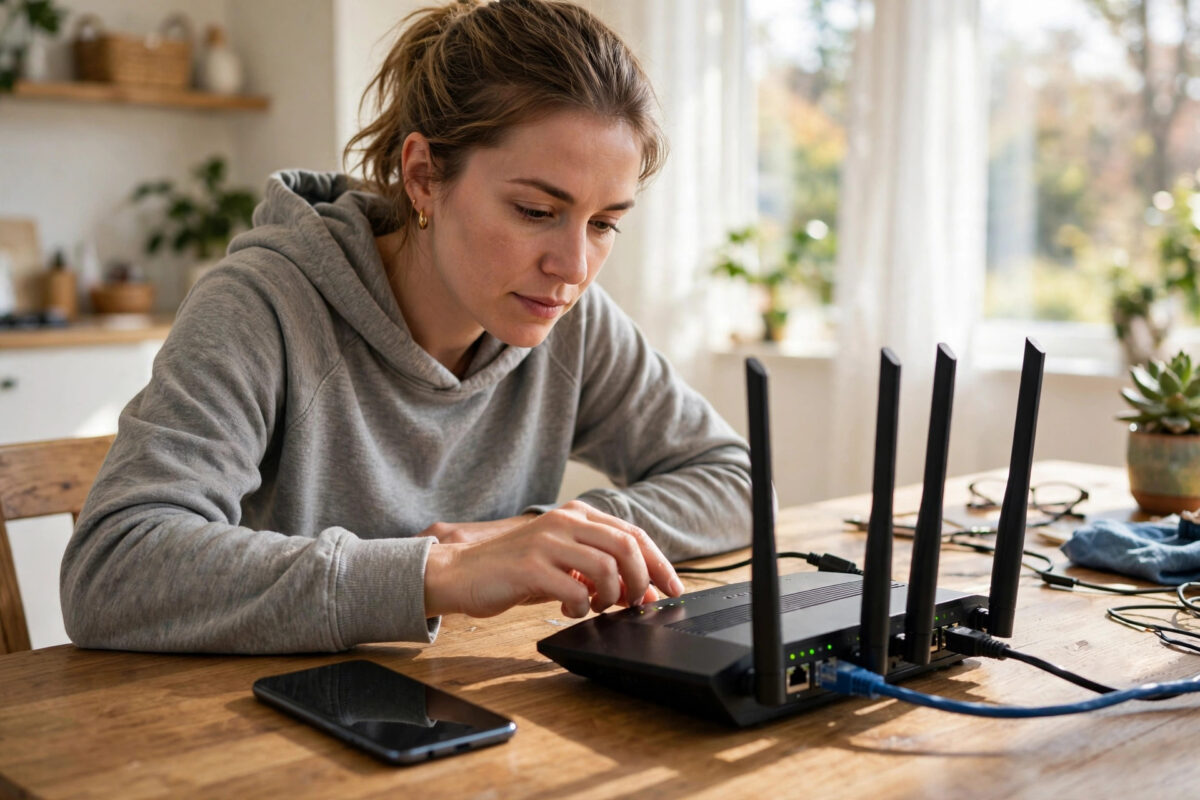
A phone that suddenly refuses its own home Wi-Fi — a network it joined happily yesterday — is maddening, especially when everyone else’s devices work fine. The cause is usually a small disagreement between phone and router: a corrupted saved profile, a router that has handed out one address too many, or a setting that changed during an update.
This guide works from the quickest checks outward, exactly as a technician would: prove whether the fault is the phone or the network, fix the common causes, and only then reach for the reset options. Most people are back online within the first four steps, without changing a single password.
Why a Phone Suddenly Refuses a Known Network
The saved network profile is corrupted. Your phone stores settings for every network it joins. If that profile gets damaged — after an update, a router firmware change, or a password change elsewhere — the phone loops on ‘Connecting’ or ‘Saved’ and never completes the connection, while other devices join normally.
The router cannot offer an address. Routers assign each device an IP address. Glitches, an exhausted address pool, or a confused router that has been running for months can leave your phone authenticated but addressless, producing the classic ‘Connected, no internet’ or endless ‘Obtaining IP address’ states.
Security settings no longer match. If the router’s security mode changed (WPA2 to WPA3, for example), or MAC filtering was enabled, an older phone may be rejected silently. This often happens right after a new router, a provider swap, or a well-meaning relative ‘improving’ the settings.
The phone’s own radios or software are stuck. Wi-Fi radios occasionally wedge after updates, long uptimes, or switching between many networks. Airplane mode toggles and restarts fix more Wi-Fi faults than any app, because they force the whole radio stack to initialise cleanly.
Step-by-Step: Get Your Phone Back on Wi-Fi
Step 1: Run the two-minute isolation checks
First, toggle Airplane mode on for 30 seconds and off again, then try to connect. Check whether other devices are online: if nobody is, restart the router and skip ahead. If only your phone fails, try a different network (a café or a friend’s house) later — a phone that fails everywhere has a phone problem; one that fails only at home has a home network problem.
Where to find it: Settings > Network and internet > Internet (or Connections > Wi-Fi). Read any short on-screen note before confirming a change, then check that the toggle, status text or behaviour has actually changed — that is your confirmation the step worked before you move on.
Step 2: Forget the network and join it fresh
Forgetting deletes the possibly corrupted saved profile. Then reconnect by selecting the network and typing the password carefully — remember passwords are case-sensitive, and one wrong character gives the misleading ‘authentication problem’ message. This single step fixes the majority of sudden connection failures.
Where to find it: Settings > Wi-Fi > press and hold your network (or the gear icon) > Forget. Read any short on-screen note before confirming a change, then check that the toggle, status text or behaviour has actually changed — that is your confirmation the step worked before you move on.
Step 3: Restart both the phone and the router
Restart your phone normally. Then switch the router off at the wall for a full 30 seconds — not five — so its memory clears completely, and give it three to five minutes to come back fully before testing. Routers that have run for months accumulate exactly the glitches this clears.
Where to find it: the router’s power switch or plug. Read any short on-screen note before confirming a change, then check that the toggle, status text or behaviour has actually changed — that is your confirmation the step worked before you move on.
Step 4: Check the date, time, and saved password
A phone with a wildly wrong clock can fail security handshakes with the router and with websites. Set date and time to automatic. While you are checking basics, confirm nobody has changed the Wi-Fi password: ask another household member, or look for the router’s current password in its admin page or your provider’s app.
Where to find it: Settings > System > Date and time > set automatically. Read any short on-screen note before confirming a change, then check that the toggle, status text or behaviour has actually changed — that is your confirmation the step worked before you move on.
Step 5: Try the other band and move closer
If your router broadcasts both bands, join the 2.4GHz network while standing near the router. It travels further through walls. If 2.4GHz works and 5GHz does not at range, your ‘fault’ is physics, not damage. If neither works even beside the router, continue to the next steps.
Where to find it: your router’s 2.4GHz and 5GHz network names. Read any short on-screen note before confirming a change, then check that the toggle, status text or behaviour has actually changed — that is your confirmation the step worked before you move on.
Step 6: Reset the phone’s network settings
This erases all saved Wi-Fi networks, Bluetooth pairings, and mobile settings, returning the whole radio configuration to factory state. You will rejoin networks and re-pair devices afterwards, which is a chore, but it clears deep configuration corruption that forgetting one network cannot reach. Your photos, apps, and files are untouched.
Where to find it: Settings > System > Reset options > Reset Wi-Fi, mobile and Bluetooth (Samsung: Settings > General management > Reset > Reset network settings). Read any short on-screen note before confirming a change, then check that the toggle, status text or behaviour has actually changed — that is your confirmation the step worked before you move on.
Step 7: Update the phone and check for router firmware
If the problem began with a phone update, a follow-up patch often follows within weeks — install it. Conversely, very old router firmware can mishandle newer phones’ security; providers like those listed on Google’s Android support resources recommend keeping both ends current. Also try disabling ‘MAC randomisation’ for your home network in its Wi-Fi settings page if your router uses MAC filtering.
Where to find it: Settings > System > System update, and your router admin page. Read any short on-screen note before confirming a change, then check that the toggle, status text or behaviour has actually changed — that is your confirmation the step worked before you move on.
When It Says ‘Connected, No Internet’
That specific message means your phone joined the router successfully but cannot reach the wider internet through it. The fault then sits with the router or the broadband line, not your phone’s Wi-Fi. Restart the router, check for a provider outage in your area, and test another device. If every device reports the same, contact your provider — no phone setting will fix a dead line.
If only your phone reports it while others browse happily, suspect a private DNS or VPN setting: check Settings > Network and internet > Private DNS and set it to Automatic, and disconnect any VPN app — including ‘security’ and ad-blocking VPNs, which are frequent hidden culprits — then test again before changing anything else.
Common Mistakes to Avoid
- Re-typing the password repeatedly without checking for capital letters and similar characters.
- Restarting the router for five seconds, which does not clear its memory.
- Resetting network settings as the very first step and losing every saved network unnecessarily.
- Blaming the phone when every device in the house has the same problem.
- Leaving a VPN or private DNS experiment switched on and forgetting it exists.
Practical Tips From Experience
Once you are reconnected, write the Wi-Fi password somewhere safe at home and label which band each device prefers. Restart your router monthly — many have a scheduled reboot option in their settings — and keep its firmware updated through your provider’s app. Stable home Wi-Fi prevents most of these sudden one-device failures from ever appearing.
Conclusion
A phone that stops joining its own Wi-Fi is usually arguing with a corrupted profile, a tired router, or a mismatched setting — all fixable in minutes. Forget and rejoin the network, restart both ends properly, and reserve the network settings reset for when the simple steps fail.
If the phone fails on every network after a reset, the hardware antenna becomes the likely suspect and a repair shop is the next step. For more home network help, explore the Wi-Fi and Android guides on NetworkUstad.
Frequently Asked Questions
Why does my phone say ‘authentication problem’ on Wi-Fi?
Almost always a wrong password — including an old saved password after the router’s password was changed — or a security mode mismatch. Forget the network, rejoin, and type the current password very carefully. If it persists on a new router, check that its security mode includes WPA2 for compatibility.
Why does my phone connect to Wi-Fi but have no internet?
Your phone has joined the router but the router cannot reach the internet, or a VPN/private DNS setting is breaking the path. Restart the router, confirm other devices work, set Private DNS to Automatic, and disconnect any VPN before testing again.
Will resetting network settings delete my photos or apps?
No. It only removes saved Wi-Fi networks and passwords, Bluetooth pairings, and mobile network settings, returning them to defaults. Your files, apps, accounts, and photos are not touched. You will simply need to rejoin your Wi-Fi networks and re-pair Bluetooth accessories.
My phone connects everywhere except at home. What does that mean?
The phone is healthy; the disagreement is with your home router. Restart the router, forget and rejoin the network, and check the router for MAC filtering or a changed security mode. If your provider recently replaced the router, this pattern is especially common.
Why does Wi-Fi keep dropping in certain rooms?
That is range and obstruction rather than a connection fault. 5GHz signals fade quickly through brick and concrete. Use the 2.4GHz band in distant rooms, reposition the router centrally and high up, or add a mesh node or extender for genuine dead zones.



Leave a Reply