
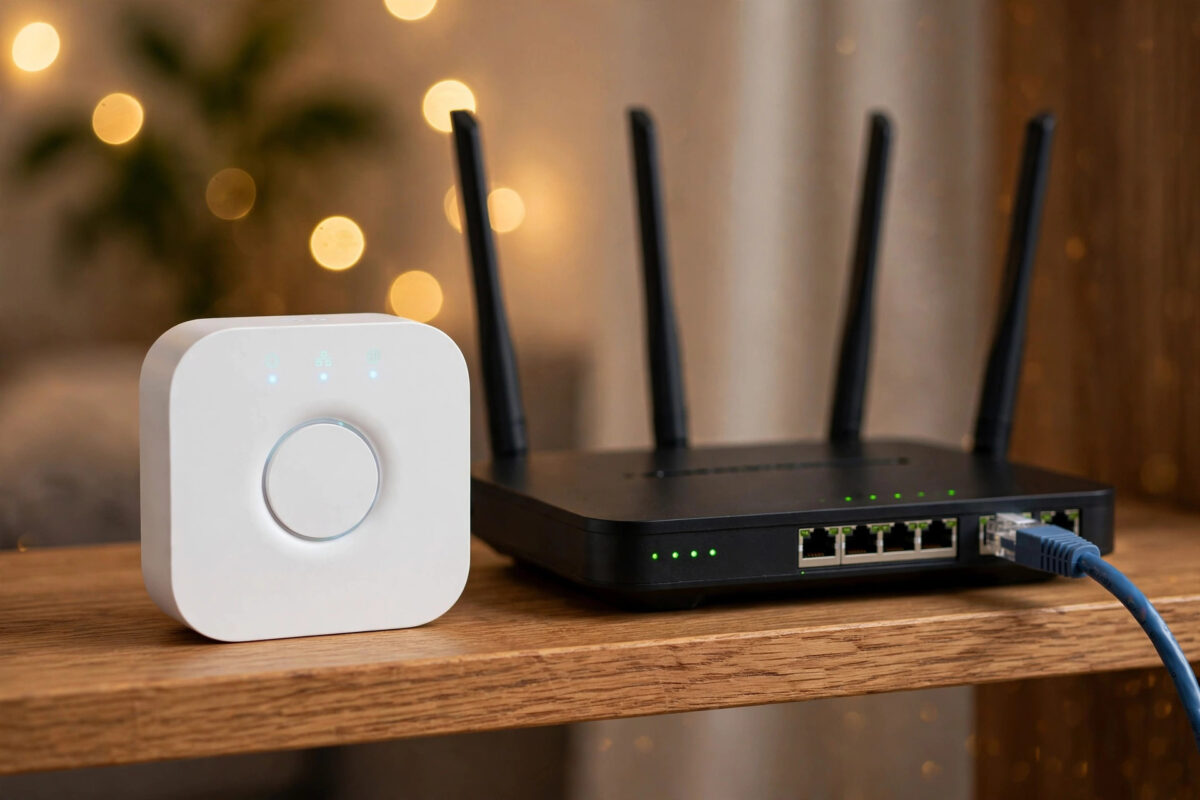
Your Philips Hue Bridge has three lights on top, and they are more than decoration. Each one tells you about a different part of the system. When only two of the three are lit, your lights may still work from a switch or routine, but something specific has failed, and the missing light tells you exactly what.
This is one of the most diagnosable Hue problems. You do not need to guess or reset everything. You read the bridge like a dashboard, fix the one missing function, and confirm all three lights return.
This guide explains what each light means, how to work out which one is missing, and the correct fix for each case.
Quick Answer
The three Hue Bridge lights show power, network connection, and internet connection from left to right. If only two are lit, identify the dark one: no power light means check the adapter and socket, no network light means check the Ethernet cable and router port, and no internet light means your router has lost internet or is blocking the bridge. Restart the router first, wait five minutes, and avoid resetting the bridge until cables and router lights are checked.
What the Three Lights on a Hue Bridge Mean
First Light: Power
This confirms the bridge is receiving power and has booted up. If it is off, the bridge is off, the adapter has failed, the socket has no power, or the bridge itself has a fault. Nothing else can work while this light is off, so it is always checked first.
Second Light: Network Connection
This confirms the bridge can talk to your home network through its Ethernet cable and router. If power is on but this light is off or blinking, the bridge cannot reach the router. The cable, router port, or router itself is the problem area, and the Hue app on home Wi-Fi will usually fail to connect.
Third Light: Internet Connection
This confirms the bridge can reach the Hue cloud through the internet. It is needed for out-of-home control, voice assistants such as Alexa and Google Assistant, and some updates. If the first two lights are on but this one is off, your lights will normally still work from the app at home, because local control does not need the internet.
The large button light in the middle is separate. It relates to linking and app pairing, so do not confuse it with the three status lights.
Step 1: Work Out Which Light Is Missing
- Look at the bridge in normal room light and note exactly which of the three lights is dark or blinking.
- Take a photo if you plan to ask for help. Saying second light off is far more useful than saying the bridge is broken.
- Check what still works. Can you control lights from the app at home? Do voice assistants work? Do switches and automations still run? The pattern confirms the diagnosis.
- Check your router lights and whether other devices have internet. If the whole house is offline, the bridge is not the fault.
If you also have discovery problems after fixing the lights, our guide on fixing a Hue app that cannot find the bridge covers IP changes, pairing, and router settings that block discovery.
Fix for a Missing Power Light
- Check the socket. Plug a phone charger or lamp into the same socket to confirm it has power, and check any extension lead is switched on.
- Check the official adapter. The bridge should use its supplied adapter. A random low-power adapter can cause boot failures and random restarts.
- Reseat both ends of the power cable. Unplug from the bridge and wall, wait 30 seconds, then reconnect firmly.
- Inspect for damage. Look for kinks, pet chewing, or a loose connector, and try a different socket as a test.
- Give it time to boot. After restoring power, allow two to three minutes. The power light should come on first, followed by the others.
- If no light appears with a known-good socket and the correct adapter, the adapter or bridge has likely failed. Test a correct replacement adapter before assuming the bridge is dead.
Fix for a Missing Network Light
This is the most common two-light state. Power is fine, but the bridge cannot reach the router.
- Confirm the bridge is wired, because it must be. The Hue Bridge does not join by Wi-Fi. It must connect to your router, mesh unit, or switch with an Ethernet cable at all times.
- Reseat the Ethernet cable at both ends until you feel the click. A half-out cable after cleaning or moving furniture is a frequent cause.
- Try a different router port. Move the cable to another numbered LAN port and check whether that port shows a link light.
- Replace the Ethernet cable. Test with any known-good cable, even temporarily across the room.
- Remove intermediate equipment. If the bridge connects through a switch, powerline adapter, or mesh satellite, test it directly into the main router. If it works there, that equipment is the fault.
- Restart in the right order. Turn off router and bridge. Turn the router on first, wait until its internet light is stable, then power the bridge and wait three minutes.
- Check the router has not isolated the bridge. Guest network, client isolation, or a paused device profile can block it. Make sure the bridge is on your main network and not paused.
Fix for a Missing Internet Light
In this state your lights usually still work at home, so there is no need to panic or reset anything.
- Confirm your internet works. Open websites on a phone using Wi-Fi with mobile data off. If browsing fails, fix the broadband issue or wait for a provider outage to clear.
- Restart the router properly. Turn it off for 30 seconds, on again, and wait a full five minutes. Routers often show online before every service is really ready.
- Restart the bridge after the router is stable. Unplug it for 10 seconds, reconnect, and wait three minutes.
- Review router security changes. A strict firewall profile, DNS filtering service, or router VPN can block the Hue cloud. Temporarily return those settings to standard and test.
- Check for a cloud outage if everything at home is fine. Rare outages do happen. If local control works, waiting is the sensible action.
You can compare your bridge state using Philips Hue official support if your bridge behaves differently from the descriptions above.
What to Do If a Light Is Blinking
A blinking network or internet light usually means the bridge is trying to connect and has not succeeded yet. After a router restart, give it at least five minutes before you act. Persistent blinking beyond ten minutes points to the same checks as a light that is off: change cable and port, remove switches or powerline adapters, and restart router-first.
Common Mistakes to Avoid
- Factory resetting as a first step: A reset removes your lights, rooms, scenes, and automations. It does not fix a dead socket, bad cable, or broadband outage.
- Trying a wireless workaround: The bridge needs a real wired connection to your main network, not a guest extender that isolates clients.
- Judging too quickly: Checking ten seconds after a router restart leads to false conclusions. Always wait several minutes.
- Forgetting mesh satellite ports: Some satellite ports behave differently from the main router unit. Test on the main unit if in doubt.
- Using a wrong or damaged power supply: Intermittent power causes symptoms that look like network faults. Rule power out first.
- Tip: Label the Hue Ethernet cable at the router end. In crowded cupboards it is often unplugged by accident to free a port.
When the Bridge Itself May Be Faulty
Suspect hardware only after testing a known-good socket, the correct adapter, a known-good Ethernet cable, and a direct connection to a working router port in the correct restart order. Warning signs include unusual heat, a flickering power light, or no network light on any port. Note the serial number underneath and contact support.
Conclusion
Two lights out of three on a Hue Bridge is not a mystery fault. It is the bridge telling you whether power, the home network, or the internet has failed. Read the missing light, fix that one layer, restart the router before the bridge, and allow time for reconnection. Cables, ports, paused router profiles, and broadband outages explain the vast majority of cases. Avoid a factory reset, work through the layers in order, and in most homes all three lights will be back within fifteen minutes, with every room and automation exactly as you left it.
Frequently Asked Questions
Can I still use my Hue lights if only two bridge lights are on?
It depends which light is missing. If the internet light is off but power and network are on, you can usually control lights at home and automations keep working. If the network light is off, app control normally fails. If power is off, nothing on that bridge responds.
Does the Hue Bridge connect to Wi-Fi?
No. The bridge must connect to your router with an Ethernet cable. It then talks to bulbs using Zigbee, a separate wireless system. Many two-light problems are simply an unplugged or failed Ethernet cable.
How long should I wait after restarting my router for the third light?
Wait at least five minutes after the router shows a stable internet connection, then restart the bridge and wait another three minutes. The internet light is often the last to return.
Will resetting the Hue Bridge fix a missing network light?
Almost never. A missing network light is caused by the cable, port, router, or intermediate equipment. Resetting deletes your setup without fixing any of those. Only reset as a final step when support advises it.
What does it mean if the lights change after I move the bridge?
Moving the bridge often disturbs a loose Ethernet or power connection, or places it on a mesh satellite or switch port that behaves differently. Return it to a direct main router connection for testing.



Leave a Reply