
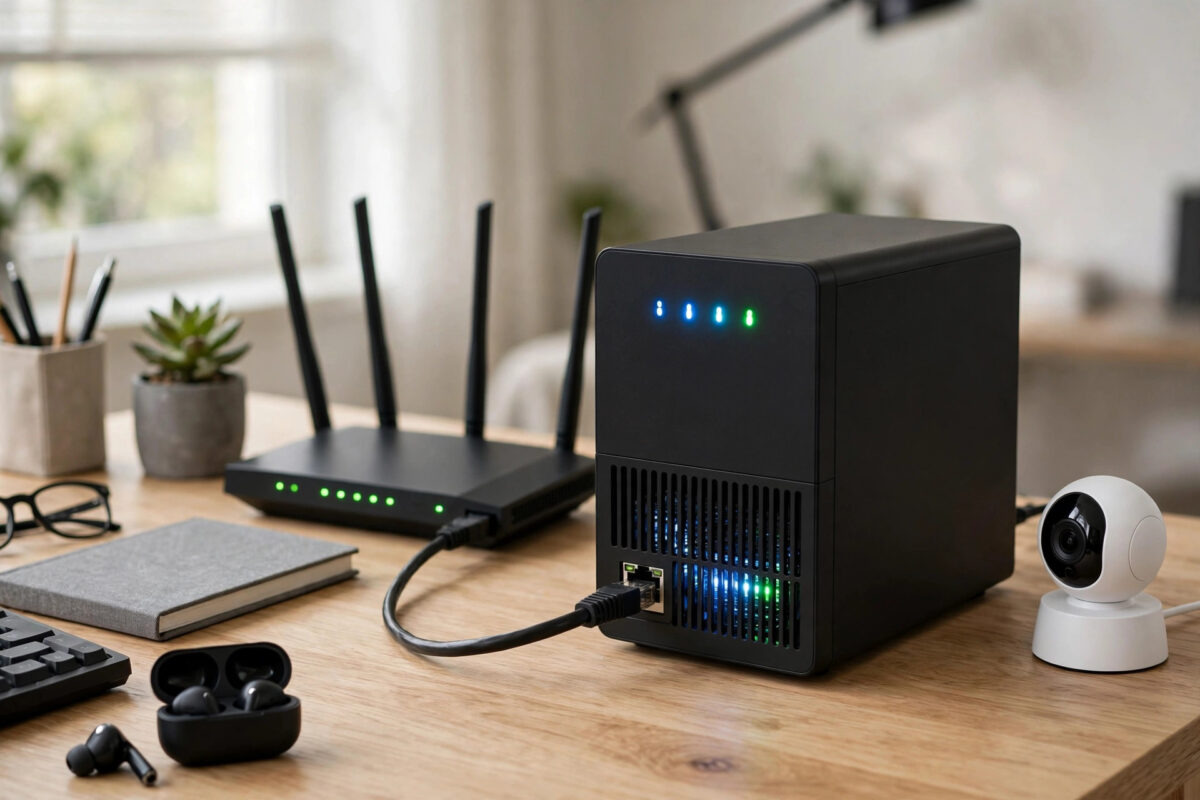
Cloud recording plans are convenient, but the monthly cost adds up with several cameras, and footage leaves your home for someone else’s servers. That is why many Tapo and Wyze owners ask whether they can save recordings to a home NAS drive instead.
The honest answer is yes, but not in the same simple way for both brands, and not always directly from the camera. Many Tapo cameras have a useful built-in option. Wyze cameras need a workaround. Both routes need planning around storage, network speed, and security.
This guide explains what each brand can and cannot do, then gives practical setups that home users rely on every day.
Quick Answer
Many Tapo cameras can record directly to a compatible NAS using ONVIF or RTSP, added as an IP camera in systems such as Synology Surveillance Station. Wyze cameras do not offer native NAS recording on current firmware, so you need RTSP where available, a bridge tool on a small home server, or microSD recording combined with regular backups to the NAS. Always test with one camera first before moving your whole setup.
What You Need Before You Start
- A NAS that is always on: Popular choices include Synology, QNAP, and a small PC or Raspberry Pi running recording software. It needs free space and a wired Ethernet connection for stability.
- Enough storage: One camera recording continuously in HD can use roughly 5 to 15 GB per day depending on quality and activity. Motion-only recording uses far less. Four cameras recording continuously can fill 1 TB in a few weeks.
- A stable network: Cameras should have a good Wi-Fi signal. The NAS and recording software should be wired. A weak camera signal causes gaps no system can fix.
- Reserved IP addresses: Reserve an address for each camera and the NAS in your router. If a camera IP changes, the NAS loses its stream.
- Time settings in sync: Set the NAS, cameras, and router to the correct time zone and automatic time. Wrong timestamps make searching footage confusing.
Option 1: Record Tapo Cameras Directly to a NAS
Many Tapo models support a Camera Account feature, which enables ONVIF and RTSP streaming. Not every model and region supports it, so check your camera in the app first.
Create the Camera Account in the Tapo App
- Open the Tapo app and select your camera.
- Go to camera settings, then Advanced Settings, then Camera Account.
- Create a username and password used only for this local streaming connection. Use a strong, unique password and store it safely.
- Keep the camera on the same home network as the NAS during setup.
Add the Camera to Your NAS Software
- Open your NAS camera software, for example Synology Surveillance Station or QNAP QVR Pro.
- Choose to add an IP camera and select ONVIF if your exact Tapo model is not listed.
- Enter the camera’s reserved IP address, the ONVIF port if asked, and the camera account username and password.
- Run the connection test. When the preview appears, choose continuous or motion-based recording and set how many days of footage to keep.
- Record a test clip and play it back from the NAS itself. Do not assume it works until you have watched saved footage.
TP-Link explains the feature in the TP-Link guide to using Tapo cameras with RTSP and ONVIF, which lists supported functions and limits. Battery Tapo models are generally not suited to continuous NAS recording, because constant streaming drains them quickly.
Important Tapo Limits to Know
- Limited simultaneous streams: If the NAS and the app both pull a stream, one may be lower quality or may drop.
- Cloud and local together: Using Tapo Care cloud and NAS recording together works on many models and is a sensible backup strategy.
- Audio: Test sound as well as picture on your ONVIF setup. If audio matters, confirm it records before relying on the system.
- Firmware changes: Keep a note of your settings. An update occasionally turns the camera account feature off and it must be enabled again.
If your other cameras still rely on cards, our guide on choosing the right microSD card size for home security cameras helps you compare card storage with NAS retention.
Option 2: Get Wyze Recordings Onto a NAS
Current standard Wyze firmware is built around the Wyze app, microSD recording, and the Cam Plus cloud service. There is no built-in ONVIF option, so you have three realistic routes.
Route A: RTSP Firmware or Feature, Where Available
Wyze has offered RTSP for certain models, sometimes as separate firmware. Availability changes by model and over time, so check official Wyze support for your exact camera before planning around it. If RTSP is available, enable it, note the stream address, reserve the camera IP, and add the stream to your NAS software as a generic RTSP camera. Test for several days, as RTSP builds have historically received fewer updates than main firmware.
Route B: Use a Bridge on a Small Home Server
Community bridge tools can take the Wyze feed and present it as a standard stream your NAS software can record. They run in a container on a NAS, Raspberry Pi, or small PC. This can work well, but be honest about the trade-offs: unofficial tools can break after Wyze account or firmware changes, sign-in security steps can interrupt them, and support comes from the community, not Wyze. Keep the server updated and never expose the bridge directly to the internet.
Route C: MicroSD Recording Plus Scheduled NAS Backup
The simplest, most reliable Wyze method is also the least automatic. Let each camera record to its own microSD card as normal, then copy footage you need to the NAS, either from the card or by saving important clips from the app into a NAS folder. This gives organised long-term storage for incidents with no extra software to maintain.
Plan Your Storage and Retention Sensibly
- Decide what matters: Entrances and driveways usually deserve continuous recording. Indoor and garden cameras are often fine with motion recording.
- Set a retention period: Seven to fourteen days suits most homes. Longer retention needs far more space than people expect.
- Use suitable drives: For continuous recording, choose NAS or surveillance-rated drives designed for constant writing.
- Separate camera storage: Create a dedicated folder or volume for footage so recordings do not fill the space used for photos and backups.
- Set a quota per camera: Most NAS software deletes the oldest footage when the quota fills. A per-camera quota stops one busy camera erasing everyone else’s history.
- Protect the NAS: Use a strong admin password, enable two-step verification where offered, keep software updated, and consider a small UPS so a power cut does not corrupt recordings.
Privacy matters too. Home cameras that capture beyond your boundary, such as a neighbour’s garden or a pavement in detail, bring responsibilities. Keep angles focused on your own property and inform household members.
Keep Remote Viewing Safe
A common mistake is opening NAS or camera ports to the internet to watch footage away from home. Avoid manual port forwarding for cameras wherever possible. Safer choices include your NAS maker’s secure relay service, a carefully set-up VPN into your home network, or keeping the maker’s app for live viewing while the NAS handles recording at home. If a service does not need to be reachable from the internet, do not make it reachable.
Common Mistakes and Tips
- Testing with all cameras at once: Add one camera, watch it for 48 hours, then add the rest. Problems are far easier to trace this way.
- Using Wi-Fi for the NAS: Always wire the NAS to the router. Recording several streams over Wi-Fi is unreliable.
- Forgetting reserved IP addresses: This single omission causes most works-today, broken-next-week setups.
- Expecting battery cameras to record all day: Continuous streaming drains them fast. Battery models are designed for short motion clips.
- Never playing back a test clip: A live preview is not proof of recording. Always play back yesterday’s footage from the NAS.
- Tip: Use identical camera names in the app and the NAS software. Searching footage across two systems is painful when names differ.
Conclusion
Storing Tapo and Wyze footage on a home NAS is entirely possible, but the route differs by brand. Tapo owners with supported models get the cleanest path through the camera account and ONVIF or RTSP into NAS software. Wyze owners must choose between RTSP where offered, a community bridge they are willing to maintain, or microSD recording with organised backups to the NAS. Whichever route you pick, reserve IP addresses, wire the NAS, size storage honestly, and test playback before you trust it. Done carefully, a NAS gives longer retention, no per-camera cloud fee, and footage that stays in your own home.
Frequently Asked Questions
Can I use Synology Surveillance Station with Tapo cameras?
Yes, in many cases. If your Tapo model supports the camera account feature, add it to Surveillance Station as an ONVIF camera. Create the account first and run the connection test before setting schedules.
Do Wyze cameras work directly with a NAS?
Not with standard firmware. There is no built-in ONVIF option for most current Wyze setups. Your choices are RTSP if your model offers it, a community bridge tool, or microSD recording with backups copied to the NAS.
How much NAS storage do I need for four cameras?
For motion-based HD recording, many homes manage with 1 to 2 TB for two weeks. For continuous recording on all four, plan for several terabytes and use the retention calculator in your NAS software, as bit rates vary by scene and quality.
Will recording to a NAS slow down my home internet?
Recording happens inside your home network, so it does not use your internet upload or download. It does use local capacity, which is why the NAS should be wired and cameras need a strong Wi-Fi signal.
Can I keep cloud recording as well as NAS recording?
For Tapo, often yes, and it is a sensible approach: the NAS holds long local history and the cloud protects recent clips if the NAS is damaged. For Wyze, Cam Plus and microSD recording can also run together.



Leave a Reply