
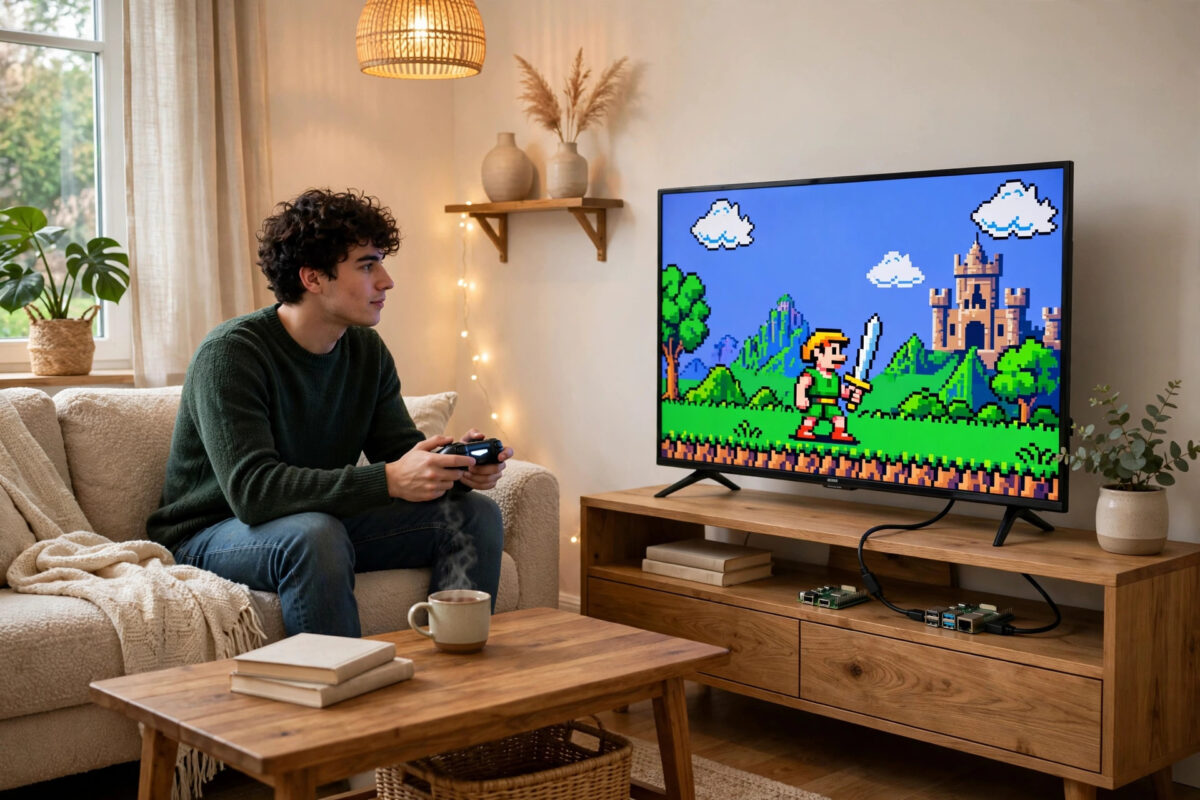
A Raspberry Pi 4 makes an excellent retro gaming machine. With RetroPie you can play classic console and arcade games on your TV with a modern controller, save states, and a clean front end that looks great from the sofa.
The install is straightforward, but many people hit the same frustration after setup: controller lag. You press jump and the character jumps a fraction of a second late. That delay ruins platform and fighting games. This guide covers a clean install and the proven fixes that make controls feel sharp again.
Quick Answer
To install RetroPie on a Raspberry Pi 4, flash the official RetroPie image to a microSD card with Raspberry Pi Imager, boot the Pi, configure your controller, and copy your legally owned game ROMs to the shared folders over your network. To fix controller lag, enable Game Mode on your TV, use a wired controller or move closer with Bluetooth, reduce display lag in RetroArch, and turn on Run-Ahead for suitable systems.
What You Need Before You Start
- A Raspberry Pi 4 with a good 5V 3A USB-C power supply.
- A microSD card, 32GB or larger, from a reliable brand.
- A heatsink or case with a fan, because emulation can warm the board.
- A USB or Bluetooth controller.
- A computer to flash the card and copy games.
- A wired network connection for setup, if possible, for faster transfers.
Use the official power supply. An underpowered Pi throttles, stutters in games, and can corrupt the card.
Step-by-Step: Install RetroPie on Raspberry Pi 4
Step 1: Download and Flash the Image
- On your computer, install Raspberry Pi Imager.
- Download the Raspberry Pi 4 image from the official RetroPie download page.
- Open Imager, choose the downloaded image as a custom OS if needed, select your microSD card, and write it.
- Wait for verification to finish, then safely eject the card.
Do not just copy the image file onto the card as a normal file. The card must be flashed so it can boot. Imager handles that correctly and checks the write afterwards.
Step 2: First Boot and Controller Setup
- Insert the card into the Pi 4, connect HDMI, controller, and power.
- RetroPie boots into EmulationStation and asks you to configure the controller.
- Hold a button, then follow the prompts for D-pad, buttons, triggers, and analogue sticks.
- If you make a mistake, keep holding any button to skip an item, and reconfigure later from the main menu.
Step 3: Connect to Wi-Fi and Update
- Open the RetroPie menu and choose Wi-Fi.
- Select your network and enter the password using the on-screen keyboard.
- Go to RetroPie Setup and choose Update to get the latest packages.
- Reboot when the update finishes.
Updates can take a while on the first run. Let them complete. Interrupting an update halfway is a common cause of missing emulators and broken menus.
Step 4: Add Your Games
Only add games you legally own. The easiest method is the network share:
- Make sure the Pi and your computer are on the same network.
- On Windows, open File Explorer and type
\\retropiein the address bar. On macOS or Linux, connect to the Samba share shown for the Pi. - Open the
romsfolder and copy each game file into the folder named for its system, for examplesnesormegadrive. - Restart EmulationStation from the menu so new games appear.
You can also use a USB stick transfer method described in the RetroPie guide to transferring ROMs. Whatever method you choose, keep your original files backed up on your computer.
Step 5: Set Video Output Correctly
Use the HDMI port next to the USB-C power port for the main display, often called HDMI0. Set your TV to the correct input and let RetroPie detect the resolution. For most TVs, 1080p is the sweet spot for Pi 4 emulation. Running the desktop at 4K can add load and lag without improving retro games, which were designed for far lower resolutions.
Why Controller Lag Happens
Input lag is the total delay from pressing a button to seeing the result on screen. It comes from several places added together: the controller connection, the emulator processing the frame, and the TV processing the picture. No single setting removes all of it, but stacking small fixes makes a big difference.
If you want broader Pi gaming background, our overview of beginner Raspberry Pi projects you can build at home shows how the same board handles media, gaming, and home server jobs.
Fix Controller Lag: Start With the TV
Enable Game Mode
This is the single biggest fix for most people. Modern TVs add smoothing, noise reduction, and motion processing that can add 50 to 100 milliseconds of delay. Game Mode turns most of that off.
- Open your TV picture settings while RetroPie is displayed.
- Find Game Mode, PC Mode, or Low Latency mode and turn it on for that HDMI input.
- Turn off motion smoothing, dynamic contrast, and noise reduction for that input.
- Test a fast platform game again. The difference should be obvious.
Check Resolution and Refresh
Make sure the Pi outputs a mode your TV handles natively, normally 1080p at 60Hz. Avoid interlaced modes. In RetroPie Setup you can adjust video settings, and in /boot/config.txt advanced users can set hdmi_mode values, but change one thing at a time and keep a backup copy of the file.
Fix Controller Lag: Controller Connection
Wired Is Fastest
A wired USB controller has the lowest and most consistent latency. If lag is ruining a game, test wired first. If wired feels sharp and Bluetooth feels floaty, you have isolated the problem.
Improve Bluetooth Performance
- Move the Pi out from behind the TV. Metal and the TV body block Bluetooth signals.
- Sit closer to the Pi and remove obstacles between controller and Pi.
- Turn off or move nearby USB 3 devices and hubs, which can interfere with 2.4GHz wireless on the Pi.
- Re-pair the controller cleanly: remove it in Bluetooth settings, reboot, and pair it again.
- Keep controller firmware updated using the maker app on a computer or phone.
A separate Bluetooth dongle placed on a short USB extension cable away from USB 3 ports helps some setups, but try the free fixes first.
Fix Controller Lag: RetroArch Settings
Use Run-Ahead
RetroArch, which powers most RetroPie emulators, offers Run-Ahead. It runs the emulator ahead internally to remove internal game latency.
- Start a game, then open the RetroArch menu with
Hotkey + X. - Go to
Settings > Latency. - Turn on Run-Ahead and start with 1 or 2 frames.
- Enable Second Instance if your system handles it without audio crackle.
- Save a per-game or per-core override so the setting sticks only where it works well.
Run-Ahead works best on 8-bit and 16-bit systems. Heavier systems such as Nintendo 64 or Dreamcast may stutter if you push it too far. If audio breaks up, reduce the frames or turn it off for that system.
Other Useful Latency Settings
- Hard GPU Sync: Can reduce lag on capable setups, but test carefully.
- Frame Delay: Small values can help, high values cause stutter. Increase slowly.
- Polling Behaviour: Set to Early in latency settings so inputs are read sooner in the frame.
- Video Driver: Keep the default recommended driver for Pi 4 unless a specific guide for your emulator says otherwise.
Change one setting at a time and play for two minutes. If you change five things at once, you will never know which one helped or hurt.
Common Mistakes to Avoid
- Using a weak phone charger: It causes throttling that looks like emulator lag. Use a proper Pi 4 supply.
- Skipping Game Mode: People tune RetroArch for hours while the TV adds most of the delay. Fix the TV first.
- No cooling: A hot Pi 4 throttles and games slow down unevenly. Use a heatsink or fan case.
- Pushing Run-Ahead too high: More frames is not always better. Stutter feels worse than a tiny amount of lag.
- Cheap slow microSD cards: They cause long loads and menu stutter. Buy a fast, genuine card.
- Testing with one hard game only: Judge lag across two or three familiar games you know well.
Conclusion
RetroPie on a Raspberry Pi 4 is easy to install: flash the image, configure the controller, update, and add your own games. Good controls need a little more attention. Start with your TV Game Mode and a wired test, then improve Bluetooth conditions and use Run-Ahead carefully for classic systems. With those fixes in place, jumps, punches, and turns happen when you press them, and retro games feel the way you remember them.
Frequently Asked Questions
Is a Raspberry Pi 4 fast enough for RetroPie?
Yes. A Pi 4 handles most 8-bit, 16-bit, and PlayStation 1 games very well, plus many Nintendo 64 and Dreamcast titles with the right settings. Cooling and a proper power supply are essential for consistent performance.
Why does my Bluetooth controller lag more at night or in one room?
Interference and distance are likely causes. Other wireless devices, USB 3 hubs, and the Pi hidden behind a TV all weaken the signal. Move the Pi into the open, sit closer, and re-pair the controller to test the improvement.
Does Run-Ahead work for every system?
No. It works best for lighter systems such as NES, SNES, and Mega Drive. Heavier 3D systems may not have enough spare performance and can stutter or crackle. Use it per system and per game rather than as a global setting for everything.
What size microSD card should I buy for RetroPie?
32GB is enough for a focused collection, while 64GB or 128GB gives room for larger CD-based games and artwork. Speed and authenticity matter more than size. Buy from a trusted seller and test the card if problems appear.
Can I fix lag without changing RetroArch settings?
Often, yes. Enabling TV Game Mode and using a wired controller removes most noticeable lag for many players. RetroArch tuning is the final polish, not the first step. Always fix display and connection lag before deeper emulator changes.



Leave a Reply