
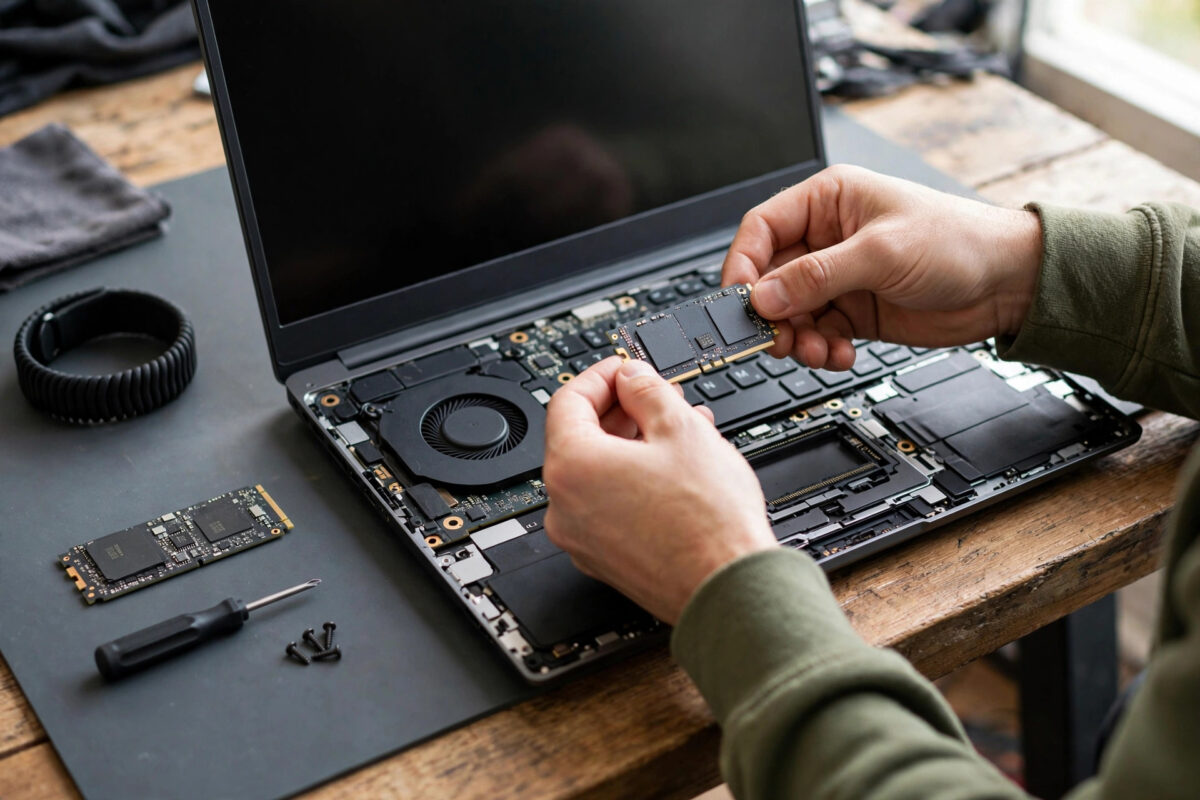
Your Ubuntu system is set up exactly how you like it, but the old drive is small, slow, or starting to worry you. Reinstalling everything from scratch would take a weekend of updates, apps, and settings. The better move is to clone the whole installation to the new SSD, adjust the boot setup, and carry on where you left off. Done carefully, Ubuntu does not even notice it has moved house. Done carelessly, you can lose data, so this guide puts safety first.
Quick Answer
Back up your files first, connect the new SSD, and boot from a live Ubuntu USB. Use a cloning tool such as Clonezilla, or Disks with a full disk copy, to clone the old drive to the new SSD byte for byte, making sure the source and destination are not swapped. Then update the bootloader and check the file system table on the new drive, swap the drives, and boot Ubuntu from the SSD to confirm everything works before erasing the old drive.
Warning: Read This Before You Clone Anything
Cloning writes over the entire destination drive. Every file, partition, and setting already on the new SSD will be destroyed and replaced with a copy of the old drive. If you pick the wrong direction and clone the empty new drive onto your old one, you will wipe your working system. That mistake cannot be undone with a simple click.
Protect yourself with three rules. First, back up important files to a separate external drive or cloud storage before you begin. Second, identify drives by model name and size, never by order alone. Third, read every confirmation screen slowly and check that the source is your old drive and the destination is the new SSD.
Choose Your Method
Whole Disk Clone With Clonezilla
Clonezilla is a free, specialist cloning tool that runs from a USB stick and copies entire disks or single partitions. It handles Linux file systems well, copies only used blocks for supported file systems, and is the safest choice for most people. It looks plain and text-based, but it asks clear questions before it writes anything.
Copy Inside Ubuntu With Disks or dd
The GNOME Disks app can create and restore disk images, which suits smaller drives. The dd command can also copy a disk exactly, but it gives no warnings, and a single typo in the device name points it at the wrong drive. Beginners should avoid raw dd for this job.
What You Need
- Your new SSD, equal in size to the old drive or larger for the simplest clone.
- A USB-to-SATA or USB-to-NVMe adapter, or a free slot and cables to connect both drives at once.
- A live Ubuntu USB stick, or a Clonezilla USB stick, to boot from.
- An external backup of your important files, tested and separate from both drives.
- At least an hour of uninterrupted time, and mains power for a laptop.
If the new SSD is smaller than the old drive, a plain whole-disk clone will refuse or fail. You must first shrink the Ubuntu partition on the old drive so the used partitions fit inside the smaller target, which adds risk. Buying an equal or larger SSD is the calm, recommended route.
Step 1: Prepare the Old System
- Update Ubuntu fully with
sudo apt update && sudo apt upgradeand restart once, so you are not cloning a half-updated system. - Back up your home folder files to external storage.
- Run
lsblk -fin a terminal and note your drive names, partition layout, and file system types such as ext4 and the small EFI partition. - Note whether your install uses encryption or LVM, because encrypted and volume-managed setups need the matching option in the cloning tool.
- Shut down fully before connecting hardware.
The official Clonezilla project site explains its device-to-device clone modes and limitations in plain detail, and it is the reference to check if your setup involves RAID, LVM, or encryption.
Step 2: Connect the New SSD
For a desktop, fit the SSD in a spare bay or slot and connect power and data cables. For a laptop with only one drive bay, connect the new SSD through a good USB adapter for cloning, then physically swap it into the bay afterwards. Keep the adapter connection firm; a loose cable halfway through a clone means starting again.
Boot from your live USB and choose Try Ubuntu. Never clone a running system from inside itself, because files change constantly while a system runs, and copying them mid-change produces an unreliable copy.
Step 3: Clone the Old Drive to the New SSD
- Start Clonezilla from its boot menu and choose the device-to-device mode for a direct disk-to-local-disk clone.
- Select the source disk carefully. Confirm it by model and size, for example your older, smaller drive.
- Select the destination disk. Confirm again that this is the new, empty SSD.
- Choose the option to copy the partition table from the source, so the EFI, system, and any swap partitions come across in the same layout.
- Read the final warnings. Clonezilla asks you to confirm more than once for a reason. Check the direction one last time before typing your confirmation.
- Wait for the clone to finish completely. Large drives over a USB adapter can take a long time, so be patient and do not disturb cables or power.
When it finishes, shut the machine down fully. Do not boot yet with both cloned drives attached, because two drives now share identical partition identifiers, and the computer may boot from the wrong one or confuse itself.
Step 4: Swap the Drives and Boot
- Disconnect the old drive, or remove it, so only the new SSD is present for the first test boot.
- If the SSD was cloned through a USB adapter, install it properly inside the machine now.
- Power on and enter the boot menu if needed, then select the Ubuntu entry or the SSD itself.
- Log in and test your files, apps, Wi-Fi, sound, and a restart.
In most whole-disk clones, the EFI bootloader comes across with everything else and Ubuntu starts normally, with desktop, users, and settings exactly as they were.
If It Does Not Boot
Do not panic, and do not erase anything. Boot the live USB again and check with lsblk -f that the partitions exist on the new drive. The usual fixes are reinstalling the GRUB bootloader to the new drive’s EFI partition and checking that the entries in /etc/fstab point at the correct partition identifiers. Because a true clone copies identifiers too, fstab usually needs no change at all, which is one of cloning’s biggest advantages.
Step 5: Grow the Partition to Use the Bigger SSD
If the new SSD is larger, Ubuntu will at first still see only the old drive’s size. The cloned partition ends where the old disk ended, leaving unallocated space after it.
- Boot the live USB again so the system partition is not in use.
- Open GParted or Disks.
- Select the Ubuntu root partition on the new SSD and resize it to use the free space that follows it.
- Apply the change, wait for it to finish, then reboot from the SSD and confirm the new size with
df -h.
After a day or two, when you are sure the new SSD is stable, you can wipe the old drive and reuse it for backups. Until then, keep it untouched as a fallback, and keep your system healthy with regular Ubuntu terminal updates using apt upgrade.
Common Mistakes and Safety Tips
- Cloning in the wrong direction: The single most destructive error in this whole process. Source is old and full, destination is new and disposable. Say it out loud before confirming.
- No separate backup: A clone is a copy, not a backup strategy. One wrong click can endanger both drives at once, so external backup comes first, always.
- Booting with both clones attached: Identical identifiers confuse bootloaders. Test with only the new drive connected.
- Cloning from the running system: Always work from a live USB or Clonezilla stick so the source is quiet and consistent.
- Erasing the old drive too soon: Wait several days of successful boots before reusing it.
- Ignoring a smaller target drive: If the new SSD is smaller, shrink partitions first with proper tools, or choose a larger drive instead of forcing it.
Conclusion
Moving Ubuntu to a new SSD without reinstalling is completely realistic when you clone the whole disk from a live environment. Back up first, identify your drives beyond doubt, clone old to new with Clonezilla, test the SSD alone, and then expand the partition to enjoy the extra space. Your system, settings, and files come with you, and the old drive stays as a safety net until the move has proved itself.
Frequently Asked Questions
Will my programs and settings survive a clone?
Yes. A whole-disk clone copies the operating system, installed programs, users, settings, and files exactly. After a successful clone and drive swap, you log into what looks and behaves like the same machine, just on new hardware.
Can I clone Ubuntu to a smaller SSD?
Sometimes, but not with a simple whole-disk copy. The partitions on the source must first be shrunk so they fit the target, and tools vary in how well they handle this. An equal or larger SSD avoids the problem entirely.
Do I need to reinstall GRUB after cloning?
Usually not, because a full clone copies the EFI partition and its bootloader files as well. If the new drive will not boot, reinstalling GRUB from a live session is the standard first fix, before changing anything else.
How long does cloning take?
It depends on drive size, used space, and connection speed. A modest install can finish in under an hour, while a large drive over a slow USB adapter can take several hours. Never interrupt it.
What should I do with the old drive afterwards?
Keep it untouched for several days as a fallback. Once you trust the SSD, wipe it and use it as a backup disk.


Leave a Reply