
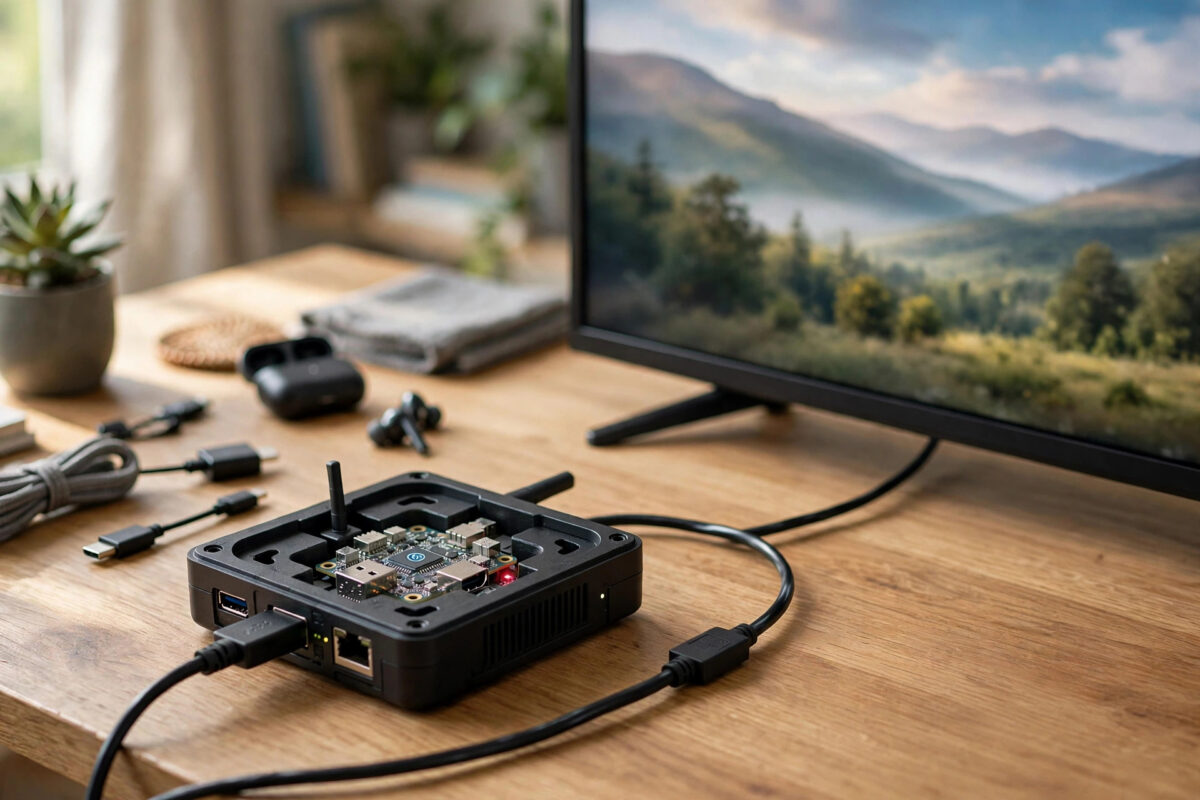
You boot your Raspberry Pi and the edges of the desktop are missing. The taskbar is half off the screen, text near the borders is cut off, or icons disappear beyond the TV frame. This is called overscan, and it is one of the oldest TV quirks still causing trouble today.
The good news is that it is easy to fix once you know where to look. Sometimes the correct fix is in your TV settings, not on the Pi at all. Other times you adjust one setting in Raspberry Pi configuration. This guide shows both, in the right order.
Quick Answer
To fix HDMI overscan cutting off edges on a Raspberry Pi, first set your TV picture size to Just Scan, Screen Fit, 1:1, or Full Pixel so it stops zooming the image. If edges are still cut off, open Raspberry Pi Configuration or raspi-config, enable the Underscan or disable Overscan option, reboot, and for older setups adjust the overscan_left, overscan_right, overscan_top, and overscan_bottom values in /boot/config.txt until the full desktop fits.
What Overscan Is and Why It Happens
Overscan comes from old analogue TV days, when broadcasters hid messy picture edges by zooming in slightly and letting the TV crop the borders. Many TVs still apply that zoom by default on HDMI inputs, even though computers and modern consoles send a perfect digital picture that should be shown pixel for pixel.
Your Pi is probably sending the full 1920 by 1080 picture correctly. The TV then enlarges it by a few percent and pushes the top, bottom, left, and right edges off screen. That is why menus and taskbars, which live at the edges, are the first things to vanish.
How to Tell Overscan From a Wrong Resolution
- Overscan: The picture looks sharp, but all four edges are cropped evenly and text at the border is cut in half.
- Wrong resolution: The picture looks blurry, stretched, or squashed, and edges may be uneven.
- Underscan problem: You see thick black borders on all sides and the desktop floats in the middle, too small.
Fix 1: Change Your TV Picture Size Setting
Always start here. If the TV is zooming, no Pi setting can fully undo it cleanly. You would only be shrinking the Pi picture to fight the TV zoom, which wastes sharpness.
- Turn on the Pi and display its desktop on the TV.
- Grab the TV remote, not the Pi keyboard, and open Picture or Display settings.
- Find Picture Size, Aspect Ratio, or Screen Format.
- Change it from 16:9, Auto, or Zoom to the exact-fit option for your brand.
- Look for names such as Just Scan, Screen Fit, Full Pixel, 1:1 Pixel Mapping, Dot by Dot, or PC Mode.
- Apply the setting to this HDMI input. Many TVs store it per input, so you may need to repeat it for other ports.
On many Samsung TVs the setting is Screen Fit. On LG it is Just Scan. On Sony it is Full Pixel. The official Raspberry Pi configuration documentation also notes that display behaviour depends on the connected screen, so checking the screen manual for its exact-fit mode is worthwhile.
Also Check for a PC Input Label
Some TVs reduce overscan when you rename the HDMI input to PC or Computer. Try it if you cannot find a picture size option. It often unlocks exact-fit mode and improves text clarity.
Fix 2: Use Raspberry Pi Configuration on the Desktop
If the TV is set correctly and edges are still missing, or you are using a monitor with no such setting, fix it on the Pi.
- Open the main menu and go to
Preferences > Raspberry Pi Configuration. - Open the Display tab.
- Look for Underscan. In newer Raspberry Pi OS versions, turning Underscan on adds a border to compensate, while the overscan handling is automatic. Experiment with the available option and reboot when prompted.
- After reboot, check all four corners. You should see the full taskbar and desktop edges.
Fix 3: Use raspi-config in the Terminal
- Open a terminal and run
sudo raspi-config. - Go to
Display Options. - Choose the Underscan option if present.
- Select Yes or No based on whether your picture is cropped. If edges are cut off, you want compensation enabled.
- Finish and reboot when asked.
The exact menu wording changes between Raspberry Pi OS releases, because newer systems based on Wayland and KMS handle displays differently from older ones. If you cannot find an underscan entry at all, your system likely expects the fix on the TV side or through config file values, covered next.
Fix 4: Adjust Overscan Values in config.txt
For fine control, especially on older Raspberry Pi OS versions and older Pis, edit the boot configuration file.
- Back up the file first with
sudo cp /boot/config.txt /boot/config.txt.backup. On newer systems the path may be/boot/firmware/config.txt. - Open it with
sudo nano /boot/config.txt, adjusting the path if needed. - Find the overscan lines. If they start with a hash, remove the hash to enable them.
- Set
disable_overscan=0if you need manual values to work, or trydisable_overscan=1first if your TV already does exact fit and you see black borders from double compensation. - Adjust these values in small steps:
overscan_left=24overscan_right=24overscan_top=16overscan_bottom=16
Larger positive numbers push that edge further inward and shrink the picture away from the border. Increase the value for the side that is still cut off. Use negative values only if you have black borders and need to expand the picture outward. Save with Ctrl+O, exit with Ctrl+X, and reboot with sudo reboot. Repeat with small changes until the corners sit exactly inside the screen.
The Raspberry Pi config.txt documentation lists every display option and explains how the firmware reads these values at boot, which is why a reboot is required after each change.
Fix 5: Check Resolution and HDMI Group
Confirm the Pi is sending a sensible resolution. A wrong mode can cause both cropping and blur.
- In Raspberry Pi Configuration, open Display and set the resolution to the native resolution of your screen, usually 1920 by 1080 for a Full HD TV.
- Avoid interlaced modes marked with an i, which flicker and look soft.
- Try the other HDMI port on the Pi 4. Use HDMI0, the port nearest the power connector, as the primary output.
- Try a different HDMI cable and a different TV input if one port behaves strangely.
If you also use this Pi for gaming, fixing overscan pairs well with the display advice in our guide to installing RetroPie on a Raspberry Pi 4 and fixing controller lag, since Game Mode and exact-fit picture settings improve both problems together.
Using a Computer Monitor Instead of a TV
Most monitors do not apply overscan. If the picture is cropped on a monitor, check its menu for Overscan or Aspect and set it to Full or 1:1. If the same Pi works on a monitor but crops on a TV, the TV setting is the cause.
Common Mistakes to Avoid
- Fighting the TV with huge Pi values: If the TV zoom is on, turning it off is cleaner than shrinking the Pi picture by 60 pixels on every side.
- Editing config.txt without a backup: One typo can stop display settings loading as expected. Always copy the file first so you can restore it.
- Changing all four values wildly at once: Adjust in steps of 8 to 16 and reboot between rounds. Small steps converge faster than guesses.
- Forgetting per-input TV settings: You fix HDMI 1, move the Pi to HDMI 2, and the problem returns. Set exact fit on the input you actually use.
- Confusing zoom on a streaming app with system overscan: Test on the Pi desktop itself. If the desktop fits, the system is fixed and any remaining crop is inside one app.
- Using a composite or low-quality adapter: Cheap adapters can misreport display capabilities. Test with a direct HDMI cable first.
Conclusion
Overscan is an old TV habit applied to a modern digital picture. Start with the TV exact-fit setting such as Just Scan or Screen Fit, because that removes the zoom at the source. If edges are still cropped, use Raspberry Pi Configuration, raspi-config, or careful overscan values in config.txt to fine-tune the fit. Work in small steps, reboot after changes, and check all four corners. Once the full desktop is visible and sharp, every app and game on the Pi benefits.
Frequently Asked Questions
Why are only the top and bottom cut off, not the sides?
Your TV may be using a zoom or wide mode that crops unevenly, or the aspect ratio is mismatched. Set the TV to its exact-fit mode first, then check the Pi resolution matches the screen native resolution. Uneven cropping is rarely fixed by overscan values alone.
What does disable_overscan=1 actually do?
It tells the Pi firmware not to add overscan compensation borders. It is the right setting when your TV already shows the picture pixel for pixel and you are seeing unwanted black borders caused by double compensation. If edges are cut off, you normally need compensation enabled instead.
I have black borders on all sides. Is that overscan too?
That is the opposite problem, sometimes called underscan. The Pi picture is too small for the screen. Disable the underscan compensation, set disable_overscan to 1, or reduce the overscan values, and confirm the TV is not set to a dot-by-dot mode smaller than the signal.
Do overscan settings affect headless use over SSH or VNC?
Overscan is a physical display setting and does not change SSH at all. For VNC, the visible desktop size follows the configured resolution, so fixing the display settings can also change what you see remotely. Set the resolution you want first, then adjust borders.
My settings work until I reboot. How do I make them stick?
Make sure you saved the file before rebooting and edited the correct config path for your OS version. Also check that no TV setting reverts when the input changes. If the TV resets, use its PC input label or check for a store demo mode that restores defaults.



Leave a Reply