
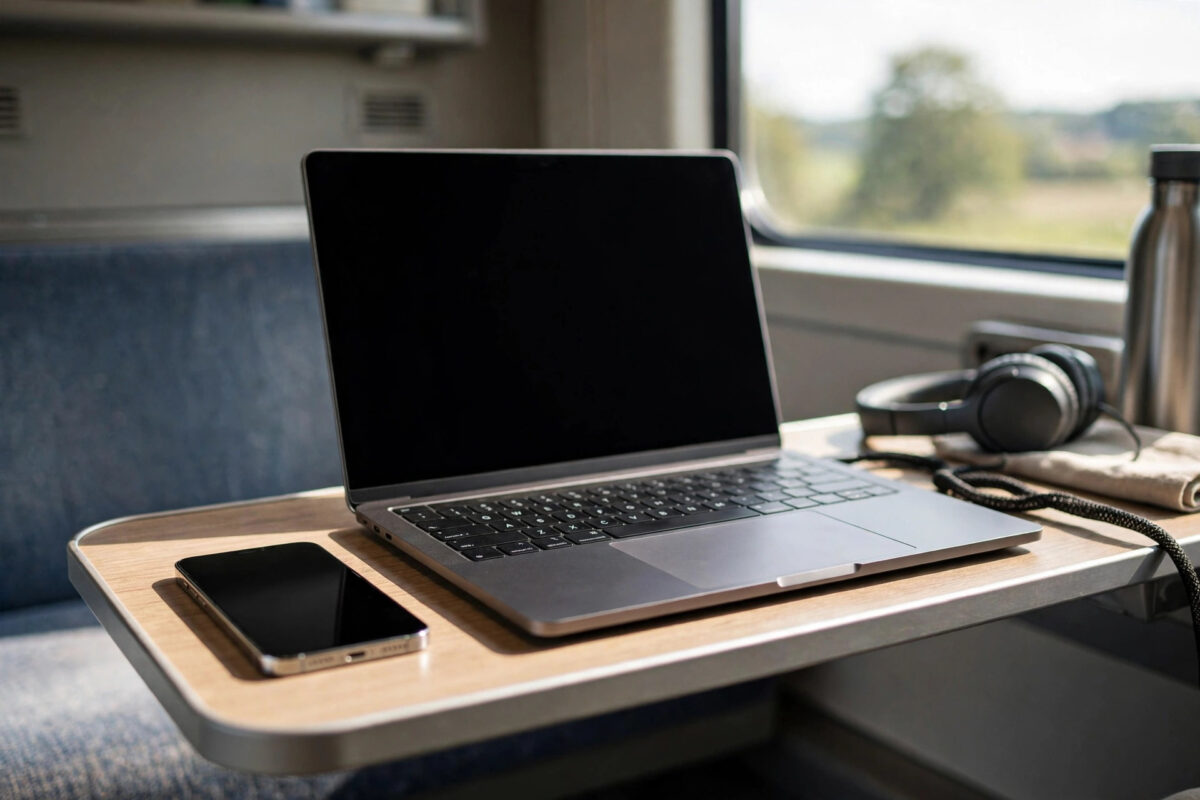
Your train is moving, the cafe Wi-Fi is down, or your home broadband has stopped working, and your laptop has an urgent job to finish. Your iPhone is already online through mobile data, and it can share that connection with your laptop in under a minute. That sharing feature is called Personal Hotspot.
This guide shows you how to turn it on safely in iOS 27, connect by Wi-Fi, USB, or Bluetooth, set a good password, and avoid the mistakes that drain your battery or your data allowance.
Quick Answer
To use your iPhone as a personal hotspot for your laptop, go to Settings, tap Personal Hotspot, turn on Allow Others to Join, and set a strong Wi-Fi password. On your laptop, open the Wi-Fi list, choose your iPhone’s name, and enter that password. For the most stable connection at a desk, plug the iPhone into the laptop with a USB cable instead and choose the iPhone from the laptop’s network list.
Before You Start: Check These Four Things
- Your plan must allow tethering. Most modern plans include hotspot use, but some cheap or older plans block it or give it a separate, smaller limit. If Personal Hotspot is missing or greyed out, your plan is the first thing to check.
- You need mobile data and a decent signal. A hotspot can only share what the phone receives. One bar of weak signal will feel very slow on a laptop.
- Know your data allowance. Laptops use far more data than phones. One system update or cloud backup can use gigabytes without you noticing.
- Charge or plug in if you can. Hotspot use drains an iPhone battery fast and makes the phone warm.
Apple explains the basic setup in its official Apple guide to setting up Personal Hotspot on iPhone, and the steps below follow that order with extra detail for laptop use.
How to Turn On Personal Hotspot on iPhone
Step-by-step setup
- Open Settings on your iPhone.
- Tap Personal Hotspot. On some phones you tap Mobile Service or Cellular first, then Personal Hotspot.
- Tap Wi-Fi Password and set a password of at least eight characters that you can type easily but others cannot guess.
- Turn on Allow Others to Join.
- Leave this screen open the first time you connect, as it helps the laptop find the phone.
Your hotspot name is your iPhone’s name. You can change it in Settings, General, About, Name. A short, clear name is easy to spot in a crowded Wi-Fi list. Avoid using your address or anything personal in the name, because everyone nearby can see it.
Use Family Sharing carefully
iOS can let family members join your hotspot automatically without the password. That is convenient at home, but check the Family Sharing section inside Personal Hotspot and set it to ask for approval if you want control over who connects. In public, approval mode is the safer choice.
Connect Your Laptop by Wi-Fi
Wi-Fi is the easiest method and works with Windows laptops, Macs, and Chromebooks. It also lets you move the phone for better signal, for example near a window.
- Turn on Personal Hotspot as described above.
- On your laptop, open the Wi-Fi menu.
- Select your iPhone’s name from the list of networks.
- Enter the hotspot password exactly as shown on the iPhone.
- Wait a few seconds. The laptop should show as connected.
- Open a web page to confirm the connection works.
On a Mac signed in with the same Apple Account, you may see your iPhone in the Wi-Fi list even when hotspot is off. This is Instant Hotspot, and clicking it turns the hotspot on for you. Remember to disconnect when you finish, or the Mac may reconnect later and use mobile data when you expected home Wi-Fi.
If your laptop will not stay connected, our troubleshooting guide for iPhone hotspots that keep disconnecting walks through the signal, sleep, and settings causes one by one.
Connect by USB for the Most Stable Link
USB is the best choice at a desk, when your battery is low, or when Wi-Fi around you is crowded. The cable keeps the connection steady and charges the iPhone at the same time.
- Connect your iPhone to the laptop with a good-quality USB cable.
- Unlock the iPhone. If a Trust This Computer message appears, tap Trust and enter your passcode.
- On a Mac, open System Settings, then Network, and select iPhone USB if it is not already active.
- On a Windows laptop, the iPhone usually appears automatically as a network connection once the needed Apple drivers are installed. If it does not, install or update the Apple Devices app from the official source.
- Turn off the laptop’s Wi-Fi if you want to be certain it is using the cable.
USB uses no Wi-Fi password and cannot be joined by strangers nearby, which makes it the most private option in public. It is also a good test: if USB works perfectly but Wi-Fi keeps failing, the problem is wireless, not your mobile data.
Connect by Bluetooth When You Have To
Bluetooth is the slowest method and is best kept as a backup. It uses less power than Wi-Fi, but web pages load slowly and large files are painful.
- Turn on Bluetooth on both the iPhone and the laptop.
- Pair the two devices and confirm any pairing code shown on both screens.
- With Personal Hotspot on, choose the iPhone from the laptop’s Bluetooth network options and connect.
For everyday work, choose Wi-Fi for freedom or USB for stability. Bluetooth is rarely the right first choice in the iOS 27 and iPhone 18 era, when Wi-Fi hotspot performance is far better.
Control Data Use So the Hotspot Does Not Surprise You
The biggest hotspot risk is not security. It is silent data use. Laptops assume they are on unlimited broadband unless you tell them otherwise.
- Set the connection as metered. On Windows, open the connection properties and turn on Metered Connection. On a Mac, use Low Data Mode for the hotspot network where available.
- Pause cloud backups and sync. Pause large Dropbox, Google Drive, OneDrive, or photo uploads until you are back on normal Wi-Fi.
- Stop system updates. Do not install a major Windows or macOS update over a phone hotspot unless it is urgent.
- Watch your usage. On iPhone, go to Settings, then Mobile Service or Cellular, and check the data figures. Some carriers also show hotspot use in their app.
- Turn the hotspot off when you finish. Turn off Allow Others to Join, or your laptop may reconnect on its own later.
The Apple advice on connecting with Instant Hotspot is also useful if you use a Mac and want to understand when your devices connect automatically.
Keep the Connection Secure in Public
A hotspot with a weak password can be joined by anyone nearby. Always use a proper password, and change it if you have shared it widely. You can see connected devices from the Personal Hotspot screen. If you see a device you do not recognise, turn the hotspot off, change the password, and turn it back on for your laptop only.
Prefer USB in busy public places if you can, because it removes the wireless network from view entirely.
Common Mistakes and Useful Tips
- Leaving the hotspot on all day. It drains the battery, warms the phone, and invites surprise data use. Turn it off when the job is done.
- Using an easy password like 12345678. Anyone nearby can guess it. Use a proper password and do not reuse your home Wi-Fi password.
- Keeping the phone in a bag. Signal drops and speed falls. Put the phone near a window or higher up.
- Forgetting Maximise Compatibility. In Personal Hotspot settings, this option can help older laptops connect. Turn it on only if a laptop cannot see or join the hotspot, as it can reduce top speed on newer devices.
- Tip: Name your iPhone clearly before you travel, so you can find it instantly in a long network list.
- Tip: For video calls, use USB or keep the phone close to the laptop. Distance hurts hotspot calls first.
Conclusion
Your iPhone makes a very capable laptop hotspot when you set it up with a password, pick the right connection method, and keep an eye on data. Use Wi-Fi for convenience, USB for stability and charging, and Bluetooth only as a backup. Turn it off when you finish, and it will be there, fast and safe, the next time your normal internet lets you down.
Frequently Asked Questions
Does using Personal Hotspot cost extra?
It depends on your plan. Many plans include hotspot data in your normal allowance, while others limit it separately or charge for it. Check your carrier app if you are unsure, because the iPhone itself does not warn you about plan charges.
How many devices can join my iPhone hotspot?
You can connect several devices at once, but every extra device shares the same connection and slows the others down. For laptop work, disconnect tablets and spare phones so the laptop gets the full speed.
Why does my hotspot not appear on my laptop?
Keep the Personal Hotspot screen open, confirm Allow Others to Join is on, and restart Wi-Fi on the laptop. If an older laptop still cannot see it, turn on Maximise Compatibility in the hotspot settings and try again.
Is a phone hotspot fast enough for work?
Yes, for email, documents, web research, and most video calls, a good 5G signal is more than fast enough. Large downloads and streaming will work too, but they use a lot of data very quickly.
Will a hotspot damage my iPhone battery?
Normal use will not damage the battery, but it makes the phone work hard and get warm, which drains it fast. Plug the phone in during long sessions and avoid using it in direct heat while sharing.



[…] step-by-step setup in the guide to using your iPhone hotspot with a laptop covers the clean first-time connection worth repeating after any forget-and-rejoin […]