
Your iPhone speaker sounded clear last week, and now voices sound soft, music sounds distant, and videos feel like they are playing from another room. Muffled or quiet sound is a common iPhone complaint, and in most cases it is not a broken speaker at all. Dirt, a setting, a case, or a software glitch is usually to blame.
In this guide for iOS 27 on iPhone 18 and older models, you will work through the simple checks first, then the deeper settings, so you can find the real cause without paying for a repair you do not need.
Quick Answer
To fix muffled or quiet speaker sound on your iPhone, clean the speaker grille gently with a dry, soft brush, remove your case and screen protector for a test, and turn off any equaliser or volume setting that is lowering the output. Then restart your iPhone and update iOS. If sound is still muffled on calls, music, and speakerphone after cleaning and a restart, the speaker itself may be damaged and needs an Apple check.
First, Work Out Which Speaker Is Affected
Your iPhone uses more than one speaker area. The earpiece speaker at the top handles calls when you hold the phone to your ear. The bottom speaker, next to the charging port, handles music, videos, speakerphone, and ringtones. Knowing which one sounds wrong saves time.
Do a quick three-part test
- Play a song or video at full volume and listen to the bottom speaker.
- Make a short call and listen through the earpiece, then switch to speakerphone and compare.
- Open Voice Memos, record yourself speaking normally, and play it back.
If only one test sounds bad, the problem is narrow. If the recording itself sounds muffled, the microphone may be blocked. If playback is muffled in every app, the speaker or a system-wide setting is the likely cause. If only one app is quiet, check that app’s own volume before you change anything else.
Clean the Speaker Grille the Safe Way
Pocket lint, dust, and everyday grime build up in the tiny speaker holes. Even a thin layer can make sound feel trapped and dull, especially on the earpiece. Cleaning is the fix that solves this problem most often.
How to clean your iPhone speaker safely
- Turn your iPhone off and remove the case.
- Hold the phone so the speaker faces slightly downward.
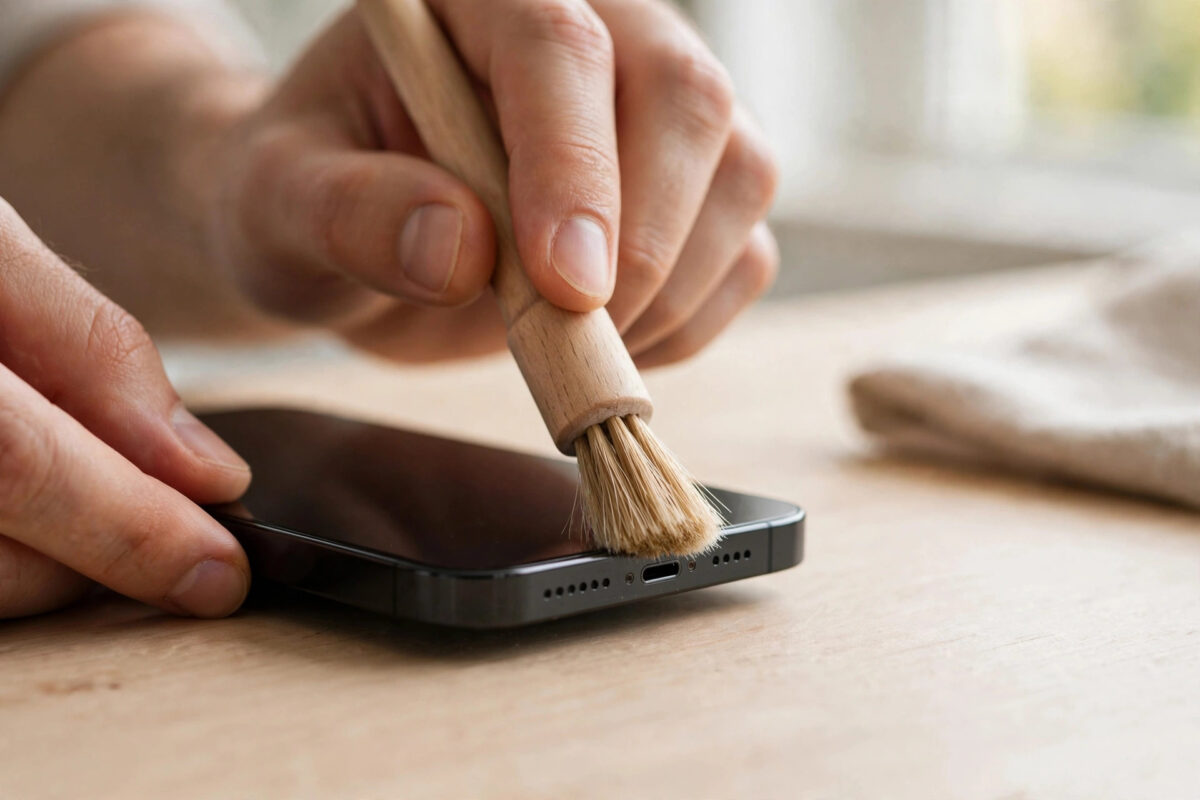
- Use a clean, dry, soft-bristled brush, such as a new soft toothbrush, and brush gently across the grille, not into it.
- Tap the phone lightly against your palm to shake loose debris out.
- For the earpiece, repeat with very light strokes. Do not press hard on the mesh.
- Turn the phone on and test the sound again.
Never use water, cleaning sprays, a pin, a needle, or compressed air directly into the grille. Sharp objects can puncture the mesh, and liquids can push dirt deeper inside. Apple’s own advice in the official Apple guide to iPhone speaker sound problems also starts with checking and cleaning the speaker opening.
Check Your Case and Screen Protector
A case that has shifted slightly can cover part of the bottom speaker. A thick screen protector can cover the earpiece slot. Even a case made for a different model can block sound in a way that is hard to see.
Remove the case and, if you can do so safely, lift the screen protector and test again with the same song at the same volume. If the sound suddenly becomes clear, you have found the problem. Replace the case with one made exactly for your model, and make sure any protector has a proper cut-out for the earpiece.
Sound Settings That Make Your iPhone Quieter
iOS has several settings that lower volume or change how sound feels. None of them is a fault, but together they can make a healthy speaker sound weak.
Equaliser settings
- Open Settings and tap Music.
- Tap EQ under the Audio section.
- Set EQ to Off for a clean test.
- Play the same track again and compare.
Some EQ choices can make music sound thin or muffled. Turning EQ off gives you the speaker’s true sound. You can choose a different preset later if you prefer it.
Mono Audio and balance
Go to Settings, then Accessibility, then Audio & Visual. If Mono Audio is on, stereo detail is merged into one channel, which can sound flat. Turn it off for normal listening unless you need it. Also check the left-right balance slider. It should sit in the centre. If it has drifted to one side, one side will sound much quieter.
On supported models, a phone noise cancellation setting in the same area can also change how the earpiece sounds. Try turning it off for one test call and see whether voices sound clearer.
If quiet sound also affects your calls, our complete guide to fixing low iPhone call volume covers the earpiece and call-specific checks in more detail.
Rule Out Bluetooth and Output Problems
Sometimes your iPhone is not quiet at all. It is sending sound somewhere else. If a Bluetooth speaker, car system, or earbuds are still connected nearby, your phone may route audio there.
- Swipe down to open Control Centre.
- Long-press the audio panel in the top corner.
- Check the output name. It should say iPhone, not another device.
- Turn Bluetooth off for one test in Settings, then play sound again.
Also check the silent switch or Action Button on your model. Silent mode does not mute music in most apps, but it does mute ringtones and alerts, which can make the phone feel quieter than it is.
Restart, Update, and Reset Settings in Order
Software glitches can leave volume stuck low. Work through these steps in order, testing after each one.
- Restart your iPhone. A full restart clears temporary audio problems surprisingly often.
- Update iOS. Go to Settings, General, then Software Update, and install any available iOS 27 update.
- Reset All Settings. Go to Settings, General, Transfer or Reset iPhone, Reset, then Reset All Settings. This returns system settings to defaults without deleting your photos, apps, or messages. You will need to rejoin Wi-Fi networks again.
Do not jump straight to a full factory reset. It rarely fixes a speaker problem that cleaning and Reset All Settings did not, and it costs hours of setup. The Apple guide to adjusting iPhone volume and sound explains where each sound control lives.
When the Problem Is Liquid or Damage
If your iPhone was recently dropped or soaked, water or damage may be the cause. Sound often sounds muffled while water sits in the speaker area and improves as the phone dries.
Let the phone dry in a ventilated place with the speaker facing down. Do not charge it while wet, and do not use a hair dryer. If sound is still muffled a full day later, or you hear crackling, buzzing, or distortion at higher volumes, the speaker is probably damaged. An Apple Store or authorised service is the right next step, especially under warranty or AppleCare.
Common Mistakes and Useful Tips
- Using a pin or needle to clean the grille. This can tear the mesh and push dirt onto the speaker itself.
- Testing with only one quiet video. Some videos are simply recorded quietly. Always test with the same familiar track.
- Forgetting the case. People clean, reset, and update, then discover the case was covering the speaker.
- Changing every setting at once. Change one thing, test, then move on. Otherwise you never learn what fixed it.
- Tip: After cleaning, test at about 70 percent volume first. A healthy speaker should sound clear there, not only at maximum.
- Tip: Clean the grille gently once a month if you carry your phone loose in a pocket or bag.
Conclusion
Most muffled or quiet iPhone speakers are not broken. Start with cleaning, remove the case for a test, check EQ, Mono Audio, and balance, rule out Bluetooth, then restart and update. That order solves the problem for most people in under fifteen minutes. If none of it helps and you also hear crackling or distortion, treat it as hardware and get the speaker checked properly.
Frequently Asked Questions
Why does my iPhone speaker sound muffled after getting wet?
Water in or on the speaker grille blocks sound and makes it dull. Let the phone dry naturally with the speaker facing down, do not charge it while wet, and test again once fully dry. If it is still muffled after a day, get it checked.
Can a software update really fix quiet speaker sound?
Yes. Audio bugs do happen, and Apple fixes them in iOS updates. Updating will not fix a dirty or damaged speaker, but it is always worth doing before you assume hardware damage.
Why is my earpiece quiet but speakerphone is loud?
That pattern usually points to a blocked earpiece grille or an earpiece setting, because speakerphone uses the bottom speaker. Clean the top grille gently, remove the screen protector for a test, and check noise cancellation on supported models.
Is it safe to use a brush on the speaker?
Yes, if the brush is clean, dry, and soft, and you brush lightly across the surface. The danger comes from sharp objects, liquids, and hard pressure, not from gentle brushing.
When should I pay for a speaker repair?
When cleaning, setting changes, a restart, and an update have all failed, especially if you hear distortion, crackling, or no sound at all from one speaker. Those signs suggest the speaker itself is failing.



Leave a Reply