
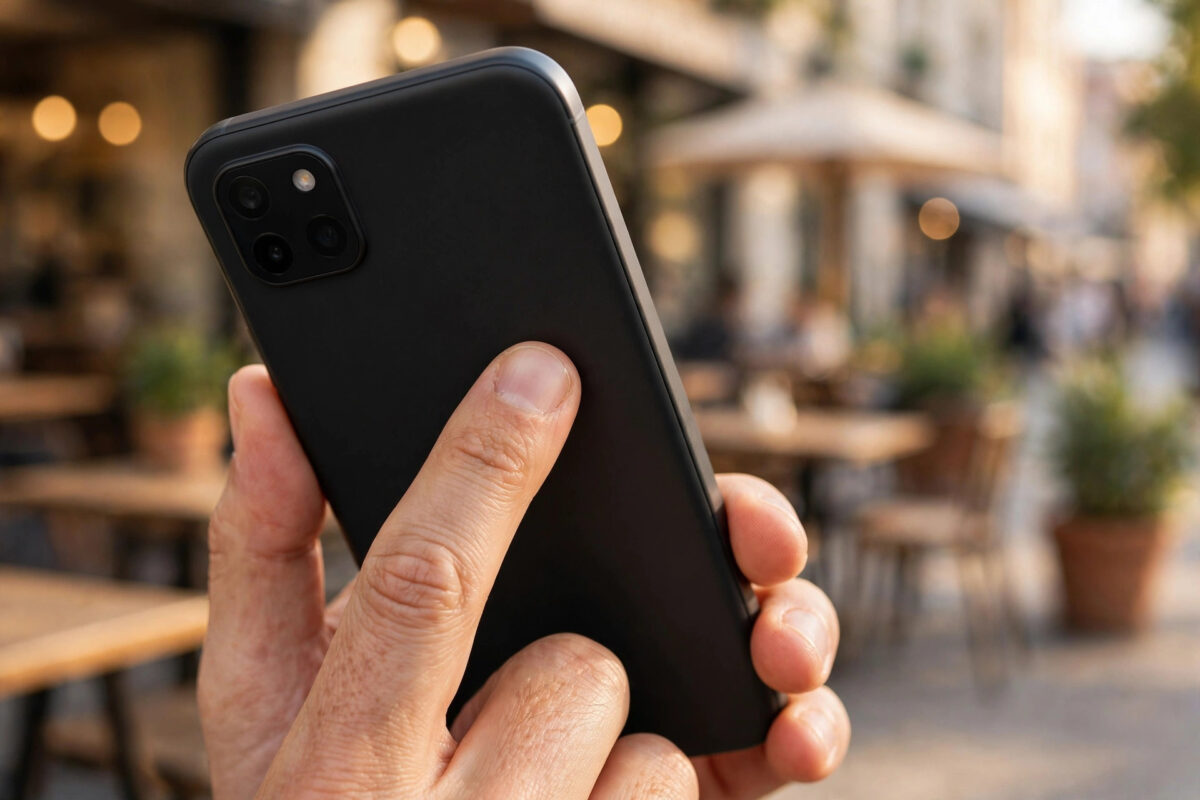
Your iPhone has a hidden control that most owners never discover. The entire back panel of the phone can act like a button. Tap it twice or three times with a fingertip, and your iPhone can open your favourite app, turn on the torch, or run a personal shortcut.
This feature is called Back Tap. It has been part of iOS for years, it is still present in iOS 27, and it takes about a minute to set up. This guide shows you how to use it specifically to open apps, which is the job most people want it for.
Quick Answer
To use Back Tap to open apps on iPhone, first create a shortcut in the Shortcuts app that opens your chosen app. Then go to Settings, Accessibility, Touch, Back Tap, choose Double Tap or Triple Tap, and assign that shortcut. After that, tapping the back of your iPhone opens the app instantly.
Why Opening Apps Needs a Shortcut
Back Tap can directly trigger many built-in actions, such as Screenshot, Control Centre, Siri, Mute, and Reachability. What it cannot do directly is open an arbitrary third-party app. Apple did not put a simple “open this app” entry in the Back Tap list.
The solution is the Shortcuts app, which is Apple’s own automation tool and comes installed on every iPhone. You create a tiny shortcut whose only job is to open one app. Back Tap can run shortcuts, so the shortcut becomes the bridge between your tap and the app.
This sounds like an extra step, but it is actually a strength. A shortcut can do more than open an app. It can open an app and set your focus mode, start a playlist, or jump straight to a specific screen, such as the camera in selfie mode or a new note. Once you understand the pattern, you can build a back-tap gesture for almost anything.
Step 1: Create a Shortcut That Opens Your App
- Open the Shortcuts app.
- Tap the + icon in the top-right corner to create a new shortcut.
- Tap Add Action.
- In the search box, type Open App and tap the Open App action when it appears.
- Tap the word App in the action and choose the app you want from the list.
- Tap the shortcut name at the top, choose Rename, and give it a clear name like “Open Camera” or “Open WhatsApp.”
- Tap Done to save the shortcut.
Test the shortcut once by tapping it in the Shortcuts app. If the correct app opens, the shortcut is ready and you can move to the next step. If the wrong app opens, edit the shortcut and check the app you selected.
Step 2: Assign the Shortcut to Back Tap
- Open Settings.
- Tap Accessibility.
- Tap Touch under the Physical and Motor heading.
- Scroll to the bottom and tap Back Tap.
- Choose Double Tap or Triple Tap.
- Scroll down to the Shortcuts section of the list.
- Tap the name of the shortcut you just created.
Now tap the back of your iPhone with the rhythm you chose. Use your index finger and tap firmly in the centre of the back, around the Apple logo. Your app should open within a second. Apple lists Back Tap among the touch accommodations described in its official iPhone accessibility guide for touch settings, alongside other useful gestures worth exploring.
Double Tap or Triple Tap: Which Is Better?
You get two separate gestures, so you can open two different apps or actions.
- Double Tap is faster and easier to perform, which suits your most-used app, such as Camera or Messages. Its downside is accidental triggers when you set the phone on a table or tap the back absent-mindedly.
- Triple Tap takes a fraction longer but almost never fires by accident. It suits powerful or private actions, such as opening your banking app or running a shortcut that shares your location.
A popular setup is Double Tap for a harmless everyday action, like Screenshot or the torch, and Triple Tap for opening a favourite app through a shortcut. Experiment for a day and keep the arrangement that feels natural in your hand.
Useful App Shortcuts Worth Creating
Everyday favourites
Create Open App shortcuts for the apps you reach for constantly: your messaging app, your camera, your music app, or your notes app. Opening them without hunting through Home Screen pages or the App Library saves small moments all day long.
Smarter shortcuts that do more
In the Shortcuts app, an Open App action can be followed by other actions. For example, one shortcut might open your navigation app and turn off Do Not Disturb, while another opens your reading app and lowers screen brightness. Apple offers ideas and ready-made examples in its official Shortcuts user guide.
If you often open an app at a particular moment, such as your train ticket app at the station, a recognisable shortcut name and icon colour will help you remember which gesture does what. Our detailed guide to turning on and customising AssistiveTouch on iPhone shows another way to keep favourite actions one tap away if you prefer a visible on-screen control.
Common Mistakes and Troubleshooting
- Tapping too lightly or in the wrong place. Tap with intent in the middle of the back panel. Gentle touches near the edges are often ignored.
- A thick case blocking detection. Test without the case. If it works bare but not cased, your case is too thick or contains metal or a magnetic plate in the centre.
- The shortcut name is missing from the Back Tap list. Make sure the shortcut is saved and finished, not left open in the editor. Close the Shortcuts app and reopen the Back Tap settings.
- The wrong gesture fires. Pause briefly between taps and use a steady rhythm. Rushing can turn a triple tap into a double tap plus a stray tap.
- Back Tap is not in Settings. The feature requires an iPhone 8 or later in the original release and is standard on all current models. Update iOS if the menu is missing on a supported phone.
- Accidental triggers in a pocket or bag. Back Tap should not work when the screen is fully locked and off in normal use, but jostling can occasionally register. Move the action to Triple Tap if this bothers you.
Pro Tips for Reliable Back Tap Use
Keep only two gestures, so keep their jobs simple and memorable. The moment you need a printed reminder of which tap does what, the feature stops saving you time.
Combine Back Tap with a tidy Home Screen. If your two most-used apps open from the back of the phone, you can remove them from your first Home Screen page and enjoy a calmer layout.
Revisit your choices after a software update. Big iOS releases like iOS 27 sometimes add new built-in Back Tap actions, so a job that once needed a shortcut may later become a single built-in selection.
Conclusion
Back Tap turns the back of your iPhone into two fast, invisible buttons. The secret to opening apps with it is a simple Open App shortcut created in the Shortcuts app, then assigned under Settings, Accessibility, Touch, Back Tap. Set one gesture for your favourite app today, use it for a week, and it will soon feel strange to open that app any other way.
Frequently Asked Questions
Can Back Tap open an app directly without a shortcut?
No. The Back Tap list includes system actions and your shortcuts, but not individual apps. A one-step Open App shortcut is the standard and reliable way to open any app with a back tap.
Does Back Tap work when my iPhone is locked?
Back Tap generally works from the Lock Screen for simple actions, but opening an app will still require Face ID, Touch ID, or your passcode before the app fully opens, which protects your private data.
Will Back Tap drain my battery?
No noticeable drain. The feature listens for a specific tap pattern using sensors that already run for other purposes. In everyday use, its effect on battery life is too small to measure.
Can I open two different apps with Back Tap?
Yes. Assign one app’s shortcut to Double Tap and another app’s shortcut to Triple Tap. Create both shortcuts first, then assign them one at a time in the Back Tap settings.
Why does Back Tap sometimes miss my taps?
Light taps, taps near the edges, thick cases, and an uneven rhythm are the usual causes. Tap firmly in the centre of the back panel with an even beat, and test without your case to confirm the cause.



[…] you enjoy invisible controls like this, you may also like the tap gestures described in our practical guide to using Back Tap on iPhone to open apps and run shortcuts, which pairs well with AssistiveTouch for a fully custom […]