
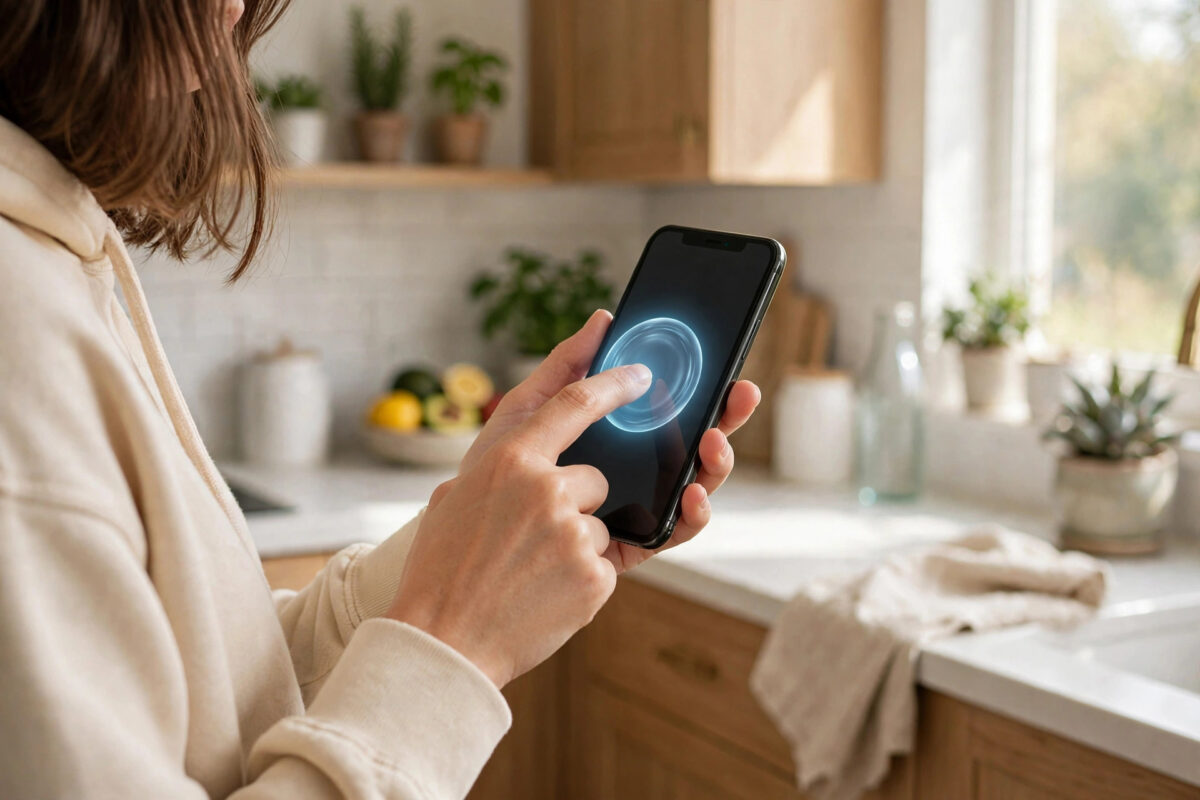
There are many reasons to avoid the physical buttons when taking a screenshot. Your volume button may be stiff, your case may cover the side button, or you may simply find the two-button press awkward with one hand. For people with limited hand strength, that squeeze can be genuinely difficult.
The good news is that your iPhone offers several reliable ways to capture the screen without pressing any button combination. You can tap the back of the phone, tap an on-screen button, or just ask Siri. This guide walks through each method step by step.
Quick Answer
To take a screenshot on iPhone without using buttons, go to Settings, Accessibility, Touch, AssistiveTouch and turn it on, then set a tap action to Screenshot. You can also use Back Tap in the same Touch menu, or say “Hey Siri, take a screenshot.” Each method captures the screen instantly, just like the button press.
Method 1: Use AssistiveTouch, the On-Screen Button
AssistiveTouch places a small floating button on your screen. It stays within easy reach of your thumb and can perform many actions, including taking a screenshot. This is the most dependable button-free method because it works in almost every app.
Turn on AssistiveTouch
- Open Settings.
- Tap Accessibility.
- Under Physical and Motor, tap Touch.
- Tap AssistiveTouch and turn the switch on. A round button appears on your screen.
Assign Screenshot to a tap
- On the same AssistiveTouch screen, look for the Customize Top Level Menu and Custom Actions sections.
- Under Custom Actions, tap Single-Tap, Double-Tap, or Long Press.
- Scroll the action list and choose Screenshot.
- Now perform that tap on the floating button whenever you want to capture the screen.
You can drag the button to any edge of the screen so it does not cover important content. You can also lower its idle opacity in the AssistiveTouch settings, so it fades when you are not using it and stops being a distraction in videos or games.
Method 2: Use Back Tap
Back Tap lets you trigger actions by tapping the back of your iPhone two or three times with a finger. It feels almost like magic the first time, and it needs no on-screen button at all.
- Open Settings and tap Accessibility.
- Tap Touch, scroll to the bottom, and tap Back Tap.
- Choose Double Tap or Triple Tap.
- Select Screenshot from the list of actions.
- Tap the back of your phone with that rhythm to capture the screen.
Back Tap works through most slim and medium cases, though a very thick or rugged case can make taps harder to detect. If it triggers by accident when you set the phone down, assign Screenshot to Triple Tap instead, which is much less likely to happen by chance.
Method 3: Ask Siri
The simplest method needs no setup beyond Siri itself. When the screen shows what you want to save, say “Hey Siri, take a screenshot” or hold the side button to wake Siri and give the same command. Siri captures the screen and the usual preview appears in the corner.
This hands-free option is perfect when you are cooking, holding a child, or wearing gloves that make precise taps difficult. Apple describes Siri’s built-in abilities in its official guide to using Siri on iPhone, and screenshot is one of the quick system commands it handles well.
Note that Siri needs to be enabled in Settings under Siri, and voice activation will not work if the phone is face down with certain accessibility or attention settings changed. If the command fails, try one of the tap methods above, which work entirely offline.
Method 4: Use Voice Control
Voice Control is a powerful accessibility feature that lets you run your whole phone by voice. It is worth knowing if tapping is difficult for you.
- Open Settings, then Accessibility, then Voice Control.
- Turn Voice Control on and complete the short setup if asked.
- When you see the screen you want, say “Take screenshot.”
Voice Control is heavier than Siri for a single task, so most people will not leave it on all day. Still, for users who rely on voice for everything, it completes the picture: every capture method in this guide avoids the physical button combination entirely.
After You Take the Screenshot
Whichever method you use, the result behaves exactly like a normal screenshot. A preview appears in the bottom-left corner for a few seconds.
- Tap the preview to draw on it, crop it, add text, or share it straight away.
- Swipe the preview away or do nothing, and the image saves automatically to Photos.
- Find it later in Photos, in the Albums tab under the Screenshots album.
If you often capture long pages, combine these methods with the Full Page trick: take the screenshot using AssistiveTouch or Back Tap, tap the preview, and choose Full Page in a supported app like Safari. Our step-by-step guide to taking a scrolling screenshot on iPhone explains that process in detail.
Apple also documents the standard methods on its official iPhone screenshot support page, which is useful if you want to compare the button method with these alternatives.
Common Mistakes and Troubleshooting
- The AssistiveTouch button disappeared. It may have been turned off during a settings change. Re-check Settings, Accessibility, Touch, AssistiveTouch. You can also add it to the Accessibility Shortcut so triple-clicking the side button toggles it. Note that this shortcut uses a button, so treat it as a backup.
- Back Tap does nothing. Tap firmly in the centre of the back panel, near the Apple logo. Remove a thick case to test, and confirm the feature is on and assigned to Screenshot.
- Back Tap fires by accident. Switch Screenshot from Double Tap to Triple Tap, and avoid assigning it to the gesture you might trigger while gaming or typing quickly.
- Siri says it cannot do that. Make sure Siri is enabled and the phone is unlocked. Some work or school managed devices restrict Siri features.
- The screenshot is of the wrong moment. Menus and animations can close before the capture. Open the exact view first, pause, then trigger the screenshot.
Which Method Should You Choose?
Choose AssistiveTouch if you want one clear, visible control that always works. Choose Back Tap if you want your screen kept completely clear. Choose Siri for true hands-free use, and Voice Control if you already navigate by voice.
Many users combine two methods: Back Tap for everyday captures and AssistiveTouch kept at low opacity as a backup. There is no wrong choice, and you can change the assignments at any time in less than a minute.
Conclusion
You never need to wrestle with a stiff button combination to save what is on your screen. AssistiveTouch, Back Tap, Siri, and Voice Control all take a screenshot on iPhone without using buttons, and each takes only a minute to set up. Pick the one that fits your hands and your habits, test it twice, and capturing your screen will feel effortless from then on.
Frequently Asked Questions
Does AssistiveTouch work on every iPhone?
Yes. AssistiveTouch is part of iOS and works on all iPhones running recent versions of iOS, including iOS 27. The steps in Settings are the same whether your phone has Face ID or a Home button.
Can I take a screenshot without buttons on a locked screen?
Generally no. For security, the phone must be unlocked for AssistiveTouch, Back Tap, and Siri screenshot commands. Unlock with Face ID, Touch ID, or your passcode first, then capture.
Will Back Tap work with my phone case on?
Usually yes with slim and standard cases. Very thick, metal, or wallet-style cases can block the taps. If detection is unreliable, tap more firmly in the centre of the back or remove the case to test.
Do these methods also record the screen?
No, they only capture a still image. For video, add Screen Recording to Control Centre in Settings, then start it from there. AssistiveTouch can also be assigned actions that open Control Centre quickly.
Why did my screenshot save without me tapping anything?
That is normal behaviour. If you ignore the corner preview, iOS saves the screenshot to Photos automatically, whichever capture method you used to take it.



Leave a Reply