
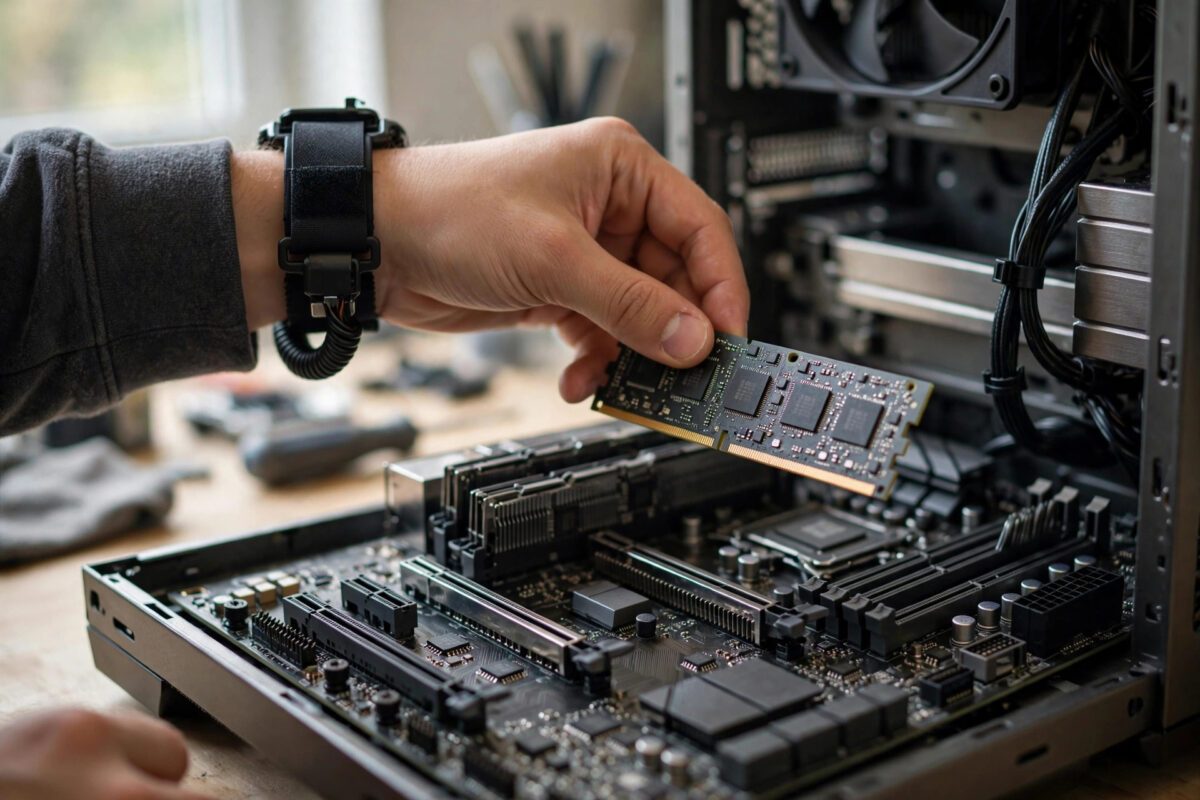
Adding more memory is one of the cheapest and easiest upgrades you can give a gaming PC. Games load faster, stutter from memory swapping disappears, and you can keep Discord, a browser, and recording software open without your frame rate suffering. Yet RAM is also the upgrade that goes wrong most often, because compatibility depends on several details that all have to match at once.
The good news is that every one of those details can be checked before you spend any money. This guide explains what must match, how to check your current setup, and how to install and test your new memory so the upgrade works first time.
Quick Answer
Match the new RAM to your motherboard and CPU: same generation such as DDR4 or DDR5, supported speed and capacity, and ideally an identical matched kit instead of mixing old sticks. Check your board memory support list, buy a kit of two sticks for dual-channel use, install them in the recommended slots, then enable the rated speed profile in the BIOS and test for stability.
Why Compatibility Problems Happen
RAM is not one single standard. Generation, speed, timings, voltage, and physical design all vary, and a stick that does not match your system will either refuse to fit, refuse to boot, or run slowly and unstably. Most returns and forum complaints come from skipping one of five checks.
Generation: DDR4 and DDR5 Do Not Mix
Your motherboard supports exactly one generation. DDR4 and DDR5 sticks have their notch in a different position, so they physically cannot fit the wrong slot, which at least prevents damage. Check your board model online or look at your existing sticks: the label states the generation clearly. A CPU and board bought together always share the same generation, so matching the board is enough.
Capacity and Slot Limits
Every board has a maximum total memory and a maximum per slot, listed in its specifications. Most modern gaming boards have four slots and accept 32 GB per slot, but smaller or older boards may allow less. Count your free slots too. If all four are filled with small sticks, a real upgrade means replacing them, not adding to them.
Speed, Timings, and Voltage
Memory speed is measured in megatransfers per second, such as DDR4-3200 or DDR5-6000, and timings describe delays, written like 16-18-18-38. Your CPU and board both have comfortable limits. Buying far beyond them wastes money, because the kit will simply run at the highest speed the system supports. The official Crucial guide to understanding RAM speeds and timings is a clear reference if you want the deeper technical background.
Should You Add to Your Old RAM or Replace It?
Mixing old and new sticks is the biggest source of trouble in RAM upgrades. Even sticks with the same speed on the label can use different chips underneath, and all sticks in a system must run at one shared speed, timing set, and voltage: the slowest common settings. Sometimes that works fine. Sometimes the PC refuses to boot or crashes randomly in games.
The safe recommendation for gaming is simple: buy one matched kit of two sticks with your full target capacity, such as 2 x 16 GB for 32 GB total, and remove the old sticks. Matched kits are tested together by the maker, run at their rated profile reliably, and enable dual-channel mode, which noticeably helps gaming performance. Keep the old sticks as spares or sell them to offset the cost.
If budget forces you to add rather than replace, match the existing sticks as closely as possible: same generation, same speed, same timings, same voltage, and ideally the same brand and model. Then be ready to run the combined set at slightly relaxed settings if stability problems appear. Our guide on whether you can safely mix different RAM sticks in one PC covers the risks and the settings to adjust in detail.
How Much RAM Do Games Actually Need?
- 16 GB: Still workable for many games, but modern titles plus background apps push it hard, and stutter is common on 8 GB systems especially.
- 32 GB: The sweet spot for gaming today. Every current game runs comfortably, with room for streaming, recording, and multitasking.
- 64 GB: Only needed for heavy creation work, large simulations, or extreme multitasking alongside games. Games alone will not use it yet.
For most players upgrading now, a 32 GB kit in two sticks is the best value decision you can make, and it should last the life of the system.
Step-by-Step Installation Guide
- Check your current RAM. Open Task Manager in Windows, go to Performance, then Memory. Note the total capacity, speed, and how many slots are used. This confirms what you own before you order.
- Check the board support list. Visit your motherboard maker support page and open the memory compatibility list for your exact model. Kits on that list are verified to work at their rated speed.
- Buy a matched kit. Choose two sticks of the right generation, a speed your CPU handles well, and your target total capacity. For AMD Ryzen systems, DDR5-6000 is a popular sweet spot; for DDR4 systems, 3200 to 3600 is typical.
- Prepare safely. Shut down, switch off the power supply, and unplug the PC. Touch a metal part of the case to discharge static before handling the sticks, and hold them by the edges.
- Remove old sticks if replacing. Push the slot clips outward and lift each stick straight out. Store them in the new kit packaging.
- Install in the correct slots. For two sticks on a four-slot board, use the second and fourth slots from the CPU, usually labelled A2 and B2. This is the arrangement boards are designed and tested for. Push each stick down evenly until both clips click shut.
- Boot and enable the speed profile. Enter the BIOS and turn on XMP for Intel systems or EXPO for AMD systems. Without this step, new RAM runs at a slow default speed and you lose the performance you paid for.
- Verify in Windows. Check Task Manager again. Capacity should show your new total and speed should show the rated figure from the kit label.
- Test for stability. Play your most demanding game for at least half an hour, and ideally run a free memory test overnight. Random crashes or errors mean the profile is too aggressive for your CPU memory controller, so drop the speed one step in the BIOS and test again.
Common Mistakes to Avoid
- Buying the wrong generation: DDR5 does not fit a DDR4 board and the reverse is also true. Check before ordering, every time.
- Using slots one and three: Two sticks in the wrong slots may still work but often fail to reach rated speeds. Follow the board manual slot order.
- Forgetting XMP or EXPO: The most common disappointment. The kit is fine, but it is running at default speed because the profile was never enabled.
- Mixing random sticks and expecting rated speed: Mixed sets run at the slowest shared settings and may not be stable even there.
- Buying laptop memory for a desktop: Laptop SO-DIMM sticks are shorter and do not fit desktop slots. Check the form factor in the product name.
Tips for a Smooth Upgrade
Update your BIOS before installing a very new, fast kit, because board makers add memory support in BIOS updates over time. Buy from sellers with easy returns, just in case a kit and your specific CPU do not get along. Keep your receipt and the old sticks until the new kit has passed a full week of gaming, so you can roll back instantly if a fault appears.
Finally, do not chase the highest speed numbers for gaming. Capacity and dual-channel operation matter far more than the gap between, for example, DDR5-5600 and DDR5-6400, which is often just a frame or two. Spend the savings on capacity or keep it in your pocket.
Conclusion
A trouble-free RAM upgrade comes down to checking five things before you buy: generation, capacity limits, speed support, the board compatibility list, and slot layout. A single matched kit of two sticks, installed in the recommended slots with XMP or EXPO enabled, avoids almost every known problem. Follow the checks in this guide and your PC should boot first time with faster, smoother gaming.
Frequently Asked Questions
Can I mix RAM brands if the speed is the same?
Sometimes, but it is a gamble. Matching speed alone ignores timings, voltage, and the chips used, and mismatches cause anything from slower performance to boot failures. If you must mix, match every specification you can and test thoroughly. A matched kit is always the safer choice for a gaming PC.
Why is my new RAM running slower than advertised?
Because the rated speed only applies once you enable the XMP or EXPO profile in the BIOS. Out of the box, memory runs at a safe standard speed. Enable the profile, save, and check Task Manager to confirm the full speed is now active.
Is 32 GB of RAM worth it for gaming?
Yes, for most players today. Modern games, Windows, and background apps together regularly pass 16 GB, and running out of memory causes stutter that a faster graphics card cannot fix. A 32 GB kit removes that bottleneck and is one of the best value upgrades available.
What happens if I install RAM my motherboard does not support?
Wrong-generation RAM will not physically fit. Supported-generation RAM beyond your board speed limits will usually still work, but downclocked to the highest speed the board and CPU allow. RAM beyond the capacity limit may not be recognised at all, which is why the board specification check matters.
Do I need to reinstall Windows after upgrading RAM?
No. Memory is detected automatically at boot, and Windows simply uses the new total. Your only tasks are enabling the speed profile in the BIOS and confirming the new capacity and speed appear correctly in Task Manager.



Leave a Reply