
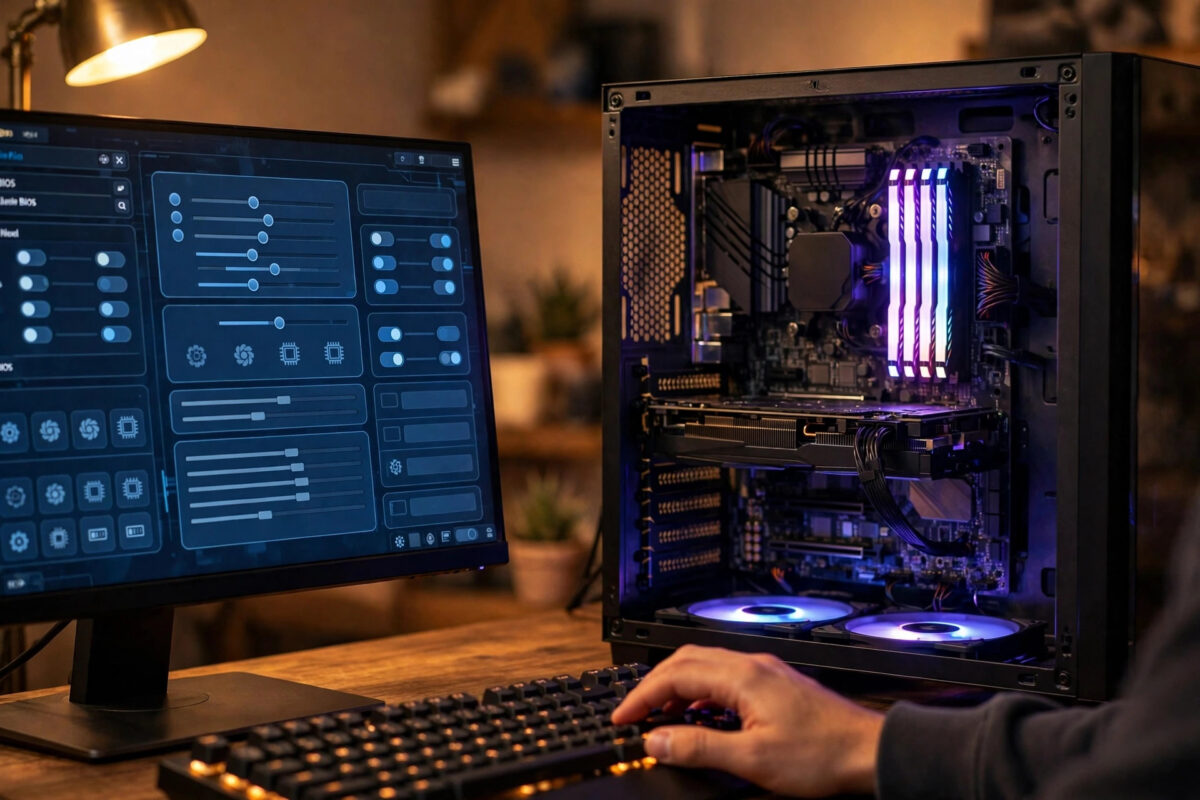
Many gamers buy fast memory, install it, and then wonder why their game does not feel any smoother. The reason is often simple. Your RAM is running at a slow default speed, not the speed printed on the box. To unlock the full speed, you need to turn on XMP for Intel systems or EXPO for AMD systems in the BIOS.
This guide explains what these profiles do, how to turn them on safely, and how to check that the change worked. You do not need to be an expert. You just need to follow the steps in order and test your PC afterwards.
Quick Answer
Restart your PC and press Delete or F2 to enter the BIOS. Find the memory or overclocking menu, select XMP Profile 1 on Intel or EXPO Profile 1 on AMD, then save and exit with F10. Your RAM should now run at its rated speed, provided your motherboard and processor support that speed.
What XMP and EXPO Actually Do
When you buy a memory kit, the box might say 3200 MHz, 3600 MHz, 5600 MHz, or even faster. That speed is not automatic. Every memory kit also has a slower, safe setting that all computers can use. The motherboard uses that safe setting first so the PC will always start.
XMP stands for Extreme Memory Profile. It was created by Intel. EXPO stands for Extended Profiles for Overclocking. It was created by AMD for its newer Ryzen systems. Both do the same basic job. They store the faster speed, timings, and voltage that the memory maker tested, all in one ready-made profile.
When you enable the profile, you are telling the motherboard to use those tested settings instead of the slow default. This is not the same as manual overclocking. You are not guessing numbers. You are applying settings the memory company already prepared for that exact kit.
Why RAM Speed Matters for Gaming
Your processor needs data quickly while you play. If memory is slow, the processor can spend more time waiting. Faster memory can improve frame rates in many games, especially at 1080p and in games that rely heavily on the processor. It can also improve the lowest frame rates, which makes gameplay feel smoother even when the average frame rate does not change much.
The gain varies by game, but you should still get the speed you paid for.
Before You Start: Check Three Things
A little checking before you enter the BIOS can save you a lot of trouble later.
- Know your current speed. In Windows, open Task Manager, click Performance, then click Memory. Note the speed shown there.
- Check your motherboard support. Look up your exact motherboard model. Confirm it supports your memory speed and the full amount of RAM you installed.
- Check your memory kit. Read the label on the sticks or the box. Note the speed, timings, and voltage so you can compare them later.
- Update the BIOS if it is very old. Newer BIOS versions often improve memory support. Only update using instructions from your motherboard maker, and never turn off the PC during an update.
If you are planning a memory change at the same time, read our guide on how to upgrade RAM in a gaming PC safely and choose the right kit before you buy anything new.
How to Enable XMP on an Intel PC
Menu names differ between brands, but the steps are very similar on most boards.
- Restart your PC.
- Press Delete or F2 repeatedly as soon as the PC starts, until the BIOS screen appears.
- If you see a simple or EZ Mode screen, look for an XMP option on the main page. Many boards show it clearly on the left side.
- Change XMP from Disabled to Profile 1.
- If you cannot find it there, switch to Advanced Mode, usually by pressing F7. Then open the AI Tweaker, Extreme Tweaker, or OC menu.
- Find the memory profile setting and select Profile 1.
- Press F10, choose Save and Exit, and let the PC restart.
- Wait patiently. The PC may restart two or three times while it trains the memory. This is normal.
Intel explains the idea behind these profiles in its own guidance on how Intel XMP profiles work and how to use them for memory overclocking. Reading that page can help if your board uses different wording.
How to Enable EXPO on an AMD PC
EXPO is used on AMD AM5 systems with DDR5 memory. Some boards also support XMP kits, but EXPO kits are made specifically for AMD platforms.
- Restart your PC and press Delete or F2 to enter the BIOS.
- Look for EXPO on the main EZ Mode screen, or press F7 to enter Advanced Mode.
- Open the AI Tweaker, Extreme Tweaker, or OC menu, depending on your board brand.
- Find the EXPO setting and choose EXPO I or Profile 1. This option loads the full tested timings from the memory kit.
- Avoid EXPO II or other partial options unless you know why you need them. The first profile is the right starting point for most people.
- Press F10 to save and exit.
- Allow extra time for the first boot. AM5 systems can take longer than usual for memory training after a change. Do not force the PC off during this wait.
AMD provides background through its official AMD Ryzen Master software page for performance tuning, but memory profiles should still be set in the BIOS.
What If You Have an Older AMD System?
Older AM4 boards with DDR4 memory may not show EXPO at all. Instead, they may show DOCP on ASUS boards, EOCP on Gigabyte boards, or A-XMP on MSI boards. These are different names for loading an XMP-style profile. The method is the same. Select Profile 1, save, and restart.
How to Confirm the RAM Is Running at Full Speed
Do not assume the setting worked just because the PC started. Check it.
- Open Task Manager in Windows.
- Click Performance, then Memory.
- Compare the speed shown with the speed on your memory box. For example, a 3600 MHz kit should now show close to 3600 MT/s or 3600 MHz, depending on how Windows labels it.
- Play a game for at least 30 minutes and use your PC normally.
- Watch for crashes, freezes, blue screens, or games closing without warning.
If the speed is correct and everything stays stable for several days, you are done. If problems start, check that the correct profile is still selected, as a failed start can make the board return to safe settings.
What to Do If the PC Will Not Start
Do not panic. A memory profile that fails rarely damages anything. The board just cannot run those settings.
First, wait. Give the PC a few minutes, because memory training can be slow. If there is still no picture after several restarts, turn the PC off and unplug it. Then clear the BIOS settings using the clear CMOS method described in your motherboard manual. This returns the board to safe defaults so you can start again.
After it starts, you can try a slightly lower memory speed manually, or check whether a newer BIOS improves support for your kit. Also make sure the sticks are in the correct slots. For two sticks, most boards want the second and fourth slots from the processor. The manual will show the right layout with a simple diagram.
Common Mistakes to Avoid
- Mixing different memory kits. Two kits with the same speed on the box can still use different chips and timings. Mixing them is a common cause of failure.
- Using four sticks at very high speeds without checking support. Four sticks are harder for the memory controller to run than two. A speed that works with two sticks may fail with four.
- Choosing the wrong slots. Installing both sticks side by side can stop dual-channel mode and hurt gaming performance.
- Raising voltage by guessing. The profile already sets the tested voltage. Do not increase it unless you fully understand the risk.
- Forcing the PC off during memory training. A long first boot after a change is normal on many modern boards.
- Forgetting to test stability. A PC that reaches Windows can still crash in games. Always test with real use.
Conclusion
Enabling XMP or EXPO is one of the easiest free performance wins in PC gaming. One BIOS setting tells your motherboard to use the speed your memory was sold at, instead of a slow default. Check your speed first, select Profile 1, save, and confirm the new speed in Windows.
Frequently Asked Questions
Is enabling XMP or EXPO safe?
Yes, for most people it is safe because you are using settings tested by the memory maker. It is still classed as overclocking, so stability is not guaranteed on every combination of parts. If problems appear, turning the profile off returns you to safe settings.
Will XMP or EXPO void my warranty?
Rules vary by company and region. Processor makers have sometimes said that running memory above the official processor specification can affect warranty cover. Check the terms for your own processor and motherboard if this worries you, and keep your settings within the tested profile.
Why does my BIOS show DOCP instead of XMP?
Some brands use their own name for the same feature, especially on older AMD boards. DOCP, EOCP, and A-XMP all load the memory profile in a similar way. Select Profile 1 and follow the same steps.
Why is my RAM speed showing half the expected number in some apps?
DDR means Double Data Rate. Some tools show the real clock speed, which is half the effective speed. A kit sold as 3600 may show around 1800 in those tools. That is normal and does not mean your memory is slow.
Should I enable XMP or EXPO on a laptop?
Most gaming laptops do not offer these settings, and many lock memory options completely. If your laptop BIOS has no memory profile option, there is nothing to enable. Do not use third-party tools to force settings the maker has locked.



Leave a Reply