
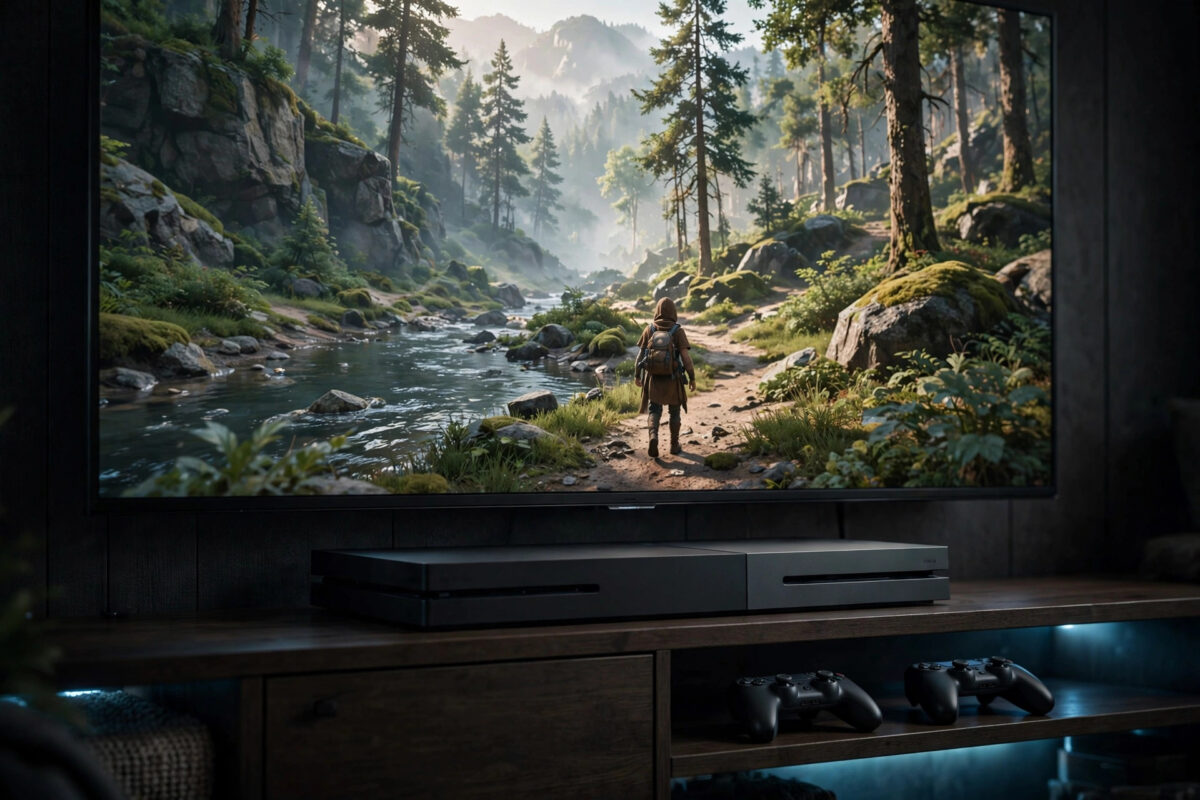
Screen tearing happens when a game renders frames at a pace your TV cannot match, so the picture splits for a split second. Variable Refresh Rate, or VRR, fixes this by letting the TV change its refresh rate to match the game, frame by frame. This guide shows you how to turn VRR on for your PS5, what your TV needs to support it, and how to fix it when the setting refuses to appear.
Quick Answer
To turn on VRR on PS5, connect the console with an HDMI 2.1 cable to a TV that supports HDMI Forum VRR, then go to Settings, Screen and Video, Video Output, and set VRR to Automatic. You can also enable Apply to Unsupported Games to smooth titles that were not built with VRR in mind. If the VRR option is missing, your TV, HDMI port, or cable does not support it, or the TV’s enhanced HDMI format is switched off.
How VRR Actually Works
A normal TV refreshes its picture a fixed number of times per second, for example 60 or 120 times. Games rarely render at a perfectly steady rate, so frames arrive early or late and the TV shows parts of two frames at once. That visible split is tearing, and the stutter you feel when a game drops frames is the same mismatch. With VRR, the TV waits for each frame and refreshes the moment it is ready, within a supported range such as 48Hz to 120Hz. The result is smooth motion without tearing, and without the input lag penalty of old-fashioned V-Sync.
What Your Setup Needs
- A TV or monitor that supports HDMI Forum VRR. Most mid-range and high-end TVs from the last few years include it, but budget models often do not.
- An HDMI 2.1 port on the display. VRR at 4K needs the bandwidth and the VRR signalling that HDMI 2.1 provides.
- The Ultra High Speed HDMI cable supplied with the PS5, or another certified HDMI 2.1 cable.
- The TV’s enhanced HDMI format enabled for the port the PS5 uses, since many TVs hide advanced features until you switch this on.
Step-by-Step: Enabling VRR on the PS5
- Open Settings from the top right of the home screen.
- Choose Screen and Video, then Video Output.
- Scroll to VRR and set it to Automatic. If you do not see this option at all, the console has not detected VRR support from your display.
- Turn on Apply to Unsupported Games if you want VRR applied to titles without native support. This can improve smoothness in games with unlocked or unstable frame rates.
- On the same menu, open Video Output Information and confirm the connected device information mentions VRR support.
- Launch a game with an unlocked or performance frame rate mode and play for a few minutes to feel the difference, especially during camera pans.
Sony documents the setting and its requirements on the official PS5 VRR support page, which is worth checking if your TV model behaves unusually.
VRR and 120Hz: How They Fit Together
VRR and 120Hz are partners, not alternatives. A 120Hz display gives VRR a wide range to work in, so a game can swing between 60 and 120fps smoothly. On a 60Hz-only TV, VRR has very little room and many TVs do not offer it at all. If your display supports both, enable both features: the 120Hz output ceiling plus VRR matching. Our guide on enabling 120Hz output on PS5 covers the console and TV settings that pair with this one.
Fixing Problems When VRR Will Not Work
- No VRR option in settings. The console only shows the VRR setting when the display reports support. Check the TV specifications for HDMI Forum VRR, try the TV’s designated gaming port, and enable its enhanced or game mode format.
- VRR listed but tearing remains. Some games render outside the TV’s VRR range, often below 48fps, where the TV cannot match them. In that case a locked 30 or 60fps mode may look steadier.
- Flicker in dark scenes. Some OLED and VA panels flicker slightly when the frame rate swings widely under VRR. Locking the game to a steadier mode, or raising the TV’s black level slightly, can reduce it.
- Receiver or soundbar in between. Older AV receivers block VRR even when they pass 4K video. Connect the PS5 directly to the TV and use eARC for audio.
- Local dimming looks worse. On some TVs, Game Mode with VRR reduces local dimming quality. This is a TV limitation rather than a fault, and a firmware update from the TV maker sometimes improves it.
Mistakes to Avoid
- Confusing VRR brand names. TVs may advertise FreeSync or G-Sync compatibility. The PS5 uses HDMI Forum VRR, so look for that wording in the specifications.
- Assuming VRR fixes low frame rates. VRR smooths delivery of frames; it does not create frames. A game running at 25fps still looks like 25fps.
- Using a long, cheap HDMI cable run. Marginal cables can drop the advanced signal. Test with the short supplied cable before blaming the TV.
- Leaving the TV in a picture mode that disables VRR. Some TVs only allow VRR in Game Mode. If VRR vanishes, check the picture mode for that input.
VRR on Monitors vs TVs
Gaming monitors were early VRR adopters, and many support it over HDMI as well as DisplayPort — but check which input carries it, because the PS5 can only use HDMI. Monitor VRR ranges often start lower than TV ranges, sometimes at 40Hz, which makes monitors slightly better at rescuing games that dip hard. The trade-off is size and sound: a monitor gives you a smaller picture and usually needs separate speakers or a headset. For a desk setup, a 1440p or 4K monitor with HDMI 2.1 VRR is an excellent PS5 partner. For a living room, a TV with the same VRR support plus proper HDR brightness usually delivers the bigger experience. Either way, the console setting is identical once the display reports its support.
How to Tell VRR Is Actually Working
Because VRR works silently, players often wonder whether it is on. Most TVs can tell you: open the TV’s game bar, info screen, or diagnostics while a game runs, and many display the current refresh rate changing in real time — 83Hz, 97Hz, 112Hz — as the game’s frame rate moves. That live-changing number is VRR doing its job. You can also feel it in games with unlocked frame rates: camera pans stay smooth instead of stuttering, and the micro-tearing you might have seen along vertical edges disappears. If your TV shows a fixed 60Hz or 120Hz regardless of the game, VRR is not active for that input, and the troubleshooting steps above apply.
Conclusion
VRR is one of the easiest picture upgrades on PS5 because it works quietly in the background once enabled. Set VRR to Automatic, optionally apply it to unsupported games, and make sure your TV, port, and cable all support HDMI Forum VRR. Combined with a 120Hz display, it removes tearing and most frame-rate stutter, leaving the smooth image your games were designed to show.
Frequently Asked Questions
Does VRR add input lag on PS5?
No. VRR generally keeps input lag very low because the display shows each frame as soon as it is ready. It avoids the delay that traditional V-Sync introduces while still preventing tearing.
Why is the VRR option missing from my PS5 settings?
The setting only appears when the console detects a VRR-capable display. Common causes are a TV without HDMI Forum VRR, using the wrong HDMI port, the enhanced HDMI format being off, or an AV receiver between the console and TV.
Should I turn on Apply to Unsupported Games?
Usually yes. It helps games with unlocked frame rates feel smoother. If a specific game behaves oddly, such as unusual flicker, you can turn it off and let only natively supported games use VRR.
Does VRR work at 60Hz?
Some TVs support VRR in a narrow range below 60Hz, but the benefit is much greater on 120Hz displays where the range is wide. Check your TV’s stated VRR range in its specifications.
Is VRR the same as ALLM?
No. ALLM (Auto Low Latency Mode) simply switches your TV into its low-lag Game Mode automatically. VRR actually synchronises the refresh rate with the game’s frame rate. Many TVs support both, and they work well together.



Leave a Reply