
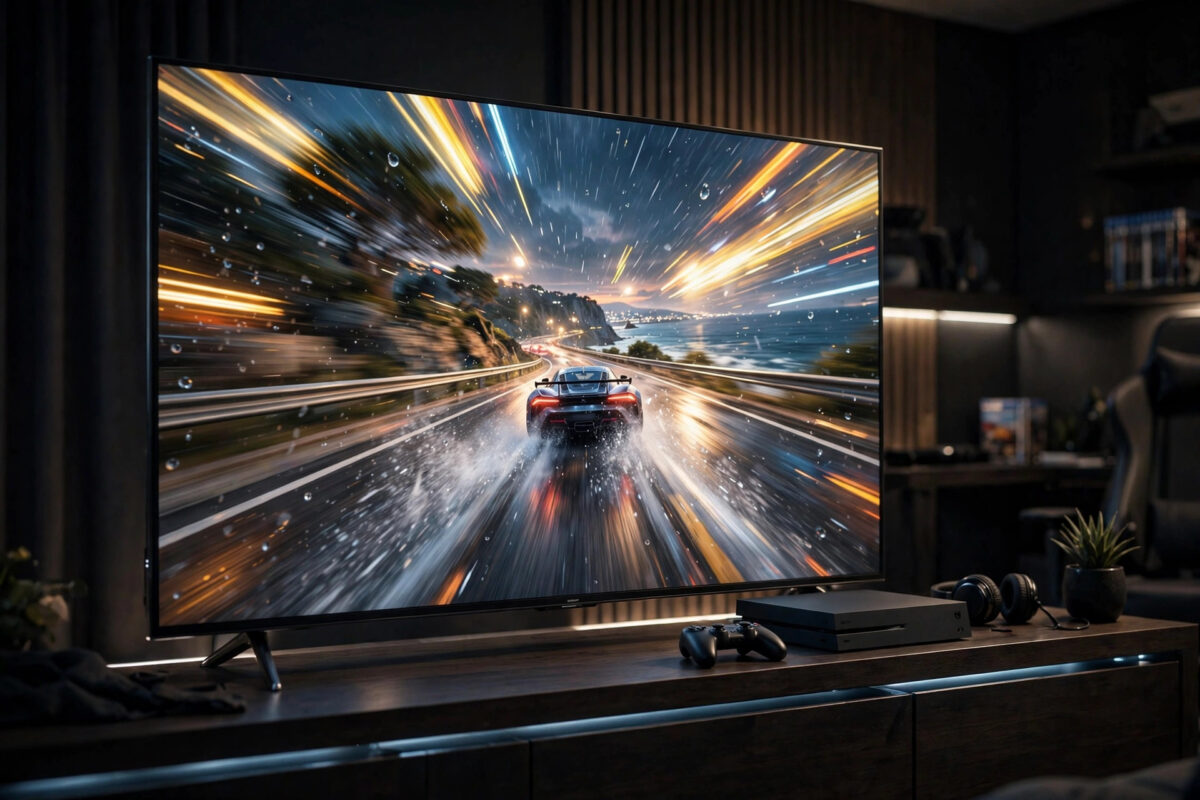
Many modern PS5 games can run at 120 frames per second, which makes movement smoother and aiming feel more responsive. The catch is that the console will not use 120Hz unless your TV, your cable, and your settings all line up. This guide explains how to switch 120Hz output on, how to check a game actually supports it, and what to fix when the option will not appear.
Quick Answer
To enable 120Hz on PS5, connect the console to an HDMI 2.1 port on a TV or monitor that supports 120Hz, then go to Settings, Screen and Video, Video Output, and set 120 Hz Output to Automatic. After that, open a game that supports 120fps, switch on its Performance Mode or 120Hz option in the game settings, and the console will output 120Hz whenever the game allows it.
What Your Setup Must Have First
120Hz is a chain, and every link has to support it:
- A 120Hz TV or monitor. The panel itself must refresh at 120Hz or higher. Many TVs advertise motion rates like “240” that are not real refresh rates, so check the specifications for native 120Hz.
- An HDMI 2.1 port. At 4K resolution, 120Hz needs HDMI 2.1 bandwidth. Most TVs only have one or two HDMI 2.1 ports, often labelled “4K 120” or “eARC”. At 1080p, some HDMI 2.0 ports can also carry 120Hz.
- The right cable. Use the HDMI cable supplied with the PS5, which is an Ultra High Speed cable rated for HDMI 2.1. Older or very long cables may silently limit you to 60Hz.
- A game that supports 120fps. Not every PS5 game does. Shooters and racing games commonly include it; many story games are locked to 30 or 60fps.
Step-by-Step: Turning On 120Hz Output
- Plug the PS5 into the HDMI 2.1 port on your TV. Check the TV manual or the labels next to the ports if you are unsure which one it is.
- On the TV, enable the enhanced format for that HDMI port. On many TVs this setting is called HDMI Enhanced, Ultra HD Deep Colour, or similar, and it is off by default on some models.
- On the PS5, open Settings, then Screen and Video, then Video Output.
- Find 120 Hz Output and set it to Automatic.
- On the same screen, look at Video Output Information. It lists the resolutions and refresh rates your TV reports as supported, so you can confirm 120Hz appears at your chosen resolution.
- Set Resolution to Automatic so the console can drop to 1080p or 1440p at 120Hz on displays that cannot do 4K 120Hz.
Turning On 120Hz Inside the Game
The console setting only allows 120Hz; each game decides whether to use it. Most games hide the option in their own graphics or display menu under names like Performance Mode, 120Hz Mode, or High Frame Rate Mode. A helpful shortcut is Settings, Saved Data and Game/App Settings, Game Presets, where you can set Performance Mode as the default for all supported games. Sony keeps an official overview of compatible display features on its PS5 4K and display support page, which also explains the video output information screen.
What Changes When You Play at 120Hz
Expect the picture to feel smoother rather than look prettier. Fast camera turns stay clear, objects are easier to track, and input lag drops because the screen shows your actions sooner. The trade-off is that many games lower the resolution or reduce effects like ray tracing to hit 120fps. On a 4K TV, a game may render at 1440p or 1080p internally and upscale. For competitive games that trade is almost always worth it; for slow cinematic games, Quality Mode at 60fps may look better.
Troubleshooting: 120Hz Option Missing or Greyed Out
- Wrong HDMI port. Move the cable to the port labelled 4K 120Hz or HDMI 2.1 and repeat the steps.
- Enhanced format off on the TV. Without it, the TV hides its 120Hz ability from the console.
- Soundbar or AV receiver in the middle. Many older receivers pass only 60Hz. Plug the PS5 straight into the TV and send audio back to the receiver with eARC.
- The game does not support it. Check the game’s settings and store page. If there is no performance or 120Hz option, the game is capped at 60fps or below.
- Capture card or splitter attached. Some devices limit the signal. Test with a direct cable run to confirm.
- Variable refresh rate confusion. VRR is a separate feature that smooths frame rates further. If tearing is your problem, our guide on turning on VRR on PS5 explains how it works alongside 120Hz.
Common Mistakes to Avoid
- Trusting marketing refresh rates. A TV sold as “Motion Rate 240” may be a native 60Hz panel. Always check the real specification.
- Using a random old HDMI cable. If the supplied cable is too short, buy a certified Ultra High Speed HDMI cable rather than reusing an unknown one.
- Expecting every game to run at 120fps. The console setting cannot add frames a game was never built to produce.
- Forgetting per-game settings. Many players enable 120Hz on the console, never switch the game to Performance Mode, and conclude it does not work.
1440p Monitors and the PS5
A large group of players game on 1440p monitors, and the PS5 supports them well, including 120Hz at that resolution on compatible displays. If your monitor advertises 120Hz or higher only over DisplayPort, check the HDMI specification carefully, because the PS5 has no DisplayPort output and must use HDMI. Some monitors accept a 4K signal and downscale it to 1440p, which gives a cleaner image; the PS5’s video output information screen will tell you what your specific monitor reports. Running the console’s test at 1440p, found in the Screen and Video settings, confirms exactly what your display can do before you buy cables or change your setup around.
Does 120Hz Drain More Power or Wear the Console?
Playing at 120fps makes the console work harder than a locked 30fps mode, so the fans may run a little louder and power use rises slightly during those games. This is normal operating behaviour the hardware is designed for, not a risk to the console, as long as the vents have clear airflow. If fan noise bothers you, ensure the console has space around it and is not sitting in an enclosed cabinet; heat, not frame rate, is what the fans are responding to. The TV also draws similar power either way, so the real-world difference across an evening of gaming is small.
Conclusion
Getting 120Hz on PS5 is mostly about the chain: an HDMI 2.1 port with its enhanced format enabled, the supplied cable, the console’s 120 Hz Output set to Automatic, and a supported game switched to its performance mode. Once those four things line up, supported games feel dramatically smoother, especially shooters and racing titles. Check the Video Output Information screen whenever something looks wrong, because it tells you exactly what your TV is offering the console.
Frequently Asked Questions
Does 120Hz work at 4K on PS5?
Yes, if your TV or monitor has an HDMI 2.1 port that supports 4K at 120Hz and you use an Ultra High Speed HDMI cable. On HDMI 2.0 displays, 120Hz usually only works at 1080p or 1440p.
Why does my game still show 60fps after enabling 120Hz?
The console setting only permits 120Hz. The game itself must support a 120fps mode and you usually have to select Performance Mode or a similar option inside the game’s own settings.
Does 120Hz reduce image quality?
Often, yes, slightly. Many games lower the rendering resolution or turn off ray tracing to reach 120fps. In return you get smoother motion and lower input lag, which most players prefer for fast games.
Can a monitor work better than a TV for 120Hz?
Many gaming monitors support 1440p at 120Hz or higher over HDMI 2.0 or 2.1, and they usually have very low input lag. Just confirm the monitor’s HDMI ports, not only its DisplayPort, support the refresh rate you want.
Do I need PlayStation Plus for 120Hz?
No. Refresh rate is a display feature handled by the console, TV, and game. PlayStation Plus is only about online multiplayer, cloud saves, and subscription extras.



[…] supports both, enable both features: the 120Hz output ceiling plus VRR matching. Our guide on enabling 120Hz output on PS5 covers the console and TV settings that pair with this […]