
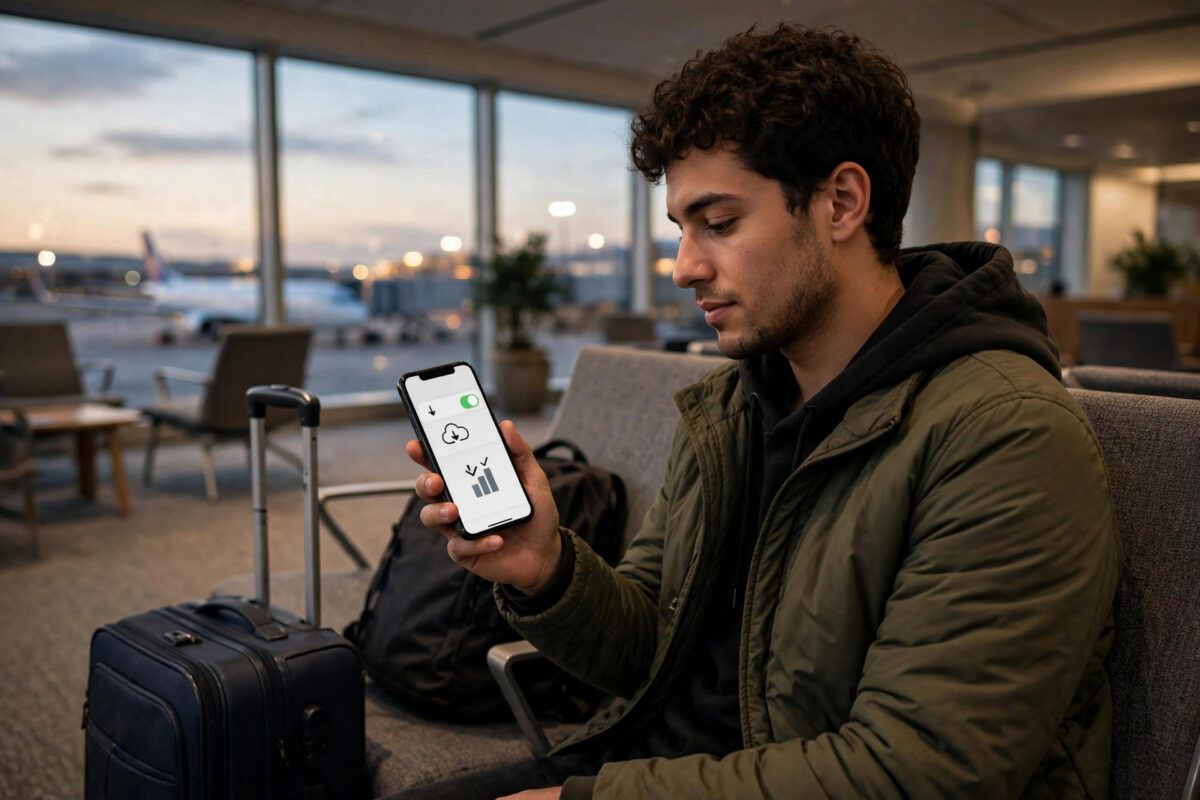
A monthly data allowance always seems to run out at the worst moment: near the end of a trip, during a busy work week, or just before payday. Downloading less is easy to say, but modern apps are designed to fetch, sync, and update constantly, often without asking. That is exactly why Apple built a single switch that tells the whole iPhone to be more careful.
That switch is called Low Data Mode. Turn it on and your iPhone reduces background activity, pauses automatic updates, lowers streaming quality where apps allow it, and stretches your allowance further. This guide shows how to enable it for mobile data and for Wi-Fi on iOS 27, explains what actually changes, and helps you decide when to use it.
Quick Answer
To turn on Low Data Mode on iPhone, open Settings, tap Mobile Service or Cellular, tap your line under Mobile Data, tap Data Mode, and select Low Data. For Wi-Fi, go to Settings, Wi-Fi, tap the information button beside your network, and turn on Low Data Mode there. The setting applies per line and per Wi-Fi network, so you can enable it only where you need it.
What Low Data Mode Actually Does
Low Data Mode is not one single change. It is a bundle of sensible reductions that work together across the system.
- Background App Refresh is reduced: Apps update their content less often when you are not using them.
- Automatic downloads and updates pause: App Store updates, system downloads, and similar tasks wait rather than spending data in the background.
- iCloud syncing slows down: Photo library updates and device backups over the connection are reduced or paused.
- Streaming quality may drop: Music, video, and podcast apps that respect the setting stream at lower quality and download less in advance.
- FaceTime uses less data: Video calls reduce their bitrate, which keeps calls working on weaker connections.
- Apps are told to behave: iOS informs apps that the connection is limited, and well-designed apps respond by loading smaller images, skipping previews, and avoiding autoplay.
Apple summarises these effects in its support page about using Low Data Mode on iPhone, and the important point is that nothing is deleted or disabled permanently. You are simply telling the phone that data on this connection is precious.
How to Turn On Low Data Mode for Mobile Data
- Open the Settings app.
- Tap Mobile Service on iOS 27, or Cellular on older versions.
- Under the Mobile Data heading, tap your phone line. If you use two lines, choose the one you want to limit.
- Tap Data Mode.
- Select Low Data from the list. A tick appears beside it.
- Leave Settings. The change takes effect immediately, with no restart needed.
On the same Data Mode screen you may see other choices, such as Allow More Data on 5G or Standard, depending on your model and network. Those options do the opposite job, favouring quality over saving. If your priority is stretching an allowance, Low Data is the correct pick, and you can return to Standard at any time with the same steps.
How to Turn On Low Data Mode for Wi-Fi
Low Data Mode also exists for Wi-Fi, which surprises many people. It is useful on hotel networks, portable hotspots, in-flight Wi-Fi, and home connections with their own data caps. The setting is stored per network, so your home Wi-Fi can stay unrestricted while a travel hotspot stays limited.
- Open Settings and tap Wi-Fi.
- Make sure you are connected to the network you want to limit.
- Tap the blue information button, the small i in a circle, beside the network name.
- Turn on the Low Data Mode switch.
- Leave the menu. The iPhone will treat that network as a limited connection from now on.
This per-network design is especially handy when your iPhone connects to another phone’s hotspot. Marking that hotspot as low data prevents your phone from treating it like free home broadband and quietly spending your friend’s allowance on backups and updates.
Low Data Mode With Dual SIM and eSIM
If you run two lines, such as a personal SIM and a work eSIM, Low Data Mode is applied to each line separately. That is good design: the line with the small allowance can be limited while the generous line stays in Standard mode. Just remember to open the correct line in the Mobile Service settings before changing Data Mode. If you recently added a second line, our guide on how to add an eSIM to your iPhone step by step covers line labels and default data settings, which makes this menu much easier to understand.
When Should You Use Low Data Mode?
- Near the end of your billing month: When the remaining allowance is small, Low Data Mode helps it survive until renewal day.
- While travelling or roaming: Roaming data is often limited and expensive, so every background saving counts.
- On a hotspot: Whether you are sharing another person’s connection or using a portable hotspot with its own cap, limited mode is the polite and practical choice.
- On slow connections: Paradoxically, using less background data can make a slow connection feel faster, because your apps stop competing with each other.
- As an everyday habit on a small plan: If your plan is modest, leaving Low Data Mode on permanently is perfectly reasonable. Many users never notice the difference.
What Are the Downsides?
Honesty matters here: Low Data Mode involves small trade-offs. Photos may take longer to appear in iCloud Photos on other devices, because uploads pause. Apps may show lower quality images or take a moment longer to refresh when opened. Automatic updates waiting for a better connection means you should occasionally check for important app and system updates manually, ideally on an unrestricted Wi-Fi network. Video calls may look softer. For most people, none of these are serious, and all of them disappear the moment you switch the mode off.
Pro Tips for Saving Even More Data
- Combine it with per-app controls: Low Data Mode is a system-wide net, but blocking your two or three heaviest apps completely saves even more. Check the usage list in Mobile Service settings to find them.
- Download before you travel: Save maps, music, podcasts, and films on home Wi-Fi before a trip, so limited connections only handle light tasks.
- Turn off Wi-Fi Assist if data vanishes at home: This feature, found at the bottom of the Mobile Service page, can add mobile usage when Wi-Fi is weak, quietly undoing your careful settings.
- Review the setting after changing plans: If you upgrade to a larger allowance, revisit Data Mode. Leaving Low Data on is harmless, but Standard mode restores full quality and automatic behaviour.
- Check both lines and both networks: A common confusion is limiting mobile data but leaving a capped Wi-Fi hotspot unrestricted, or the reverse. Audit each connection you actually use.
Common Mistakes to Avoid
- Looking for one global switch: There is no single Low Data Mode for the whole phone. It is set per mobile line and per Wi-Fi network, which is why people sometimes think it turned itself off.
- Confusing it with Low Power Mode: Despite the similar name, Low Power Mode is about battery, found in Battery settings. The two modes do different jobs and can be used together.
- Expecting a hard data cap: Low Data Mode reduces usage; it does not stop data completely at a set limit. If you need a full block for an app, use its switch in the Mobile Data list as well.
- Forgetting updates afterwards: After weeks in Low Data Mode, connect to unrestricted Wi-Fi and let updates, photo syncing, and backups catch up in one session.
Conclusion
Low Data Mode is the fastest single improvement you can make when mobile data feels scarce. Set it for your mobile line in Settings, Mobile Service, Data Mode, and add it to any limited Wi-Fi networks you use. Your essential apps keep working, the wasteful background traffic calms down, and your allowance lasts noticeably longer. Turn it off when data is plentiful again, and the phone returns to full speed and quality instantly.
Frequently Asked Questions
Does Low Data Mode slow down my internet?
It does not reduce your connection speed directly. It reduces how much data apps request in the background and may lower streaming quality, which can actually make your active apps feel faster on a busy or weak connection.
Will I still receive notifications with Low Data Mode on?
Yes. Messages, calls, email alerts, and app notifications continue to arrive. Some apps may fetch large content, such as photo previews or preloaded feeds, less eagerly until you open them or join an unrestricted network.
Does Low Data Mode affect phone calls and texts?
Normal calls and standard text messages are not affected at all. Internet-based services such as FaceTime and iMessage keep working too, although FaceTime may use a lower video bitrate to save data during calls.
How do I know if Low Data Mode is on?
Open Settings, Mobile Service, your line, Data Mode, and check which option has a tick. For Wi-Fi, open the information page for the connected network and look at the Low Data Mode switch position.
Should I leave Low Data Mode on all the time?
You can, and many people on small plans do. The trade-offs are minor: slower background syncing and lower streaming quality in some apps. If you have a generous allowance and fast Wi-Fi at home, Standard mode gives you the full experience instead.



Leave a Reply