
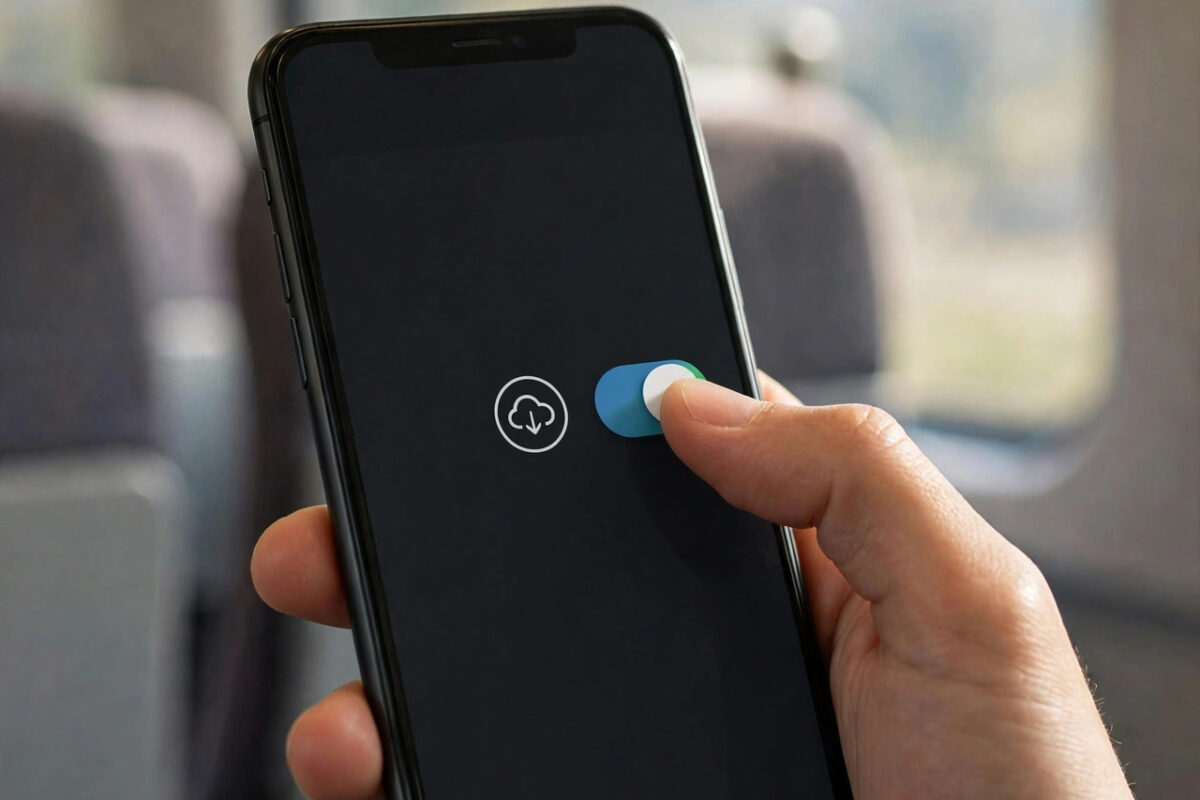
There is a special kind of frustration in watching your data allowance shrink on a day when you barely touched your phone. The cause is usually background data: apps quietly refreshing feeds, syncing photos, downloading updates, and checking for messages while the screen is off. Some of that activity is useful, but a lot of it can wait until you are on Wi-Fi.
The iPhone gives you several layers of control over this behaviour, from a single switch for one greedy app to system-wide settings that calm everything down at once. This guide explains each control in plain language, in the order you should use them, so you can stop background data waste without breaking the apps you rely on.
Quick Answer
To stop apps from using mobile data in the background on iPhone, go to Settings, General, Background App Refresh, and turn it off for individual apps or set it to Wi-Fi only. You can also block an app completely in Settings, Mobile Service, by turning off its switch, and enable Low Data Mode to reduce background activity across the whole phone.
What Background Data Actually Is
When people say an app uses data in the background, they mean it connects to the internet while you are not actively looking at it. Social apps preload posts and videos so your feed feels instant. Email and messaging apps check for new mail. Cloud apps back up photos. News apps fetch headlines. Weather apps update forecasts.
None of this is automatically bad. A messaging app that never checks in the background would deliver messages late. The goal is not to stop everything, but to decide which apps deserve mobile data while you are away from Wi-Fi, and which ones can politely wait. Apple outlines the main control in its support guide to switching between apps and background refresh on iPhone, and the steps below build on that foundation.
Method 1: Turn Off Background App Refresh
Background App Refresh is the main control for this job, and it offers three levels: off everywhere, Wi-Fi only, or on for selected apps.
- Open Settings and tap General.
- Tap Background App Refresh.
- Tap Background App Refresh again at the top to choose the global rule: Off, Wi-Fi, or Wi-Fi & Mobile Data.
- Choose Wi-Fi if you want background updates to continue at home but never use your mobile allowance.
- Alternatively, leave the global rule on and use the list below it to turn off refresh for individual apps, such as video, shopping, or game apps that you open rarely.
The Wi-Fi only option is the best balance for most people. Apps still feel fresh when you open them at home or in the office, but nothing refreshes over mobile data in your pocket during the day.
Method 2: Block an App From Mobile Data Completely
Sometimes refresh controls are not enough. If one app keeps using data no matter what, block it outright. A blocked app works normally on Wi-Fi but cannot use mobile data at all, in the foreground or the background.
- Open Settings and tap Mobile Service or Cellular.
- Scroll down to the Mobile Data app list. The figures beside each app show how much it has already used.
- Turn off the switch beside the app you want to block.
- Open the app while away from Wi-Fi to confirm it now reports no connection or waits for Wi-Fi.
This is the right treatment for apps you only use at home, large games that download content quietly, and streaming apps that keep buffering in the background after you thought you had closed them. If you are not sure which apps deserve this treatment, check the usage figures first; our guide on how to check data usage per app on iPhone shows you how to find and read that ranked list.
Method 3: Stop Automatic Downloads Over Mobile Data
App updates and media downloads are among the largest background uses of all, and they have their own separate switches.
- Open Settings and tap App Store.
- Under Mobile Data, turn off Automatic Downloads so app updates wait for Wi-Fi.
- Tap App Downloads and choose Ask If Over 200 MB or Always Ask, so large apps cannot download silently.
- In Settings, Music, and Settings, TV, turn off mobile downloads if you use those services, so songs and episodes are not fetched over your allowance.
- In Settings, your name, iCloud, Photos, check your iCloud Photos settings if photo uploads are using data, and consider pausing sync while travelling.
Method 4: Use Low Data Mode as a Safety Net
Low Data Mode tells the whole system to behave more carefully: background refresh is reduced, automatic updates pause, photo syncing slows, and streaming quality drops where apps support it. It is an excellent extra layer when your allowance is nearly gone or you are travelling. You will find it in Settings, Mobile Service, your line, Data Mode, where you can select Low Data. It works alongside the controls above rather than replacing them.
Other Background Drains Worth Checking
Wi-Fi Assist
Wi-Fi Assist automatically uses mobile data when a Wi-Fi connection is poor. It is helpful for keeping pages loading, but it can quietly spend your allowance in places with weak Wi-Fi. Find it at the bottom of the Mobile Service page and turn it off if your data keeps vanishing at home.
Email Fetch Settings
If your email accounts fetch new mail every few minutes, they use small amounts of data all day. In Settings, Apps, Mail, Mail Accounts, Fetch New Data, you can switch accounts to fetch less often or only manually.
Location and System Services
System tasks such as software update checks and hotspot traffic also appear in your usage totals. Reviewing System Services on the Mobile Service page occasionally helps you spot a stuck process or unexpected hotspot use by another device.
What Happens After You Turn Background Data Off?
Expect a few small changes. Some apps will take a second or two longer to show fresh content when you open them, because they are loading it at that moment instead of in advance. Messages from apps you blocked will wait until you are on Wi-Fi. Email may arrive when you open the Mail app rather than instantly. For most people these are tiny prices for a data bill that finally stays under control, and truly important apps such as messaging and banking can always be left unrestricted.
Common Mistakes to Avoid
- Blocking everything at once: Turning off refresh and data for every app can delay important messages and break navigation or banking apps when you need them most. Work app by app, starting with the biggest users.
- Forgetting you blocked an app: Weeks later, an app that will not load on the street can look broken. Before reinstalling anything, check its switch in the Mobile Data list.
- Confusing refresh with notifications: Background App Refresh controls content updates, not whether notifications arrive. Messaging apps can still notify you in most cases, but delivery may be slightly slower for restricted apps.
- Ignoring the figures: Guessing which apps waste data usually leads to blocking the wrong ones. Spend one minute reading the usage list first.
- Leaving downloads on while travelling: Roaming plus automatic downloads is an expensive mix. Set downloads to Wi-Fi only before any trip abroad.
Conclusion
Background data is not something you have to accept. Set Background App Refresh to Wi-Fi only, block the worst offenders completely in Mobile Service settings, stop automatic downloads over mobile data, and keep Low Data Mode in reserve for tight months and travel. Review the usage list once a month, adjust the exceptions that matter to you, and your allowance will start lasting the way it should.
Frequently Asked Questions
Will turning off Background App Refresh stop my notifications?
Generally no. Notifications are delivered by Apple’s push system, which keeps working. What changes is that apps load fresh content less often in advance, so some content may update when you open the app instead of before it.
What is the difference between Background App Refresh and blocking mobile data?
Background App Refresh controls what an app does when you are not using it. Blocking mobile data in the Mobile Service list stops the app using mobile data at any time, including while it is open on screen. Blocking is the stronger of the two controls.
Which apps should I restrict first?
Start with video, social media, shopping, and game apps, because they preload heavy content. Leave messaging, maps, banking, and travel apps unrestricted unless their usage figures show a clear problem.
Does Low Power Mode help with background data?
Yes, a little. Low Power Mode reduces background activity including mail fetch and refresh while it is active. It is designed for saving battery rather than data, but the side effect is useful when both battery and allowance are running low.
Why does an app still show data use after I restricted it?
The figure in the list is a total since the last reset, so it includes usage from before you changed the setting. Reset the statistics after making your changes, then check again after a few days to measure the new behaviour accurately.



Leave a Reply