
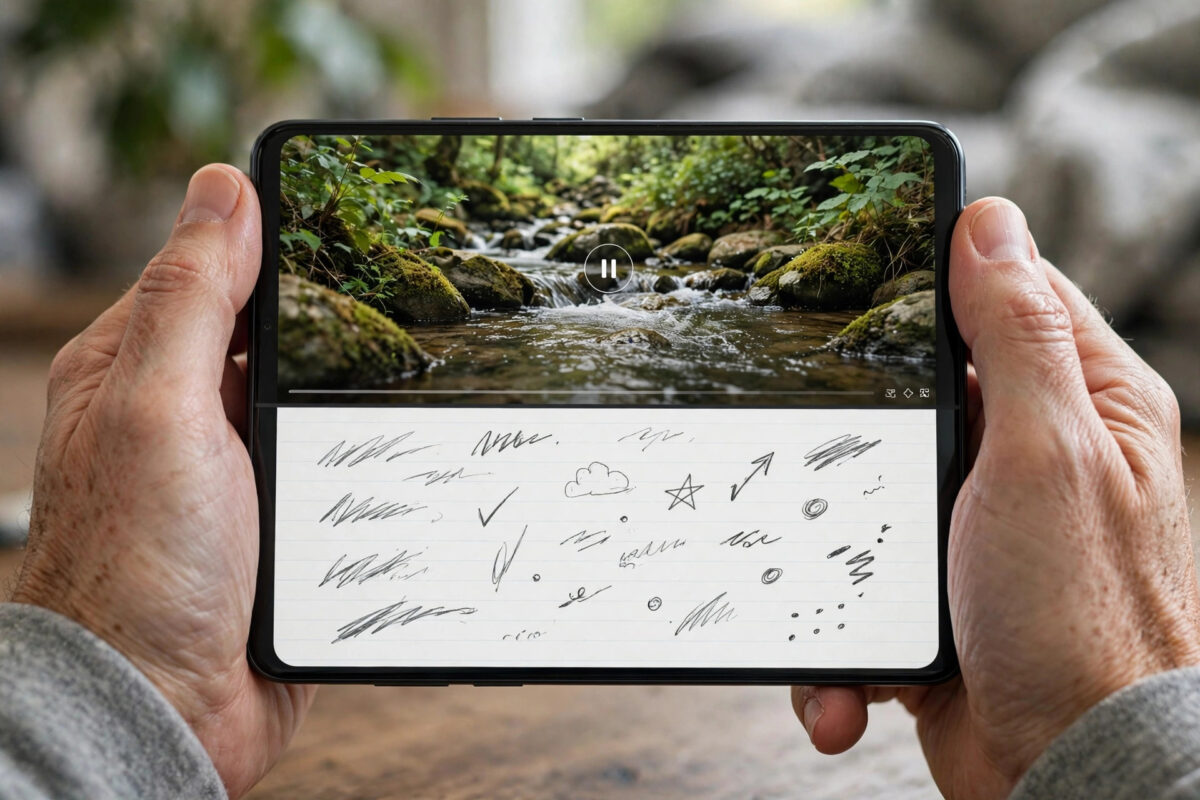
Watching a video while replying to messages or copying an address from email into Maps feels slow when you can only use one app at a time.
Android has a built-in answer: split screen. You can run two apps together, one above the other, and work in both without switching back and forth.
The catch is that the buttons differ slightly on Samsung One UI versus Pixel and stock Android. Some apps also block split view entirely. This guide shows the exact steps for both, plus how to resize, save pairs, and fix common problems.
Quick Answer
Open both apps once, then open Recents. On Pixel, tap the app icon above the first app and tap Split screen, then pick the second app. On Samsung, tap the app icon and tap Open in split screen view, then pick the second app. Drag the middle divider to resize or exit.
What Split Screen Does and What You Need
Split screen, also called multi-window, divides your display into two resizable panels.
In portrait the apps stack vertically. In landscape they sit side by side, which suits video plus chat or notes.
You do not need to install anything. Split screen has been standard since Android 7.0 Nougat.
You do need two apps that support multi-window. Browsers, maps, notes, messaging, and shopping apps usually work fine.
Banking apps, some games, and a few video apps block it for security or layout reasons. That is the developer’s choice, not a fault with your phone.
Two visible apps also use more memory. On phones with 4 GB of RAM or less, close unused recents first for smoother performance.
For more walkthroughs like this, browse Network Ustad’s homepage for step-by-step tech tutorials covering phones, routers, and connectivity problems.
How to Split the Screen on Pixel and Stock Android
This method works on Google Pixel, Motorola, Nokia, and Sony phones. It takes about ten seconds once you have practised it.
Step-by-Step Using Recents
- Open the first app you want to use, such as Chrome or YouTube.
- Open the second app at least once, so both appear in Recents.
- Open Recents: swipe up from the bottom and hold, or tap the square Recents button if you use three-button navigation.
- Find the first app’s card and tap its small app icon at the top of the card, not the card itself.
- Tap Split screen from the menu that appears.
- Tap the second app from the remaining cards. It fills the other half of the screen.
- Tap either panel to make it active and use it normally.
On Android 12, 13, 14, and 15 the wording is almost identical. On older versions, try dragging the card to the top until you see a split-screen drop area.
How to Split the Screen on Samsung Galaxy Phones
Samsung One UI uses the same idea but adds Edge Panel shortcuts and App Pairs. These steps cover Galaxy S, Galaxy A, and Galaxy Z models.
Using the Recents Screen on One UI
- Open both apps once so they appear in Recents.
- Tap Recents — the three-line icon — or swipe up and hold if you use gestures.
- Tap the app icon above the first app’s preview card.
- Tap Open in split screen view.
- Tap the second app from the list to fill the other panel.
You can also use the Edge Panel. Enable it in Settings > Display > Edge panels first.
Then swipe the edge handle inwards. Drag an app to the top or bottom half when the split zones appear.
Saving an App Pair for One-Tap Launch
- Open your favourite combination in split screen, such as Calendar above Gmail.
- Tap the divider handle in the middle of the screen.
- Tap the App Pair icon, which looks like two rectangles with a plus sign.
- Save the pair to the Edge Panel or, where offered, to the Home screen.
Next time, one tap reopens both apps in the same layout. Pixel and stock Android do not offer an equivalent built-in shortcut.
Adjusting, Swapping, and Exiting Split Screen
- Drag the divider up or down — or left and right in landscape — to give one app more space.
- On Samsung, tap the divider and tap the swap icon to exchange the top and bottom apps.
- To replace one app, open Recents while in split view and pick a different app for that panel.
- To exit, drag the divider fully to the top or bottom edge.
Exiting does not close your apps. Their state stays in Recents, so you will not normally lose a draft message or video position.
For the stock behaviour, see Google’s official guide to using split screen and picture-in-picture on Android for reference.
If your menus look different, check Samsung’s support guide to Multi Window on Galaxy phones instead.
Useful Combinations and Real-World Tips
The best pairs solve a copy-and-check task. Try Maps with a messaging app, so you can navigate and reply in one view.
A browser above Notes is ideal for shopping lists, revision, and price checks. You can copy details without losing your place.
YouTube above Chrome also works well. If you only need a floating video, picture-in-picture is lighter where it is supported.
On tablets and foldables, split screen is even more useful. Larger screens can run two full apps comfortably side by side.
If you work this way often, use landscape mode and save your favourite Samsung App Pairs. A Bluetooth keyboard helps on foldables and tablets too.
Common Mistakes and Troubleshooting
Tapping the card instead of the icon. Tapping the card just reopens the app. The split option is under the small icon at the top of the card.
Assuming every app supports it. If Split screen is missing or greyed out, the app has opted out. Use its website in Chrome, which almost always supports split view.
Using the wrong Recents gesture. If swipe-up-and-hold opens search, pause longer mid-swipe. You can switch navigation style while learning.
- On Pixel, go to Settings > System > Gestures > System navigation and choose three-button navigation if you prefer.
- On Samsung, go to Settings > Display > Navigation bar and choose your preferred style.
- Restart the phone if split screen stopped working after an update.
- Check Developer options and make sure Window animation scale is not set to Off.
- Check you are not in Kids Mode, a restricted profile, or a managed work profile.
Conclusion
Split screen quickly becomes second nature once you use it for a real task like navigating while texting or taking notes from a video.
Remember the core flow: Recents, tap the app icon, choose Split screen, then pick the second app. On Samsung the label is Open in split screen view.
Drag the divider to resize, drag it to the edge to exit, and do not worry if a banking app refuses — that is by design. Practise once with Chrome and Notes and you will have the gesture memorised.
Frequently Asked Questions
Can I use split screen with any two apps on Android?
No. Most everyday apps support it, but banking apps, some games, and a few streaming apps block it. If the option is missing in Recents, try the app’s website in Chrome instead.
How do I make one split-screen app bigger than the other?
Drag the divider towards the smaller app. Most phones allow about a one-third to two-thirds split. Dragging it fully to an edge exits split view.
Does split screen work in landscape mode?
Yes. Rotate the phone and the panels sit side by side. Landscape is usually better for video alongside chat or browsing.
Why does my keyboard cover both apps in split screen?
The keyboard follows the panel you tapped last. Tap the text field first and give that app more height. On Samsung you can also use a floating keyboard.
Can I save a split-screen combination to open later?
On Samsung, yes — save it as an App Pair from the divider menu. On Pixel and stock Android there is no built-in shortcut, so recreate the split from Recents each time.



Leave a Reply